Export Time Logs Across All Projects
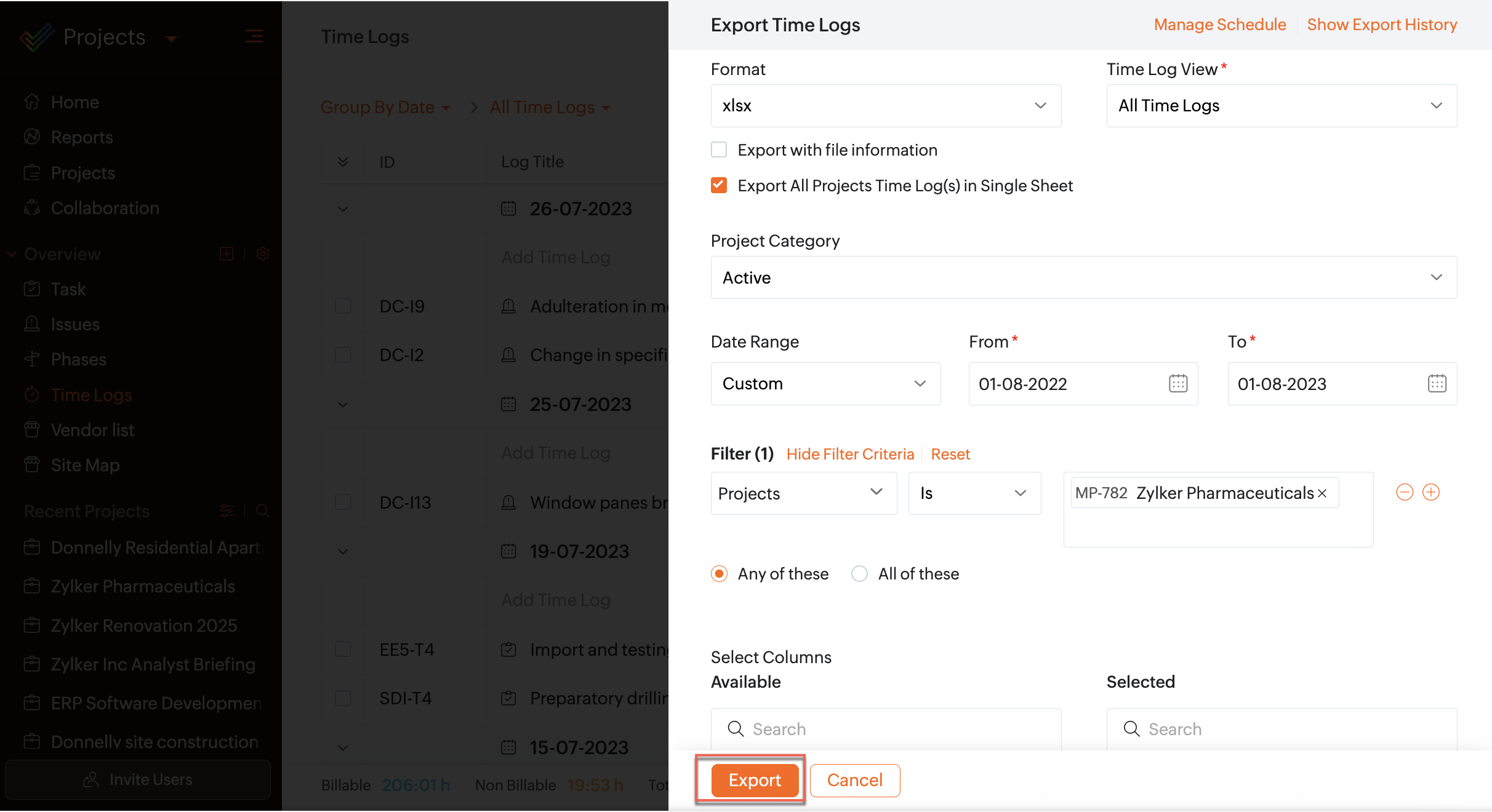
Export Time Logs
- Navigate to Overview > Time Logs in the left panel.
- Click
 in the upper-right corner of the page.
- Click Export Time Logs.
- Fill data in all the fields.
- Click Export when you are done.
Types of filters in My Time Logs page
- There is an additional filter called Project filter in the My Time Logs tab.
- The Project filter has the list of all projects created in your portal.
- You can select one or more projects to view the respective time log details.
- All other filters are the same as the ones in the Time Logs within a specific project.
Applying filters in My Time Logs page
- Select the required filter criteria and click Find to get the time log details.
- Use
 and
and  in the upper right to span across the time period that has been selected in the filter (i.e.month or day or week).
- The Approval status filter is available only in the Premium and Enterprise plans.
- The option Project Span in the View filter is available only in the Time Logs tab inside a specific project. It's not applicable for My Time Logs tab since multiple projects are filtered in it.
- You can also export time logs as PDF files using the Export to pdf option similar to Export Time Logs option.
