Variable Usage in API
In a nutshell
Variable usage in API testing allows you to build connected test flows by extracting values from one response and feeding them into the next request within the same test case. You specify the extraction source as Header, Status Code, JSON Body, or XML Body, and the extracted value is assigned to a variable that updates with each execution based on the latest response data. This allows the test flow to adapt dynamically across chained requests without relying on hardcoded values.
Prerequisite: Read the help document for variables to understand better.
Pass data in chained API requests
Use variables to extract data from the previous response and feed it to another request in API Testing.
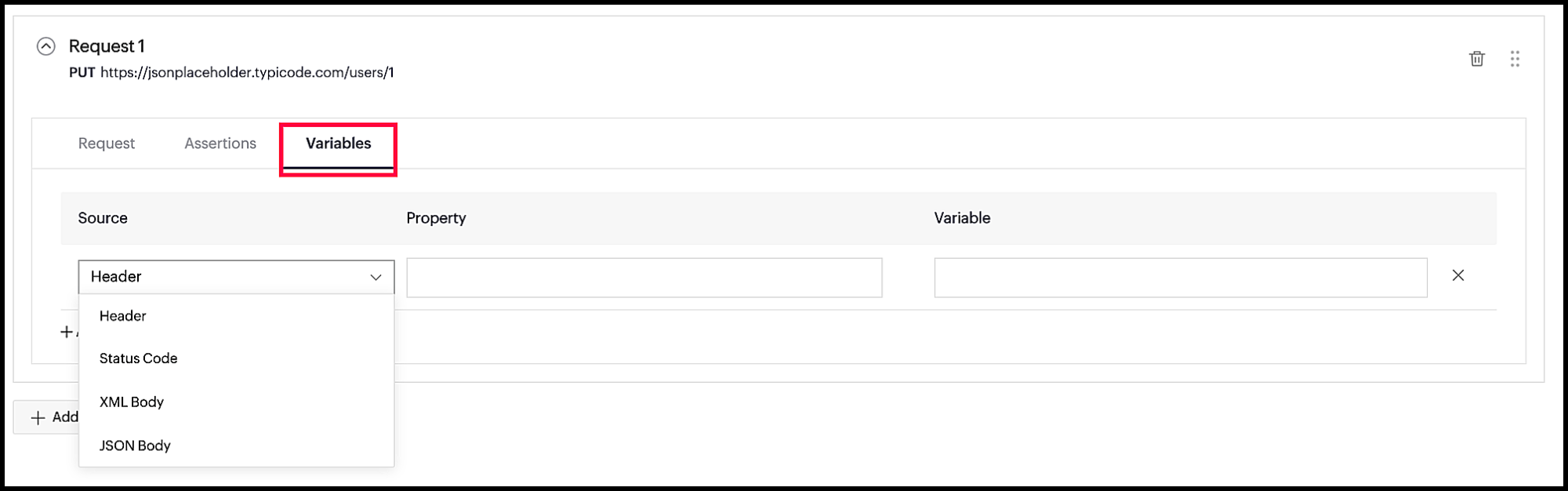
- Source: Location from where the values will be extracted. You can select the source as Header, Status Code, XML Body, or JSON Body.
- Property:
- Header as the source: Specify the Header key as the property whose value will be assigned to the variable.
- JSON Body and XML Body as the source: Specify the JSON or XML path to extract a value.
- Variable: Name of the variable
Examples to extract data from JSON key-value response
- {
- "id":1,
- "name":"Leanne Graham",
- "username":"Bret",
- "address":{
- "city":"Gwenborough",
- "geo":{
- "lat":"-37.3159",
- "lng":"81.1496"
- }
- },
- "phoneNumbers":[
- {
- "type":"home",
- "number":"000-111-2222"
- },
- {
- "type":"mobile",
- "number":"111-222-3333"
- },
- {
- "type":"office",
- "number":"333-444-5555"
- }
- ]
- }
| Property | Value |
| username | Bret |
| address.city | Gwenborough |
| phoneNumbers[0].number | 000-111-2222 |
| phoneNumbers[-1].number | 333-444-5555 |
| phoneNumber[*].number | 000-111-2222 (or) 111-222-3333 (or) 333-444-5555 |
Examples to extract data from JSON index-value response
- [
- {
- "type":"home",
- "number":"000-111-2222"
- },
- {
- "type":"mobile",
- "number":"111-222-3333"
- },
- {
- "type":"office",
- "number":"333-444-5555"
- }
- ]
| Property | Value |
| [1].number | 111-222-3333 |
| [-1].type | office |
XPATH Expressions
The following is a sample for XPath expressions
- <?xml version="1.0" encoding="UTF-8"?>
- <root>
- <address>
- <city>Gwenborough</city>
- <geo>
- <lat>-37.3159</lat>
- <lng>81.1496</lng>
- </geo>
- </address>
- <id>1</id>
- <name>Leanne Graham</name>
- <phoneNumbers>
- <element>
- <number>000-111-2222</number>
- <type>home</type>
- </element>
- <element>
- <number>111-222-3333</number>
- <type>mobile</type>
- </element>
- <element>
- <number>333-444-5555</number>
- <type>office</type>
- </element>
- </phoneNumbers>
- <username>Bret</username>
- </root>
| Property | Value |
| /root/username/text() | Bret |
| /root/address/city/text() | Gwenborough |
| /root/phoneNumbers/element[1]/number/text() | 000-111-2222 |
| /root/phoneNumbers/element[3]/number/text() | 333-444-5555 |
| /root/phoneNumbers/element/number/text() | 000-111-2222 (or) 111-222-3333 (or) 333-444-5555 |
Example to store data from the first response and feed it to the second request as a query param
We will make two GET requests in this example. The first request will return a JSON response in which each element contains an "id" key with values starting from 1. We will extract "id" value of the second element (so the extracted value is 2), store it in a variable named var, and use the variable as a query param in the second request.
Run API calls with the following data:
Request 1:
HTTP method: GET
Variables:
Source: JSON Body
Property: [1].id
Variable: var
Request 2:
HTTP method: GET
The following is a truncated view of the first response. The highlighted value of 'id' is what is extracted and supplied as a query param in the second request URL.
The following is the response of the second request, and you can see the second element from the previous response being returned. You can also see the variable value (2) in the second request URL.
Example using a global variable as base URL of the request
In Variables section, create a variable named baseurl and assign the value https://jsonplaceholder.typicode.com/ to it.
Supply the following values for the API request.
HTTP method: GET
URL: {{$baseurl}}users/
Run the test to view its response. You can also see the variable value inserted in the request URL.