Create and manage notes in Zoho Recruit
Notes in Zoho Recruit
Format notes with the rich text editor
The rich text editor lets you organize and format your notes for better readability.
You can now:
Apply bold, italic, underline, and strikethrough formatting.
Change text color and highlight important information.
Organize content using bulleted and numbered lists.
Add hyperlinks and use additional formatting options.
To create a formatted note:
Open a record in Zoho Recruit.
Navigate to the Notes related list.
Select the required Note Type.
Enter your note using the rich text editor.
Click Save.
Save notes as drafts
You can save an unfinished note as a draft and return to it later without having to complete it immediately.
To save a note as a draft:
Navigate to the Notes under related list of a record.
Enter your note in the editor.
Click the dropdown arrow next to Save.
Select Save as Draft.
Your note will be saved as a draft and can be accessed from My Drafts.
Note: Drafts remain private until they are saved as notes. Once saved, they become visible to other team members based on their permissions.
Automatically save notes as drafts
Zoho Recruit automatically saves your note as a draft every 1 minute while you write.
This helps preserve your work if you are interrupted before saving the note.
You can also save your progress immediately by selecting Save as Draft from the Save dropdown.
Filter notes
You can filter notes to quickly find saved notes or drafts.
Click the filter dropdown in the top-right corner, and select one of the following options:
Filter | Description |
All Notes | Displays saved notes and your drafts together. |
Saved Notes | Displays only saved notes. |
My Drafts | Displays only your draft notes. |
All Notes is the default filter.
You can also use the Recent First sorting option to view the most recent notes first.
Manage your drafts
Edit a draft
Open the Notes from related list.
Select My Drafts from the filter dropdown.
Open the draft you want to continue working on.
Make the required changes and save it as a draft again, or save it as a note.
Convert a draft into a saved note
Select My Drafts.
Open the draft you want to save.
Click Save Note.
Confirm the action.
The draft will be converted into a saved note and will become visible to other team members based on their permissions.
Delete a draft
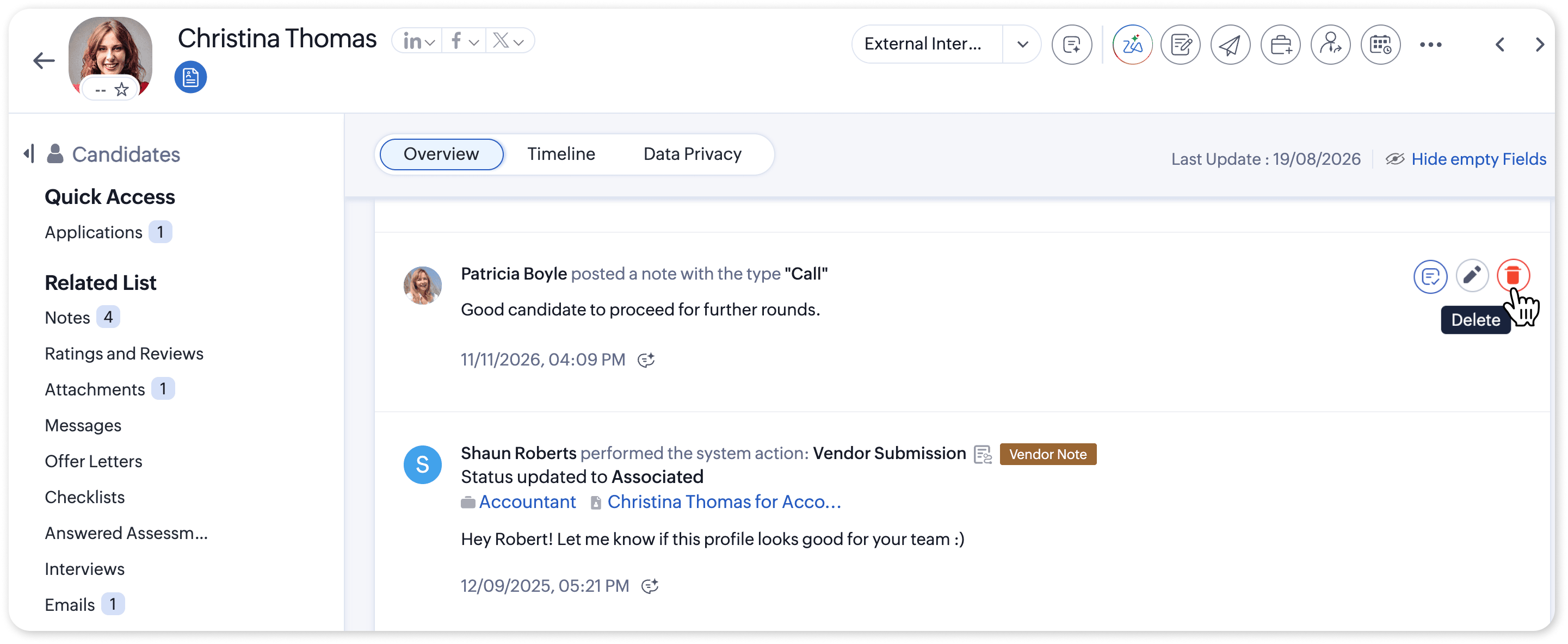
Navigate to My Drafts.
Select the draft you want to delete.
Click Delete and confirm.
Important: Deleted drafts cannot be recovered from the Recycle Bin. However, deleted saved notes are moved to the Recycle Bin and can be restored when needed.