How to configure chat window options?
Setup your brand
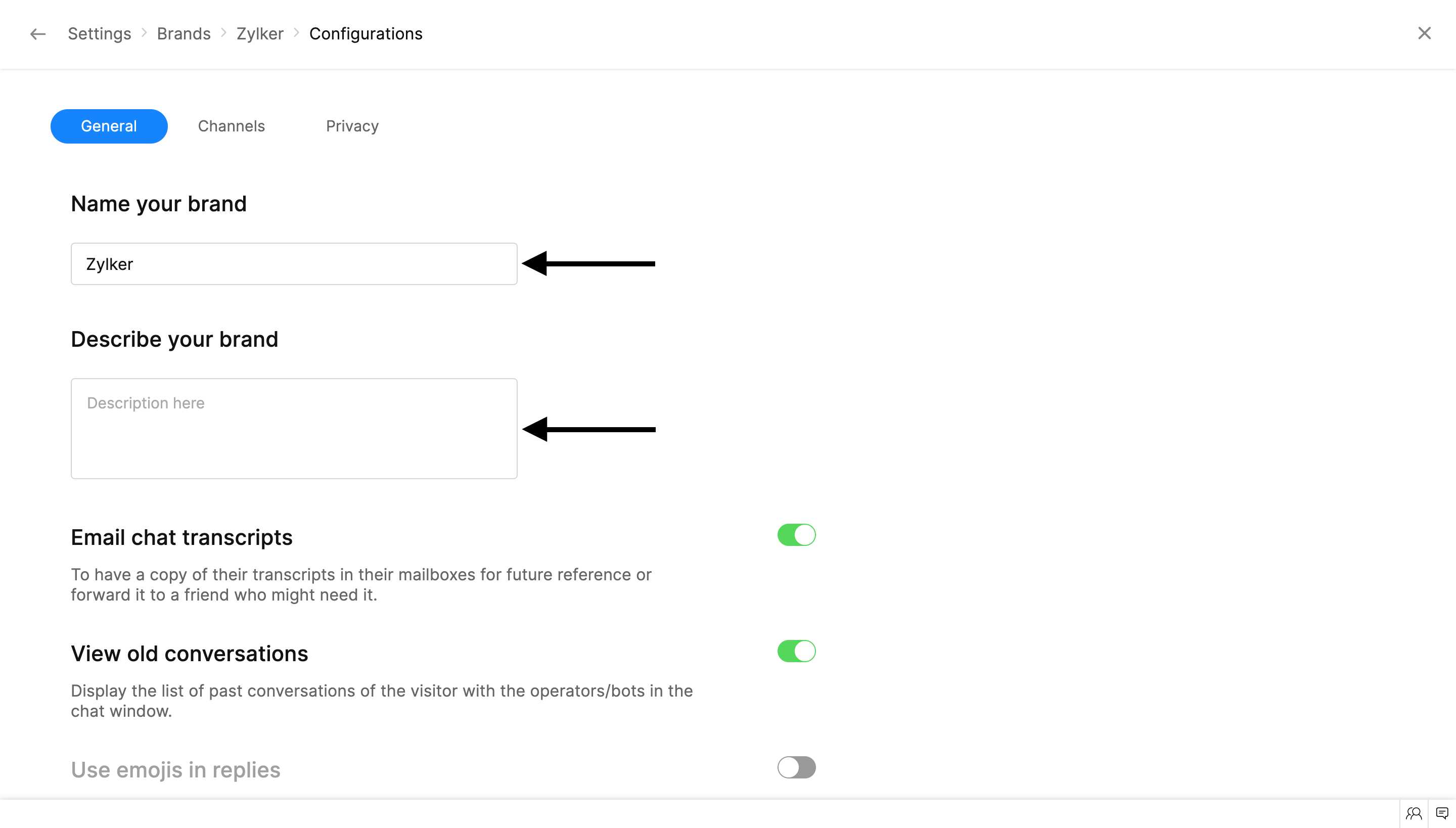
- If you wish to change your brand's name, you can do so by navigating to Settings > Brands > Your Brand > Configurations, Under Name your Brand, replace the text inside the input field.
- Click Save on the pop up at the top to save the changes made.
Change your brand's description:
- To change your brand's description, go to Settings > Brands > Your Brand > Configurations. Under Describe your brand, replace the text inside the input field.
- Click Save on the pop up at the top to save the changes made.
 Email chat transcripts
You can enable the email option for the visitors in the chat window to send the required conversations to their inbox immediately.
- In Settings > Brands > Your Brand > Configurations, Scroll down to the Email chat transcripts option. Toggle the switch to enable the Share screens option.
- Click Save on the pop up at the top to save the changes made.
View old conversations
The visitors can view their past chat conversations for future reference and catch up on conversations they would have missed out.
- In Settings > Brands > Your Brand > Configurations, Scroll down to the View old conversations option. Toggle the switch to enable the Share screens option.
- Click Save on the pop up at the top to save the changes made.
- Now, the visitor can view the option in the Chat Window.
Enable emoji in replies
- In Settings > Brands > Your Brand > Configurations, Scroll down to the Use emojis in replies option. Toggle the switch to enable the Share screens option.
- Click Save on the pop up at the top to save the changes made.
Enable file sharing
You can enable the attachment option in the chat window with which the visitors can share the images, word document, PDF, audio, and video files with the operators during the conversation.
- In Settings > Brands > Your Brand > Configurations, Scroll down to the Share Files option. Toggle the switch to enable the Share screens option.
- Click Save on the pop up at the top to save the changes made.
Enable screen sharing
Enabling the Screen Sharing option will allow your visitors to project their screens during a conversation. This option can be used to get hands-on experience on the visitor's issues and assist them with ease.
- In Settings > Brands > Your Brand > Configurations, Scroll down to the Share screens option. Toggle the switch to enable the Share screens option.
- Click Save on the pop up at the top to save the changes made.
Record calls and screen share sessions
You can enable the call and screen share session recording option in the chat window to record all the calls and screen share session for future reference and analysis.
- In Settings > Brands > Your Brand > Configurations, Scroll down to the Select your desired recording preference section. Now, select your preference.
- Only audio call - Only the audio calls of the brand will be recorded.
- Audio call and screen share - Both the audio calls and the screen share session of the brand will be recorded
- Don't record - Neither audio calls nor screen share sessions will be recorded.
- Click Save on the pop up at the top to save the changes made.
Call and Screen share consent
Send Voice notes
You can enable the voice notes option in the chat window with which the visitors can share the a voice message with your operator during the conversation.
- In Settings > Brands > Your Brand > Configurations, Scroll down to the Voice notes option. Toggle the switch to enable the option.
- Click Save on the pop up at the top to save the changes made.
Privacy settings
As we understand that each website's preferences are different, you can make choices on your GDPR settings as well. You can enable/disable GDPR for the website as per your requirement.
- From your SalesIQ dashboard, navigate to Settings > Brands > Your Brand > Configurations, click on Privacy at the top to switch to the Privacy tab.
- Toggle the button next to 'Display GDPR consent banner on your website', to enable GDPR settings.
Cookie management
SalesIQ offers two ways to get cookie consent from your website visitors.
- Self-managed cookies
- .privacy.getCookieList() API - to get the list of cookies used by Zoho SalesIQ before loading the cookie consent.
- .privacy.updateCookieConsent() API - to set the cookie consent preferences for the Zoho SalesIQ cookies, and then sharing the consent provided for the same.
- Use SalesIQ banner for cookie consent
- Notify your visitors about cookie usage - Check this option if you want to notify the visitors on your website about the cookies.
- Notify and allow your visitors to manage cookie preferences - Check this option if you wish to notify the visitor and offer an opt-out option from storing the cookies on your website. You can customize the banner content as required and also link your privacy policy document to provide a your visitors with a clear picture of the cookie storage.
- Do not notify - You can check this option if you do not wish to inform the visitors about the cookies.
Google translation notification
You can notify visitors about the use of Google translate when conversing with a visitor in a foreign language. This can help the visitors understand if you make any mistakes or didn't respond correctly.
- Do not notify - You can check this option if you do not wish to inform the visitor about the translation.
- Notify visitors - Check this option if you want to notify the visitor on your website about the translation.
- Notify visitors and provide them with an option to opt-out if required - Check this option if you wish to notify the visitor about the use of Google translator and offer an opt-out option.
Notify the terms and conditions
You can also get the visitor's consent before they initiate a chat. You should attach your privacy policy document and get the permission if you wish to use any of the visitor info that you get in the chat window, elsewhere.
- Do not notify - You can check this option if you do not wish to inform the visitor about the policy.
- Notify visitors - Check this option if you want to notify the visitor on your website about the policy.
- Notify visitors and provide them with an option to opt-out if required - Check this option if you wish to notify the visitor and offer an opt-out option from storing the data on your portal.
Tracking DNT enabled visitors
DNT or Do Not Track is a browser setting that will let visitors send a message to websites, web-apps, and other third-party advertising networks requesting not to track their personal information as they browse through various sites. SalesIQ lets you track visitor data irrespective of visitor’s DNT requests. You can avail this by enabling the Track DNT enabled visitors option.