Integrating Facebook with SalesIQ
You can now add Zoho SalesIQ Live Chat to your facebook fan pages and connect with the prospects instantly and close more deals.
Configuring Zoho SalesIQ with your Facebook
- Login to your company facebook account and access the below mentioned link based on your domain.
- A pop-up appears. Select the page in which you would like to add the chat window from the drop-down and click Add page tab.
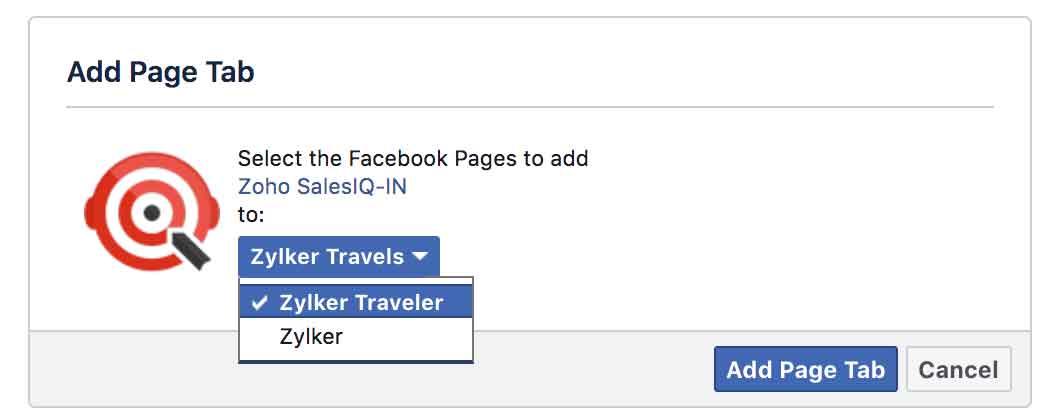
- You will be prompted to login/signup Zoho SalesIQ if you don't have a logged in session. Once logged in, you'll be shown the Add chat widget screen.
- Click on the Click here to add widget button.
- If you have more than one Zoho SalesIQ portal, you will have to select the portal name for which you would like to add the chat widget.
- Select the Zoho SalesIQ widget which you like to add and hit Continue to add the chat window.
Widget Configurations on the page:
- Remove Widget – To remove the chat window from the fan page.
- Change Widget – To change the existing chat widget in the fan page.
- Go to Zoho SalesIQ – To access the Zoho SalesIQ operator console from the fan page.
Adding more content on your chat page
By default, you will be provided with the chat smiley image in the chat area. You can click on the Edit this area button and customize the look and feel as per your business needs.
How to edit the custom tab name?
To edit the custom tab name:
- Navigate to page Settings > Templates and Tabs , and click on the Chat with us tab.
- Click Edit settings and change the Custom tab name.