Workflows in Zoho Sheet
Workflows in Zoho Sheet streamline the way your spreadsheet files move through different stages like review, approval, and finalizing without manually tracking the progress.
Let's say you are working on a quarterly budget report and want it to be reviewed by the finance team and then approved by the finance director. Zoho Sheet has covered you with a set of predefined workflows that can be set for your spreadsheet files.

Workflows are configured and managed in Zoho WorkDrive and are available to use within Zoho Sheet. Learn more
Types of default workflows
- Review workflow: This workflow allows you to share a file for review by assigning one or more reviewers and the due date to the spreadsheet file.
- Approval workflow: This workflow allows you to share a file for approval by assigning one or more approvers and the due date to the spreadsheet file.
- Review and approval workflow: This workflow allows you to share a file for both review and approval by assigning one or more reviewers and one or more approvers along with the due date to the spreadsheet file.

Default workflows are available for all team plans.
How to assign and start a workflow
- Navigate to File -> Workflow -> Assign Workflow.
- Select a preferred workflow from the list.
- From the Start Workflow dialog that opens, provide the required details and click Send for review or Send for approval based on the type of workflow you're assigning.
How to create a custom workflow
To create a custom workflow:
- Navigate to File -> Workflow -> Create Workflow. This will take you to the Workflows tab in the admin panel of WorkDrive.
- Click New workflow.
Only admins can create and manage custom workflows for their organizations. Custom workflows are only available for the WorkDrive Business plan and Zoho One users. How to track the file's current workflow
- The file's current workflow state will be displayed at the top, next to the file name.
- Click on the file's current workflow state label to view the summary of the workflow.
How to view the previous workflows
You can view all the previous workflows for the spreadsheet file under the properties side pane.
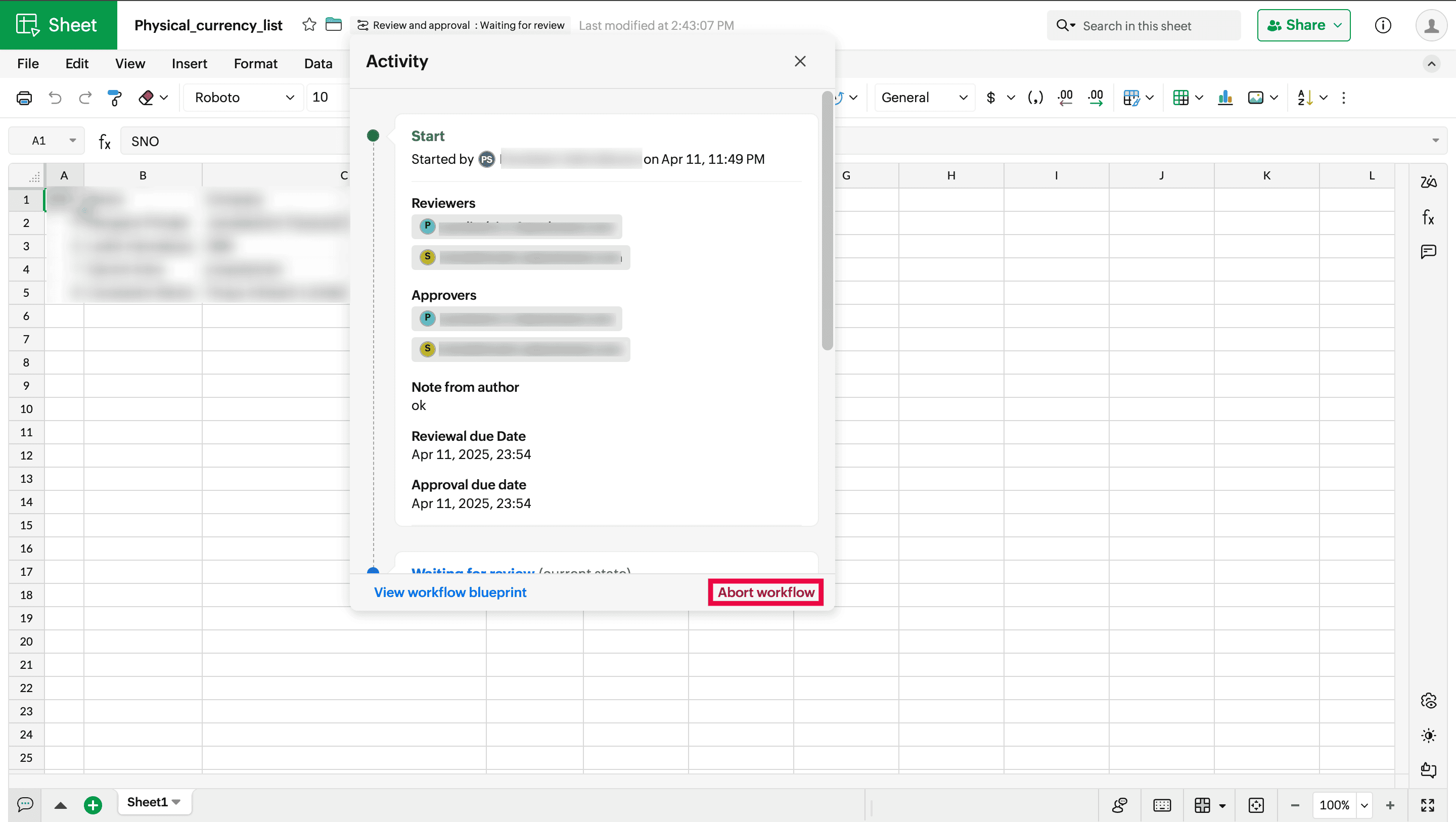
How to abort a current workflow
- Click on the file's current workflow state label on the top, next to the file name.
- From the workflow summary pop-up that opens, click Abort workflow
How to view the files that are waiting for your action
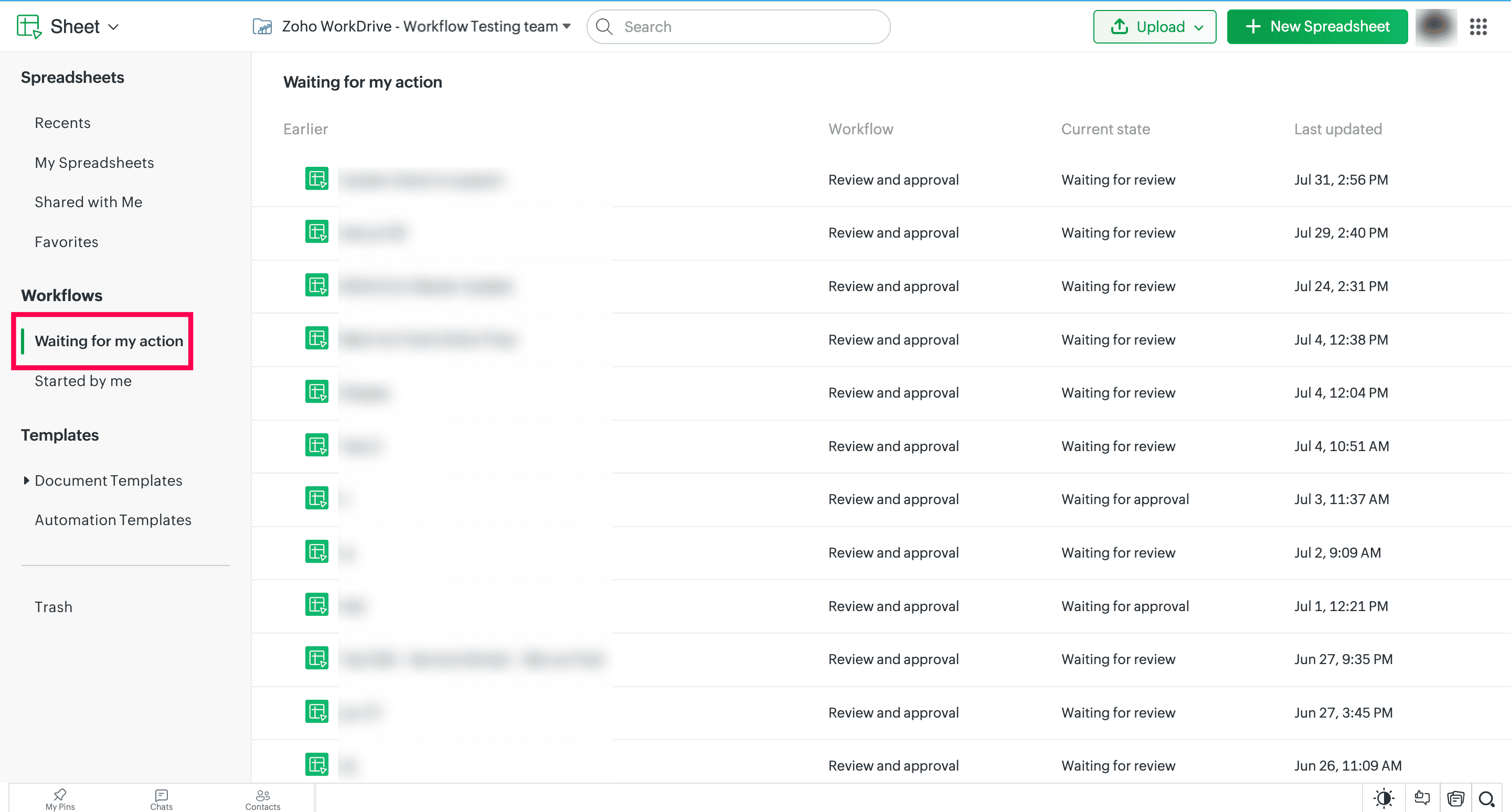
- Go to the Zoho Sheet listing page.
- Under the Workflows tab, click Waiting for my action to view all the workflows waiting for your action and their current states.
How to view the workflows started by you
- Go to the Zoho Sheet listing page.
- Under the Workflows tab, click Started by me to view all the workflows started by you and their current states.
Who can start the workflow
Any user with edit permission for the spreadsheet file can start the workflow.
How many reviewers and approvers can be added to a workflow?
20 reviewers and 20 approvers can be added to a workflow.
What happens once the workflow is started
Once the workflow is started, only the reviewers or approvers (based on whether it is a review or review and approval workflow) will have the permission to work on the file. Everyone else, including the file owner, can only view the file and make comments.
What happens after the workflow is completed
Once the file is reviewed, the owner receives an automated email stating the current state of the file, and the file owner (and the collaborators) will again gain edit permission.