Media and Link attachments - Frequently asked questions
How to upload media from from one of the cloud options?
To attach media to the Social Library or to the Compose window from one of the cloud options,
1. Click  in the compose window and choose Cloud Picker, or click Upload media under Social Library in Posts tab and choose Cloud Picker.
2. Choose one of the cloud drive options - Zoho WorkDrive, Google Drive, Box, OneDrive, Dropbox, Evernote, or Zoho Notebook from the left-side of the attach window.
Can I upload and store images and video on Zoho Social?
Yes, you can upload and store images, videos, and GIFs within Zoho Social's Social Library which is a content repository. You can upload media to the Social Library on Zoho Social using any one of the four options available:
i) Desktop
ii) Cloud Picker such as Zoho WorkDrive, Google Drive, Box, OneDrive, Dropbox, Evernote, and Zoho Notebook
i) Desktop
ii) Cloud Picker such as Zoho WorkDrive, Google Drive, Box, OneDrive, Dropbox, Evernote, and Zoho Notebook
iii) Media Library such as Pixabay, Pexels, and Giphy
iv) Canva

Each image and GIF that you upload to the Social Library can be up to 36 MB, and each video can be up to 5 GB in size.
To upload media to the Social Library:
1. Go to the Posts tab on your Dashboard.
2. Tap on Social Library tool on the left-side of your dashboard.
3. Click Upload Media and choose from the drop-down if you want to upload the media from Desktop, Cloud Picker, Media Library or Canva.
4. Click Attach to attach it to the Social Library.


Ensure that you authenticate each of these cloud services from your Publishing Window, before you start generating media content from them.
Can I share video attachments with its URL via Zoho Social?
No, it is currently not possible to share a video using it's URL via Zoho Social. If you add a URL to the compose window, it will be published as such with a link preview but may not be playable on the social network. However, you can upload the video file directly from your device either to the compose window or to the Social library.
Video upload is supported for the following social channels on Zoho Social:
- Facebook Page
- X Profile
- LinkedIn Company Page and Profile
- Instagram Business Profile
- Mastodon Channel
- YouTube Channel
- Pinterest Profile
- TikTok Profile
- Threads Profile
- Bluesky Profile
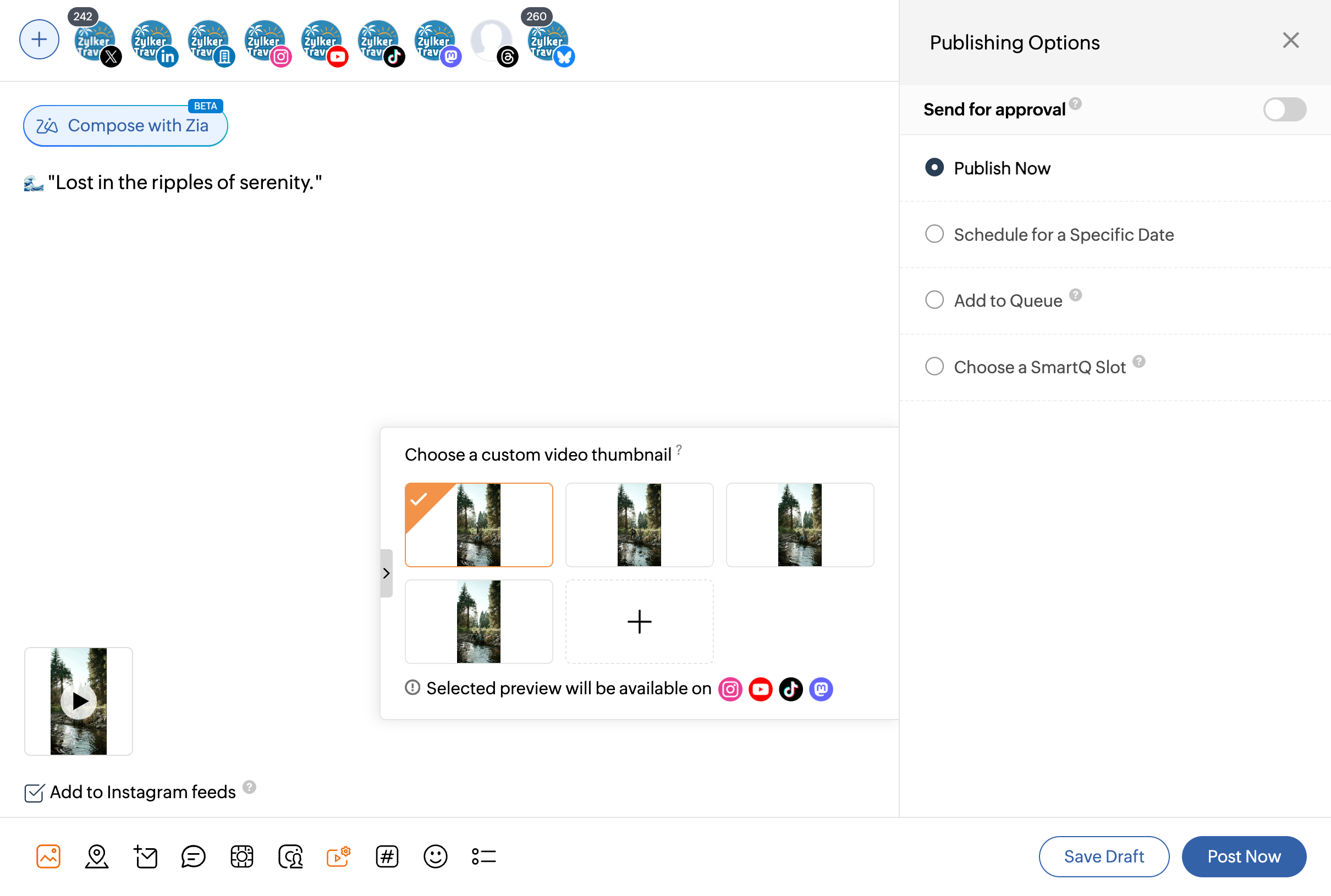
How to generate thumbnail suggestions or choose a custom thumbnail for a video file?
You can include a thumbnail for your video from the list of all sample thumbnail options that Zoho Social populates. To pick your choice from the list of suggested thumbnails by Zoho Social, follow the steps below.
1. Click on the Posts tab on your dashboard.
1. Click on the Posts tab on your dashboard.
2. Type out the content of your post and select the social channels you want to publish to.
3. Now, click on the Attach media icon on your publishing window and include your video.
3. Now, click on the Attach media icon on your publishing window and include your video.
4. Once you attach the video, Zoho Social automatically populates a list of thumbnails based on the video you upload.
5. Select the thumbnail of your choice and you will see an orange tick mark on the chosen thumbnail.
6. Customize the thumbnail image further by clicking on the + icon:
i) Click Choose Frame and choose a frame from the video that best suits as a thumbnail.ii) Upload an image as thumbnail from the Desktop, Media Library, Cloud Picker or from Canva. Once uploaded, you can click the edit icon on the image to replace it with another.
- You can add a custom video thumbnail to your video when publishing from Zoho Social via both web and mobile applications. This feature supports publishing to Facebook, Instagram, X (formerly Twitter), YouTube, Pinterest, TikTok, and Mastodon.
- However, when you upload an image of your choice as a thumbnail, it will only apply to Facebook, Instagram, YouTube, and Pinterest due to API restrictions.
Can I edit a frame or an image I add as a thumbnail?
You can always choose to edit the frame and the image you uploaded as a thumbnail for your video. Follow these steps:
1. Click on the small Pencil icon on the bottom right corner of the frame or image you uploaded.
2. Reselect a new frame or upload a new image to include as your video thumbnail.
Which social channels can I customize video thumbnail for?
You can add a custom video thumbnail to your video when publishing from Zoho Social via both web and mobile applications. This feature supports publishing to Facebook, Instagram, X (formerly Twitter), YouTube, Pinterest, TikTok, and Mastodon. However, when you upload an image of your choice as a thumbnail, it will only apply to Facebook, Instagram, YouTube, Pinterest and Mastodon due to API restrictions.
What is the size limit for an image that I can upload as a video thumbnail?
Your video thumbnail image can be upto 5MB in size, for all supported channels.
Can I upload more than one video post via Zoho Social?
No, it is currently not possible to upload more than one video at a go, due to the API limitations imposed by these social networks.
Is the video upload feature supported on the mobile app?
Yes, the video upload feature is available on the Zoho Social web and mobile applications.
Can I edit images on Zoho Social before posting them?
Yes, you can edit your images using the Image editor before posting them via Zoho Social. You can do the following actions using the Image Editor:
- Crop
- Rotate and Flip
- Add text
- Add stickers
- Apply filters
- Adjust parameters
Once you've edited, you can preview the image before you finally post it to your social networks.
Can I add an image as a URL from Zoho Social?
Sorry, you cannot hotlink an image from the web while composing individual posts. The image should be uploaded from your computer or mobile device. However, you can add pictures as a URL using the Bulk Scheduler.
Please note that the Bulk Scheduler spreadsheet specifically requires the link to the image be a direct one, in other words, publicly accessible. We suggest you upload the image here to get the public link for adding it in the spreadsheet.