User and User Group Sync
Organizations that already have existing accounts with identity providers like Microsoft Entra ID and Okta can easily import their users and user groups to Zoho Vault. Additionally, teams can now automatically sync users and user groups from their respective directory services.
 Note: This feature is only available in Zoho Vault's Professional and Enterprise editions.
Prerequisites
Link your directory account (Okta, Microsoft Entra ID) with Zoho Vault to import or sync users and user groups.
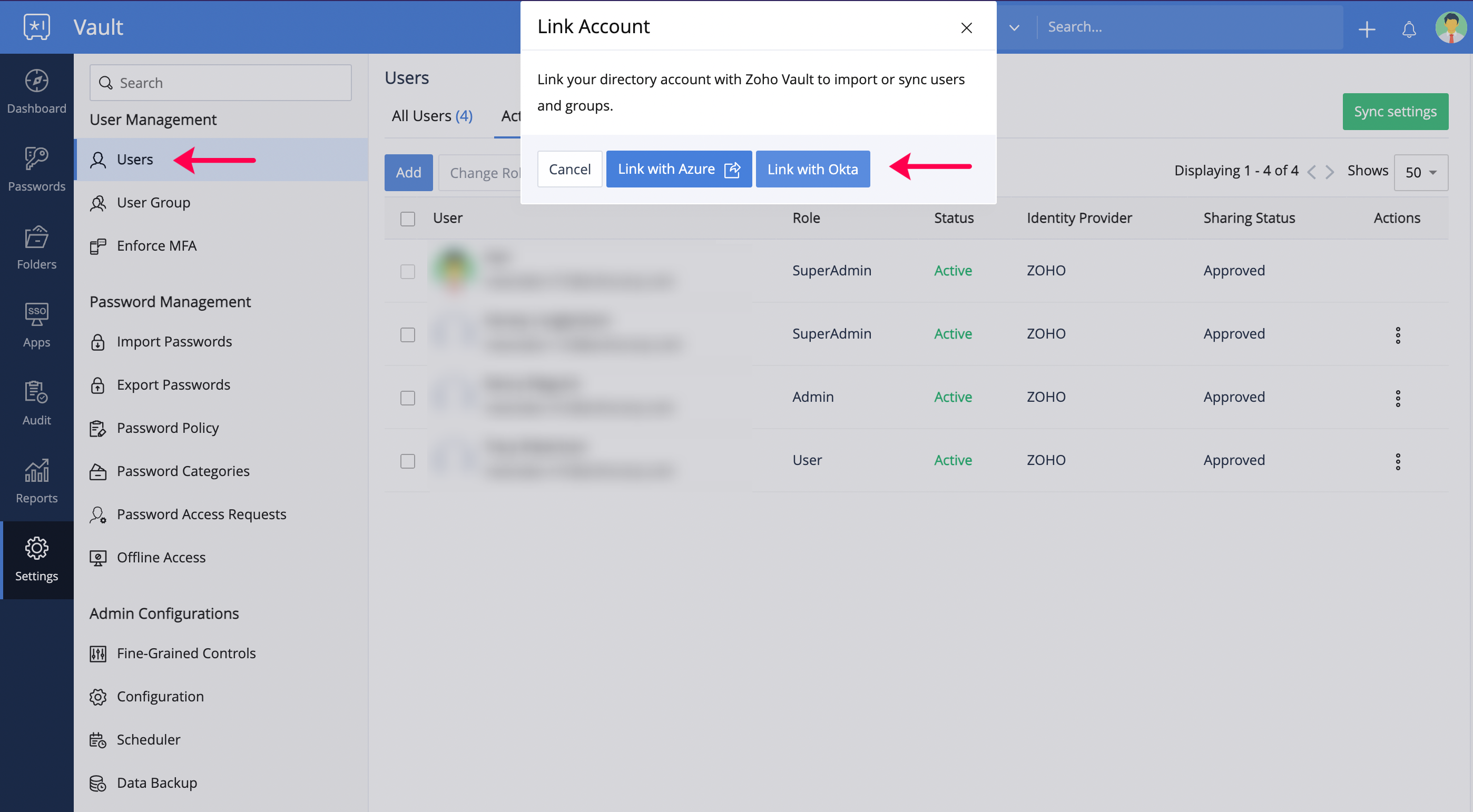
Link with Microsoft Entra ID
To link your Microsoft Entra ID account with Vault:
- Log in to your Zoho Vault account as a super admin
- Click Settings, then select Users under the User Management section.
- Click Sync Settings, then select Link with Microsoft Entra ID.
- Log in to your Microsoft Entra ID account in the pop up window if you haven't already.
Link with Okta
Follow the steps in this document (up to step 6 under Configuring the token in Zoho Vault) to link your Zoho Vault account with Okta.
Customizing user and user group sync
After linking your directory account with Zoho Vault, set up user and user group sync by clicking Sync Setting from the Users tab.
- Enable sync: Enable sync to get started. The integrated directory service will be auto-selected for your account.
- Sync frequency: Select your choice of Hourly, Daily, or Weekly for sync frequency. You can fine-tune your selection using the Sync once every field accordingly.
- One-time password: When you integrate your directory service with Vault, a new Zoho account will automatically be created for every newly imported user. This auto-generated one-time password will grant users access to their Zoho accounts.Note: Users will be prompted to reset this password at first login.
- If you want to automatically remove users deleted from your directory from Zoho Vault, select Deleted for the Users deleted from directory must be field. If you only want their accounts disabled in Vault, select Disabled.
- Hit Save. You will find the Next Sync field auto-populated with the schedule for the next auto-sync process.
Sync individual groups
To sync selected groups from your directory service, use the following steps:
Sync user groups from Microsoft Entra ID
- Access Settings, then click User Group under User Management.
- Select Import, then click Import from Microsoft Entra ID.
- Import relevant user groups if you haven't already.
- Select Sync corresponding to the user groups of your choice to sync only those selected groups with Zoho Vault.
Sync user groups from Okta
- Access Settings, then click AD/LDAP Integration under Integrations.
- Select Import users.
- Import relevant user groups if you haven't already.
- Select Sync corresponding to the user groups of your choice to sync only those selected groups with Zoho Vault.
Note: You can also revoke sync for specific user groups whenever required by following the same procedure.Revoke app permissions
To disconnect your directory service from Zoho Vault, use the following steps:
Revoke app permissions in Microsoft Entra ID
- Log in to your Microsoft Entra ID account, then access My account.
- Select App permissions
- Select Revoke corresponding to Zoho Vault.
Revoke app permissions in Okta
- Log in to your Okta account as an admin.
- Select API from the Security tab.
- Delete the Zoho Vault token from the API tokens page.