WorkDrive App Settings
Centrally manage access to WorkDrive's desktop and mobile apps at a team level from the Admin Console. If disabled, team members will not be able to use WorkDrive apps to access files.

Support for managing permission for WorkDrive apps is only available in WorkDrive's Business plan. Check the details of all plans of WorkDrive here.
To enable or disable WorkDrive apps for all members in your team:
- Click Admin Console in the bottom-left corner of your WorkDrive account.
The Admin Console page will open in a new tab. Dashboard will be selected by default. - Click Settings under Security & Control in the left panel. The Profile settings will be displayed by default.
- Select WorkDrive Apps under Access & Apps.
Configure Desktop App Settings
Toggle ON/OFF Allow team members to use WorkDrive Desktop Sync apps.
apps to access files.
Manage Offline Access for WorkDrive Desktop Sync Apps
As a team admin, you can control whether team members can mark files and folders for offline access through the WorkDrive Desktop Sync apps. You can allow offline access for all team members, restrict it to selected members, or disable it for everyone.
When offline access is enabled, users can mark files and folders for offline access. These files remain available without an internet connection and automatically sync when changes are made after the device reconnects to the internet.
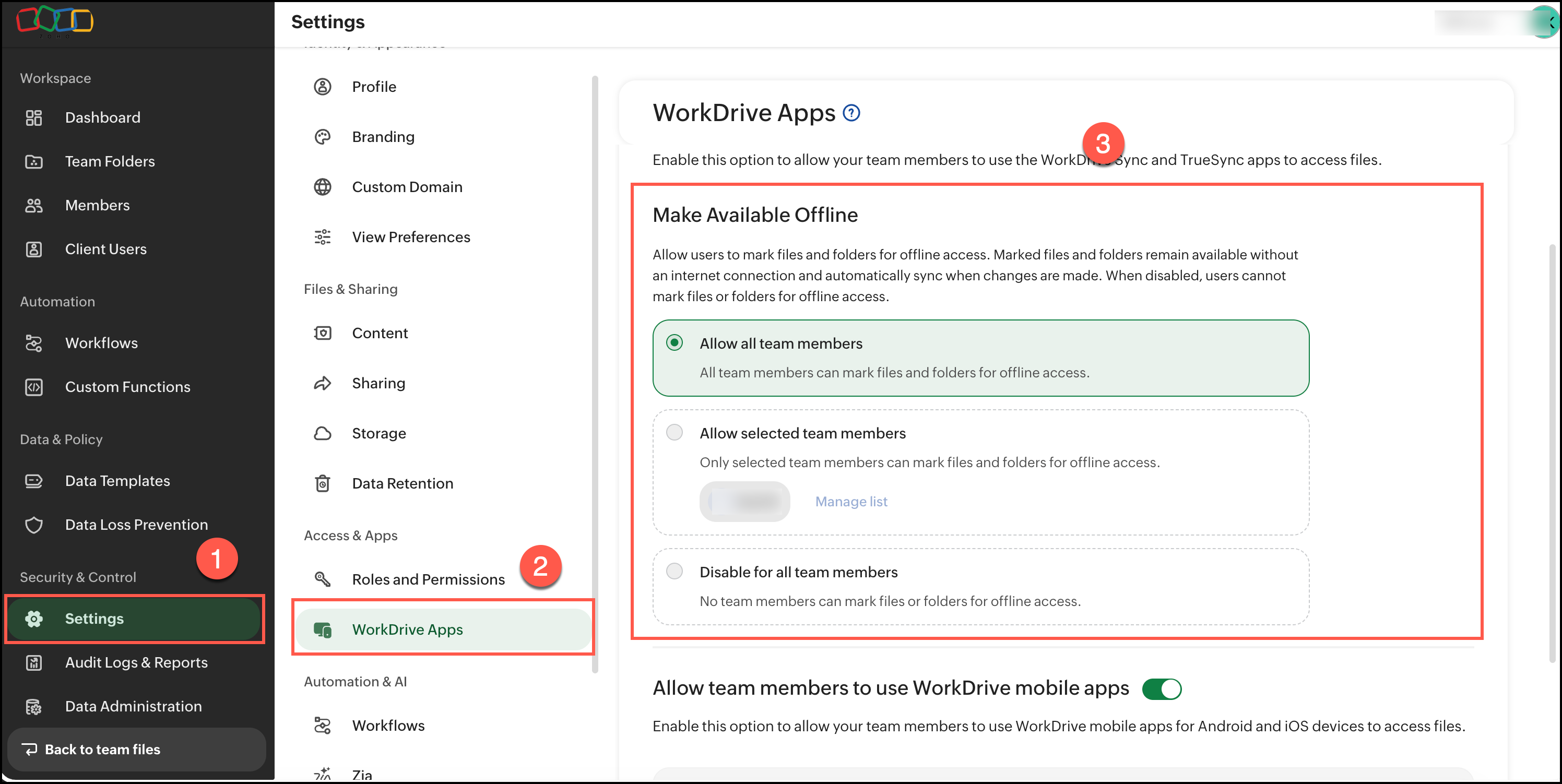
Enable offline access
- Under Make available offline, enable Allow users to mark files and folders for offline access.
- Under Who can use offline access?, select one of the following options:
- Allow all team members: All team members can mark files and folders for offline access.
- Allow selected team members: Only the selected team members can mark files and folders for offline access.
- Disable for all team members: No team members can mark files or folders for offline access.
Allow offline access for selected team members
To restrict offline access to specific team members:
- Select Allow selected team members.
- Click Manage list.
- In the Allow offline access for selected members window, enter a team member’s email address.
- Click Add.
- Repeat the steps to add more members.
- Click Save to apply the changes.
- You can search for existing members by entering their email address. To remove a member from the list, click Remove member.

Note: You can’t remove the only whitelisted member. Add another member to the whitelist before removing the existing member.

Info: You can change who can use offline access at any time. Depending on the current setting, WorkDrive displays a confirmation dialog before applying the change.
Manage the selected member list
When offline access is restricted to selected team members, you can update the list of members who are allowed to use offline access.
- Under Make available offline, select Allow selected team members.
- Click Manage list.
- Add members using their email address.
- To remove a member, click the X icon next to their name.
- Click Save. WorkDrive records changes to the selected member list in the admin activity log.
What happens when offline access is disabled?
When offline access is disabled for a team member, they cannot mark files or folders for offline access through the WorkDrive Desktop Sync apps.
Existing files that were previously marked for offline access may continue to remain available on the device depending on the app’s sync state. Disabling the setting prevents users from using the offline-access feature going forward.
Configure Mobile App Settings
Toggle ON/OFF Allow team members to use WorkDrive mobile apps.
Enable this option to allow your team members to use WorkDrive mobile apps for Android and iOS devices to access files.
- When WorkDrive's desktop or mobile apps are disabled, team members will no longer be able to use these apps to sync or access WorkDrive files. Any files that were synced or saved offline will be removed and all team members will be logged out of these apps on all their devices.
- When both Desktop Sync and mobile apps are disabled, your team members can only use the browser to access WorkDrive files.
- Supported app versions:
Only the latest versions of the Desktop Sync apps (Sync and TrueSync) support the device management feature. For mobile apps, the device management feature works best in the latest versions.

If you only want to restrict a few users from accessing WorkDrive's desktop or mobile apps, you can disable these apps for individual users from Admin Console > Manage Devices > Member > App Permissions. Learn more