File version settings
WorkDrive offers unlimited version history across all team and individual plans. Each time a file is updated, WorkDrive automatically saves a new version, ensuring you can track changes and restore previous versions at any time.
Why version history matters:
- Data recovery: Easily revert to any previous version to avoid data loss.
- Accountability: Maintain a record of changes for legal, compliance, and auditing purposes.
However, not every team requires a complete version history:
- Selective version retention: Some teams only need specific versions and prefer not to keep all past updates.
- Storage considerations: For large files like videos or designs, retaining multiple versions can significantly impact your storage space.
Customizing version retention
Team admins can tailor version history settings to meet their needs:
- Retain all versions for comprehensive tracking.
- Apply a version limit to manage storage efficiently.
If a version limit is applied, older versions will be automatically deleted based on your retention preferences, ensuring your storage is optimized without compromising essential versioning.

Notes:
- Once a version is deleted, users will be able to restore the version before the team's data retention period (7/30/90/120 days).
- In Team Folders, users with organizer and admin roles can delete versions, and restore them during the retention period.
- The version retention settings will only apply to non-Zoho format files. This will not include Zoho office suite files (Writer, Sheet, and Show) where storage is free, and all versions will be retained until you manually delete them.
Retain all versions
- Click Admin Console in the bottom-left corner of your WorkDrive account.
The Admin Console page will open in a new tab. Dashboard will be selected by default. - Click Settings in the left panel. The Profile settings will be displayed by default.
- Select Storage.
- Under File versions, select Retain all versions.
- Click Apply in the Retain all versions confirmation dialog.
Retain latest versions up to a particular number
- Click Admin Console in the bottom-left corner of your WorkDrive account.
The Admin Console page will open in a new tab. Dashboard will be selected by default. - Click Settings in the left panel. The Profile settings will be displayed by default.
- Select Storage.
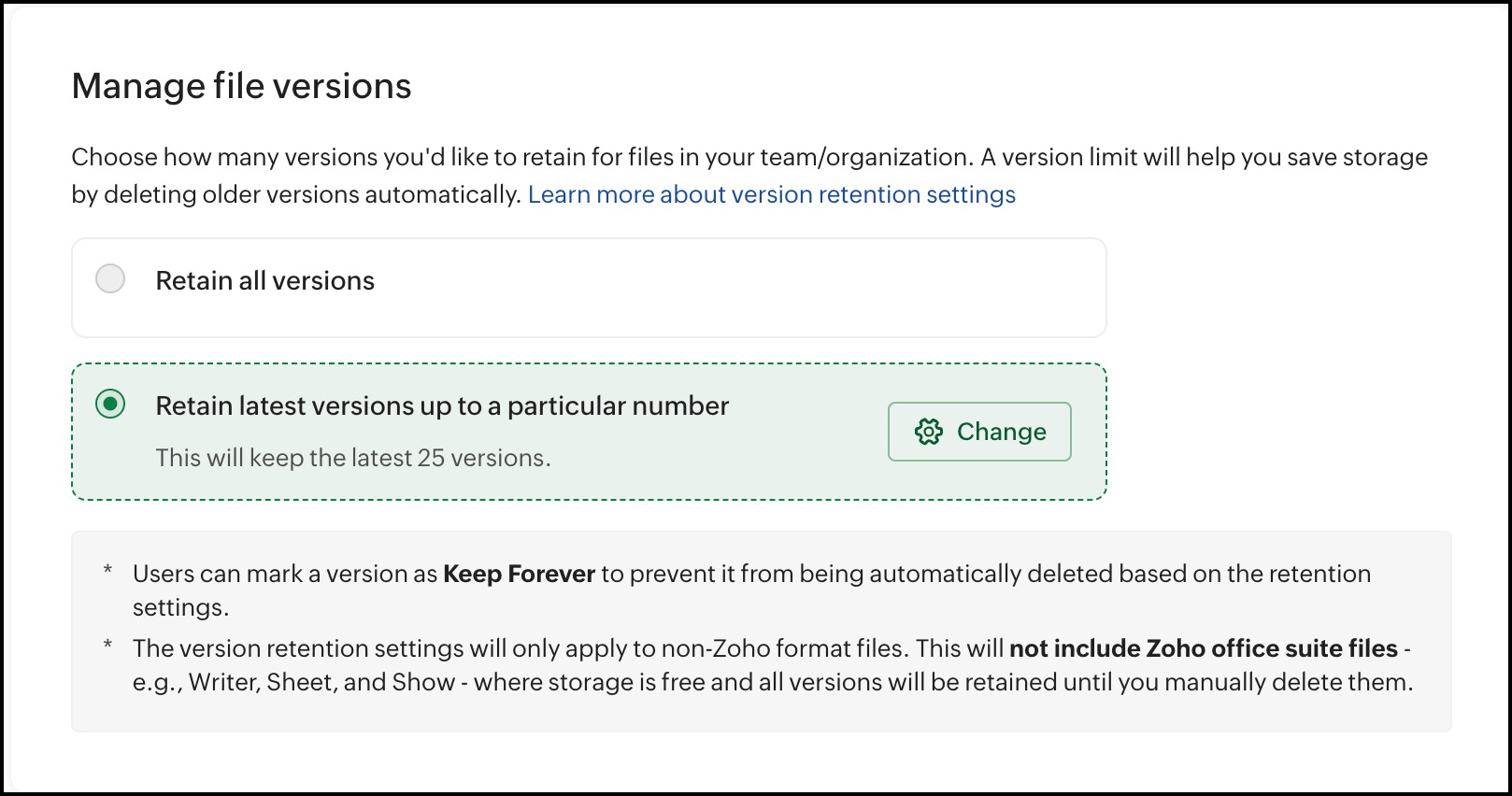
- Under File versions, select Retain latest versions up to a particular number.
- Choose a version number from the dropdown (10/25/50/75/100). You can also set a custom limit, if required.
- Click Set limitation and select Apply in the confirmation dialog box.
For example: 25 versions
The latest 25 versions will be retained. Older versions will be deleted automatically.
Notes:
- Older versions exceeding the limit will be deleted automatically.
- Users can restore the deleted versions from the File Versions tab under the Deleted section based on the team's data retention period (7/30/90/120 days).
- When you apply a version limit, it'll take some time to apply the setting to all your team files depending on the total number of files.
 Tip: Users can mark a version as "Keep Forever" to prevent it from being automatically deleted based on the version retention settings.
Also read: