Working with Connections
Overview
Connections let you integrate Zoho WorkDrive with third-party or Zoho services using OAuth 2.0 authorization. WorkDrive manages the entire OAuth flow, including authorization, access tokens, refresh tokens, and secure storage. This keeps your Deluge functions simple and secure.
Once a Connection is created and linked to your account, you can call external APIs inside Custom Functions by referencing the Connection’s link name. You do not need to manage tokens or store credentials manually.
Creating a Connection
You can create a new Connection from scratch (custom service) or use one of the default services provided by WorkDrive.
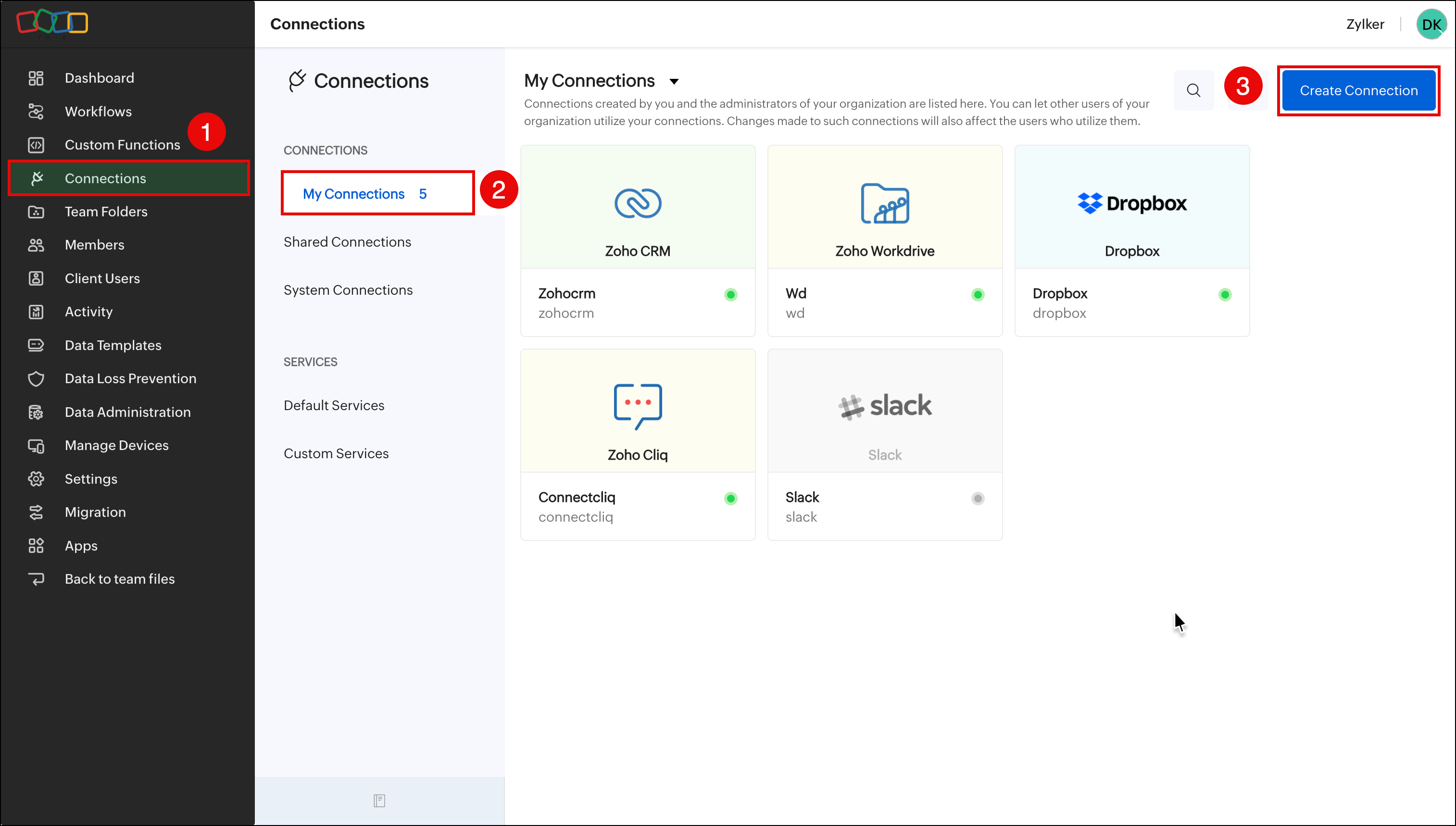
To create connection using default services
- Sign in to your WorkDrive account.
- Go to Admin Console > Connections.
- Click Create Connection. The Default services tab will appear by default.
- Choose a service from the list (for example, Slack).
- Provide a Connection Name.
- Select the required scopes specified by the service.
- Click Create and Connect. Complete the authorization process by signing in to the service.
After the Connection is created, WorkDrive displays:
- Link name
- Service name
- Connection status
- Sample Deluge code snippet to invoke the connection
The Connection appears in the My Connections list and can be reused across custom functions.
To create connection using custom services
If your required service is not listed under Default Services, you can configure it manually. After configuration, you or anyone in your organization can create multiple connections for that service by providing the necessary credentials.
 Note: Zoho WorkDrive APIs use OAuth 2.0 authentication. You must register your client app with Zoho. Refer to the help documentation to learn how to register your client app and create a custom service.
- Sign in to your WorkDrive account.
- Go to Admin Console > Connections.
- Click Create Connection.
- Select Custom Service if your service is not listed. Service details dialog box will appear.
- Provide a name for the service to be connected (ex: MailChimp).
- Select the type of Authentication that is supported by the third-party application or service.
- Enter the service details:
- Client ID
- Client Secret
- Request Token (Authorize) URL
- Access Token URL
- Refresh Token URL (if applicable)
- Provide a Connection Name.
- Enter the Scopes specified by the third-party service. Scope for each connection is given by the third-party service. Please check the help for the respective third-party service to know about their provided scopes.
- Click Create and Connect. Complete the authorization process by signing in to the external service.
Once the Connection is created, it appears in the My Connections list and can be reused across custom functions.
Using a Connection in Custom Functions
The My Connections tab contains the list of available connections that are ready to use. You can select an existing connection or select the one that you created from the Custom Services tab. The connections are to be used by invoking them within functions. You can then use it directly inside a custom function to call external APIs.
To use a Connection:
- Go to Admin Console > Connections.
- Choose the Connection from the My connections section.
- Click Connect if you haven’t already authorized it.
- Copy the sample Deluge code displayed at the bottom of the Connection details page.
- Use this code inside your custom function to perform GET, POST, PUT, or DELETE calls.
- In Deluge, a Connection is invoked using its link name. You can pass parameters to replace dynamic values within the API URL or request body.
Sample connection
Suppose you want to send a notification to Slack every time a file is added to a specific Team Folder.
Step 1: Configure the Slack Connection
- Select Slack from the Default Services tab.
- Create a Connection with the required scopes.
- Authorize the connection.
Step 2: Use the Connection
- Get the link name from the Connection details page.
Step 3: Write a Custom Function
- Invoke Slack’s API using the connection link name to send a message.
- This lets your WorkDrive workflow automatically push real-time updates to Slack without any manual intervention.
Also read: