[Beta] WorkDrive TrueSync for Windows powered by Windows Cloud Files API (CFAPI)
WorkDrive TrueSync for Windows has been redesigned to provide a more seamless and reliable sync experience by integrating directly with Windows through the Windows Cloud Files API (CFAPI). With this update, your WorkDrive files appear as cloud files in File Explorer and are downloaded automatically when you access them.

This change applies to TrueSync Version 6.3.0 and later versions.
Getting started with TrueSync Beta
To experience these enhancements, download the latest version of WorkDrive TrueSync for Windows from this download link.
- Install the beta version of WorkDrive TrueSync for Windows.
- Sign in to your WorkDrive account.
- Choose where you want to create your WorkDrive sync folder.
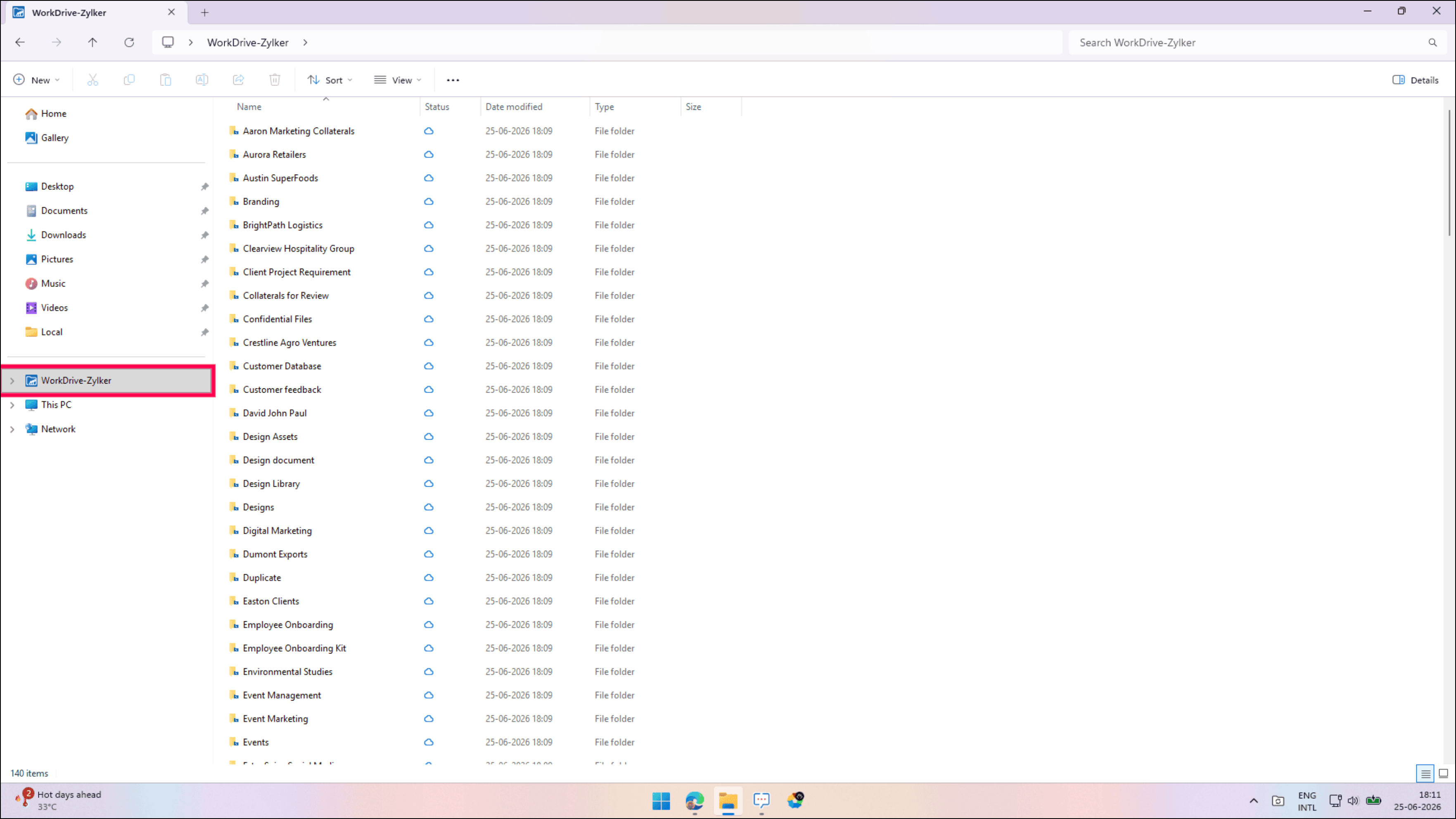
WorkDrive will automatically set up the sync folder and make it available in File Explorer for easy access.
All your WorkDrive files and folders will appear in the sync folder. Files are downloaded automatically when you open them, helping you save local storage space
Upgrade from an earlier version
If you're already using WorkDrive TrueSync, your existing setup will be migrated automatically when you upgrade.
During migration:
- Your existing WorkDrive files and folders will be moved to the new sync experience.
- Files that were previously available offline will remain available offline.
- The migration runs in the background, allowing you to continue using your computer.
- You can track migration and sync progress from the WorkDrive icon in the system tray.
- Migration time depends on the total number of files and folders in your WorkDrive account. Your complete WorkDrive content will be available, and syncing will begin, only after the migration is completed.
The location of the new sync folder is based on your current cache location:
- If your cache is on the C: drive, the sync folder will be created at C:\Users\<username>\WorkDrive-<Team Name>.
- If your cache is on another drive, such as D:, the sync folder will be created at D:\WorkDrive-<Team Name>.
You can move the sync folder later from the Preferences > Account tab if needed.
Changes on upgradation
- Access WorkDrive files from a Sync Folder
WorkDrive content is now available through a dedicated sync folder in File Explorer instead of a virtual drive. - Updated file status indicators
Sync status icons have been updated to align with native Windows cloud file indicators, and File Explorer displays file availability states such as Online File, Locally Available, Always Available, and Not in Sync. - Access files without running TrueSync
Files that are available locally can be opened and modified even when the TrueSync application is not running. - Drag-and-drop behavior
Previously, dragging files between your local folders and the TrueSync virtual drive usually created a copy.Now, since WorkDrive files are stored in a sync folder on your existing drive, Windows follows its default drag-and-drop behavior. Files dragged between locations on the same drive are typically moved, while files dragged between different drives are typically copied. - Quick access
If you previously pinned WorkDrive folders to the File Explorer navigation pane, you may need to pin them again after upgrading. - Storage information
The Size and Size on disk values in the file Properties window now accurately reflect the actual file or folder size and the disk space it occupies.
Notes
- Files marked as Always keep on this device remain available offline.
- The WorkDrive sync folder must be located on an NTFS-formatted drive.
- Some applications may temporarily download file content when accessing cloud files.
- The WorkDrive sync folder cannot be moved to a network drive.
- When the account is disconnected, only the files and folders that were available locally will remain in the Sync Folder.
We recommend upgrading to the latest version to experience the improved WorkDrive TrueSync experience on Windows.