Organise files your way using the Index view
The Index view helps you structure and navigate folder content more effectively by using a Zoho Writer file as a central reference point. You can curate important links, resources, and sections in a single document and set it as the folder’s index, making it easier for users to find what they need without browsing through multiple files.
For example, in a project folder, you can create a Writer file that includes organized links to Getting Started guides, key steps, and troubleshooting tips. When this file is set as the Index, team members can instantly access essential documents and jump to relevant sections with ease.

Notes:
- Index view is supported for Zoho Writer files only
- Only users with Edit or higher access can add or remove Index for a folder.
Add Index view
- Go to the folder where you want to add the Index view.
- Create a new Zoho Writer file.
- Add the required links and organize them for easy access.
- Right-click on the Writer file and select Add as Index for this view. File will be added as Index to the current folder view.
Closing and Switching the Index View
- To close the Index view and return to the default listing, click the Close icon at the top of the Index view.
- To switch views, click the drop-down arrow next to Index at the top and choose from Thumbnail, List, or Compact.
Notes:
- Once an Index view is added, all users who access the folder will see the Index view by default.
- Users will have the option to close the Index view to view the default folder listing when required.
- Only one Writer file can be designated as the Index at a time. If a file is already marked as the Index in a folder view, the Index option will not be available for other Writer files.
- You can select an index file only from the current folder. Files from other folders cannot be chosen as the index.
Remove file from Index
When you no longer want a file to serve as the index, or want to replace it with a different one, you can remove it in one of two ways depending on your current view.
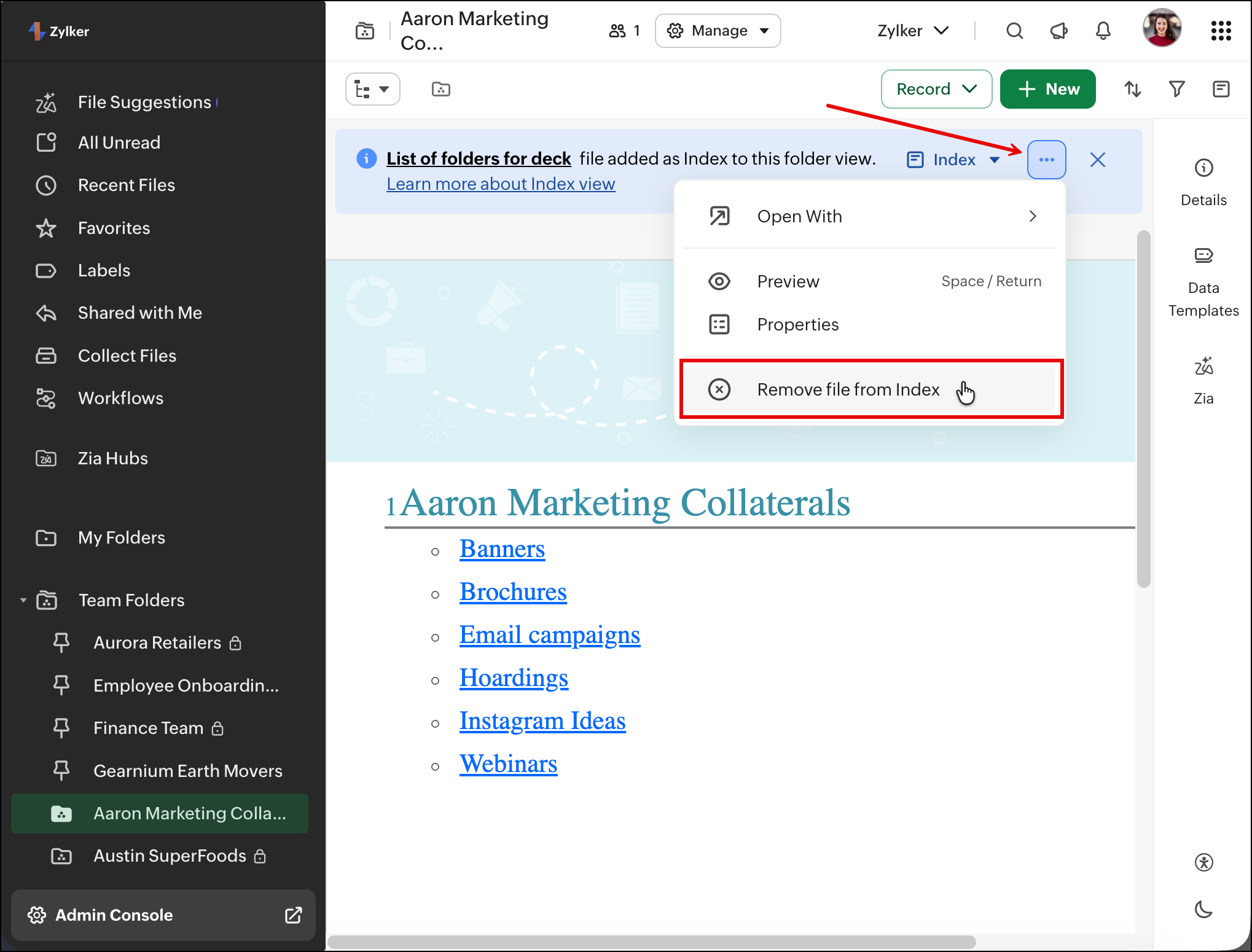
While in Index view
Click the More actions icon (...) at the top of the folder and select Remove file from Index.
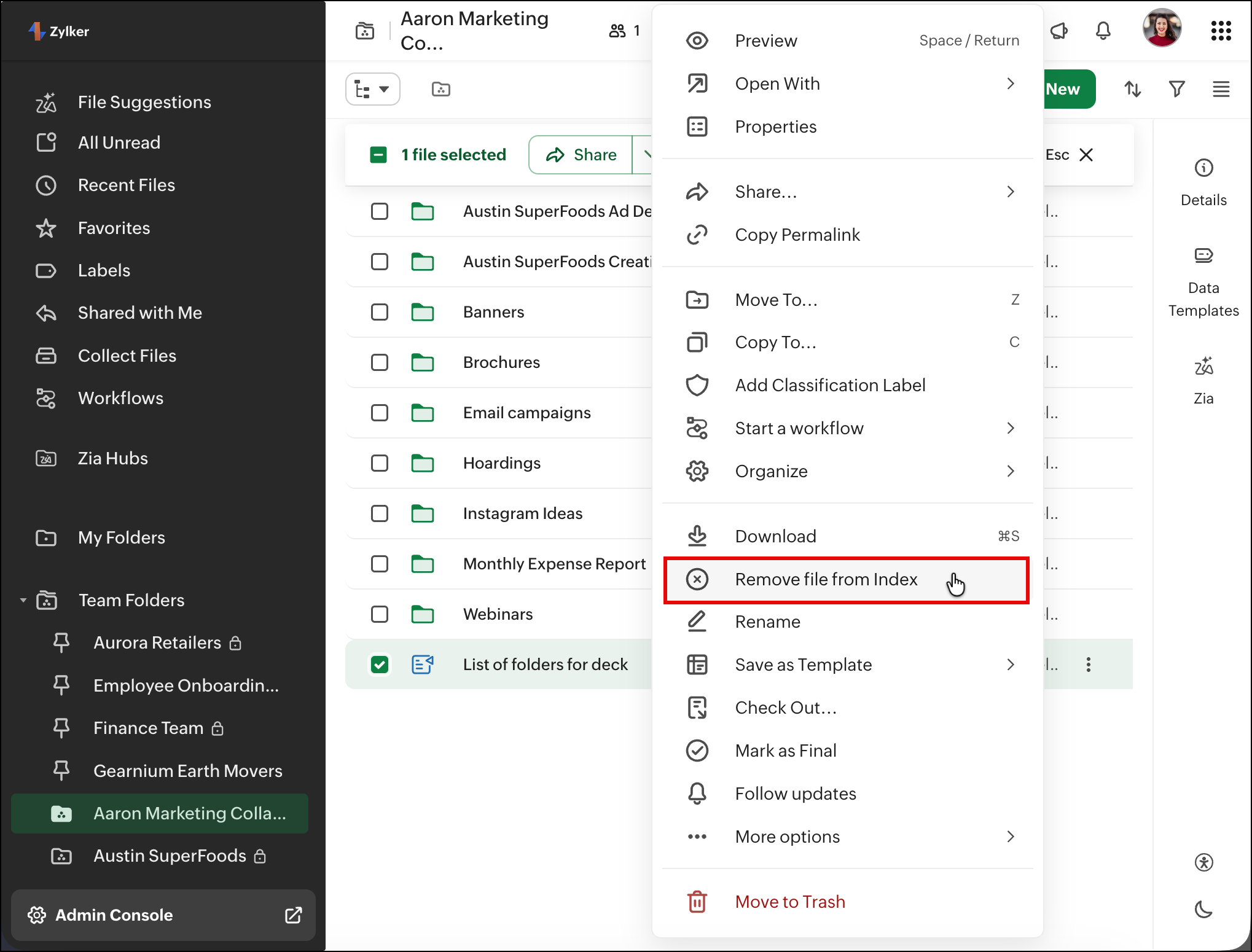
If Index view is closed
Right-click on the Index file and select Remove file from Index.
Note: If the index file is moved to a different folder or to Trash, the index view will be automatically removed.