How to configure sign collection in fillable templates
Overview
Fillable templates in Zoho Writer let you design documents with interactive fields such as text boxes, dates, dropdowns, and signature fields, which can be filled out and signed electronically by one or more recipients.
When you enable Sign Collection in a fillable template, you can insert and assign signer fields—like signature, name, and date fields—to specific signer roles. This allows you to define who should sign, which fields they are responsible for, and how the document is shared and completed by each recipient.
Prerequisites
-
Create or Open the Fillable Template.
Steps
-
To insert signer fields:
-
Go to Fields > Signer Fields under the Dynamic Fields section.
-
In the Signer Fields panel:
-
Click Add Signer to create signers.
-
Select a signer and click a field to insert it into the document.
-
Navigate to the Automate Tab On -> Submission settings -> Select Send for Sign Collection
-
Enter the details for each of the signers in the popup as shown
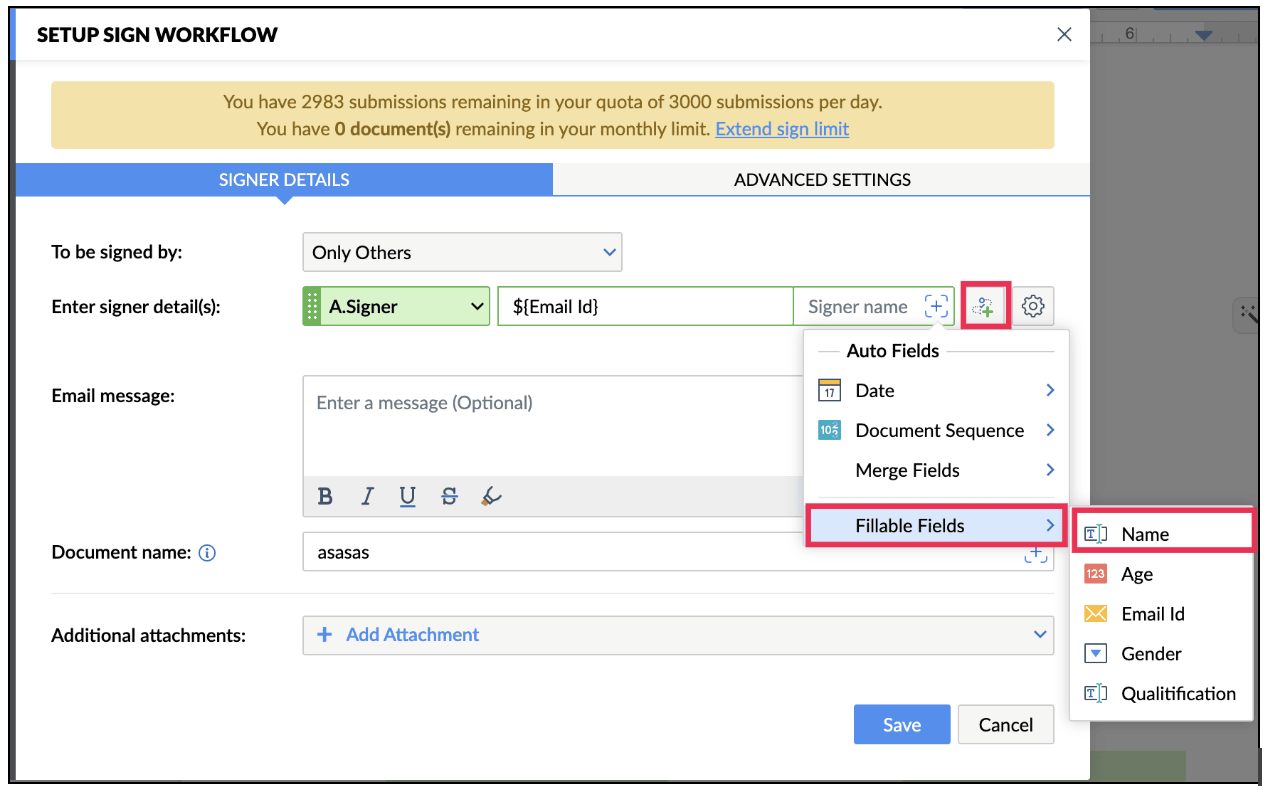
Additional Notes:
You can set Form Submitter as first Signer by choosing Submitter's email as shown.