How to generate a document for every subform record
Overview
Generate a unique document for every subform record using its data and main form data together, using Zoho Writer.
There are many business scenarios and transactions which include multiple entries/records which <have a common or parent record/have a common parent record>, and you'll have to generate a personalized document for each record, combining its data and along with the parent record.
For example, a training program would have multiple participants, and you'll have to generate a personalized certificate for each participant. Each certificate will include a specific participant's data, along with data from the parent record, such as the course name, trainer, and date.
Prerequisites
- A merge template connected to a data source that contains both main form and subform data.
Transform subform to main fields
Steps
In the Automation Configuration panel, select Transform Data Source.
Select the subform that you want to use as the unit of output.
Update your merge template by inserting the transformed merge fields. After the transformation, you can insert fields from both the selected subform and its parent (main) form.
Run the mail merge. Writer generates one document for each record in the selected subform while automatically including the corresponding main form fields in every document.
 How the transformation affects your merge
Each subform record is treated as an individual merge record.
Fields from both the selected subform and its parent (main form) are available throughout the merge configuration.
You can use both main form and subform fields when configuring merge outputs, such as document names and folder paths.
Additional Note
Clear an existing data transformation
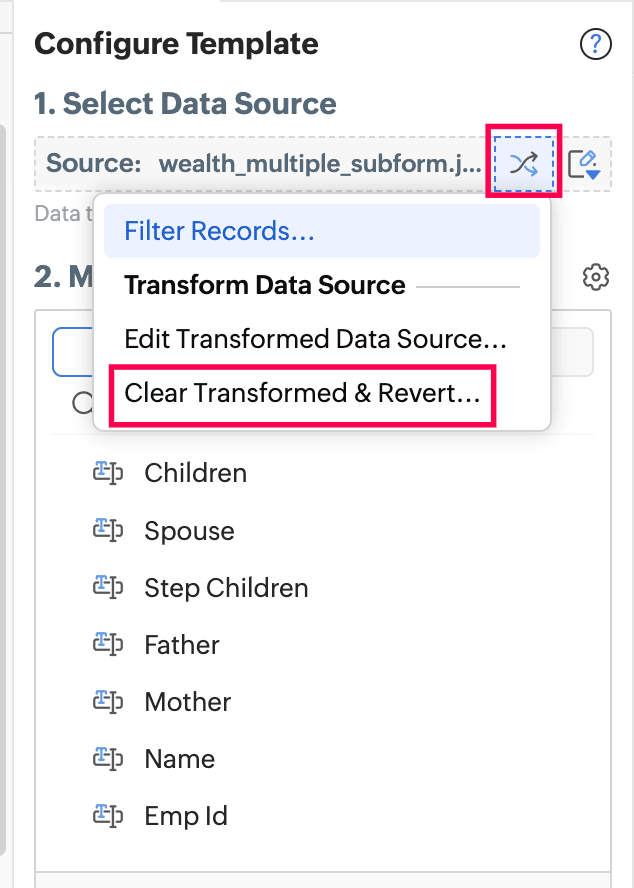
If you need to switch to a different subform or return to your original data source configuration, you can remove the transformation. Clear the existing data transformation as shown below, then select a different subform or leave the data source in its original state.
Frequently Asked Questions
- How many documents are generated?
One document is created for each record in the selected subform. A parent record with five subform entries produces five documents. - What happens if I don't transform the data source?
Writer treats the main form as the unit of output. Any subform records are merged as repeating rows within a single document rather than as separate documents. - Can I change which subform is used later?
Yes. Clear the existing transformation, then select a different subform or restore the original data source configuration. - Can I use subform fields in merge output settings?
Yes. After transforming the data source, both main form and subform fields are available when configuring document names, folder paths, and other merge output settings.