How to add, organize, and navigate document headings in Zoho Writer
Overview
Zoho Writer's Document Navigation pane helps you easily navigate a document or create an outline using headings. You can also add headings and subheadings at the required places in a document from the navigation pane. Besides headings, you can also navigate to the desired section, bookmark, or field in a document from the navigation pane.
Prerequisites
You must have added at least one heading, section, field, fillable field, or bookmark added in the document to navigate a document from the navigation pane.
Steps
How to organize the headings from the navigation pane
1. In your Zoho Writer document, click View > Navigator. Or, click the  icon located on the left pane.
2. In the Document Navigation pane that opens, all the headings added in the document will be listed in the hierarchical structure.
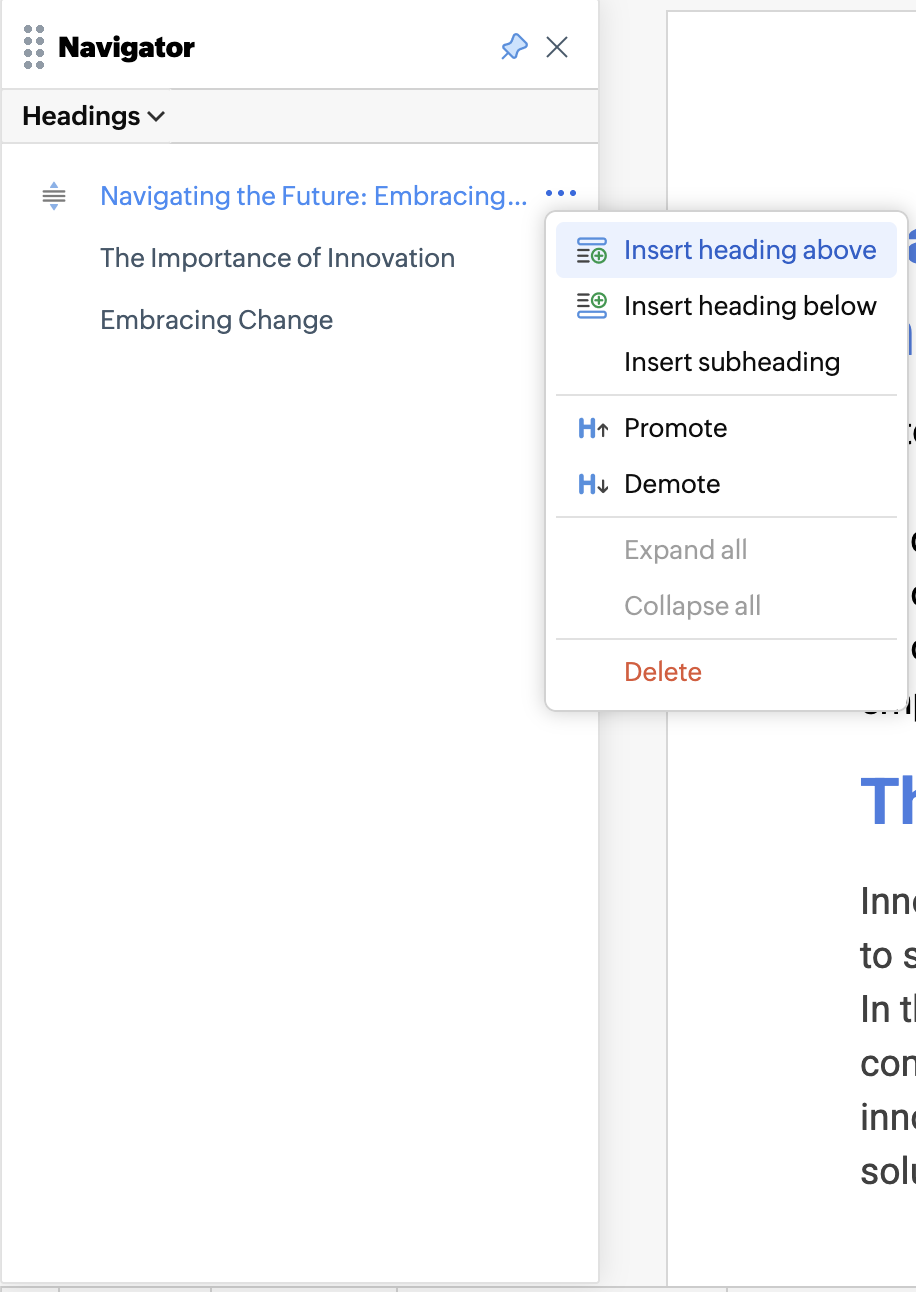
3. Click the desired heading to navigate to that specific section in the document.
4. Click the arrow beside each heading to collapse or expand any heading, and view all its subheadings.
Managing headings and subheadings
- To add a heading or subheading: Navigate to the heading closest to the place where you wish to add a heading, and point your mouse cursor over it. Click the three dots that appear beside it, and choose New Heading Before/New Heading After, as required, enter the new heading and hit enter.
- To rearrange a heading: Point your cursor over the desired heading, and once the move cursor (
) appears, drag and drop the heading in the desired position.
- To move a heading one level higher or down: Use the Promote or Demote options.
- To remove a heading: Use the Delete option.
Note
You can only add, manage, and move headings from the Navigation Pane. Sections, Bookmarks, and Fields can only be viewed but not managed or moved from it.
Troubleshooting / FAQ
Error/Symptom: The navigation pane is empty.
Possible reason: The document may lack proper headings—bold or large text is sometimes used instead of heading styles
Solution: Please check and add headings at the required places in the document to view them on the pane.
Query : How to move pages without copy pasting the page content?
Solution : Reordering Pages from Document Navigation Panel is in our Roadmap.
Support contact details
Global: support@zohowriter.com
US: +1 888 900 9646 (#5 - #4)
India: + 91 44 6965 6070 (#5 - #4)
UK: + 44 (20) 35647890