How to continue page numbering across sections
Overview
When working with multi-section documents—such as chapters, cover pages, or appendices—page numbering may unintentionally restart in each new section. Zoho Writer allows you to maintain continuous numbering across sections by configuring the page numbering settings in the header/footer of each section. You can choose to continue from the previous section or restart numbering at a custom value.
Steps
If you want the page numbering to start continuing from the previous section, do the following:
1. After inserting the section breaks, place the cursor in the header of the section for which you wish to continue the page number. In the Header & Footer Panel that opens, click Page Number. 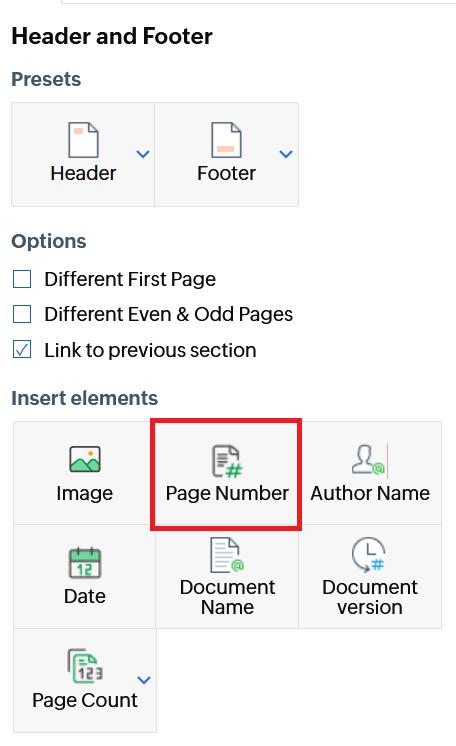
2. In the Page Number pane, under Origin, select Continue from previous section option as shown below.
If you want the page numbering to start from the current section, under Origin, select 'Current Section' as Starts from value.