Zoho CRM integration
Overview
Zoho CRM integration with Apptics enables you to analyze in-app insights from Apptics alongside the customer data available within your Zoho CRM dashboard. It helps you gain deeper insights into customer behavior and make well-informed business decisions for your app.
Apptics data sync and CRM modules
This Zoho CRM with Apptics integration allows you to push data logged in Apptics in the leads, contacts, or dedicated custom modules in your Zoho CRM console. The dataset includes user details, device details, events, sessions, crashes, in-app ratings stats, and in-app updates stats.
Apptics data | Module in CRM | Information |
User details | Leads and Contacts modules | User's email address and other important fields (eg: first name, phone number, company name, etc.) along with selected user properties and our meta data like app version or OS version |
Device details | Devices custom module | Device-level meta data |
Events | Events custom module | Tracked user actions along with relevant properties |
Sessions | Sessions custom module | Time spent by a user within the app |
Crashes | Crashes custom module | Issues and errors that app users face |
In-app ratings (impressions) | In-app ratings custom module | The stats for the ratings prompts shown to the app users |
In-app updates (impressions) | In-app updates custom module | The stats for in-app update pop-ups shown to the app users |
The Apptics-CRM integration works on a shifting window: where the selected data is synced daily and removed automatically based on a retention period you select configuring the integration. You can learn more in the below sections.

Note:
- This integration is available only for Zoho CRM Enterprise and higher plans.
- User's email address is mandatory to link Apptics data with your Zoho CRM contacts. Without it, Apptics data cannot be pushed to Zoho CRM.
Steps to configure Zoho CRM integration
You can start configuring CRM integration in the Apptics console once you have the Zoho CRM setup ready for your organization.
Enable Zoho CRM integration in Apptics console
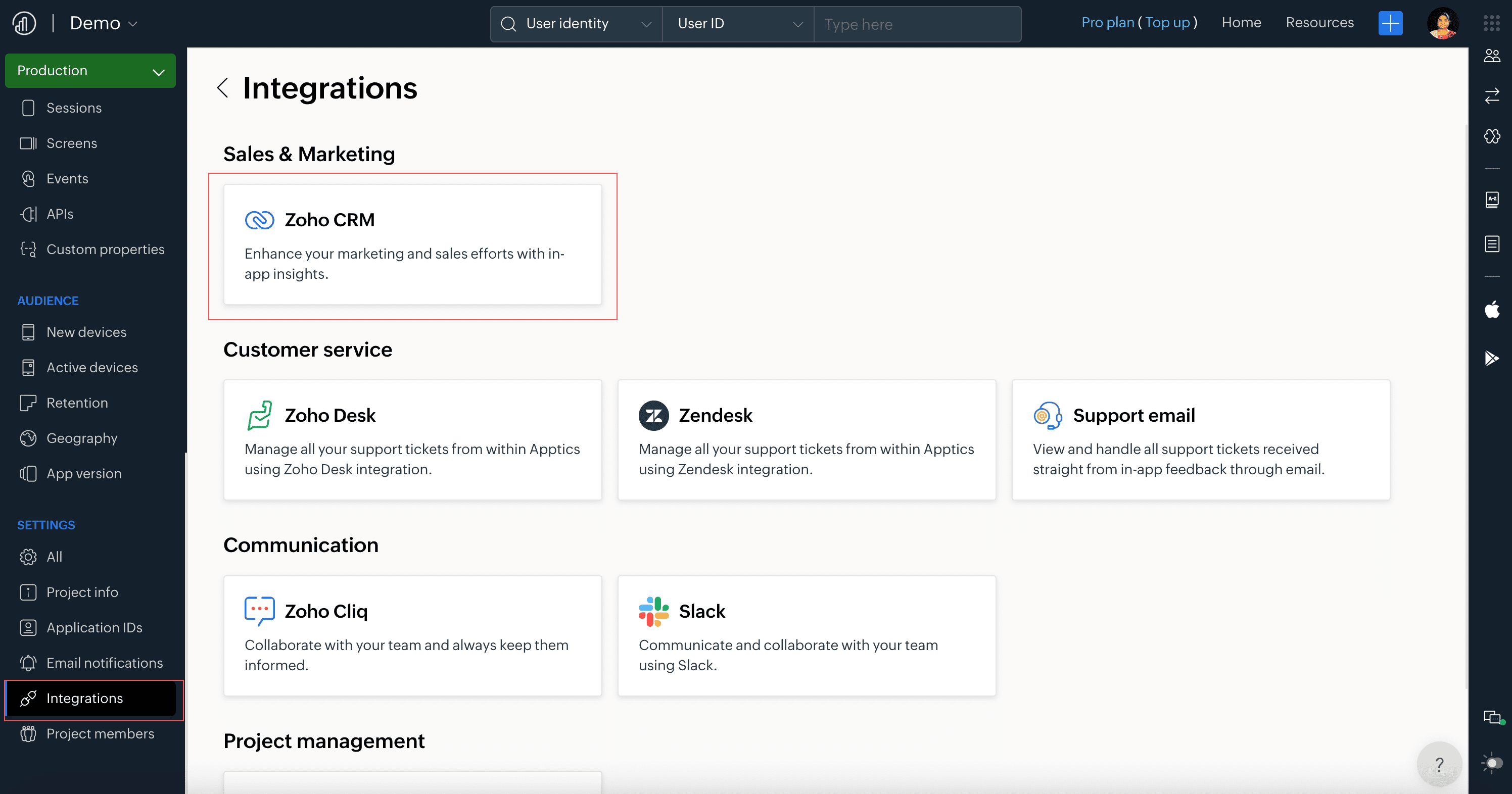
- Navigate to Project Settings > Integrations and click on Zoho CRM.
- Choose the application ID in Apptics for which you want to enable the integration.
- Choose your Zoho CRM organization from the drop-down. (You can do the configuration only if you have an account in Zoho CRM for your organization.)
- Choose the data retention period for the Apptics data that will be pushed to CRM. This means that you can select how long the app data should be synced and retained in Zoho CRM. Data older than the selected retention period will be automatically removed from CRM during the daily sync.

Tip: We recommend you retain only essential app data to keep CRM performance optimal.
- Next, select the data points you want to push to CRM.
- Click Configure and you have successfully enabled Zoho CRM integration for the chosen application ID in Apptics.

While enabling the CRM integration, data points will be synced only from the current date. If you want to push historical data for the selected retention period, you can do so during the data sync. Click on the check box to push the historical data as well.
Analyze Apptics data in your CRM dashboard
- Once you have completed the integration, user details like email address, name, company name, and the like will be pushed to the Leads module in CRM. The email address captured in Apptics becomes a linking key in Zoho CRM, connecting product usage data to all relevant CRM records.
- Other data points related to devices, events, screens, and others will be available as individual custom modules within Zoho CRM.
- You can view all the event data synced from Apptics and filter out data based on default system defined and Apptics-specific data fields such as app versions, application ID, Apptics organization, project, crash type, country, etc. collected and synced from Apptics.
Note: The data from Apptics will be pushed to your CRM dashboard daily, at 00:00 hours of your organization timezone.Edge cases and considerations
- Since user details like email address or user ID are required for CRM integration, you can only push data points of users who have consented to share their data with their identity.
- The stats count shown in CRM may differ and not exactly match our console. The reason being, we push data and stats (events, crashes, screens, etc.) only of the users who have opted in to share their data and their email address is associated in user properties.
- In case the data sync does not happen and gets failed, we will automatically retry the data sync for three times. If it still does not work, you will have to reconfigure the data sync again.