MobileIron
Cliq Android
Pre-requisites:
- Devices must be running 5.0 or later versions
- Devices must be provisioned as Device Owner/Profile Owner
- A google account to configure Android for Work.
Steps to configure:
- Log in to your MobileIron Cloud tenant.
- Click on Apps and then App Catalog.
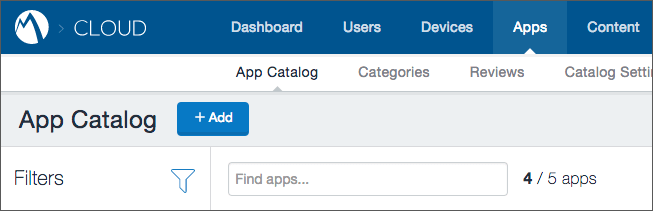
- Click the Add button and select Google Play.
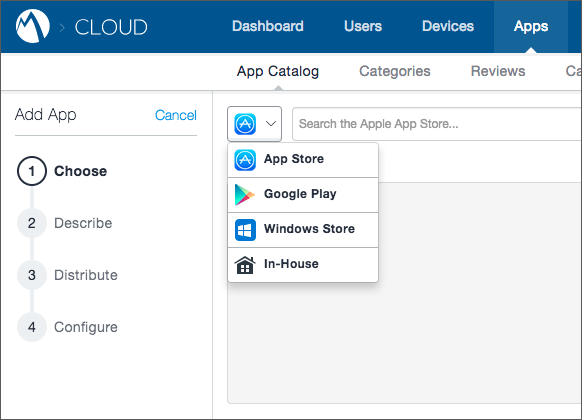
- In the App Search field, search for Cliq, select and add the app.
- In configurations, the key value pairs will be pre-populated if the developer has provided them in the app. You can also fill them from the app config values listed here.
Cliq iOS
Pre-requisites:
- Devices must be running iOS 9.0 or later versions.
- Devices must be supervised.
Steps to configure:
- Log in to your MobileIron Cloud tenant.
- Click on Apps and then App Catalog.
- Click the Add button and select App Store.
- In the App Search field, search for Cliq, select the app.
- Review or fill in the information for the app, and click Next.
- Choose an option for distributing the Cliq app to users and click Next.
- Here you’ll be presented with different options to configure the app. Fill in the ones you need, and then go to iOS Managed App Configuration, click on the “+” sign and select Custom Configurations.
- Download the .xml file given below and upload it.
.XML File - The key value pairs in the .XML file (login.email and restrict.login) will be available for configuring.
- The restrict.login key is a toggle and can be enabled to restrict the use of Cliq app on a device. Enabling this will lock the login email id field and users will be able to access only their account.