Accessibility controls in Cliq
Enabling accessibility controls in Zoho Cliq
Follow the below steps to enable accessibility controls in Zoho Cliq:
Click on your profile image and select Profiles & Settings.
Select Accessibility
You will find three categories of settings: Display, Interaction, and Mobility.
Display settings
Display font size: Increases the font size to make content in Cliq more visible and readable. The default is Normal, and users can choose Small, Medium or Large.
Zoom level: Allows users to zoom the page for a larger view. The default is 100%, and you can adjust it between 90% and 200%.
Font spacing: Adjusts the space between characters. The default is Normal, with options for Compact, Expand, and Stretch.
Vision assistive: Provides color-blind-friendly theme support. Enable the toggle and select one of these themes:
Tritanopia – for blue-yellow color vision deficiency.
Protanopia & Deuteranopia – for red-green color vision deficiency.
High Contrast – for users with low vision or general visual impairment.

Note:
When High Contrast mode is selected, users cannot add a theme, as this option will be disabled.
Interaction settings
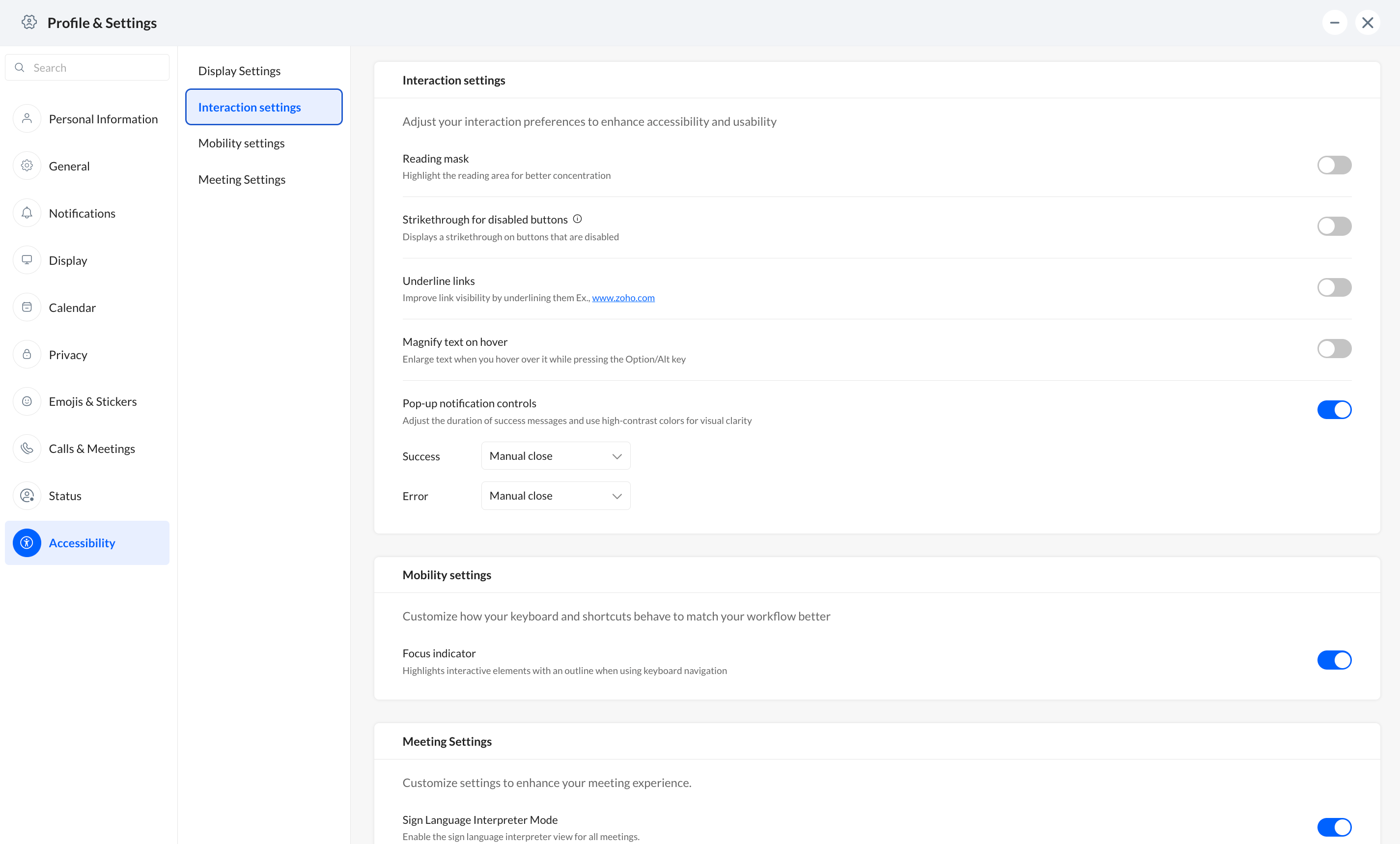
Reading mask: Highlights a portion of the screen around the cursor. Choose Small, Medium, or Large to adjust the size.
Strikethrough for disabled buttons: Helps users identify buttons that are disabled.
Underline links: Improves the visibility of links by underlining them.
Magnify text on hover: Press Option/Alt and hover over text for better readability.
Pop-up notification controls: Allows you to set the duration of success and error banners that appear on the screen.
You can also set to manually close them.
Mobility settings
Focus indicator highlights UI elements and helps users navigate through Cliq using the Tab key.
Meeting Settings
In Meeting settings, you can enable sign language interpreter option.