How to manage the users of my organization?
An admin can manage all user-related information in Cliq. To manage users from Cliq, do the following:
- In the Admin Panel, under the Users & Profiles module, click on Users.
- All the existing users in your organization will be listed.
- Clicking on a specific user will open their profile page.
PROFILE
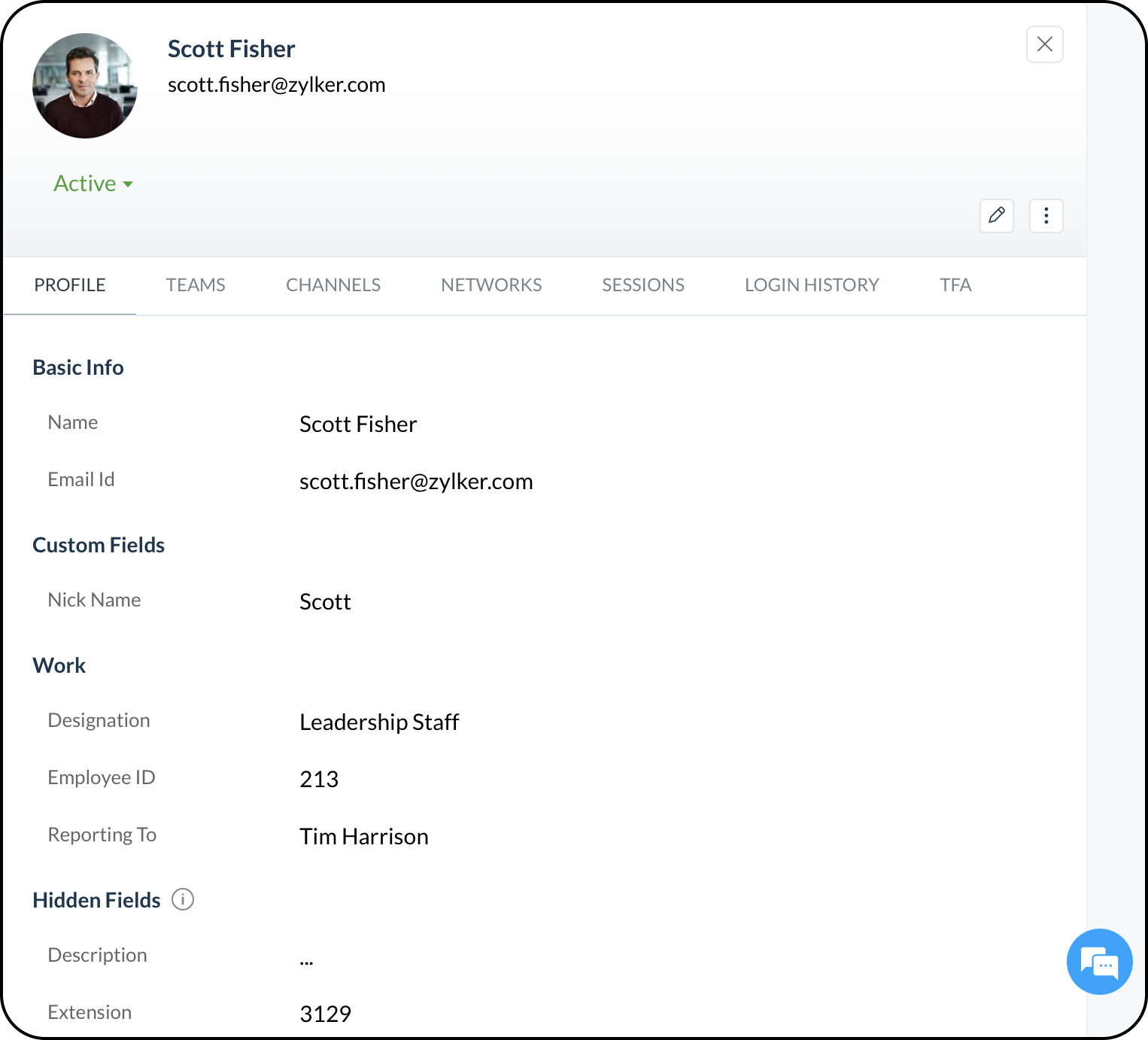
All user information will be displayed in the profile tab. If your organization has integrated with Zoho People, user information from Zoho People will also be displayed along with basic user details.
TEAMS
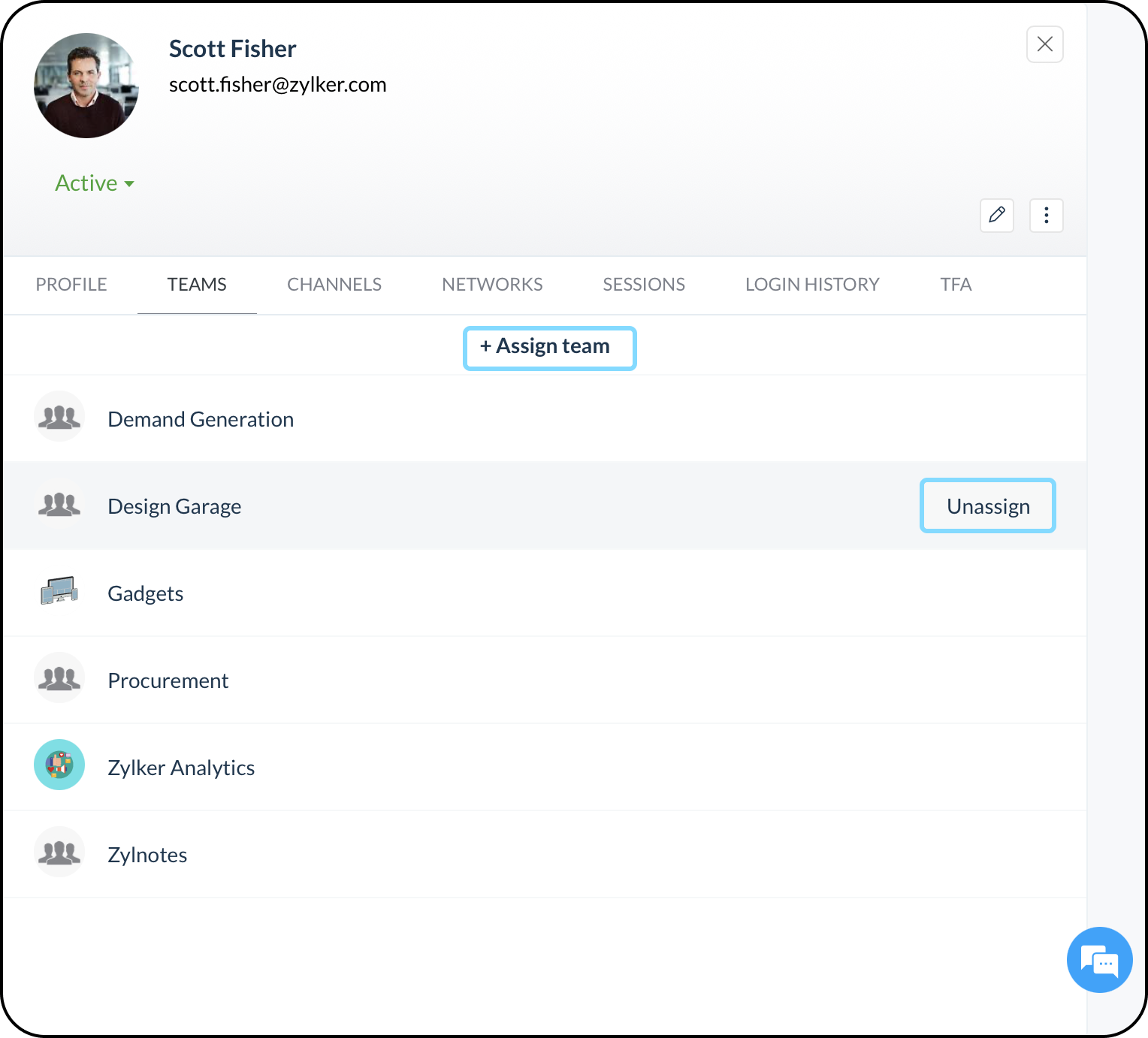
Teams a user is part of will be displayed under the Teams tab. An admin can also assign teams to a user by clicking the "+Assign team" button. To remove a user from a team, hover over the team name and select the Unassign button.
CHANNELS
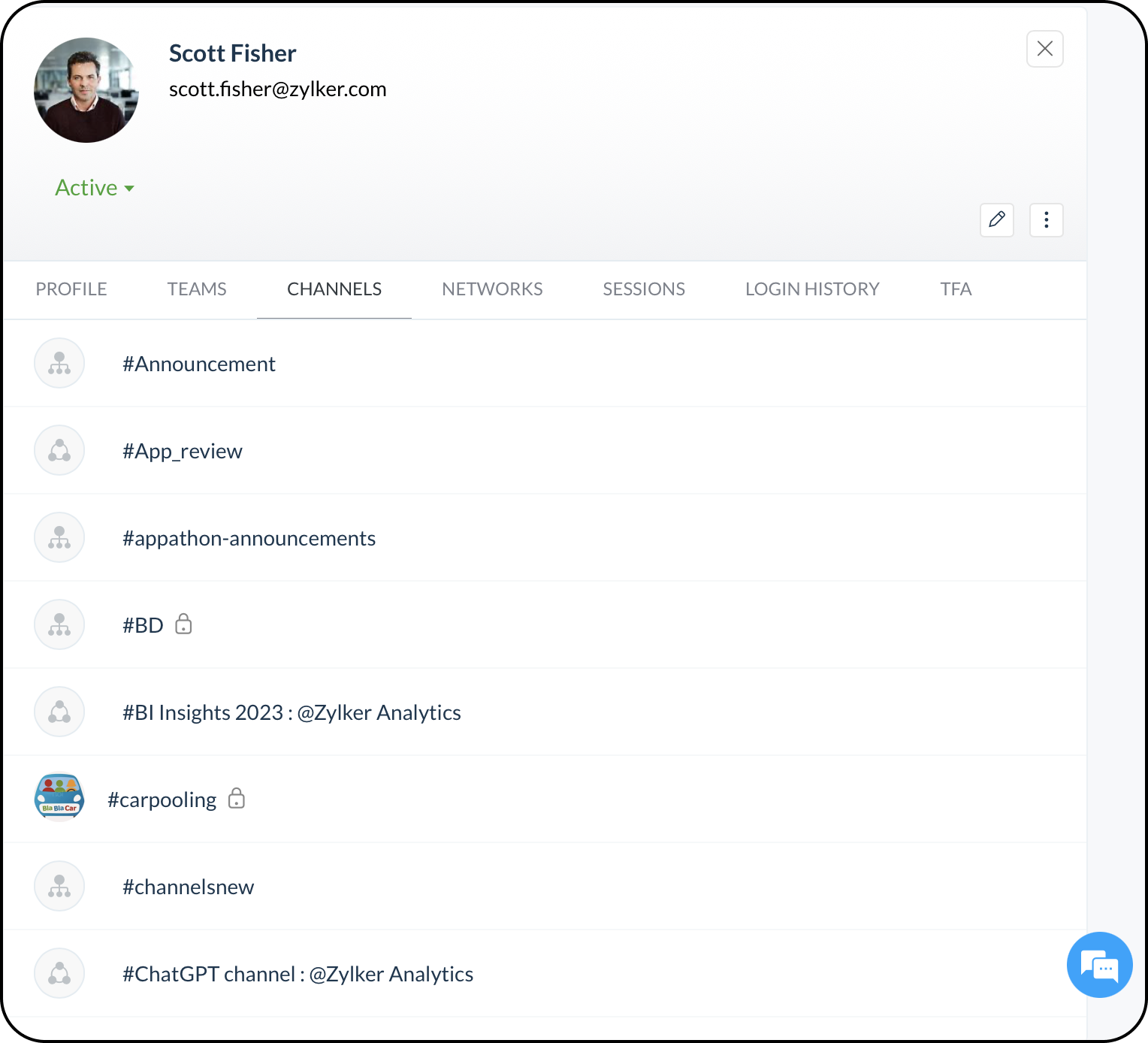
The various channels a user is a part of will be displayed under the Channels tab.
NETWORKS
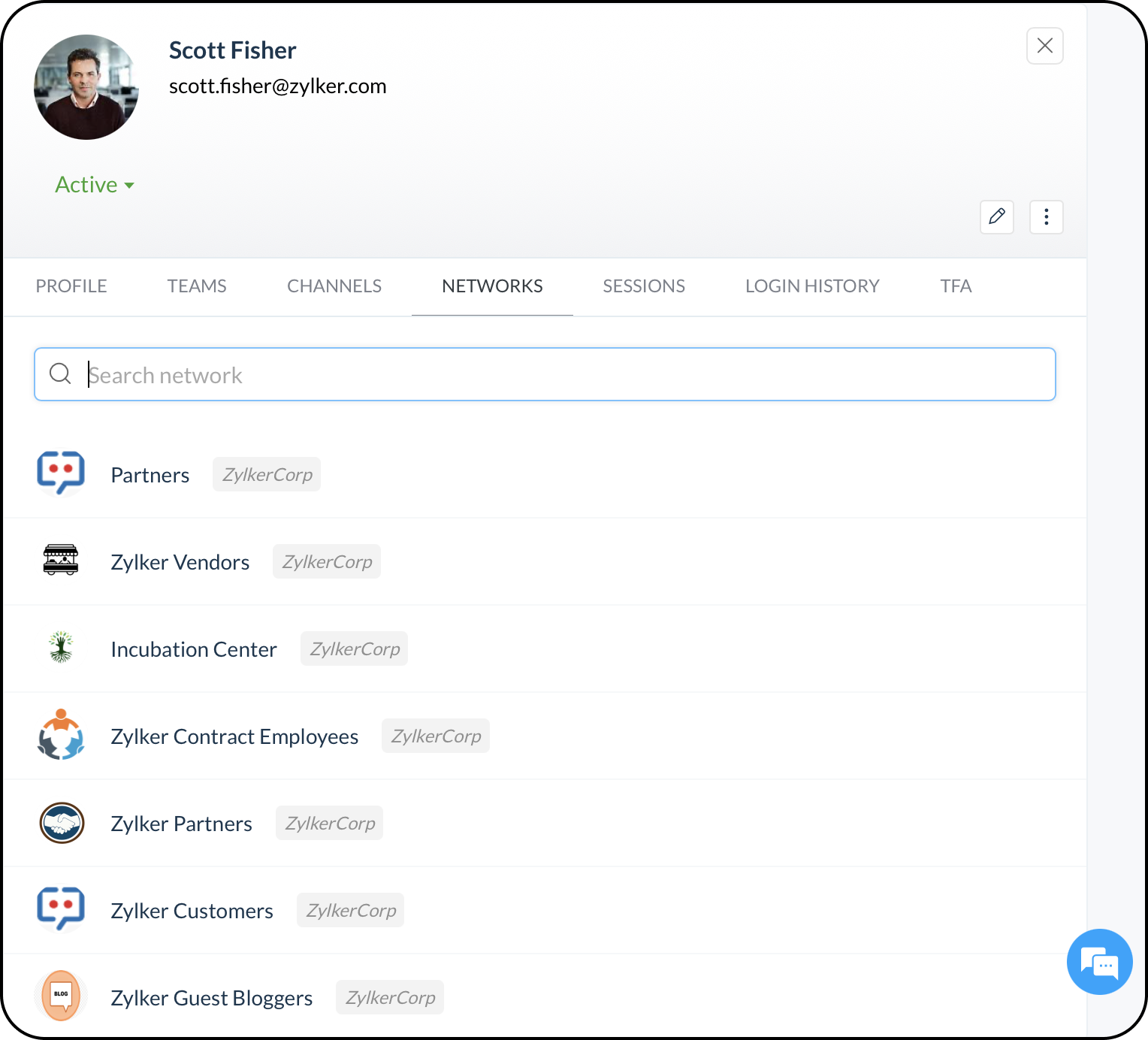
The networks a user has joined is listed under the Networks tab.
SESSIONS
The active sessions of Cliq for the user are listed under the Sessions tab.
LOGIN HISTORY
The Login History tab displays the various IP addresses, login time, duration, and client device by which a user has logged in with Cliq.
TFA
Two-Factor Authentication (TFA) enabled/ disabled status for both the organization and the user can be found under the TFA tab.
By clicking on the kebab icon next to the edit icon, an admin can do the following:
- Manage Email Address
- Reset Password
- Delete (user)
Manage Email Address
The list of email addresses associated with a user's profile is listed. A user can have one primary email address. You can set an email address as primary if needed or delete an email address from the list available. By selecting "Add another email address," you can add an email address to the list.
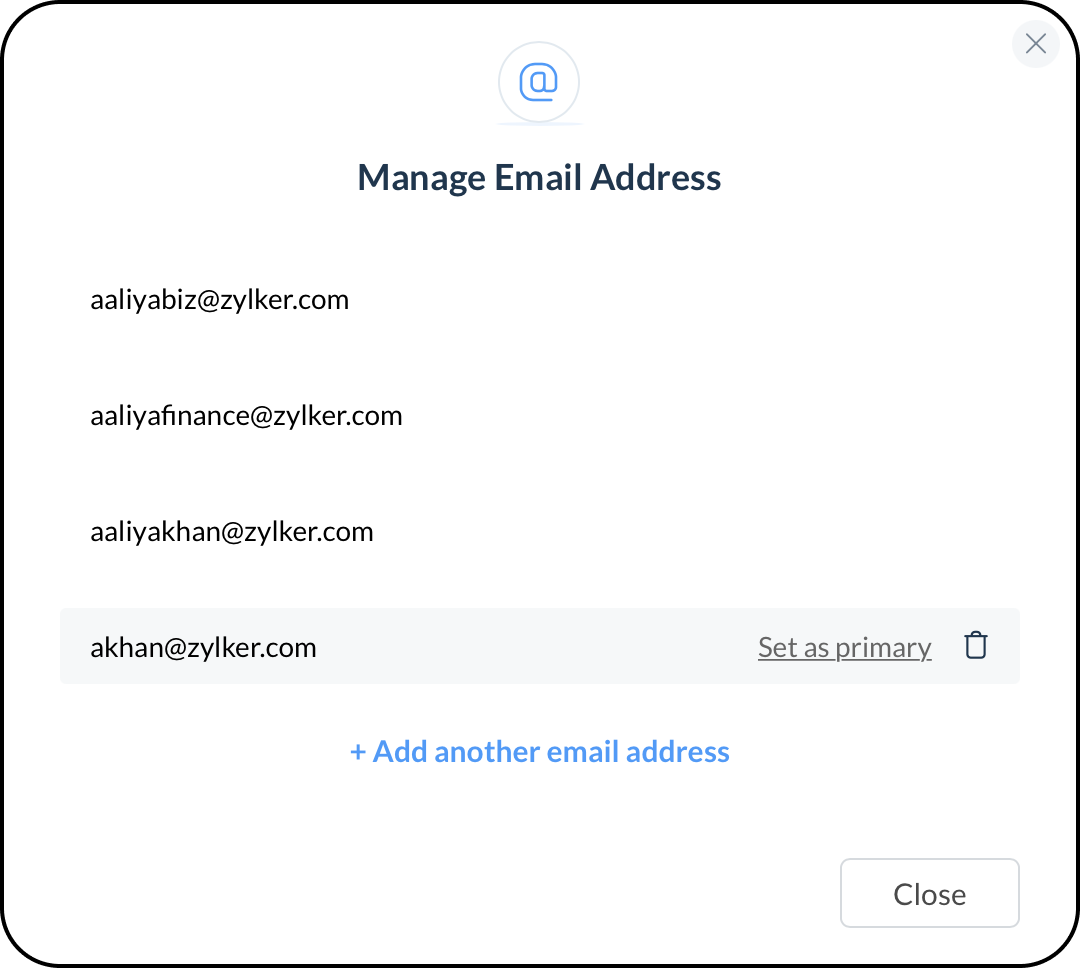
The list of email addresses associated with a user's profile is listed. A user can have one primary email address. You can set an email address as primary if needed or delete an email address from the list available. By selecting "Add another email address," you can add an email address to the list.
Reset Password
You can reset the password of the user here by first entering a new one-time password, then entering your account password to confirm this action. By checking the box you will clear all the active mobile app sessions and active API auth tokens. To assist the user in logging into Cliq, you must then provide them with the one-time password you have created. On selecting Reset Password, you will be redirected to accounts.zoho.com page for password authentication to complete the action. On successful authorization, the user will be required to choose a new password upon logging in so they may access their Zoho account.

Note:
- You can reset the user's password within 300 seconds from the time of previous password authentication.
Delete
You can select the Delete button to delete a particular user from the organization. A confirmation pop-up will appear, where you'll have to click Delete. On selecting Delete, you will be redirected to accounts.zoho.com page for password authentication to perform the action.
Note:
- You can delete users within 180 seconds from the time of previous password authentication.