How can you join scheduled meetings in Zoho Cliq: Meetings on Home TV app?
Cliq's Home TV app will help you join meetings and start scheduled meetings from your TV. Let us see how you can sign in and use Cliq's features in the app.
Download from Google Play Store:
- Click on Install to download the app.
- Once the installation is successful, open the app.
Sign-in
- Go to the Zoho Cliq app on your TV.
- Select Sign In from your home page.
- A code will be generated in the TV app.
You will find the list of all the meetings that are ongoing for you to join. If there are no meetings going on you will find only the upcoming meetings.
Upcoming meetings
You will find the list of all the meetings scheduled for you for the next 24 hours under the upcoming meetings section.
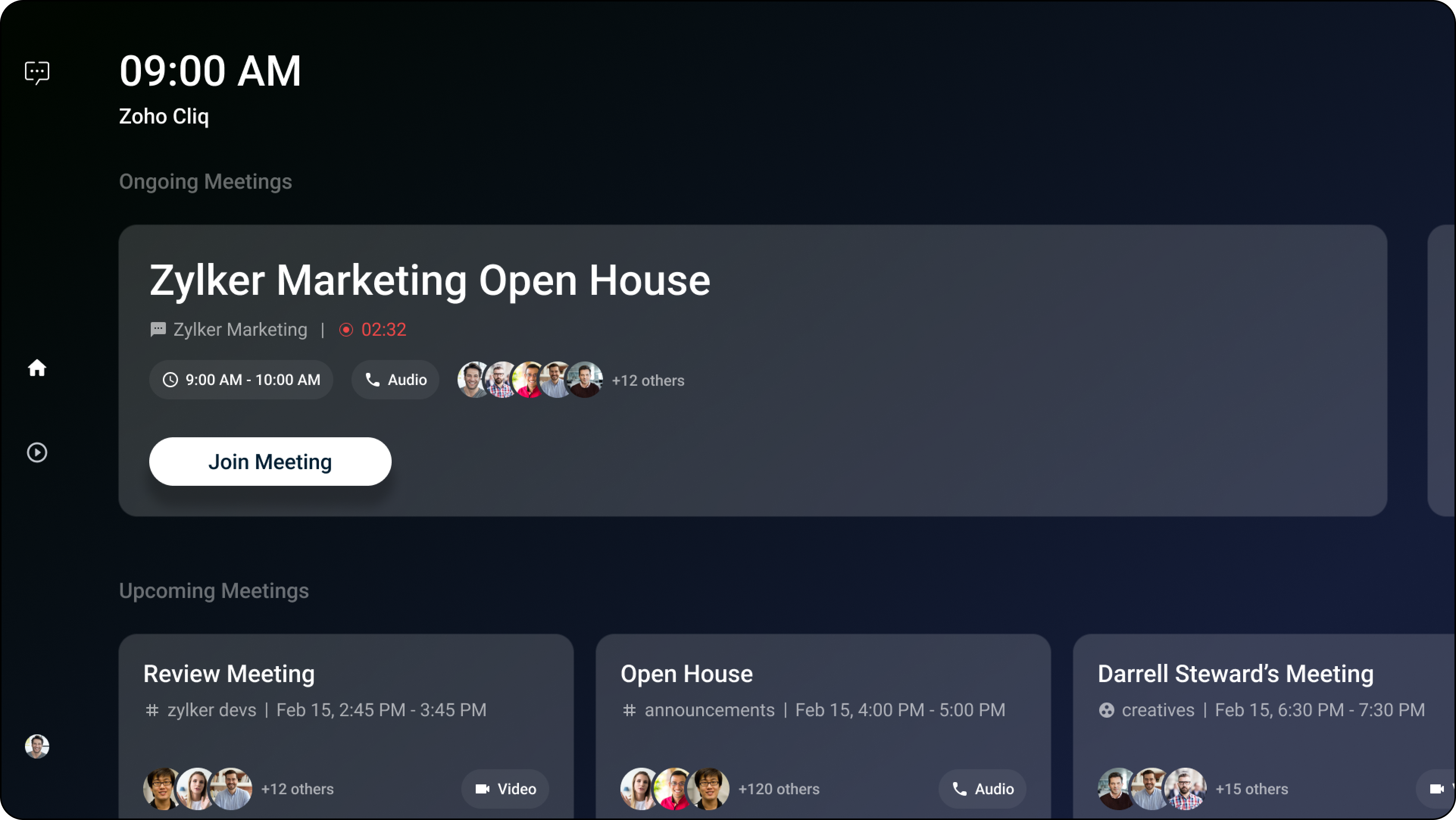
Join meeting
You can join meetings you are a part of under the ongoing meetings.
- Select the meeting you want to join and click on Join Meeting.
- A screen with options to turn on/off your audio/video before joining the meeting will appear. Click on Join Meeting to join the meeting.
- Once you successfully join a meeting, you can leave the meeting at any point.
- You can leave the meeting from the TV app by clicking on Leave Meeting.

Note:
- When you try to join a meeting before the host has started it, you will not find the Join Meeting button and a notification "Meeting is not yet started. Wait until the host start the meeting" will appear on the TV screen.
Start meeting
If you have scheduled the meeting you can start the meeting 15 minutes before the scheduled time.
- Select the upcoming meeting you have scheduled and click on Start Meeting to begin the meeting.
- A screen with options to turn on/off your audio/video before starting the meeting will appear. Click on Start Meeting to start the meeting.
- Once the meeting starts, as a host you will be able to end the meeting and set controls.
- You can end the meeting from the TV app by clicking the End Meeting button.

Note:
When you try to start a meeting before 15 minutes, you will not find the Start Meeting button and a banner message "You can start the meeting only before 15 mins of the scheduled time" will appear on the TV screen.
Add audio source from mobile
- You can use your mobile as the audio source for your meeting. A small phone icon beneath the audio icon indicates that the source of the audio is a mobile device.
Note:
Recordings
You can view all the recordings of the meetings under the Recorded meetings section.
You can pause/play and fast forward the recording. You will also be able to increase the playback speed to 0.5x, 1x, 1.5x and 2x.
Profile
The following options will be shown when the user clicks on their contact image.
- Account
User's email ID and Zoho User ID will be displayed with a Sign out button. - About us
You will get to know about Zoho Cliq and details on the app version installed. - Terms
You will be able to view the terms and conditions while using Zoho Cliq. - Privacy
You will be able to view the privacy policy and what Cliq has access to.
Minimum OS version
- A user will require a minimum Android 7 OS version support.