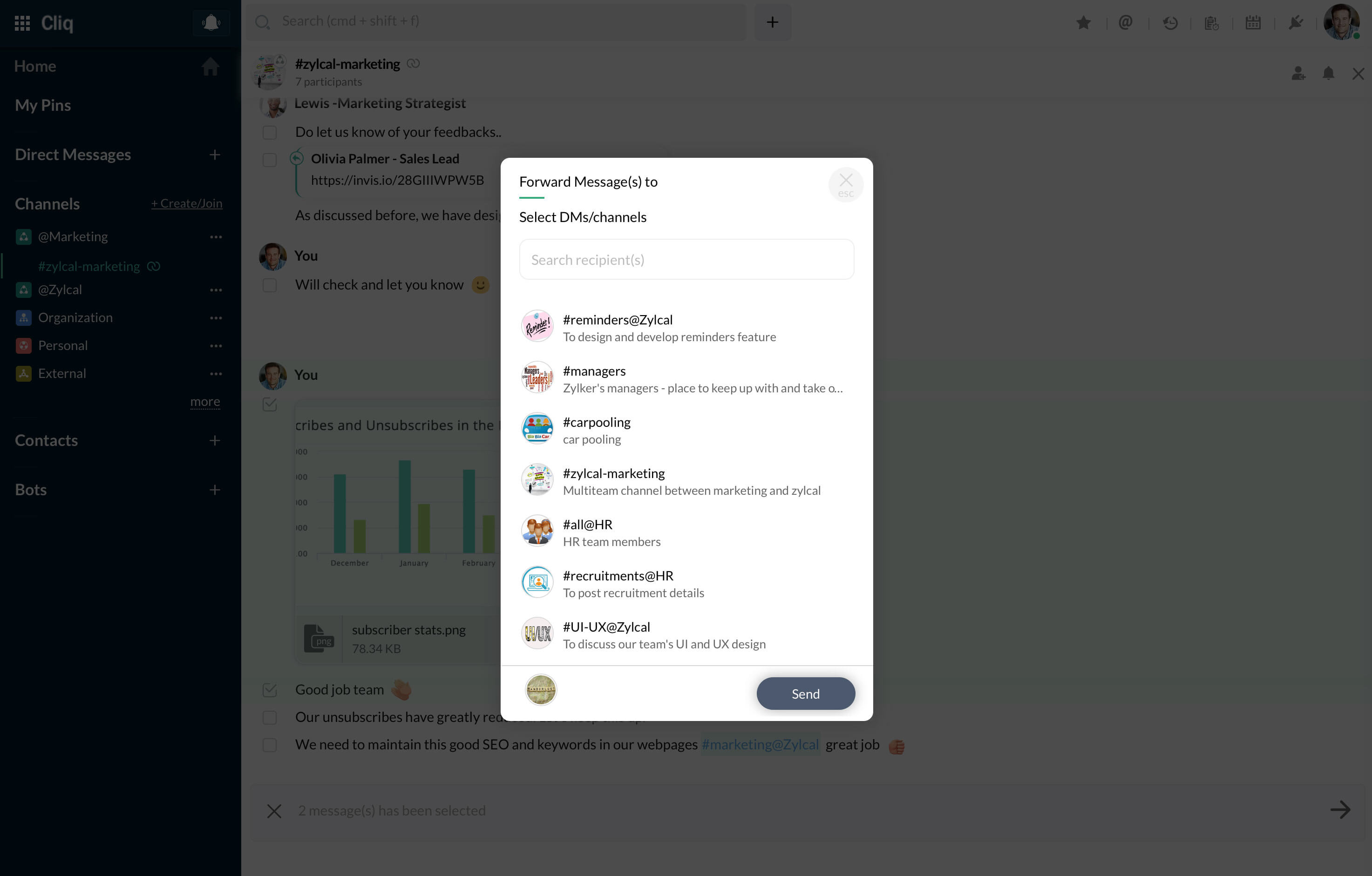
How do I forward Images/Documents?
To forward the image to one user, click on the forward icon below the image. Enter the recipient name, and click on Forward button to complete the action.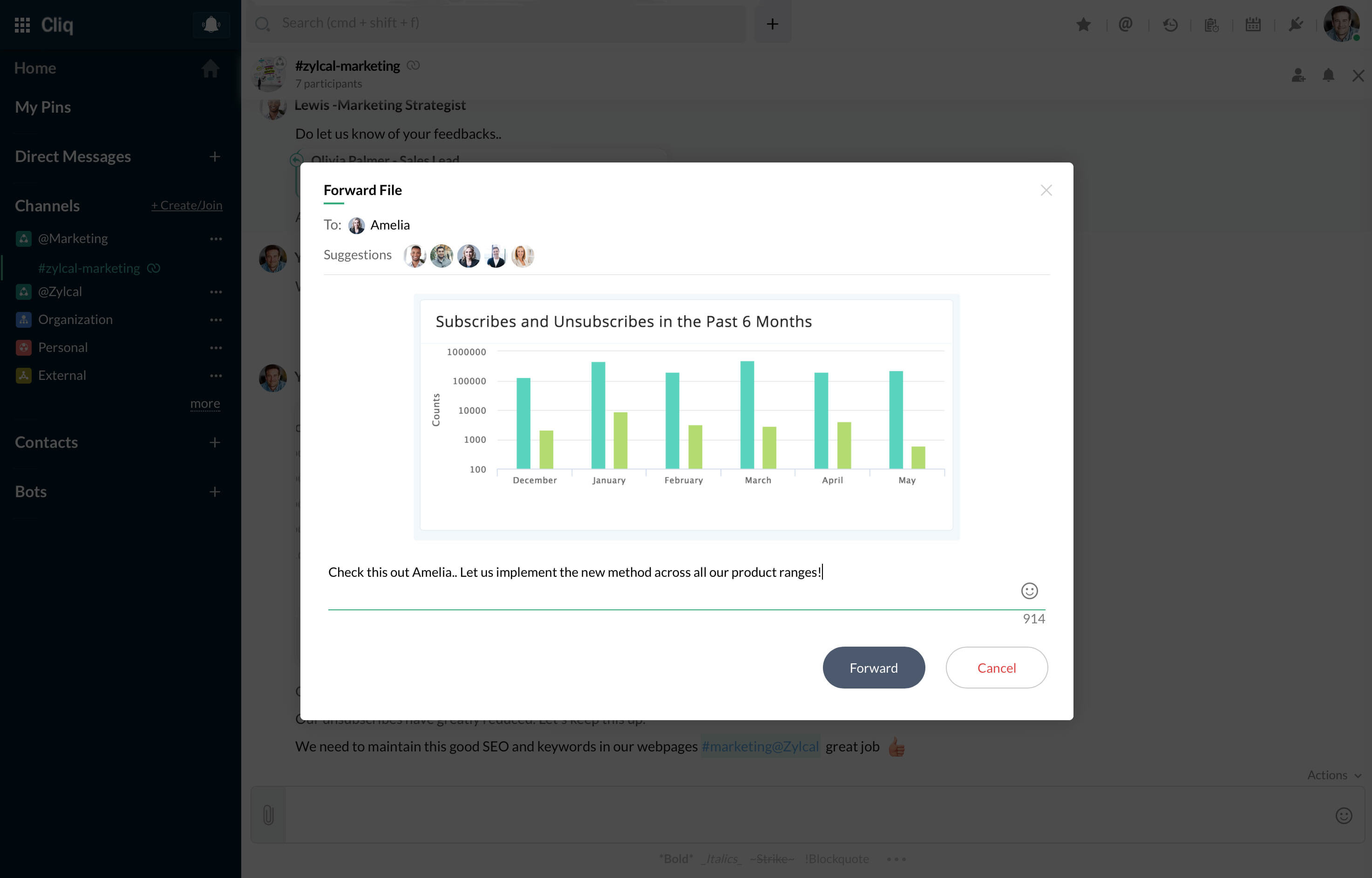
You can also forward the image along with the messages to many users. Hover over the image, click on the Message Actions that appear in the left side, select Forward, and proceed. You will get a dialogue box with a list. There are two types here:
- Forward to users -- Individual -- Group
- Forward to chats and channels
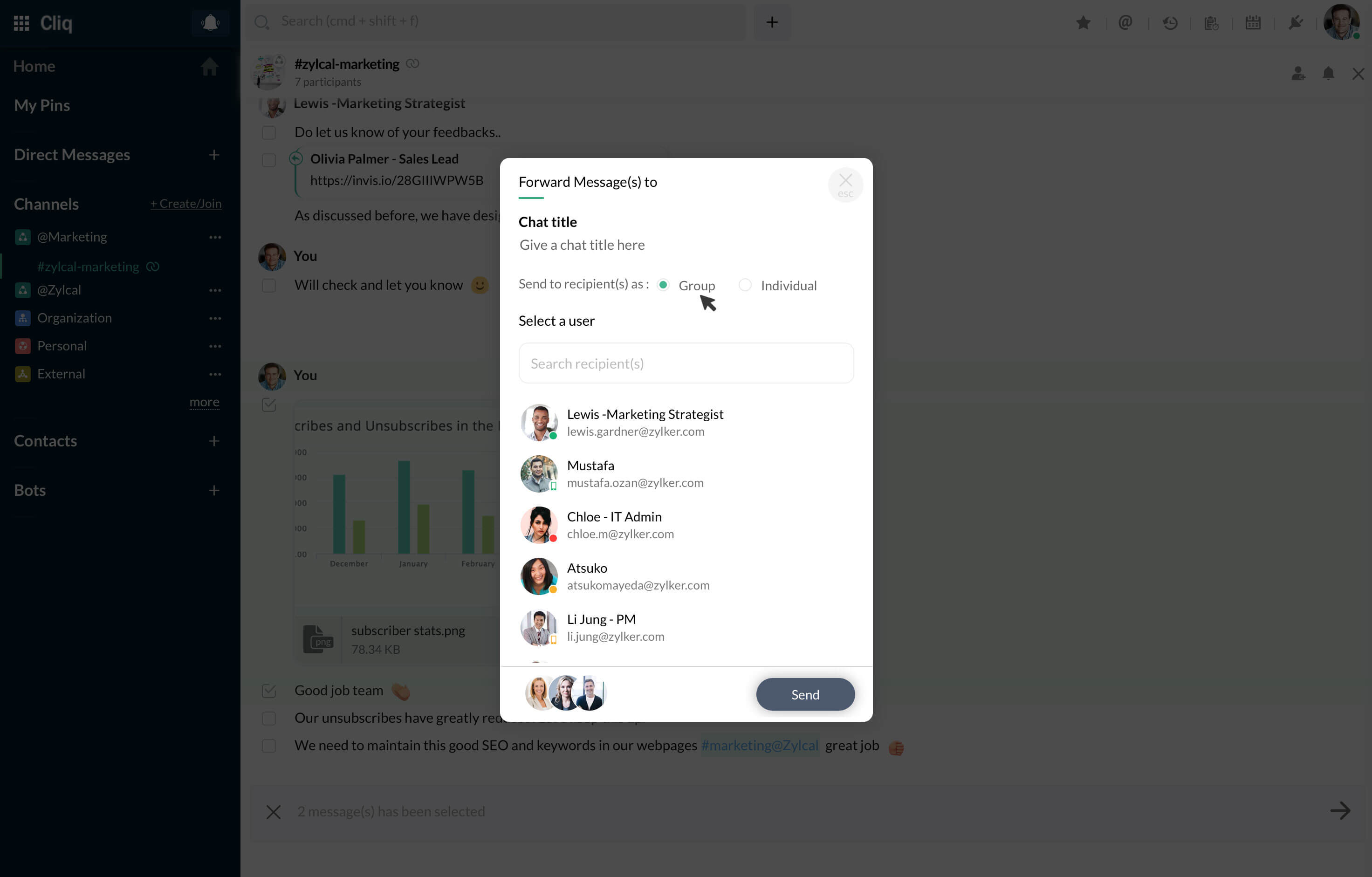
- Forward to Users Enter the name of the user in the box. -- Individual: The selected info will be forwarded individually to the users. -- Group: If you select more than 2 users, an option to send in a Group will appear. You can set the chat title and proceed. A new group chat will be created with the users and the info will be forwarded to that chat.

- Forward to chats and channels Enter the name of the direct message and channel that you want to forward to and proceed.