Cliq Desktop Application For Windows
How do I enable read receipts for chats?
To enable read receipts for chats:
Click the Main Menu
icon in the top-left corner.
Select Settings from the drop-down menu.
Navigate to the Cliq section and toggle on the Enable Read Receipts for Conversation option.
How do I reposition the Cliq chat list tabs?
To reposition the Cliq chat list tabs, simply drag and drop them to the required position.
How many languages is Cliq supported in?
In addition to English, the Cliq desktop application is supported in the following languages.
German | Deutsch |
Spanish | Español |
French | Français |
Italian | Italiano |
Netherlands | Dutch |
Portuguese | Português |
Tamil | தமிழ் |
Hindi | हिंदी |
Japanese | 日本語 |
Chinese (Simplified) | 简体中文 |
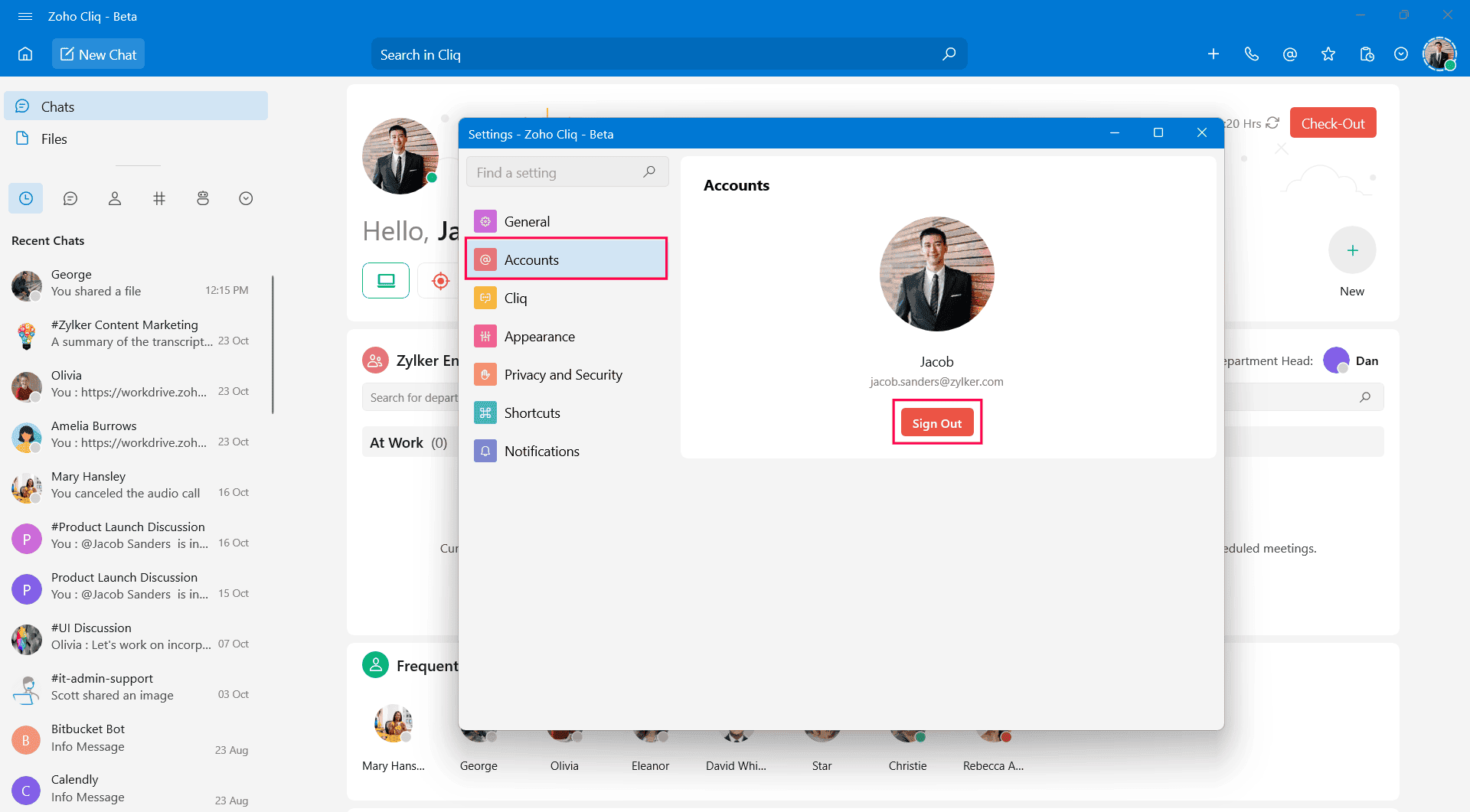
How do I sign out of the app?
Click the Main Menu
icon in the top-left corner.
Select Settings from the drop-down menu.
Navigate to the Accounts section and click Sign Out.
 How do I update the app to the latest version?
Click on Main Menu
icon, and select Check for Updates from the drop-down menu.
Click Main Menu > Settings > General > Version & Updates > Check for Updates.
 Note: This setting was discontinued from version 0.1.6.0.
Click this link to download Cliq for Windows.
How do I send feedback with log files to report bugs?
- Click the Main Menu
icon in the top-left corner.
- Select Feedback from the drop-down menu.
- Enter the necessary details under Subject and Feedback Content.
- Check Include Log Files and Include Optional Diagnostic Information.
- Once ready, click Submit.
Note: By default, the Include Log Files and Include Optional Diagnostic Information options will be checked.How do I view the release notes for the recent app update?
Click the Main Menu
icon in the top-left corner.
Click Help > Release Notes from the drop-down menu.
How do I disable the app's desktop notifications in the Action Center?
- Windows 10: Go to Start Menu > Settings > System > Notifications & actions > Zoho Cliq Windows Beta > Turn off.
- Windows 11: Go to Start Menu > Settings > System > Notifications > Notification from apps and other senders > Zoho Cliq Windows Beta > Turn off.
How do I enable or disable Cliq notifications?
How do I enable Do Not Disturb (DND)?
To enable DND:
Click the User Profile Image in the top-right corner.
Click the current Cliq status.
Select Do Not Disturb from the drop-down menu and set the time required.
Alternatively, you can also enable DND from the Cliq Homepage.
How do I display the new or unread message count in the Cliq app icon on the taskbar?
Displaying the new or unread chat count in the Cliq desktop app icon on the taskbar is not yet supported. This will be available in future updates.
How do I configure a 12-hour or 24-hour time format?
Configuring time format is not yet supported. This will be available in future updates.
How do I customize shortcut keys?
Customizing shortcut keys is not yet supported. This will be available in future updates.
How do I use Hotkeys?
What features can be expected with future updates?
The following functionalities will be accessible in the Cliq desktop app for Windows with future updates:
Scheduling messages.
Integrating calendar.
Schedule meetings.
Notifications for message reactions.