How does Zoho Cliq's writing assistant work?
Zoho Cliq's Writing assistant is your ultimate partner in crafting impeccable messages that leave a lasting impression.
It assists you in communicating and crafting polished and professional messages with precision, professionalism, and efficiency, ensuring your messages are free from grammatical, spelling, and punctuation errors — ensuring that your intended message is conveyed flawlessly.
Here's how it works →
While you compose a message in any chat, you can now view spelling and grammar-related suggestions in your text in case you've made any mistakes.
Here's how it works →
While you compose a message in any chat, you can now view spelling and grammar-related suggestions in your text in case you've made any mistakes.
The red line indicates a misspelled word. The green line indicates a grammatical error, and the yellow line indicates a suggestion. Clicking on any of these indications will open an inline popup with possible corrections. You can easily accept the right correction or Add to the dictionary to add new words so you don't get corrected next time.
Note: Spelling suggestions are available for 100 languages, and grammar suggestions are available for English, Spanish, and French.
For a more detailed view or if you're composing a longer message, click on the wand icon next to the markdown icon below your composer.
The pocket editor powered by Bluepencil provides a comprehensive analysis of your content and generates a readability score. From identifying grammatical errors, run-on sentences, and typos to delivering customized suggestions to avoid wordy phrases, passive sentences, cliches, and more, Writing assistant helps make your work clear and impactful.
Spelling errors: The number of spelling mistakes in your text will be listed here. On selecting it, the errors will be listed along with suggestions to change it.
Grammar suggestions: The number of grammatical errors in your text will be listed here. On selecting it, the errors will be listed along with suggestions to change it.
Ease of reading: The readability score will be shown here. Here, you can see how many minutes your text reads, the readability score, a small paragraph on how readable your text is, and if there are any run-on sentences.
Note: This will be visible only when your text is 100 words or more.
Word count: This will show you a list of total words, characters, what words were used, and the count of the words.
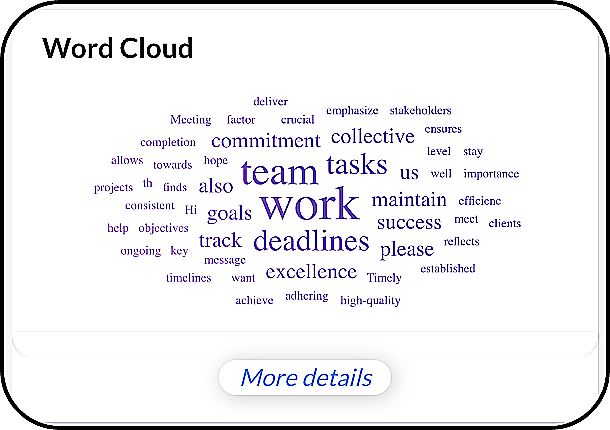
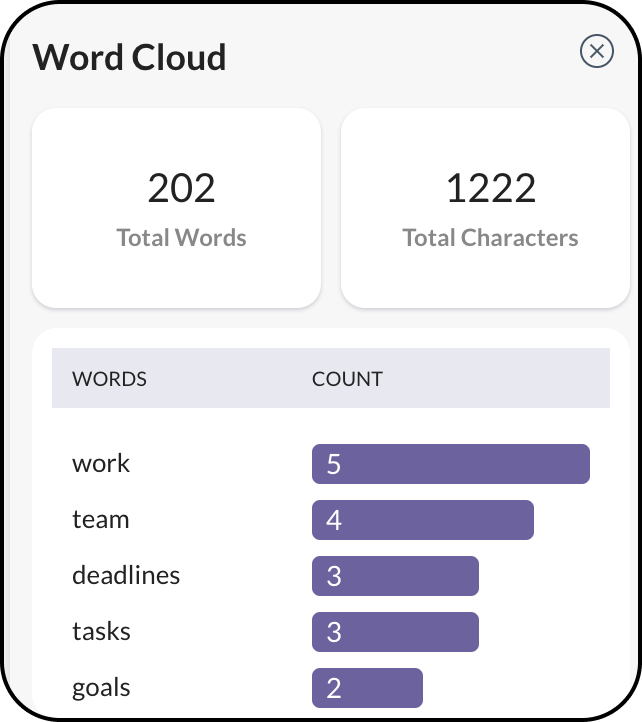
Note: This will be visible when your text is 100 words or more.
Writing quality: This will indicate the quality of your text and check the following: wordy phrases, improper word choices, sentences that can be rephrased, informal writing, non-inclusive language, incomplete sentences, passive sentences, adverbs, and cliches.
Tone detection
With tone detection, you can fine-tune your message, ensuring it strikes the right chord and is received with utmost clarity and impact.
Here's how you sound: Your text will be categorized into emotions, such as anger, excitement, happiness, disappointment, sarcasm and neutral, based on your message's tone. You can tweak your message based on how exactly you want to come across and what you want you want to convey.
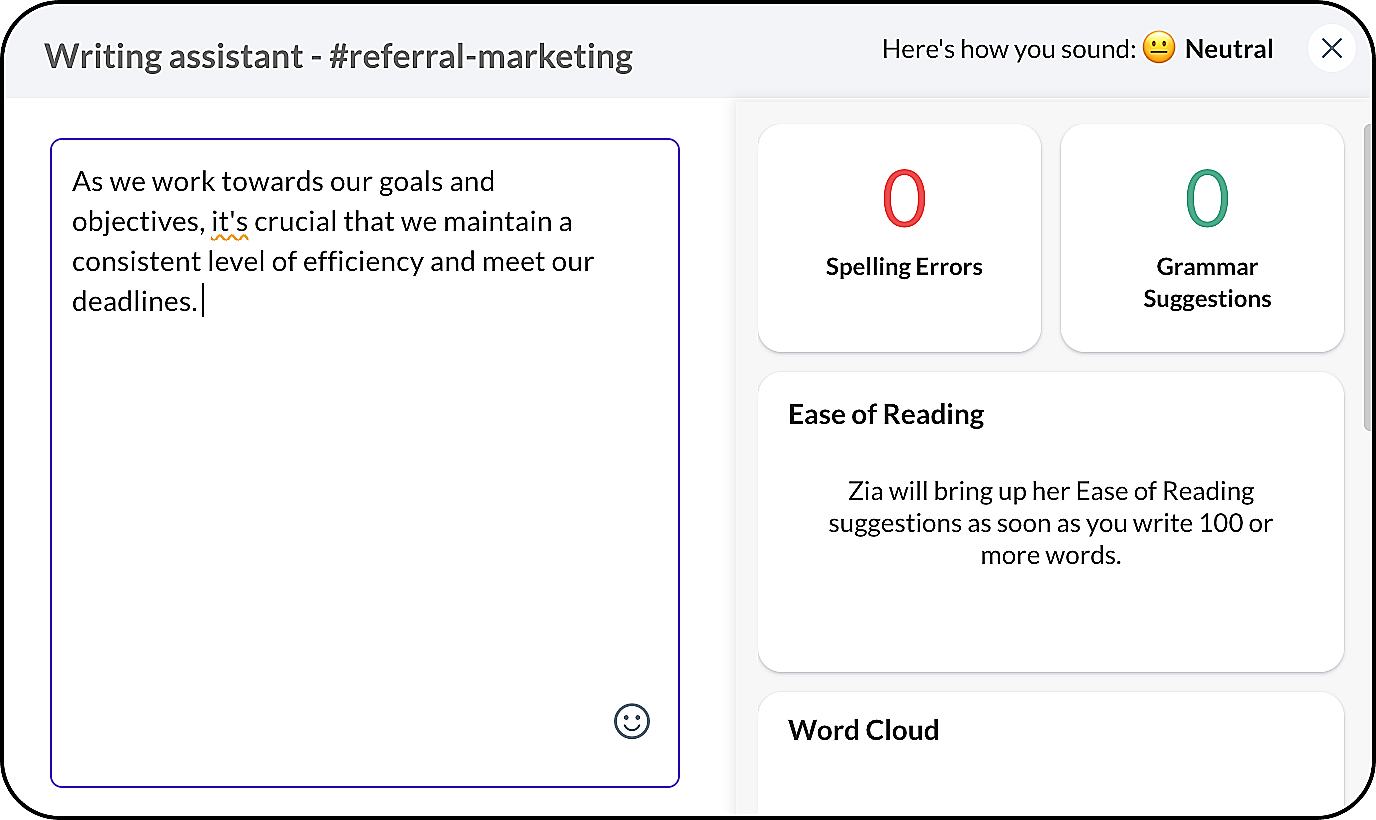
Here's how you sound: Your text will be categorized into emotions, such as anger, excitement, happiness, disappointment, sarcasm and neutral, based on your message's tone. You can tweak your message based on how exactly you want to come across and what you want you want to convey.
Note: The tone of your message will be visible for the text within a 200-character limit. If the text exceeds this limit, the tone won't be displayed.
How to disable Writing assistant?
By default, this feature would be enabled for all users, but incase you want to disable Writing assistant, do the following:
By default, this feature would be enabled for all users, but incase you want to disable Writing assistant, do the following:
- Navigate to Profile & Settings and go to Writing assistant under General.
- Disable the button to switch it OFF.
For Admin members, in case you want to switch writing assistant off entirely for your organization:
Go to Admin Panel → Organisation → Configurations → Zia.
Toggle off the option "Writing assistant using Zoho AI."