Managing community Policies
Understand what Policies controls
Open community Settings and go to Policies to control how users access information and how they are allowed to use important apps and features in the community.
This section is especially important for a superhost, because it helps define the operating rules of the community. While other settings focus on structure, branding, or modules, Policies helps you decide how open, restricted, or controlled the member experience should be.
Use this section when you want to:
- Control what member information is visible
- Decide who can create important content areas
- Manage how private conversations work
- Control who can create spaces
- Fine-tune access to exports, reactions, tours, MFA, and post view visibility
These settings help a superhost shape the balance between openness, privacy, governance, and collaboration.
Control user information visibility
Under User Information, you can decide who is allowed to view member email addresses.
This is useful when you want to control how openly member information is shared across the community.
If you want email addresses to remain private, restrict visibility to hosts only. If your community needs more open visibility, allow everyone to view them.
This gives a superhost control over how discoverable member contact details should be. In communities where privacy matters more, keeping email visibility limited helps protect member information. In communities where direct networking is important, wider visibility may be more useful.

Even if email visibility is enabled for all members at the community level, individual members can still choose to hide their email address from others using My Preference.
Set creation policies for modules
Under Modules, you can decide who is allowed to create key items, such as:
- Town Halls
- Manuals
- Boards
For each of these, you can either:
- Restrict creation to hosts
- Allow everyone to create them
This helps a superhost decide how tightly content creation should be governed.
Restrict creation to hosts when these areas should remain structured and centrally managed.
Allow everyone when you want the community to contribute more freely and you are comfortable with broader participation.
This section is especially useful when you want to encourage participation in some areas, while keeping other high-impact modules more controlled.
Control personal dashboards
Also under Modules, you can control Personal Dashboards.
You can choose to:
- Allow all users to create personal dashboards
- Allow only members to create personal dashboards
- Disable the personal dashboard option for the entire community
This helps a superhost decide how personalized the member experience should be.
Allow personal dashboards when members need flexible, self-managed views of their work and activity.
Restrict or disable them when you want the experience to stay more standardized across the community.
Configure file upload and download policy
Under File upload and download policy, you can control how files are uploaded and downloaded across the community.
This section is important for a superhost, because it helps you balance flexibility, storage control, and security. It allows you to decide what kinds of files members can attach, how large those files can be, and who is allowed to download them after they are shared.
Choose the available file upload types
Under File upload type, choose how members are allowed to add files within the community.
The available options are:
- Upload from computer to let users attach files directly from their device
- Whiteboard to let users create and attach whiteboard content
Enable only the upload types your community needs. This helps a superhost keep file sharing aligned with the kind of collaboration the community supports.
Control allowed file formats for attachments
Under Allowed file formats for attachments, choose how file types should be handled for user attachments.
You can select one of these options:
- Allow all formats to let users attach files in any format
- Allow specific formats to permit only selected file types
- Block specific formats to prevent selected file types while allowing the rest
This helps a superhost control attachment quality and reduce the risk of unsupported or unwanted file types being shared in the community.
Use Allow all formats when file flexibility is more important.
Use Allow specific formats when only a controlled set of document, image, or media formats should be accepted.
Use Block specific formats when most file types are acceptable, but certain formats should be restricted.
Set the file upload limit
Under File upload limit, set the maximum file size users are allowed to upload when attaching files.
You can configure separate limits for:
- Video files
- Other files
This gives a superhost better control over storage usage and upload behavior. It is especially useful in communities where large media files may affect storage planning or where attachment sizes should be kept within a practical range.
Choose who can download attachments
Under Attachment Download Access, choose who within the community is allowed to download attachments.
The available options are:
- Everyone
- Hosts only
- Selected users
- None
This gives a superhost direct control over how widely shared files can be accessed after upload.
- Choose Everyone when attachments should remain openly accessible to all community members.
- Choose Hosts only when download access should be restricted to administrative users.
- Choose Selected users when only specific users should be allowed to download attachments.
- Choose None when attachments may be viewed in context but should not be downloadable by users.
This section is especially useful when your community handles sensitive documents, controlled resources, or internal-only materials that should not be freely downloaded by all members.
Manage one-on-one conversations and channels
Under One-on-one conversations and Channels, you can control how private chat works in the community.
If you want members to connect freely, allow private conversations.
If you want all discussions to stay within visible channels, spaces, and posts, disable one-on-one conversations.
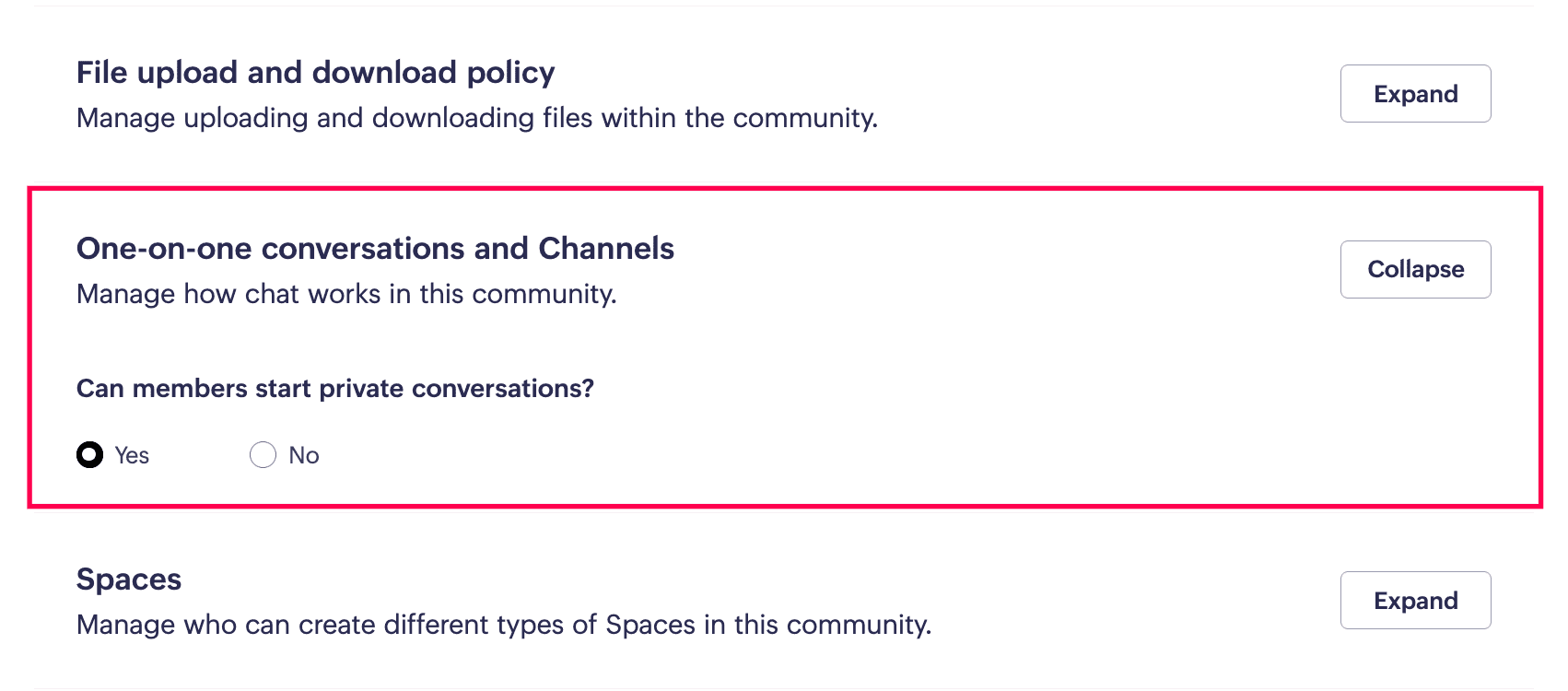
This gives a superhost direct control over whether communication should remain open and traceable inside the shared community environment, or whether private member-to-member conversations should also be supported.
Allow private conversations when relationship-building and direct coordination are important.
Disable them when you want discussions to remain more transparent and community-centered.
Control who can create spaces
Under Spaces, you can decide who is allowed to create spaces in the community.
You can either:
- Allow everyone to create public and private spaces
- Restrict space creation to hosts only
This is one of the more structural policy decisions a superhost makes, because it affects how quickly the community can expand and how much control members have over creating new collaboration areas.
Allow everyone to create spaces when you want the community to grow more organically and give members more ownership.
Restrict space creation to hosts when you want the space structure to stay curated, planned, and more tightly governed.
Configure general community policies
Under General, you can fine-tune several community-wide policy controls.
These include:
- Allowing data export
- Enabling post reactions
- Letting members view the product tour
- Enforcing MFA for everyone
- Configuring post view information
Each of these helps a superhost shape the overall member experience more precisely.
Use Allow data export when users should be able to take community information out for reporting or offline use. Disable it when tighter control over data movement is important.
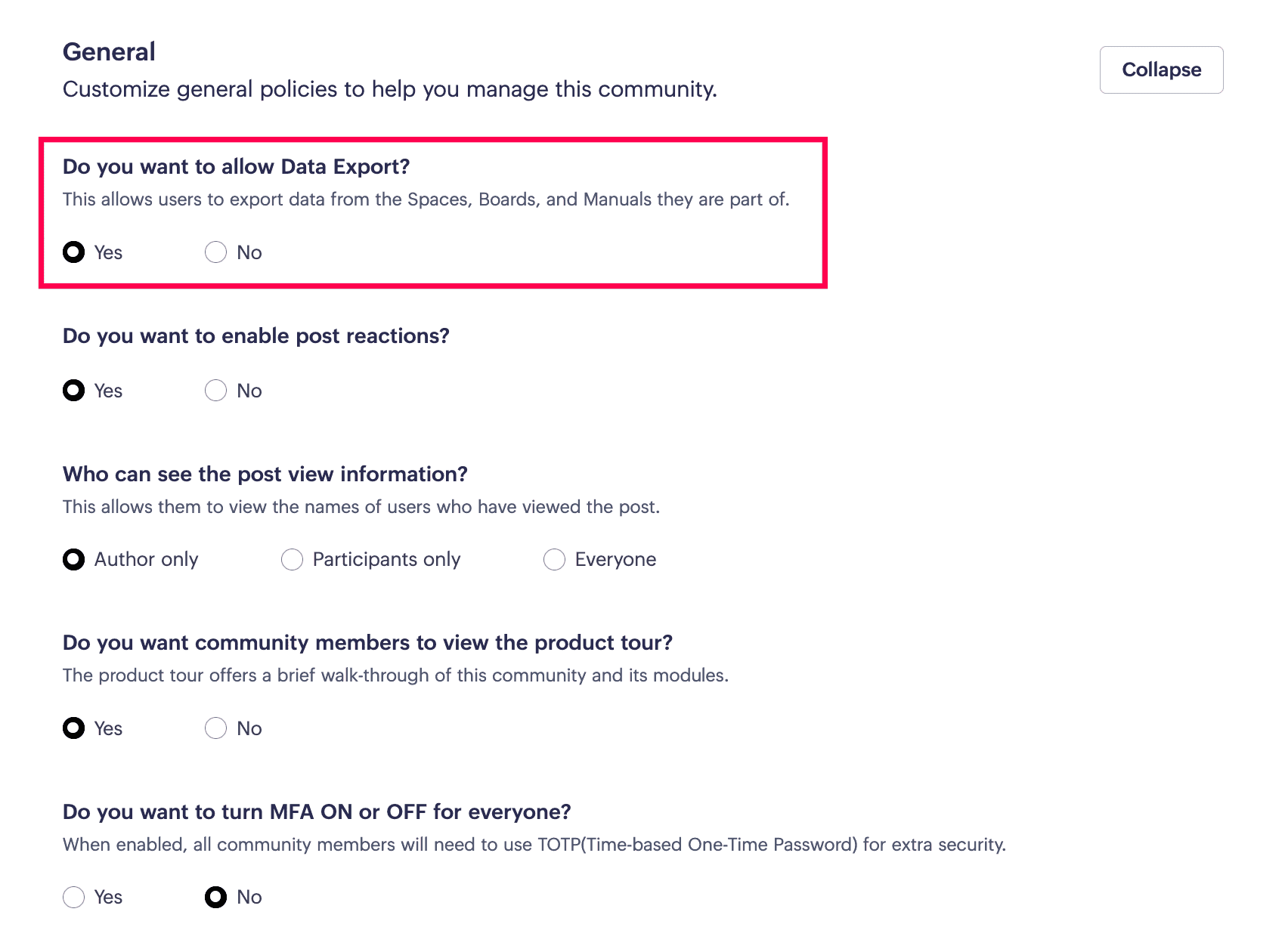
Use Enable post reactions when lightweight engagement should be encouraged. Disable it when you want to reduce quick-response interactions and keep engagement more discussion-based.
Use Post view information to control how transparent post visibility should be. You can decide whether:
- Only the author can see who viewed a post
- View information is limited to participants
- Everyone can see who viewed a post
This gives a superhost control over how visible audience behavior should be in the community. If privacy is a higher priority, keep view visibility limited. If transparency and engagement visibility matter more, choose a broader setting.
Use View product tour when members should have access to the built-in product walkthrough. Disable it when that guidance is no longer needed or when you want to reduce interface prompts.
Use Enforce MFA for everyone when stronger account security is required across the community. This is especially important in communities where access, content, or member data needs higher protection.
Policies play an important role in defining the tone and operating model of the community. They help a superhost decide how much freedom members have, how much privacy is protected, and how structured the community should feel as members use it every day.
 Next: After configuring community-wide policies and access behavior, continue with Notifications to standardize how email notifications are delivered across the community.