Customizing invitation emails and using quick signup links
Understand what this section controls
Open Community Settings and go to Customization to configure Customize Email Template and Quick Signup URL.
These options help a superhost control how new users are invited into the community and how the joining experience feels before onboarding begins. Together, they make the invitation flow more branded, more contextual, and easier to manage.
Customize the invitation email template
Use Customize Email Template when you want to personalize the member invitation email.
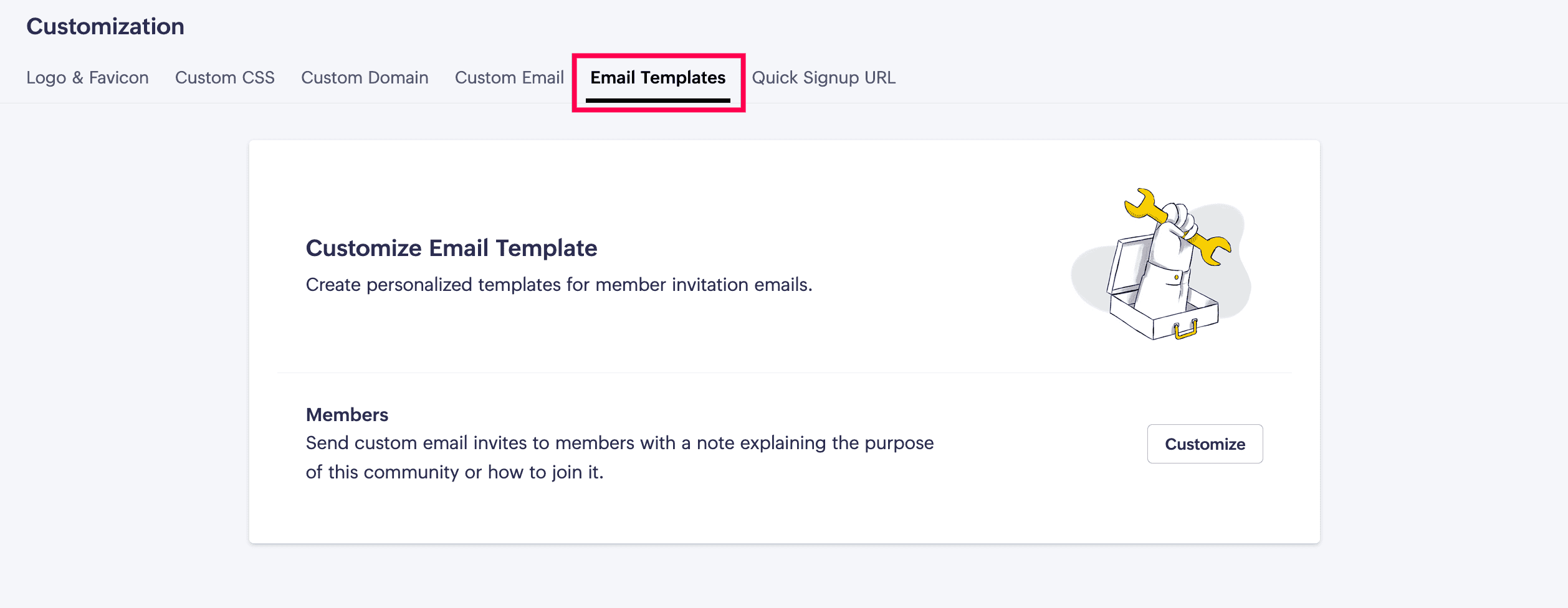
This is useful when you want the invite email to do more than simply send a link. It helps a superhost explain what the community is for, how the recipient should join, and what to expect next.
Expand the editor to customize the Subject and Body sections separately.
You can write your own subject and decide whether to display:
-
The community logo at the top
-
The mobile app download links at the bottom
Use placeholders, logo, and app links correctly
While editing the email template, preserve the placeholders inside ${ }.
These placeholders automatically insert values such as the:
-
Community name
-
Member name
-
Host name
Additionally, make sure not to remove the activation button, because that button carries the join link.
By default, the mobile app download links point to the Zoho CommunitySpaces mobile app. If your white-labeled mobile app is already published on the Play Store or App Store, those links point to the rebranded app instead.
This is important for a superhost, as the invitation email is often a member’s first branded experience of the community.
Preview, save, or reset the email template
Use Preview to review how the email will look before applying the changes.
Once you're satisfied, click Save to apply the customized template.
If you want to go back to the default invitation email later, click Delete to reset the template and start fresh.
This gives a superhost flexibility to test, refine, and reset the invitation experience as needed.
Generate a quick signup URL
Use Quick Signup URL when you want trusted users to join the community directly without going through the normal approval flow.
Click Generate Link to create a shareable signup URL. Once generated, the page shows:
-
The shareable link
-
A Copy option to copy the link quickly
-
A QR code for the same signup URL
This is especially useful for Closed Public communities where users would normally need host approval after signing up. With this link, trusted users can bypass the approval step and join directly.
Because of that, this is a high-impact access shortcut and should be shared carefully.
 Anyone who has this link can join the community without host approval, so share it only with people you trust.
 Share, regenerate, or delete the quick signup URL
After generating the quick signup link, you can manage it in multiple ways. You can use:
-
Copy to copy the generated link directly.
-
The QR code when you want people to scan and access the signup link instantly.
-
Share via email to send it directly to specific users.
-
Regenerate URL when you want to create a new link and expire the older one.
-
Delete URL when you want to invalidate the quick signup URL completely.
This gives a superhost control over who can use shortcut-based access and for how long. It is especially useful when the link should be rotated, restricted, or removed after a campaign, onboarding batch, or closed invitation flow.
 Next: After customizing branding, access, and invitation flows, continue with Data Administration to export community content, review audit logs, monitor storage, and manage support access.