Interacting with and managing ideas
Vote and comment on an idea
Once an idea is posted, members can engage with it in several ways:
- Use Upvote to support an idea
- Use Downvote to signal lower priority
- Use Comments to discuss the idea and add more context
Views and insights
The view count is available to the idea’s author and the community host. It shows how many people have opened and viewed the idea.
Authors and hosts can also open Idea Insights to review performance metrics such as:
- Views
- Votes
- Overall activity
Update idea status
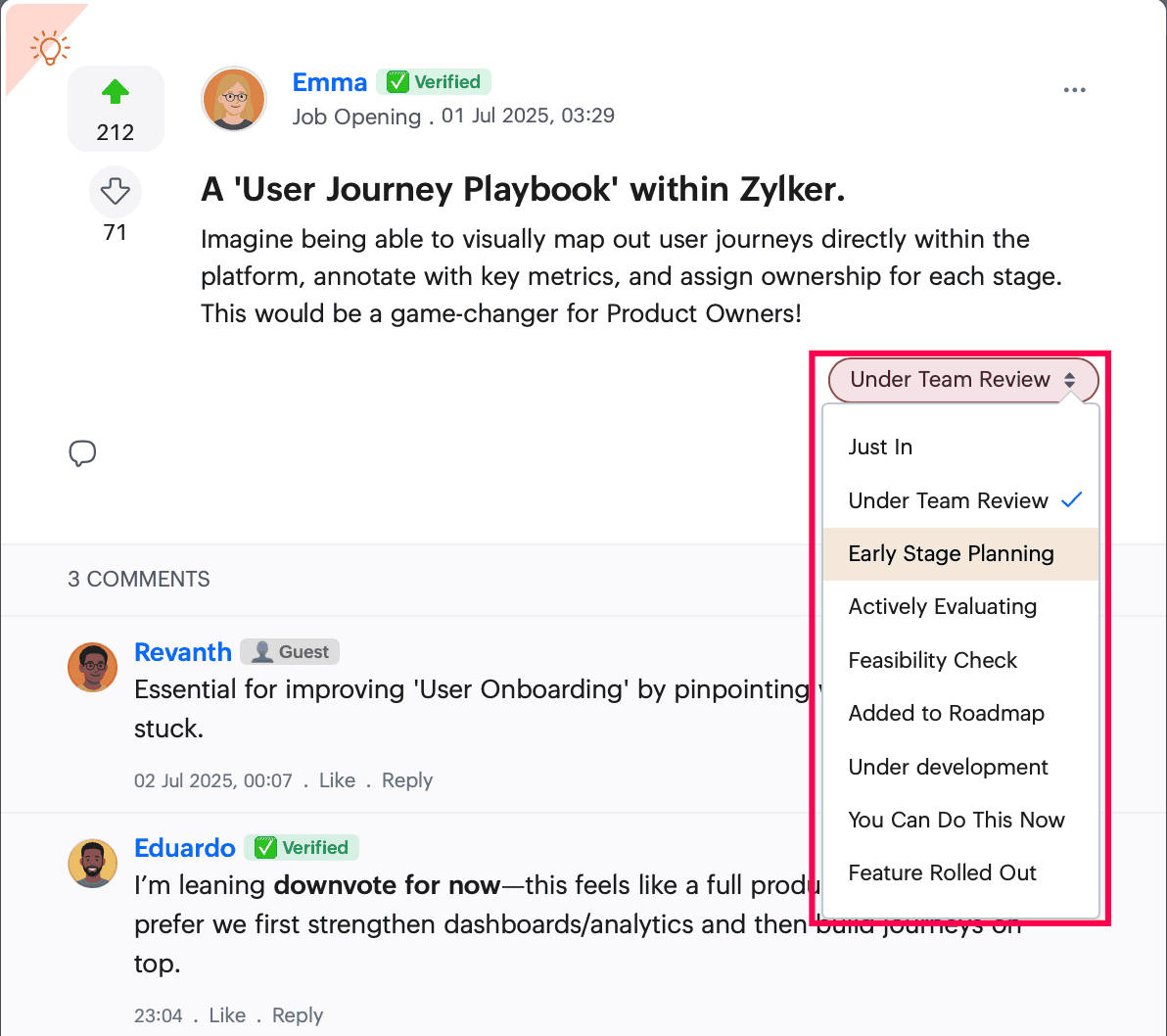
If you are a host, or you have the required permission, you can use the Status dropdown to update the idea’s progress. Other members can follow along as the status changes and the idea moves from suggestion to action.
Idea options
To access more options for an idea, click the three-dot menu. The actions you see depend on your permissions.
Available actions can include:
- Copy Post URL to share the idea link elsewhere in the community
- Edit this post to update the idea
- Turn on /off notifications to enable or disable notifications for all activity on that post, including mentions. This option is available only in the single post view.
- Follow to get notified instantly about engagement on the idea
- Bookmark to save it for quick access
- Read Later to revisit it later
- Print to print the idea details
- Pin this post to keep the post highlighted for better visibility and quicker access.
- Mark as Mandatory Read to require members to read and acknowledge the post.
- Move the post to another space
- Convert this post to change the idea into another post type
- Disable comments to turn discussions on or off
- Report Post to flag an inappropriate idea
- Delete to remove the idea

The author can edit and delete their own ideas. Hosts can also delete ideas when needed, such as after a report is delivered.
Share an idea with others
Use Share when you want to forward an idea to the Community Wall or to a specific space, based on your permissions.
- Enter a message in the share window.
- Use the available formatting options and add attachments if needed.
- To share the idea privately, click the Start a private conversation icon.
- To share it publicly, choose the appropriate wall from the list, such as the Community Wall or a space wall.
- Click Share.
Create a task from an idea
Use Add Task when you want to convert an idea into a follow-up action.
- Enter a title in the Title field.
- Add notes in the task creation window.
- Review the automatically included Related conversation URL for easy reference.
- Add checklists if needed.
- Choose where to add the task: Private or Board.
- Select the assignees.
- Add attachments if required.
- Configure the start date and due date.
- Set a reminder.
- Choose the priority.
- Add Tags
- Set the repeat frequency, if needed.
- Click Create.

Next: Continue with Filtering, exporting, and browsing ideas in Zoho CommunitySpaces to sort ideas, narrow results, export idea data, and review idea highlights.