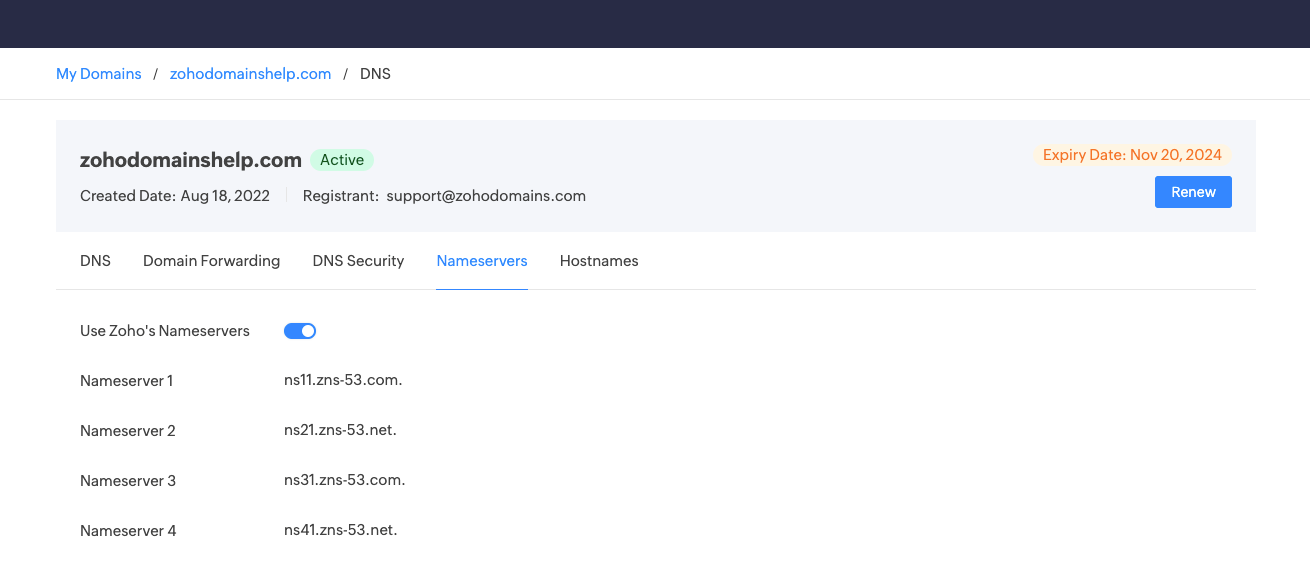
Manage Nameservers in Zoho Domains

Manage Nameservers in Zoho Domains

To manage nameservers for your domain:

  1. Log in to your Zoho Domains account and navigate to the "My Domains" page.
  2. To begin managing the DNS records for a specific domain, navigate to the My Domains page and click Manage next to the domain you wish to configure.
  3. On the domain management page, select the Manage DNS button. This will take you to the DNS management interface, where you can configure your domain's DNS settings.
  4. On the DNS management page, click the Nameservers link to proceed.    
  5. For newly registered domains in Zoho, default nameservers will be assigned. If you prefer to use custom nameservers from a third-party DNS service provider, please follow these steps:
  1. Click the toggle icon as indicated in the accompanying image.
  2. Enter the custom nameservers. A minimum of two values is required, and you may provide up to thirteen nameservers.
  3. After entering the custom nameservers, click Save. A confirmation dialog will appear to verify your intention to save these nameservers.

  1. If your domain has been transferred to Zoho, the existing DNS settings will remain unchanged. You can choose to either utilize Zoho's nameservers or continue using your existing nameservers.