Connecting Snapchat Lead ads with Zoho CRM
Snapchat is a vital platform for businesses to reach a highly engaged, mobile-first audience through engaging and interactive ads. However, managing these leads manually by exporting and importing them can lead to data errors, duplication, and delays that cause you to miss out on nurturing potential sales.
By integrating Snapchat Lead Ads with Zoho CRM via LeadChain, you ensure a seamless, real-time flow of data. LeadChain lets you connect your snapchat Lead Ads with Zoho CRM, which lets you synchronize all the leads generated from your ads to the Leads or Contacts module in Zoho CRM.
Connecting Snapchat Lead Ads with Zoho CRM
- Connecting the apps
- Mapping the fields
Connecting the apps
This stage is where you define your source (Snapchat Lead Ads) and your destination (Zoho CRM).
In the source section, you connect your Snapchat account to LeadChain and select the specific ad account and lead form you wish to synchronize.
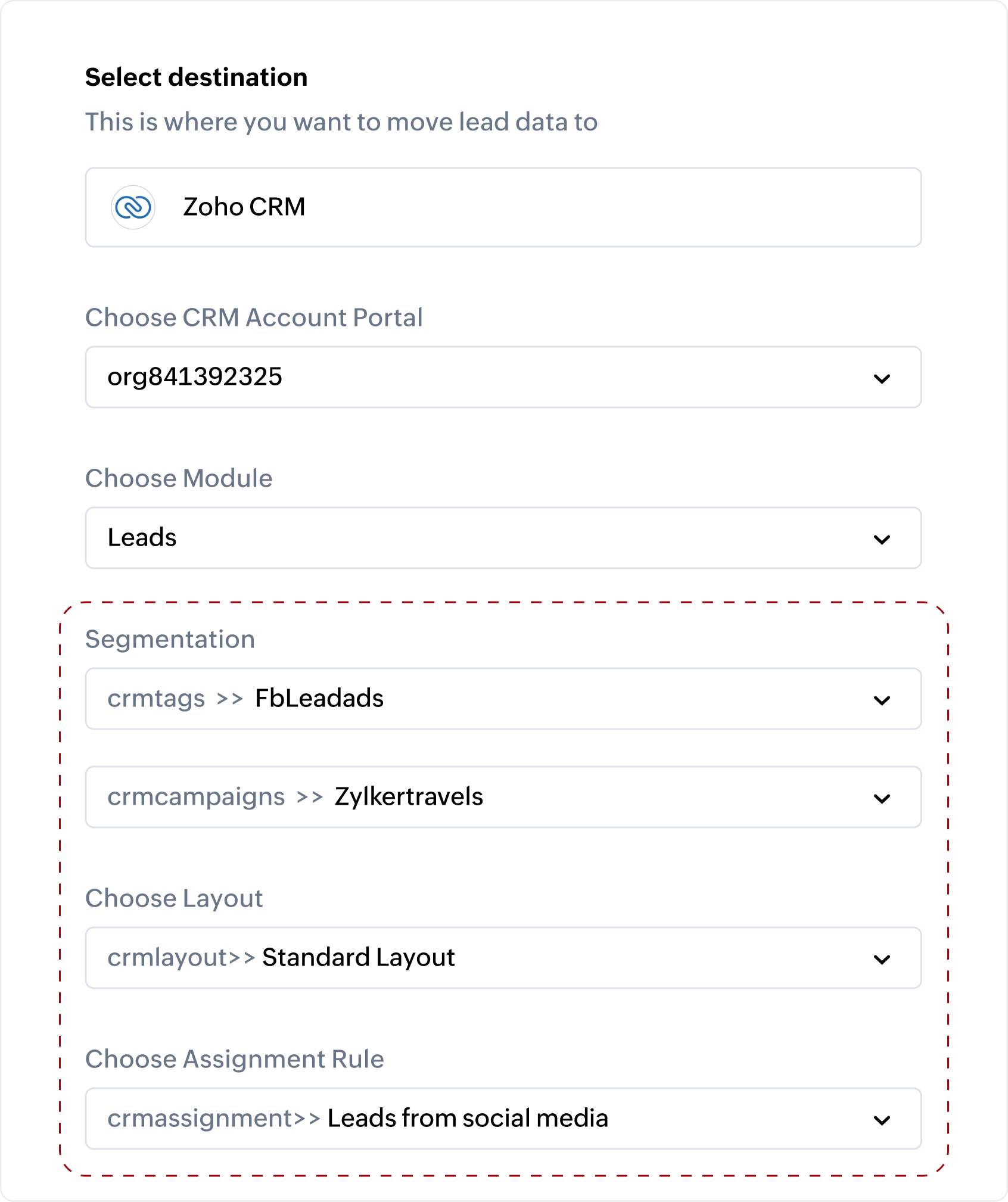
The destination section allows you choose whether to synchronize leads to the Leads or Contacts module in Zoho CRM. You can also configure the following advanced options:
Segmentation
- CRM Tags: You can select an appropriate tag for all leads generated from Snapchat lead forms. This makes it easy for you to categorize your leads and filter them from a large volume of lead data. For example, you can add a tag in CRM - Snapchat Lead Ads to easily group all the generated leads. You can also create a custom view using this tag.
- CRM Campaigns: This allows you to associate new leads with an existing marketing campaign in your CRM
CRM Layout
Choosing the correct Page Layout ensures that LeadChain captures the specific set of fields, such as name, email, and phone, that your business requires for its unique processes. Choosing the appropriate page layout that you have created will help you capture all the required information about the lead and not miss out on any important information.
Assignment Rule
Assignment rules in Zoho CRM let you automate the process of assigning leads to your team based on various criteria. This helps reduce the time taken to assign the leads to your sales reps manually and optimize the resource utilization of your team. For example, you can create assignment rules to automatically assign the leads generated from Snapchat Lead Ads to a specific team in your organization.
Mapping the fields
This stage lets you map all the fields in your snapchat Lead Ads form with the appropriate field in Zoho CRM. You can map Snapchat form fields to the corresponding CRM fields or define default values. For example, you can set the "Lead Source" field in Zoho CRM to "Snapchat Lead Ads" by default. Make sure to map whichever fields are available in your Snapchat account to the matching fields in Zoho CRM to ensure that all lead data is accurately captured and stored.
To create a chain between Snapchat Lead Ads and Zoho CRM
- Go to the LeadChain module and click + Create new chain.
- Enter a suitable Name for the chain.
- Select the Source and Destination as Snapchat Lead Ads and Zoho CRM, respectively.
- In the Source section:
- Select your Snapchat account. If not already connected, click + New Snapchat Account to add it.
- Select the Snapchat organization, Snapchat Ad account and the Snapchat Form from the drop-down lists.
- In the Destination section:
- Select the Module.
- Select the appropriate CRM Tag and Campaign for segmentation.
- Select the Page Layout and Assignment Rule.
- Toggle 'Update or Add Leads' if you wish to permit duplicate entries.
- Click Proceed to Field Mapping.
- Map the Zoho CRM fields with the fields from your Snapchat Lead Ads or enter default values.
- Click Save and Publish. Alternatively, you can click the drop-down and select Save as Draft.