Other Zoho Sign features available on iOS
iMessage Extension
To send signed documents right away as an attachment from iMessage:
- Open Messages, then tap
.
- Enter the recipient's phone number, contact name, or Apple ID, or choose the recipient from contacts by tapping
.
- Find the Zoho Sign icon in the app drawer and tap on it.
- Select the document you want to send, then tap
.
Action Extension
Using the action extension feature, you can sign documents and import files to Zoho Sign for signing or sending out for signatures without opening the Zoho Sign app.
- Open the file you want to sign or import to Zoho Sign.
- Tap
and select Sign with Zoho Sign to sign the selected file.
- Otherwise, select Zoho Sign from the list of suggested apps to import the file to Zoho Sign.
Widgets
Zoho Sign offers widgets that can be added on your iPhone's home screen and lock screen. The widgets offered by Zoho Sign are Sign document, Need your Signature, Out for Signatures, and Track document status.
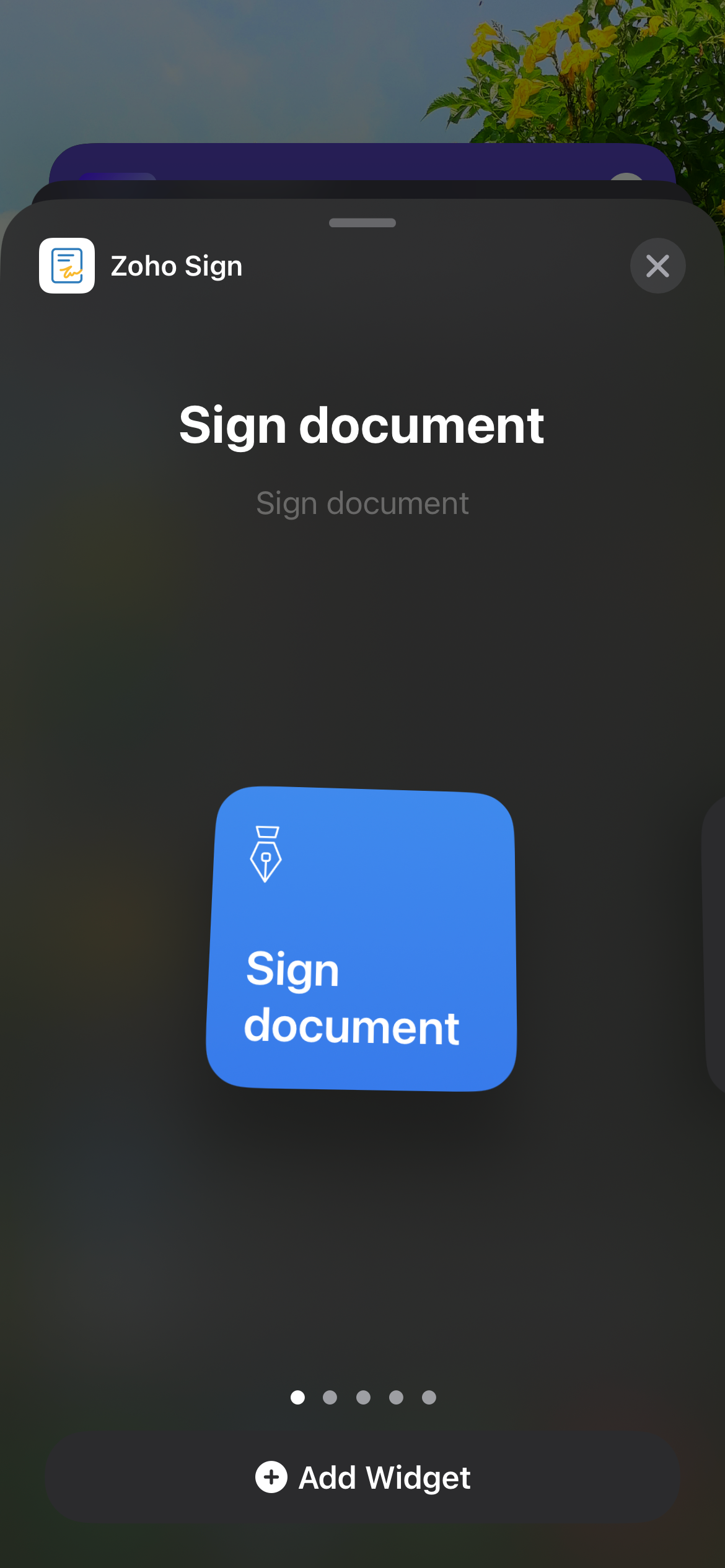
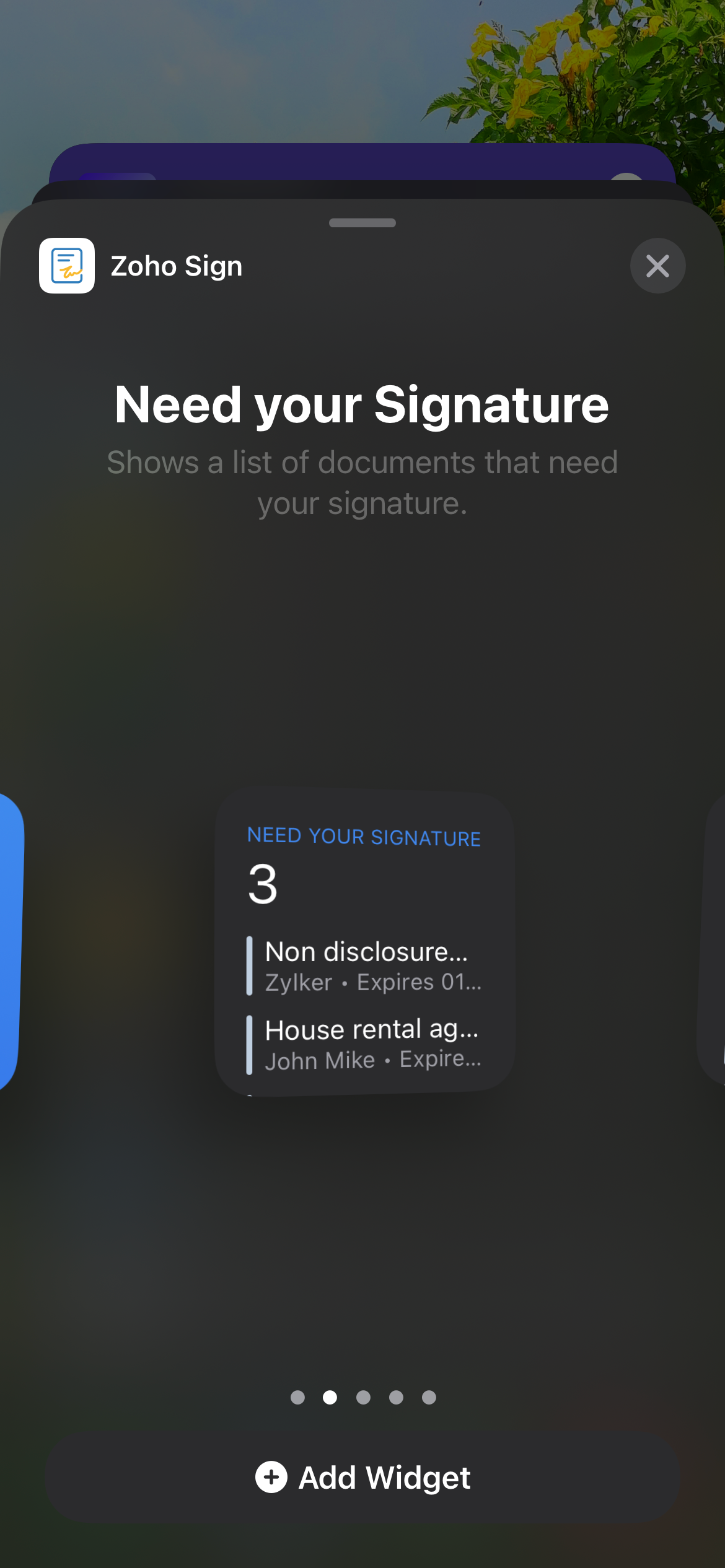
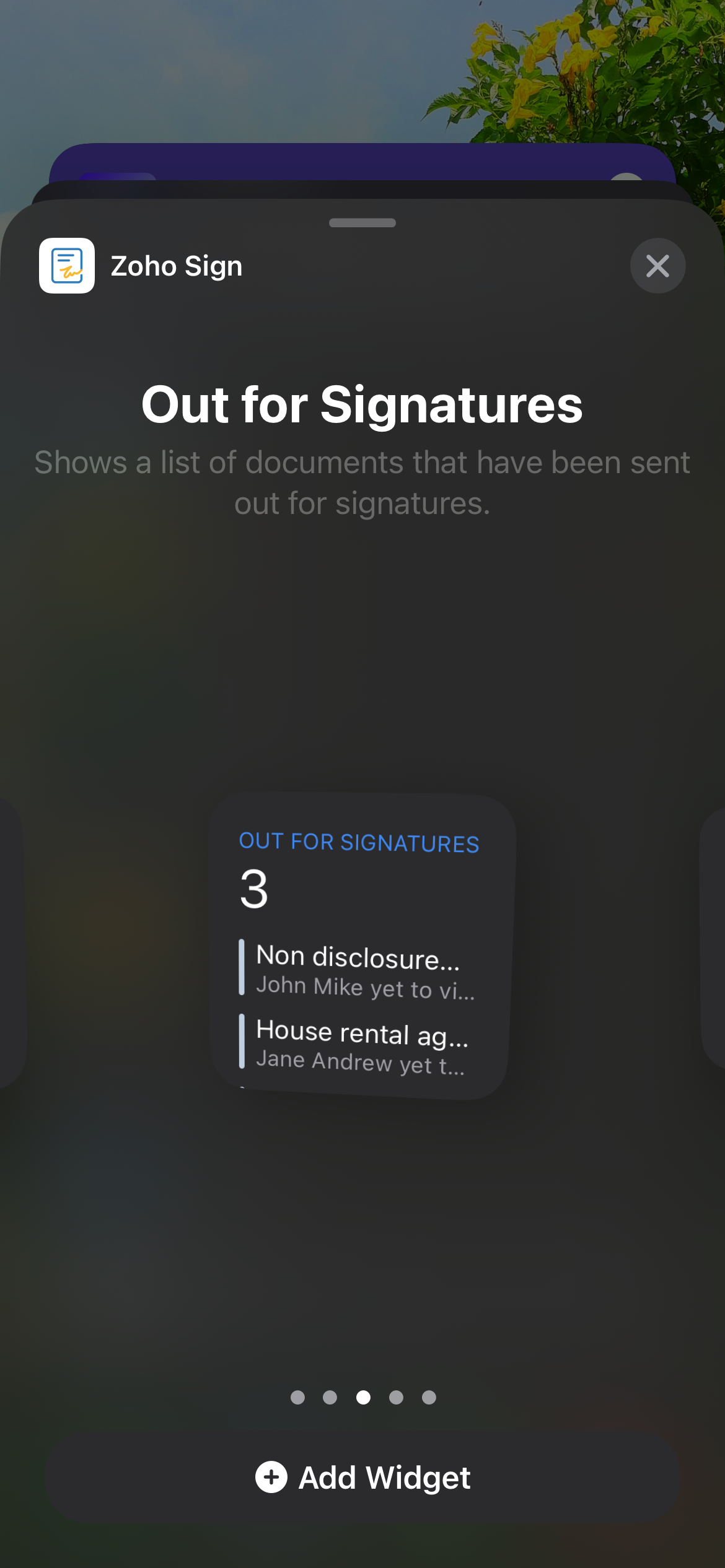
Adding Zoho Sign widgets to your home screen
- Touch and hold an empty area on your home screen until the + symbol appears.
- Select your preferred Zoho Sign widget, then tap
Add Widget.
- Place the widget where you want, then tap Done.
Adding Zoho Sign widgets to your lock screen
- Touch and hold your lock screen until the + symbol appears.
- Select Zoho Sign from the list and select your preferred Zoho Sign widget.
- Tap
Add Widget.
- Place the widget where you want, and tap on Done.
Apple Maps to Get Signer Location
Zoho Sign maps the IP address of the signer to find the location in which the document was signed from, and embeds the location using Apple Maps in the Zoho Sign iOS app.
- Switch to Out for Signatures on the home screen.
- Tap All sent Documents to open the Sent Documents screen.
- Select the document.
- Scroll down to find the recipient's location.