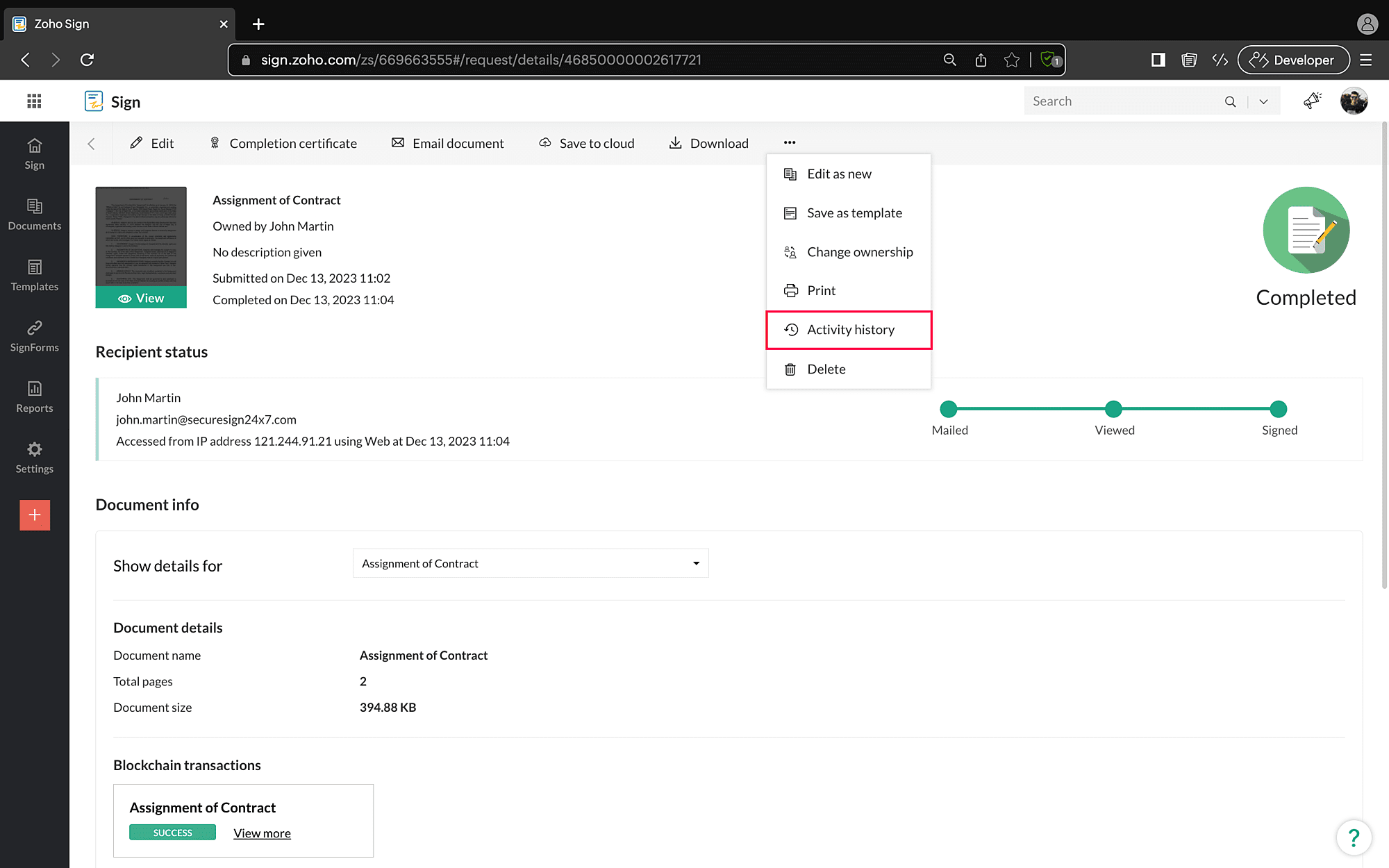
Documents - Detailed View
This page presents detailed information on documents sent out for signatures.
The detailed view of any document can be accessed by clicking the document's name in the list view.
In the detailed view page, the following information can be found:
- Document owner's name
- Document description
- Submission date
- Last updated date
- Current recipient status
Recipient Status
A colored flow graph depicts the status of document with respect to each recipient.
- Grey - The activity is not completed.
- Green - The activity has been completed.
- Red - The recipient has declined the document.
Action buttons
Depending on the status of each document, the sender can perform a set of predefined actions:
- View the document activity history and it can be exported in CSV format
- Edit the document- applicable for draft and in-progress documents
- Extend the document expiry date- applicable only for in-progress documents
- Send reminder- applicable only for in-progress documents
- Recall the document- applicable only for in-progress documents
- Download the document
- Save the documents to cloud- not applicable for draft documents
- Edit as a new document- not applicable for completed documents
- Download the completion certificate- applicable only for completed documents
- Email document
- Correct document- applicable only for in-progress documents and the first recipient has not completed signing the document
- Edit- not applicable for draft documents
- Continue- applicable only for draft documents
- Save as template
- Change ownership
- Print the document
- Delete
- Upload signed document
- Stop schedule- applicable only for documents that has been scheduled
- Reschedule- applicable only for documents that has been scheduled
- Unblock access- applicable only when your recipient has failed to authenticate themselves
- Export audit
Editing actions
There are three ways to perform an editing action on a sent document with specified use cases for each:
- Edit
- Correct document
- Edit as new

The document cannot be altered in any way after the signing process is complete.
Edit Document
Edit the settings and metadata of the documents sent for signatures by clicking Edit at the top of the detailed view screen.
With the Edit action, you can:
- Change the name of the document
- Change the details of the recipient
- Uncheck the order of signing
- Further customize the signing action under the Customize and More settings buttons.
However, you cannot:
- Add more documents to the envelope
- Add recipients
- Change the order of recipients
- Change the role and delivery mode
- Configure the fields in the document viewer page.
Correct Document
Revisit and alter almost all the steps of the signing process by clicking Correct document at the top of the detailed view screen.
In addition to all the editing actions, with Correct Document you can:
- Add new documents to the envelope
- Add new recipients and alter their signing order
- Configure signing action
- Add and delete document fields
However, you cannot alter the document delivery mode.
Edit as new
If you want to make a copy of the entire envelope or a part of it, including the signing workflow and the document fields, you can do so by clicking Edit as new at the top of the detailed view screen, or select from the action menu dropdown. The details and settings of the copy can be fully edited, but they are the same as the original by default.
Send reminder
You can send instant email reminders to the signatories to finish signing the documents.
Click Send Reminder at the top of the detailed view screen, or select Send Reminder using the actions menu to open the reminder dialog box and click Yes.
Reminder Settings
Set automatic email reminders for the signatories of the document.
- Click Reminder Settings at the top of the detailed view screen to open the automatic remainders dialog box, toggle automatic reminders to ON, specify the frequency of reminders, and click Save.
- The automated reminders will be sent to the signer only via email till the end of the specified date given to complete the signing process.
If a signing order is chosen, the reminders will be given to the signatories in order of signing. In other words, the second signer in the order will start to receive reminders only after the first signer completes their signing process.
Recall Document
If you have sent the wrong document, you can always recall it by clicking Recall under the ellipsis of the detailed view screen. Proceed to enter the reason for recalling the document and click Recall.
Please note that once you recall the document, the recipients can no longer view or sign it.
Email Document
- To open the actions menu, click the ellipsis icon at the top of the detailed view screen.
- Email a copy of the document in its current stage of progress to people you want.
- Click Email document at the top of the detailed view page or select from the action dropdown menu to open email dialog box.
- Enter the recipient email addresses and click Send.
Save to cloud
Using the cloud picker feature, save a copy of the document in its current stage of progress to your cloud storage.
- Click Save to cloud at the top of the detailed view screen or select from the action menu dropdown to open the cloud picker.
- Select the intended location on your storage explorer and click Add to this folder.
Download Document
Download a copy of the document in its current stage of progress to the local drive on your device.
Click Download at the top of the detailed view screen or select from the action menu dropdown.

You can have your downloaded documents password protected which will be downloaded in zip format.
Extend Deadline
You can extend the expiration date set for signing the document without resending it for signature.
- Click Extend at the top of your detailed view screen, or select Extend from the action menu to open a dialog box.
- Specify the new expiration date and click Set.
Activity history
Access the activity history of a document to view a complete audit trail of the document. If a recipient retracts their signature, this can serve as evidence to legally prove that the document has been signed by the recipient.
To check the activity history of a document, click Activity history under the ellipsis icon at the top of the document detailed view page.
The activity history cannot be deleted or edited even by the administrator of the organization.