Calendar view
Calendar gives us a bird's-eye view of all our project activities for the month or week. Adding the important events to our calendar ensures that we do not miss them. Especially, in a work environment, keeping a close watch on our work-schedule is vital to manage time in the workplace efficiently. Visually viewing the schedule for the day, week or the month ensures that the users are prepared for whats next and be readily available to work on them without a miss.
With Calendar in Zoho Sprints, you can quickly schedule, organize, and track all project activities without having to switch between projects or entities. Scrutinize and view only your activities or widen your view to view all your teams' activities in Calendar using the My View and Team View option under the Global View section.
In Calendar view, you can view the schedule of project, work item, sprint, epic, release, timesheet and meeting.
Benefits
- Improved visibility
- Stay on top of work-schedule
- Efficient time management
- Differentiate activities through colour codes
- Add entities quickly from the selected date
Access Calendar from Global View
To access Calendar in Zoho Sprints,
- Navigate to the Global View.
- Click the Calendar tab.
- By default, all entities scheduled for the month will be listed.
- Use the date picker to view entities falling on a different month.
- Change Calendar Type to Monthly or Weekly by clicking the dropdown beside the date picker.
- In Entity dropdown, select entities to view in the calendar.
- By default, all entities will show up.
View activities for the day
Clicking on a date will open a details page with all the entities tabs added to it. Clicking on each tab will list all the details of the entity for that specific date. This enables users to swiftly navigate into the events happening on that date without having to scroll through multiple pages.
For ex: When you want to view the work items of Dec 31, 2019, clicking on the respective date will take you to the respective day's details page where all entity tabs will show up. When you click on the Work Item tab, beside the item tab you can find the count of the number of items taking place on that date. The first item in line will open with its details page, make necessary changes to the item and click Update.
Navigate to the other items falling on this day by clicking the next icon as in the screenshot below:
Calendar Details View
- Navigate to Global View.
- Switch to the Calendar tab.
- Click on a specific day or date.
View the details page of the entities of the day.
All the associated entities will be added as a tab in the details page. Switch to each tab to view the respective entity details.
Change date from the details page
Click the drop down beside the date-driven navigation label header to switch date from the current calendar details page to view the activities of another day.
Add new entities from the Calendar view
- Navigate to Global View.
- Switch to the Calendar tab.
- Click the Create button at the top right.
- Select the respective entity tab.
- In the Project dropdown, select the required project.
- Details page of the respective entity will show up. Add the necessary details.
- Click Save.

Note: The create drop down lists all entities only when the Entity drop down is selected as 'All Entities'.
Add entity for a specific date
- Navigate to Global View.
- Switch to the Calendar tab.
- Hover over the respective date and click the + icon.
- Select the respective entity tab.
- In the Project dropdown, select the required project.
- The date field will be prepopulated with the selected date.
- Enter the required details in the entity's details page.
- Click Save.
Date Picker
Easily move through months and years using the calendar’s date picker.
- Navigate to Global View.
- Click the Calendar tab.
- Click on date picker.
- Select the month to view the calendar for that month.
- Click on the left or right arrow added straight to the year to navigate through different years.
Week View
The calendar module lets you view entities (projects, work items, sprints, epics, timesheets, releases and meetings) in weekly or monthly calendar view.
- Navigate to Global View.
- Click the Calendar tab.
- Click the dropdown beside the Weekly or Monthly view.
- Select the respective view from the dropdown.
View only select entity or entities in Calendar
- Navigate to Global View.
- Click the Calendar tab.
- Click the dropdown beside the Module dropdown field.
- Select the entities to be shown in the calendar.
- Select at least one entity to be shown in the calendar.
- Click Save.
Color coding
For easy identification of entities shown in the calendar, each entity is colour coded. This colour coding is system defined and cannot be customized.
- Project -> Blue
- Sprint -> Orange- red (Vermilion)
- Work item
- Story - Green
- Bug - Red
- Task - Blue
- Epic - Orange
- Release - Yellow
- Meeting - Pink
Calendar in My View / Team View
- Navigate to Global View.
- Select the My View or Team View tab.
- Click the dropdown beside the more actions field.
Based on the module selected from the dropdown, the respective entities will be available in calendar view.
The Quick View feature in Calendar view allows for efficient categorization of entities falling under the category.
Calendar in Meetings module
Calendars help us stay organized, especially about our meeting schedules. In a professional environment, it is essential to conduct regular meetings with the fellow users to plan sprint, daily stand up to discuss work status, retrospect performance and improvements.
These schedules can be added to the Calendar to ensure all users' availability and no overlapping.
Access Calendar in Meetings
-
Navigate to a project.
- Switch to the Meetings module.
- Click the drop down field before the more option.
- Select Calendar View.
- Scheduled, Ongoing and Completed meetings can be viewed in Calendar View.
View by
In Calendar view, you can see your scheduled, ongoing, or completed items based on your selected filter.
Calendar View
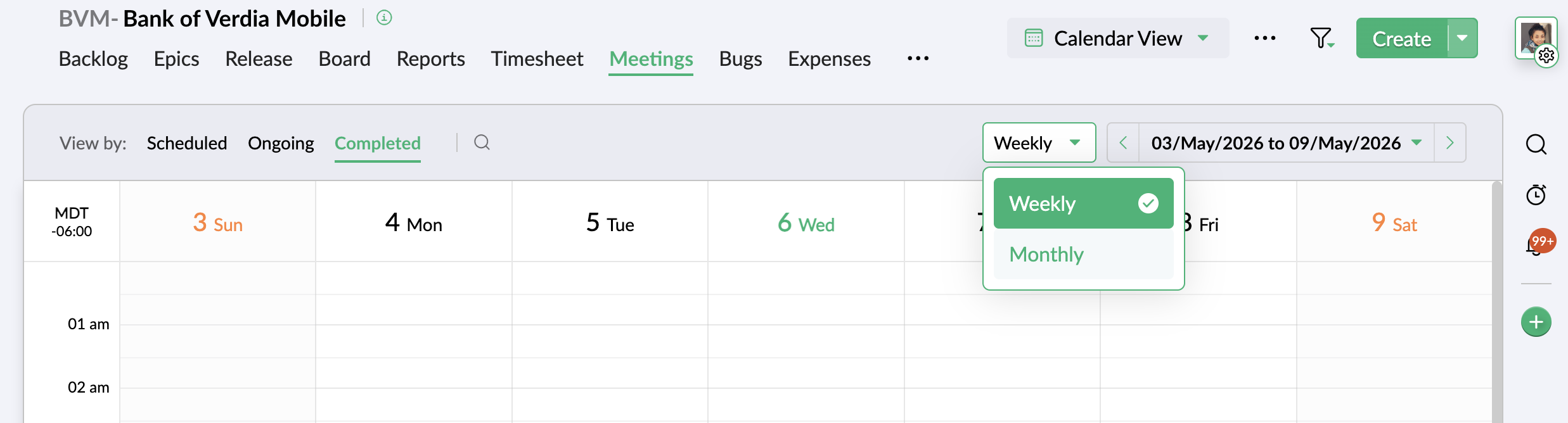
View your meetings in Calendar in Weekly or Monthly format as per your preference. You can also select a custom date range and narrow down your view specific to those dates to be more specific.
Switch Calendar View
In the Calendar view of the Meetings module, click the drop down beside the custom date range and select Weekly or Monthly.
Select a custom date range in the date picker and click View to view meetings specific to those dates in the Calendar.