Members
Members are the users of your organization. This section allows you to manage the users within your Zoho RPA organization. You can create new members, assign different roles and permissions, and manage their access to your RPA flows. Additionally, you can be a member of multiple organizations, expanding your collaborative capabilities.
There are three types of organization members in Zoho RPA: owners, admins, and users. You can create an organization and belong to multiple organizations.
Types of Members : Roles and Permissions
Owners
By default, the person who creates an organization is the owner. As the owner, you can:
- Modify the organization name
- Add or remove members
- Change roles of members
- Create, edit, and delete flows
- Create, test, delete, and reconnect app connections
- View audit trail
Admins
As an admin, you can:
- Modify the organization name
- Add or remove members
- Change roles of members
- Create, edit, and delete flows
- Create, test, delete, and reconnect app connections
- View audit trail
Users
As a user you can:
- Create, edit, and delete flows
- Create, test, delete, and reconnect app connections
Manage Members
The owner or admin can manage the members of the organization.
Invite member
To add a member to your Zoho RPA organization:
- Go to Settings > Members.
- Click Invite Member in the top-right corner.
- Enter the name, email address, and role of the new member, then click Send to invite them.You will be notified by email when the member accepts your invitation.
- View the list of confirmed or pending members by choosing one of these options from the dropdown.
Change Role for a member
To change the role of a member, click on the current role. Choose the new role from the dropdown.
Deactivate or activate member
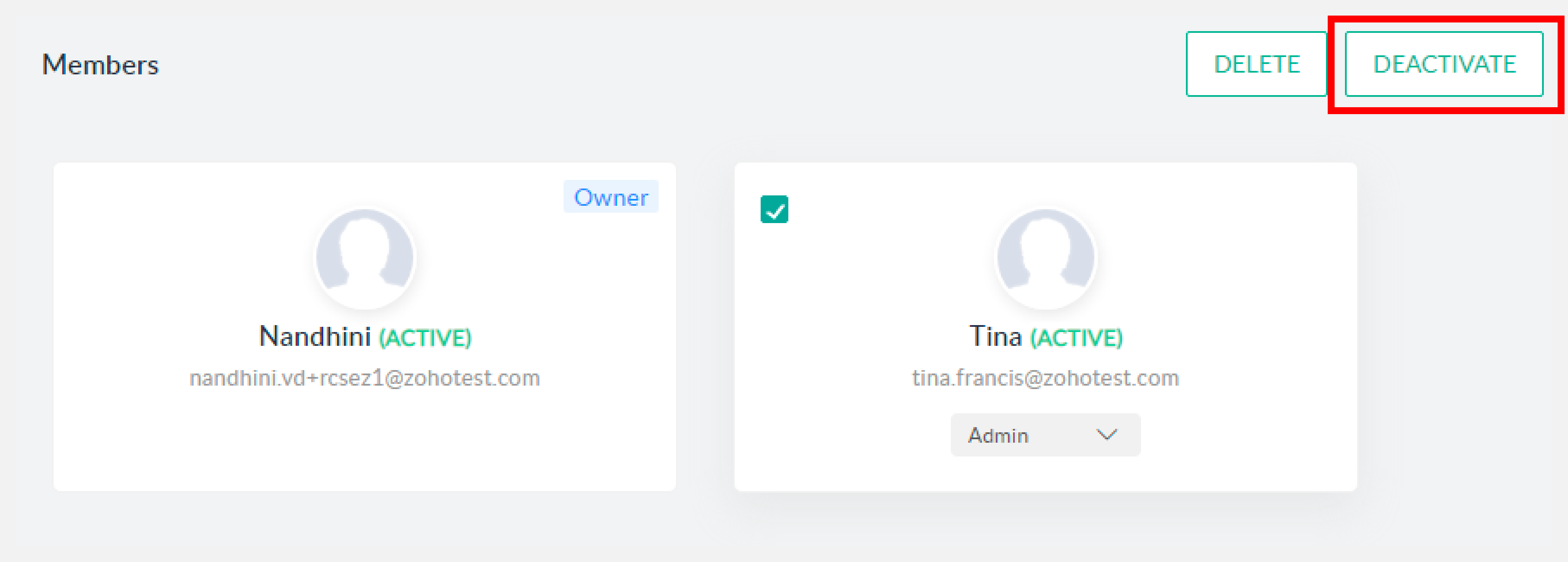
Deactivating a member restricts them from accessing your Zoho RPA organization.
Select the checkbox for the required user and click Deactivate. To activate the member again, select the checkbox for the user and click Activate.
Delete member
Deleting a member denies them access to your organization until they are invited again. This feature is particularly useful when you want to invite a client or an employee from another team to work in your Zoho RPA organization for a limited time.
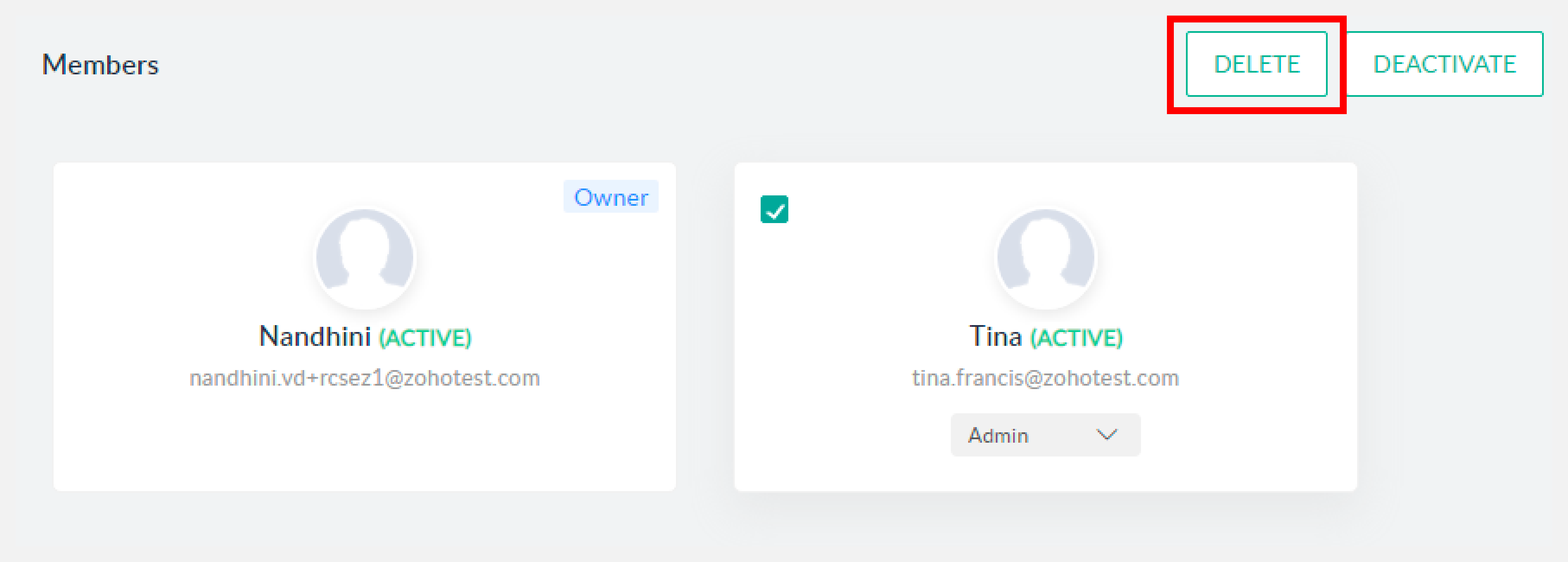
To remove a member or an invitee, select the checkbox for the user and click Delete.