Automating Deal Handoff with Zia Assistant API, Workflow, Deluge, and Widget in Zoho CRM

Here’s how the final output looks when a deal is reassigned
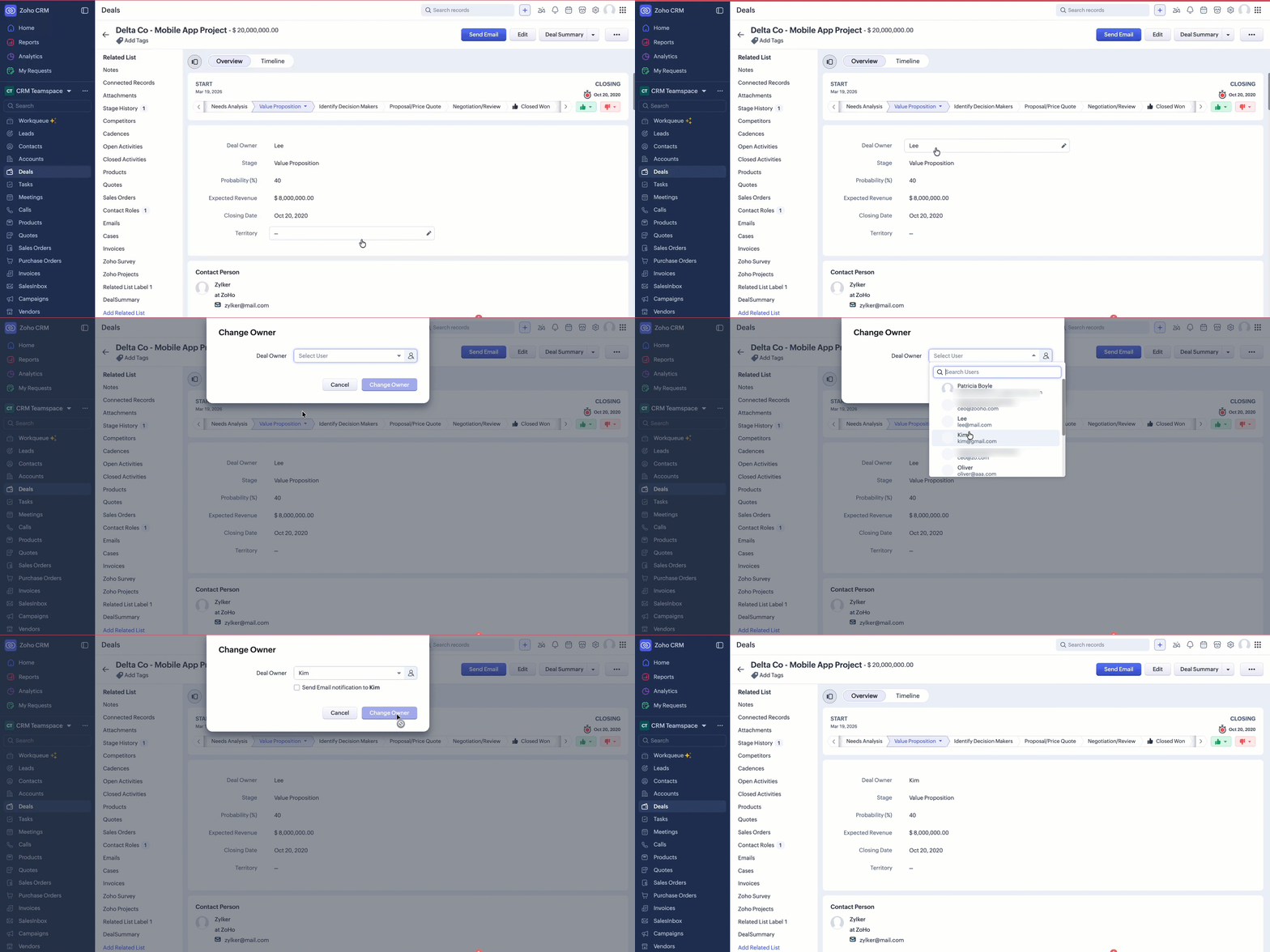
The newly assigned owner can instantly view a complete AI-generated summary using the Deal Summary button.
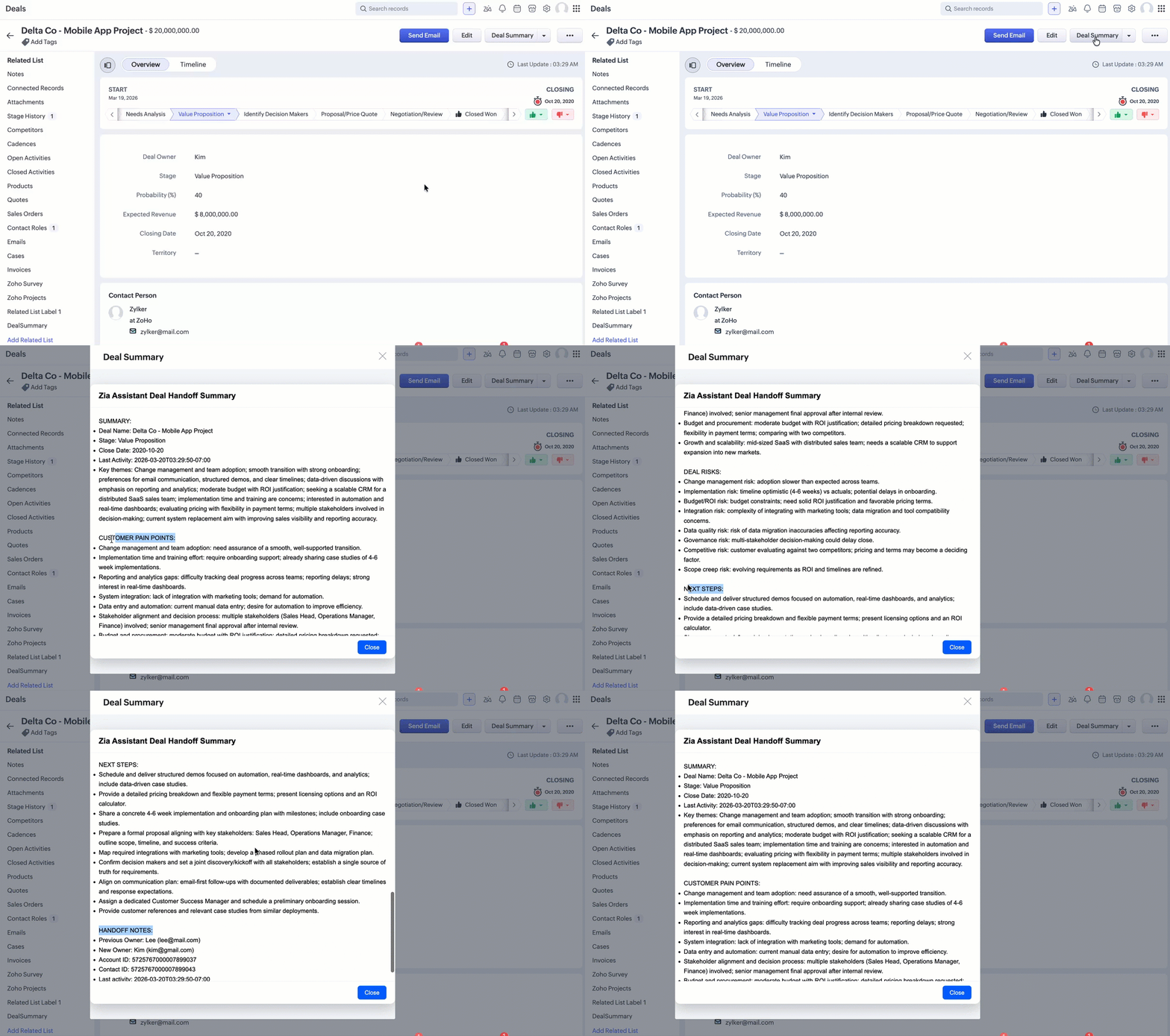
Table of Contents
- Introduction
- The Problem with Deal Handoffs
- What if we could automate this entire process?
- Use case
- How the automation works?
- How Zia Assistant API generates insights?
- Prerequisites for using the Zia Assistant API
- Implementation steps
- Step 1: Create a custom field
- Step 2: Create a Deluge Function
- Step 3: Create a Workflow Rule
- Step 4: Create and configure the Widget
- Conclusion
Introduction
The problem with deal handoffs
What if we could automate this entire process?
Instead of making the sales rep read everything manually, what if the system understood the deal by itself?
Imagine this flow:
- As soon as the deal owner changes:
- The system collects all related information
- AI analyzes the complete context
- A clear and structured summary is generated.
- The new owner sees everything instantly.
Use case
- Workflow - to detect when a deal owner changes
- Deluge Function - to collect all necessary CRM data
- Zia Assistant API - to analyze the data and generate insights
- Widget - to display the summary to the user
How the automation works?
- A workflow rule continuously monitors changes in the Deal Owner field.
- When the owner is updated:
- The workflow triggers a Deluge function.
- An email notification is sent to the newly assigned owner, informing them about the deal and where to view its complete summary (via the widget).
- The function
- Collects all related data such as:
- Deal notes
- Account notes
- Contact notes
- Emails
- Deal updates
- Combines all this information into a single context.
- This data is sent to Zia Assistant API as context.
- Zia processes the data and generates structured insights such as:
- Summary
- Customer pain points
- Risks
- Next steps
- The generated response is then saved in a custom field called AI Handoff Summary in the Deals module.
- Finally, a Widget displays this summary to the new owner in a clear and readable format. So, everything happens automatically in the background.
How Zia Assistant API generates insights?
The Zia Assistant API works based on two main inputs:
- Context (chat_history): This contains all the data we collected from the Deal and its associated Account and Contact's notes, emails, history, and Deal details.
- Prompt: The prompt tells Zia what we want from that data.
- Give summary
- Identify pain points
- Highlight risks
- Suggest next steps
Prerequisites for using the Zia Assistant API
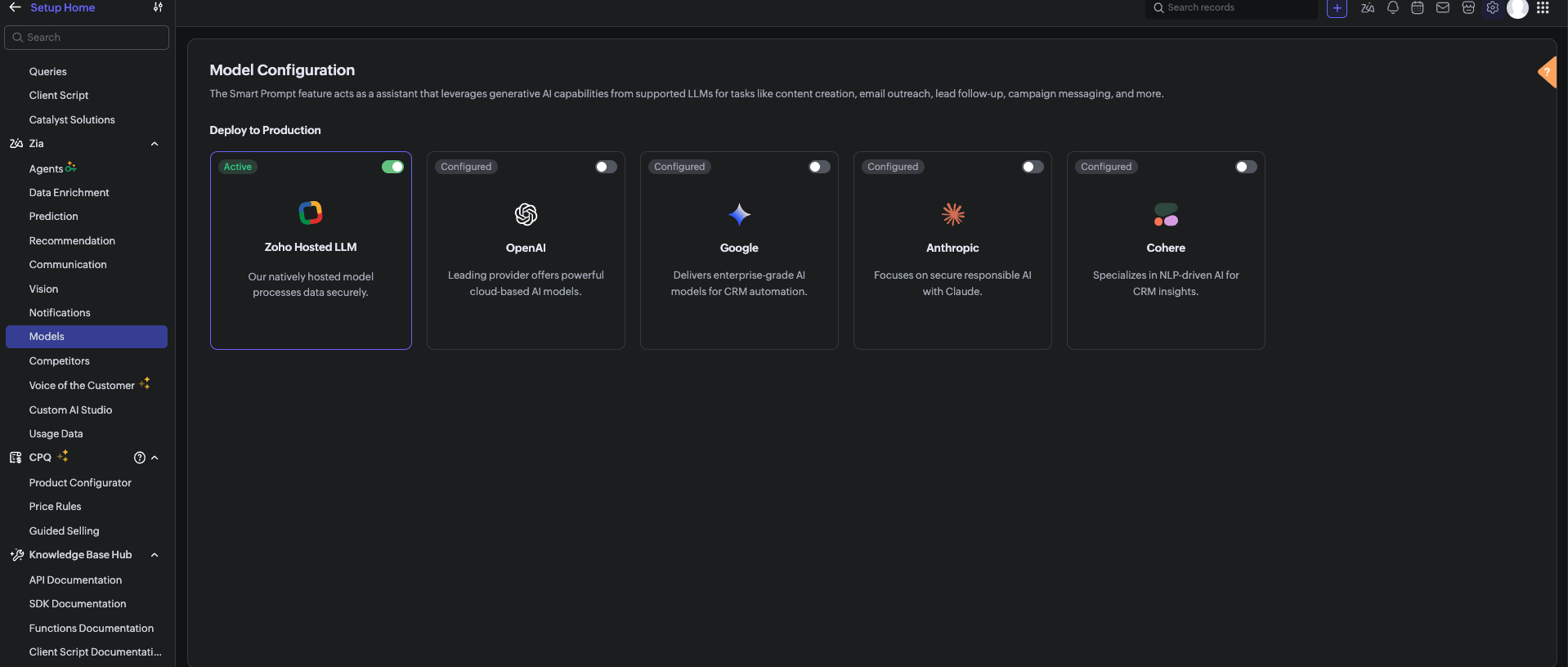
Before using the Zia Assistant API inside the Deluge function, make sure that AI is enabled in Zoho CRM.
Note: In V8, only the Zoho Hosted LLM vendor can be enabled and used.
Implementation steps
1. Create a custom field
- Field Type: Multi-line (Rich Text)
- Field Name: AI Handoff Summary
2. Create a deluge function
- Go to Setup → Developer Hub → Functions
- Click Create Function
- Choose:
- Category: Standalone
- Name: Deal Handoff Summary
- Function Name: DealHandoffSummary
Deluge code
void automation.DealHandoffSummary1(Int dealId, Map oldValue) { info "Deal ID: " + dealId; dealIdLong = dealId.toLong(); // STEP 1: Deal Details dealData = zoho.crm.getRecordById("Deals", dealIdLong); if (dealData == null) { info "Deal not found"; return; } dealName = ifnull(dealData.get("Deal_Name"), ""); dealStage = ifnull(dealData.get("Stage"), ""); // NEW OWNER (Current Owner) newOwnerName = ""; newOwnerEmail = ""; newOwnerId = ""; if (dealData.get("Owner") != null) { newOwner = dealData.get("Owner"); newOwnerId = ifnull(newOwner.get("id"), ""); newOwnerName = ifnull(newOwner.get("name"), ""); newOwnerEmail = ifnull(newOwner.get("email"), ""); info "New Owner ID: " + newOwnerId; info "New Owner Name: " + newOwnerName; info "New Owner Email: " + newOwnerEmail; } // OLD OWNER (Previous Owner from Timeline) oldOwnerName = ""; oldOwnerEmail = ""; oldOwnerId = ""; oldOwnerIdFromParam = oldValue.get("Owner"); userResp = invokeurl[ url: "https://www.zohoapis.com/crm/v8/users/" + oldOwnerIdFromParam type: GET connection: "zohocrm" ]; info "User API response: " + userResp; if (userResp.get("users") != null && userResp.get("users").size() > 0) { userData = userResp.get("users").get(0); oldOwnerEmail = ifnull(userData.get("email"), ""); // Also get name if not already captured if (oldOwnerName == "") { oldOwnerName = ifnull(userData.get("first_name"), ""); } info "Old Owner Email: " + oldOwnerEmail; info "Old Owner Name: " + oldOwnerName; } // OTHER FIELDS accountIdStr = ""; if (dealData.get("Account_Name") != null) { accountIdStr = dealData.get("Account_Name").get("id"); } contactIdStr = ""; if (dealData.get("Contact_Name") != null) { contactIdStr = dealData.get("Contact_Name").get("id"); } closeDate = ifnull(dealData.get("Closing_Date"), "Not defined"); lastActivity = ifnull(dealData.get("Modified_Time"), ""); // CONTEXT BUILDING contextText = "Deal Name: " + dealName + "\n"; contextText = contextText + "Stage: " + dealStage + "\n"; contextText = contextText + "Close Date: " + closeDate + "\n"; contextText = contextText + "Last Activity: " + lastActivity + "\n\n"; // Deal Notes dealNotes = zoho.crm.getRelatedRecords("Notes", "Deals", dealIdLong); if (dealNotes != null) { for each note in dealNotes { contextText = contextText + "\nDeal Note: " + ifnull(note.get("Note_Content"), ""); } } // Account Notes if (accountIdStr != "") { accNotes = zoho.crm.getRelatedRecords("Notes", "Accounts", accountIdStr.toLong()); if (accNotes != null) { for each n in accNotes { contextText = contextText + "\nAccount Note: " + ifnull(n.get("Note_Content"), ""); } } } // Contact Notes if (contactIdStr != "") { conNotes = zoho.crm.getRelatedRecords("Notes", "Contacts", contactIdStr.toLong()); if (conNotes != null) { for each n in conNotes { contextText = contextText + "\nContact Note: " + ifnull(n.get("Note_Content"), ""); } } } // Deal Emails dealEmailsResp = invokeurl[ url: "https://www.zohoapis.com/crm/v8/Deals/" + dealId + "/Emails" type: GET connection: "zohocrm" ]; info dealEmailsResp; if (dealEmailsResp.get("Emails") != null) { emailCount = 0; for each emailSummary in dealEmailsResp.get("Emails") { // Optional: limit emails to avoid too many API calls. Limits should be defined based on the business use case. if (emailCount >= 5) { break; } emailCount = emailCount + 1; emailId = emailSummary.get("message_id"); subject = ifnull(emailSummary.get("subject"), ""); emailContent = ""; // Fetch full email content using Email ID emailDetailResp = invokeurl[ url: "https://www.zohoapis.com/crm/v8/Deals/" + dealId + "/Emails/" + emailId type: GET connection: "zohocrm" ]; info emailDetailResp; if (emailDetailResp.get("Emails") != null && emailDetailResp.get("Emails").size() > 0) { emailData = emailDetailResp.get("Emails").get(0); emailContent = ifnull(emailData.get("content"), ""); // Optional: truncate long content. Limits should be defined based on the business use case. if (emailContent.length() > 1000) { emailContent = emailContent.subString(0, 1000); } } contextText = contextText + "\nDeal Email: " + subject + " - " + emailContent; } } // CONTACT EMAILS (Related to Deal Contact) if (contactIdStr != "") { contactEmailsResp = invokeurl[ url: "https://www.zohoapis.com/crm/v8/Contacts/" + contactIdStr + "/Emails" type: GET connection: "zohocrm" ]; info "List=" + contactEmailsResp; if (contactEmailsResp.get("Emails") != null) { contactEmailCount = 0; for each emailSummary in contactEmailsResp.get("Emails") { // Optional: limit to avoid too many API calls. Limits should be defined based on the business use case. if (contactEmailCount >= 5) { break; } contactEmailCount = contactEmailCount + 1; emailId = emailSummary.get("message_id"); subject = ifnull(emailSummary.get("subject"), ""); emailContent = ""; // Fetch full email content emailDetailResp = invokeurl[ url: "https://www.zohoapis.com/crm/v8/Contacts/" + contactIdStr + "/Emails/" + emailId type: GET connection: "zohocrm" ]; info "Detail=" + emailDetailResp; if (emailDetailResp.get("Emails") != null && emailDetailResp.get("Emails").size() > 0) { emailData = emailDetailResp.get("Emails").get(0); emailContent = ifnull(emailData.get("content"), ""); // Optional: truncate long content. Limits should be defined based on the business use case. if (emailContent.length() > 1000) { emailContent = emailContent.subString(0, 1000); } } contextText = contextText + "\nContact Email: " + subject + " - " + emailContent; } } } info "contextText : " + contextText; // PREPARE ZIA PAYLOAD chatEntry = Map(); chatEntry.put("role", "user"); chatEntry.put("content", contextText); chatHistory = List(); chatHistory.add(chatEntry); promptSettings = Map(); promptSettings.put("length", "Detailed Explanation"); promptSettings.put("style", "Professional"); assistantMap = Map(); assistantMap.put("chat_history", chatHistory); assistantMap.put("prompt_settings", promptSettings); // FINAL PROMPT with owner details assistantMap.put("prompt", "Provide structured output.\n\n" + "SUMMARY:\n\n" + "CUSTOMER PAIN POINTS:\n - \n\n" + "DEAL RISKS:\n - \n\n" + "NEXT STEPS:\n - \n\n" + "HANDOFF NOTES:\n" + " - Previous Owner: " + oldOwnerName + " (" + oldOwnerEmail + ")\n" + " - New Owner: " + newOwnerName + " (" + newOwnerEmail + ")\n" + " - Account ID: " + accountIdStr + "\n" + " - Contact ID: " + contactIdStr + "\n" + " - Last activity: " + lastActivity + "\n" + " - Close plan: Target close date " + closeDate + "\n\n" + "Ensure clarity and readability."); payload = Map(); payload.put("assistant", assistantMap); // CALL ZIA ASSISTANT API response = invokeurl[ type: POST parameters: payload.toString() headers: { "Content-Type": "application/json" } connection: "zohocrm" ]; info "Zia API Response: " + response; // EXTRACT RESPONSE aiText = ""; if (response != null && response.get("assistant") != null) { details = response.get("assistant").get("details"); if (details != null && details.get("data") != null) { aiText = details.get("data"); info "AI Response extracted: " + aiText; } else { info "No data in details"; } } else { info "No assistant in response"; } // SAVE TO CRM FIELD if (aiText != "") { updateMap = Map(); updateMap.put("AI_Handoff_Summary", aiText); zoho.crm.updateRecord("Deals", dealIdLong, updateMap); info "Summary saved to deal"; } else { info "No AI text to save"; } } |
3.Create a Workflow Rule
Now, we connect everything using a Workflow.
To automate the deal handoff process, the Deluge function should run whenever the Deal Owner changes.
This is achieved using a Workflow Rule in Zoho CRM.
Steps to create Workflow Rule
3.1 Go to Setup → Automation → Workflow Rules
3.2 Click Create Rule
3.3 Module: Deals
3.4 Rule Name: Deal Summary
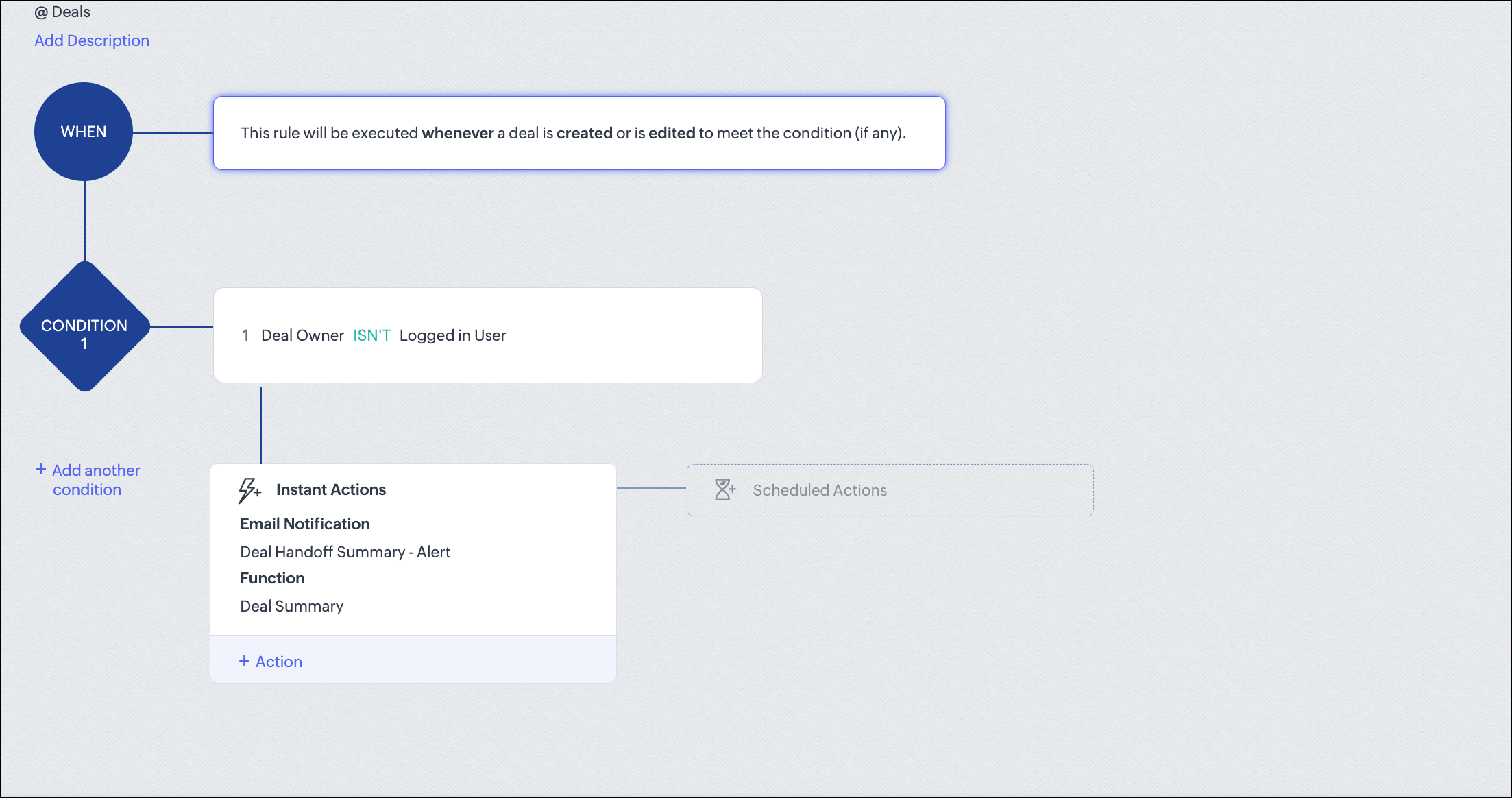
- Set Condition: Ensures it runs only during handoff
- Field: Deal Owner
- Condition: is modified. In our case, if the Deal Owner is not Logged in User, then the workflow should trigger.
3.6 Add "Instant Actions"
- Attach Deluge function:
- Click + Action → Function
- Select your function: Deal Handoff Summary
- Send email to new deal owner: Click + Action → Email Notification
When a deal is reassigned, the new sales representative may not immediately notice the change.
By sending an email notification:
- The new owner is instantly informed that a deal has been assigned.
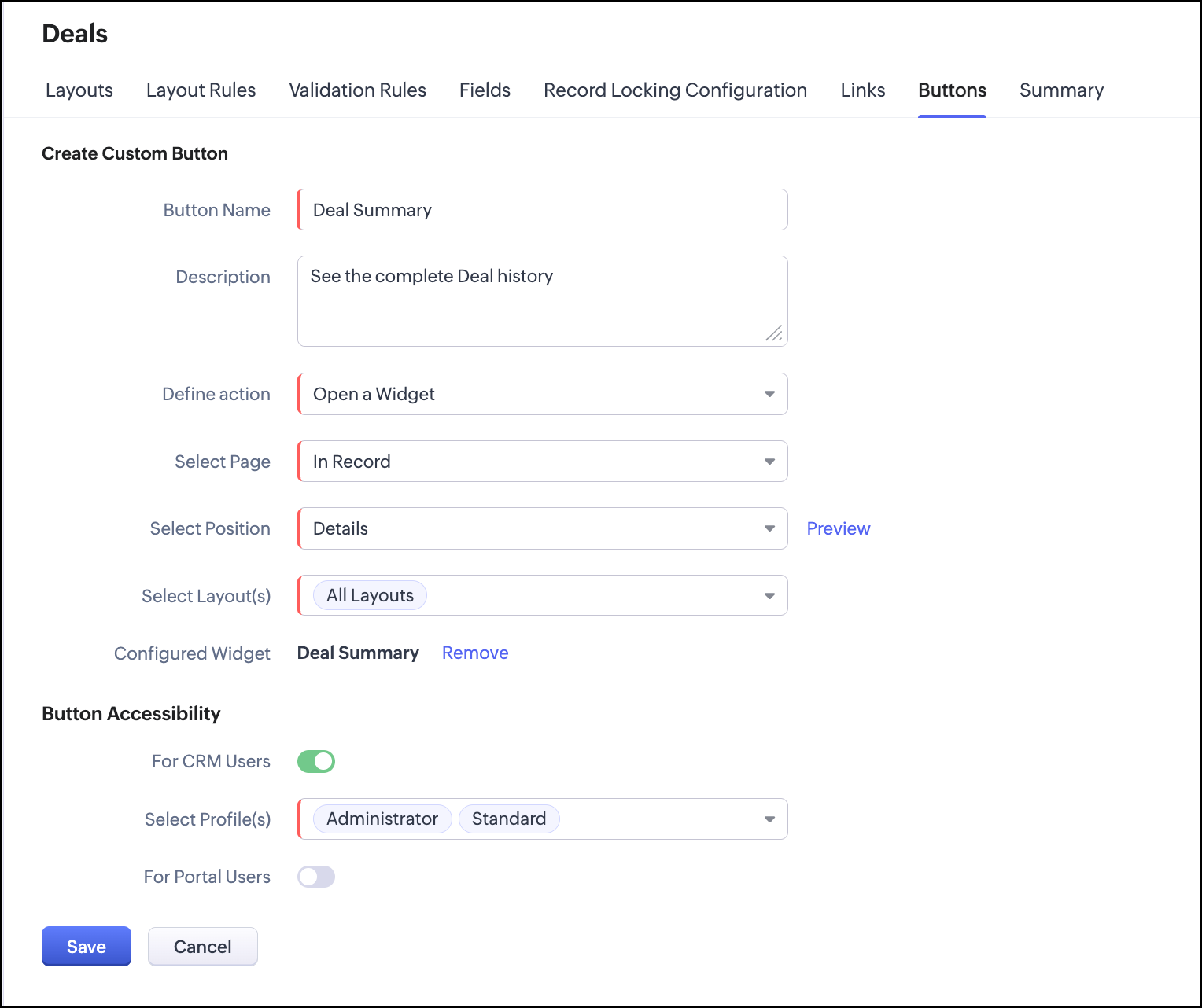
- They know where to check the details through the widget (the widget implementation is explained in the next section). In our case, the complete deal information is available in the Deal Summary button widget on the Detail View page in the Deals module.
- It helps reduce delays in taking action on the deal.
3.7 Click Save.
4. Create and configure the Widget
After generating and storing the AI summary in CRM, the next step is to display it clearly to the user. For this, we use a Widget inside a button in the Deal’s Detail View page.
<!DOCTYPE html> <html> <head> <style> body { margin: 0; font-family: Arial, sans-serif; background: #f5f7fb; } /* Container fills entire iframe */ .container { width: 100%; height: 100vh; display: flex; justify-content: center; align-items: center; } /* Modal */ .modal { width: 100%; max-width: 800px; height: 90vh; background: #fff; border-radius: 12px; box-shadow: 0 10px 30px rgba(0, 0, 0, 0.2); display: flex; flex-direction: column; } /* Header */ .header { padding: 16px 20px; font-size: 18px; font-weight: bold; border-bottom: 1px solid #eee; } /* Content */ .content { padding: 20px; overflow-y: auto; flex: 1; font-size: 14px; line-height: 1.6; } /* Section headings */ .section-title { font-weight: bold; margin-top: 15px; margin-bottom: 5px; } /* Bullet points */ ul { padding-left: 20px; margin-top: 5px; } /* Footer */ .footer { padding: 10px 20px; border-top: 1px solid #eee; text-align: right; } button { padding: 8px 16px; background: #0066ff; color: white; border: none; border-radius: 6px; cursor: pointer; } </style> </head> <body> <div class="container" id="app"></div> <script> ZOHO.embeddedApp.on("PageLoad", function(data) { let dealId = data.EntityId; ZOHO.CRM.API.getRecord({ Entity: "Deals", RecordID: dealId }).then(function(response) { if(response && response.data && response.data.length > 0) { let record = response.data[0]; let summary = record["AI_Handoff_Summary"]; //This is the Custom field we have created in the Deals module which stores the complete details about the Deal. if(summary && summary !== "") { renderUI(summary); } } }); }); function formatText(text) { // Convert sections into formatted HTML let formatted = text .replace(/Summary:/g, '<div class="section-title">Summary</div>') .replace(/Customer Pain Points:/g, '<div class="section-title">Customer Pain Points</div>') .replace(/Deal Risks:/g, '<div class="section-title">Deal Risks</div>') .replace(/Next Steps:/g, '<div class="section-title">Next Steps</div>') .replace(/Handoff Notes:/g, '<div class="section-title">Handoff Notes</div>') .replace(/\n- /g, '<li>') .replace(/\n/g, '<br>'); return formatted; } function renderUI(summary) { let app = document.getElementById("app"); app.innerHTML = ` <div class="modal"> <div class="header"> Zia Assistant Deal Handoff Summary </div> <div class="content"> ${formatText(summary)} </div> <div class="footer"> <button onclick="closeWidget()">Close</button> </div> </div> `; } function closeWidget() { document.getElementById("app").innerHTML = ""; } ZOHO.embeddedApp.init(); </script> </body> </html> |
- A deal is reassigned to them.
- They receive an email notification about the new deal.
- They open the Deal record in CRM.
- They see a new button called Deal Summary on the detail view.
- They click the button.
- A widget pops up showing the complete AI-generated summary.
Conclusion

