Switch between multiple LLMs instantly for tailored Zia experiences

Availability
Editions: Professional , Enterprise, Ultimate , CRMPlus , ZohoOne
Release Plan: Available for all DCs
Hello everyone,
Previously, the multi-LLM feature supported only one LLM at a time for Zia Record Assistant, which restricted users' flexibility in switching between LLMs instantly for various requirements.
Also, the Execute Prompt in custom button was set to work only with Zoho-hosted LLMs by default.
With this enhancement, you can enable and maintain multiple LLMs simultaneously, switch between different LLMs inside the Record Assistant bot, and choose your preferred LLM for the Smart Prompt bot.
Additionally, Smart Prompt under Zia has been renamed to Models for better relatability.
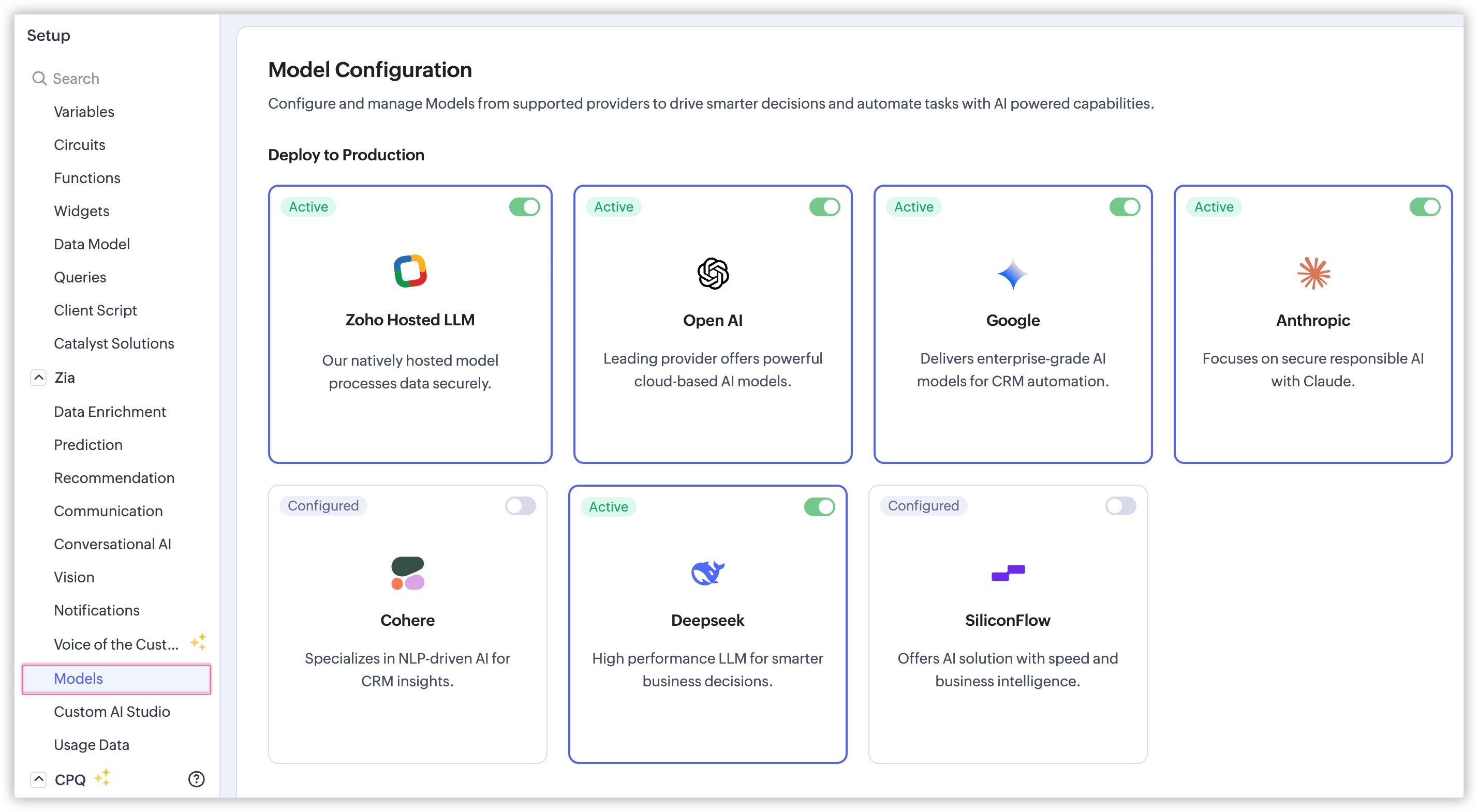
Now, with this update, you can:
Configure and maintain several LLM models: This gives admins more control over which model powers which use case, and gives end users the flexibility to choose the LLM that works best for them without leaving the bot.
Pick your LLMs directly: Users can switch between all active LLMs directly inside the Record Assistant using a dropdown to compare responses or pick their preferred model(s).
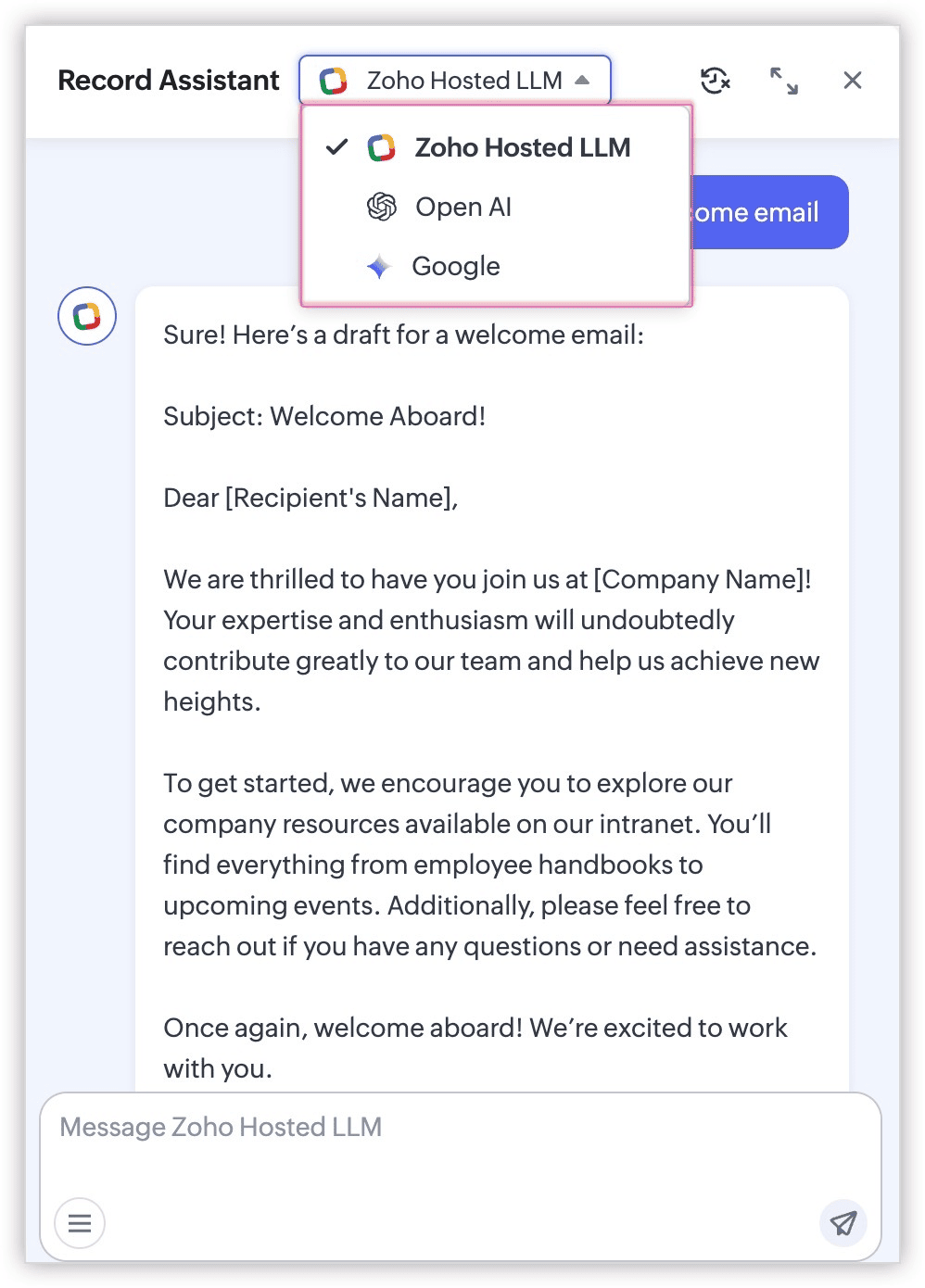
- The Record Assistant always opens with Zoho Hosted LLM as the default LLM initially.
- Users can switch to another available LLM at any time after opening the bot.
- Users can explicitly turn Zoho Hosted LLM off. Once they do, the selected alternate LLM becomes the default for future sessions.
Choose the preferred LLM for Execute Prompt button: While configuring custom buttons, Execute Prompt now comes with compatibility across all the LLMs you've configured, so users get a familiar experience regardless of which model is active.
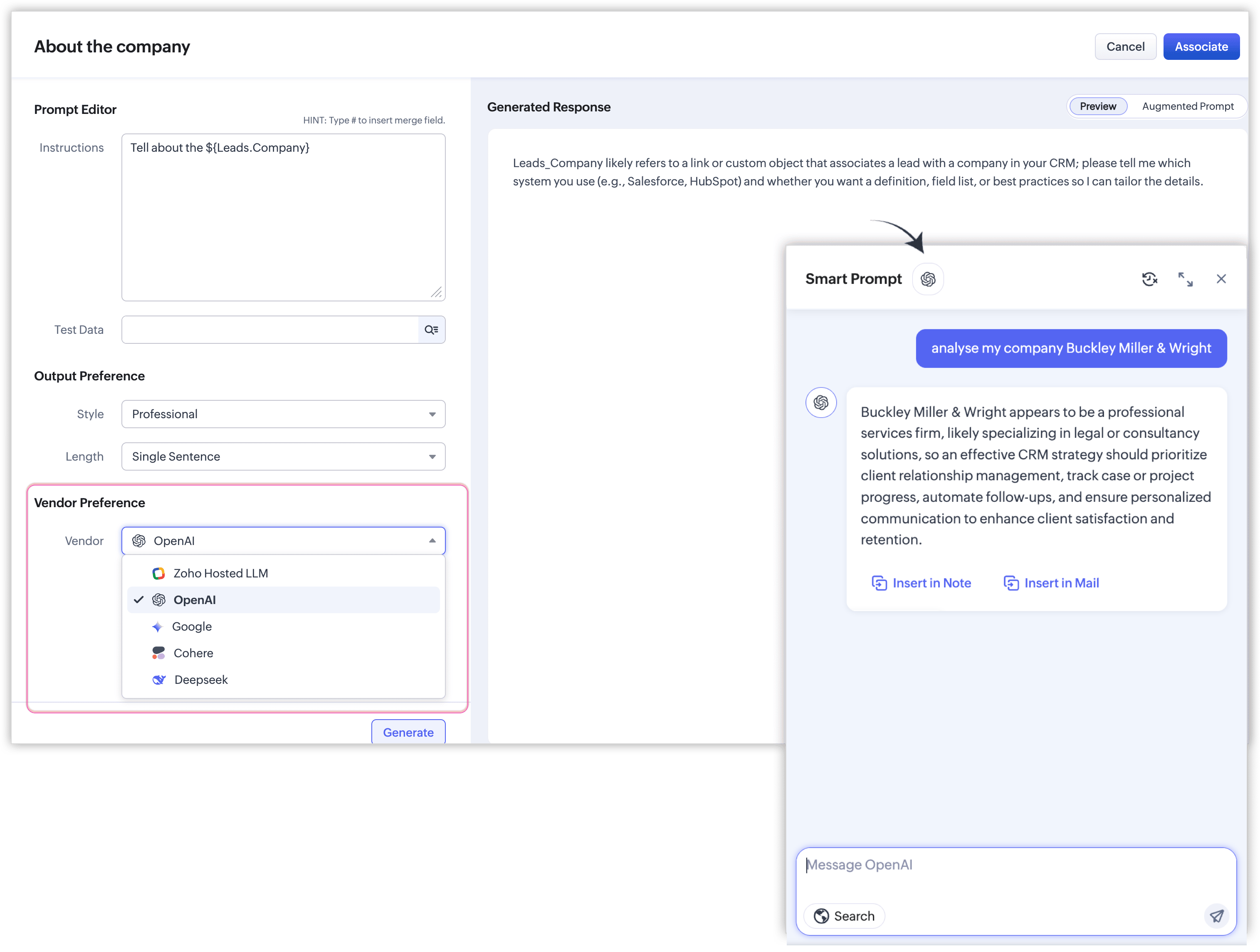
Configuring Zia's Models
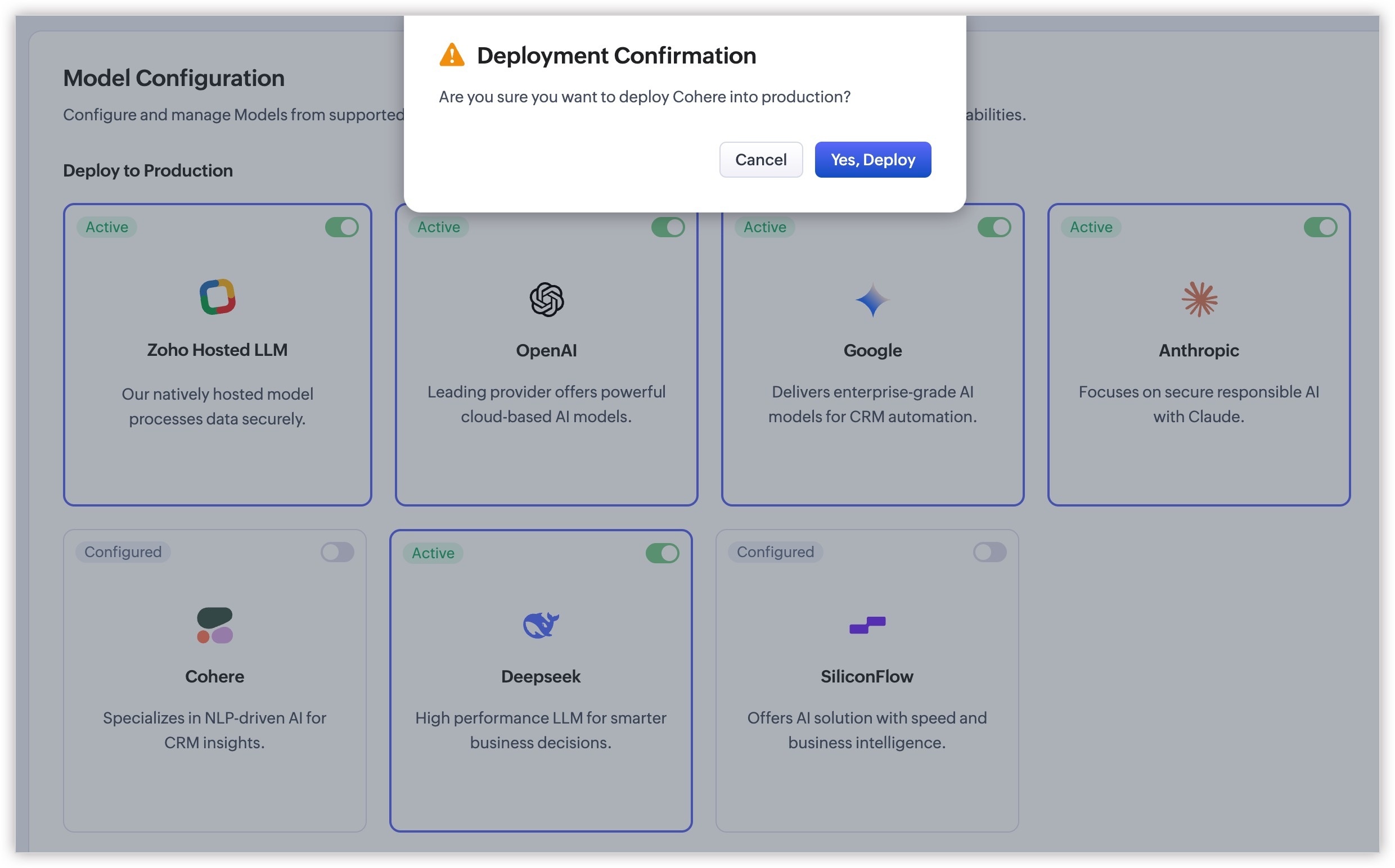
We hope you find this update helpful!