Tip #78- Exploring Technician Console: Multi-Monitor Navigation and Pop out- 'Insider Insights'
Hello Zoho Assist Community!
Welcome back to our Technician Console series. This week we're tackling a scenario every technician knows well: the remote machine has more than one screen. Meet Multi-Monitor Navigation.
Picture connecting to a workstation with two or three monitors. The error the user reported is on their second screen, but you're stuck looking at the first, scrolling and guessing where things are. Multi-Monitor Navigation puts every connected screen at your fingertips, so you can see and switch between them without missing a thing.
What is Multi-Monitor Navigation?
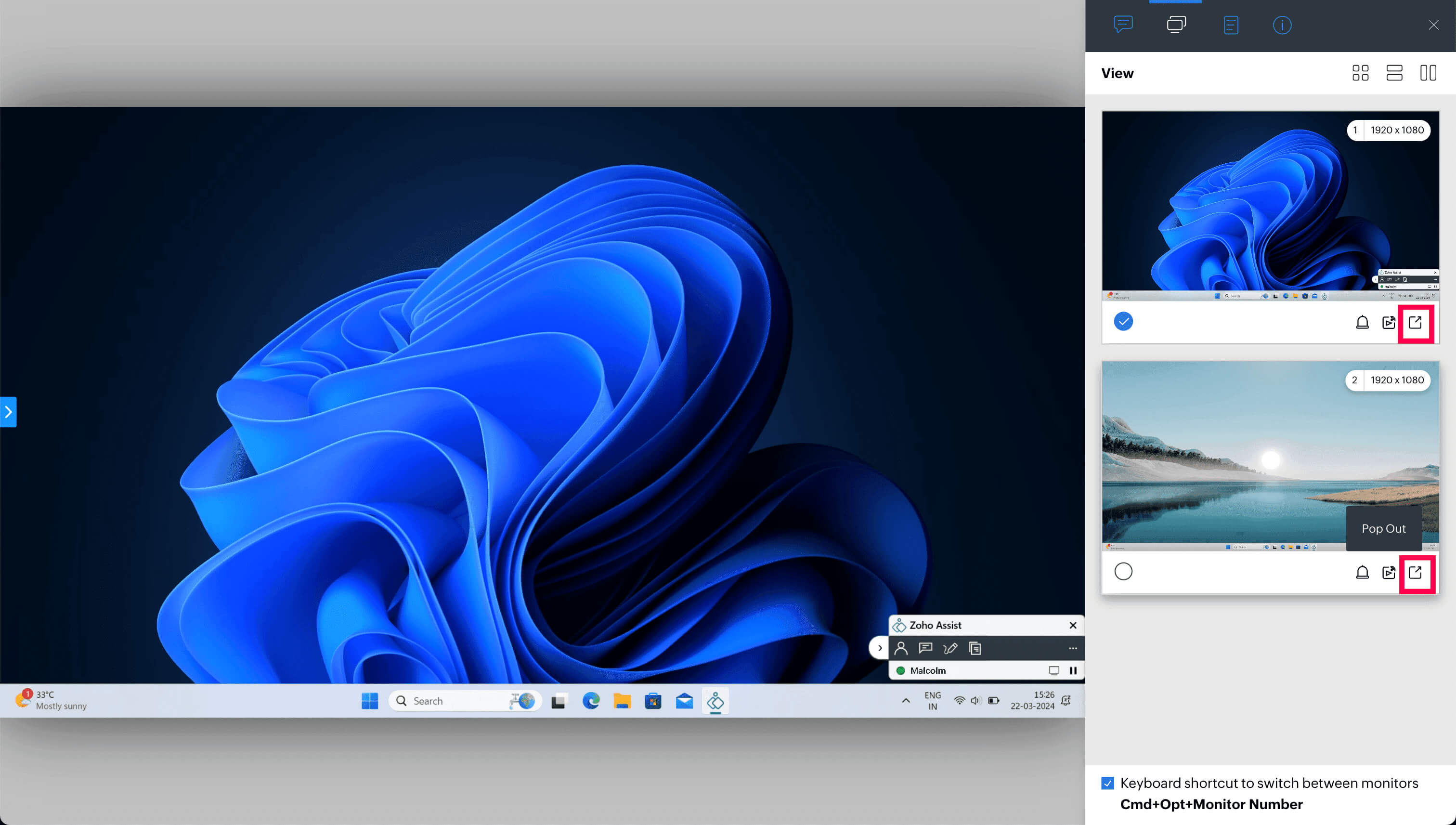
Multi-Monitor Navigation lets you control, access, manage, and move between all the monitors connected to a remote computer at the same time. When you start a session, every monitor on the remote machine is detected and displayed, so nothing is hidden from view. To get started, click the Multi monitor option in the right tool bar during your session, and the connected monitors appear, ready to navigate.
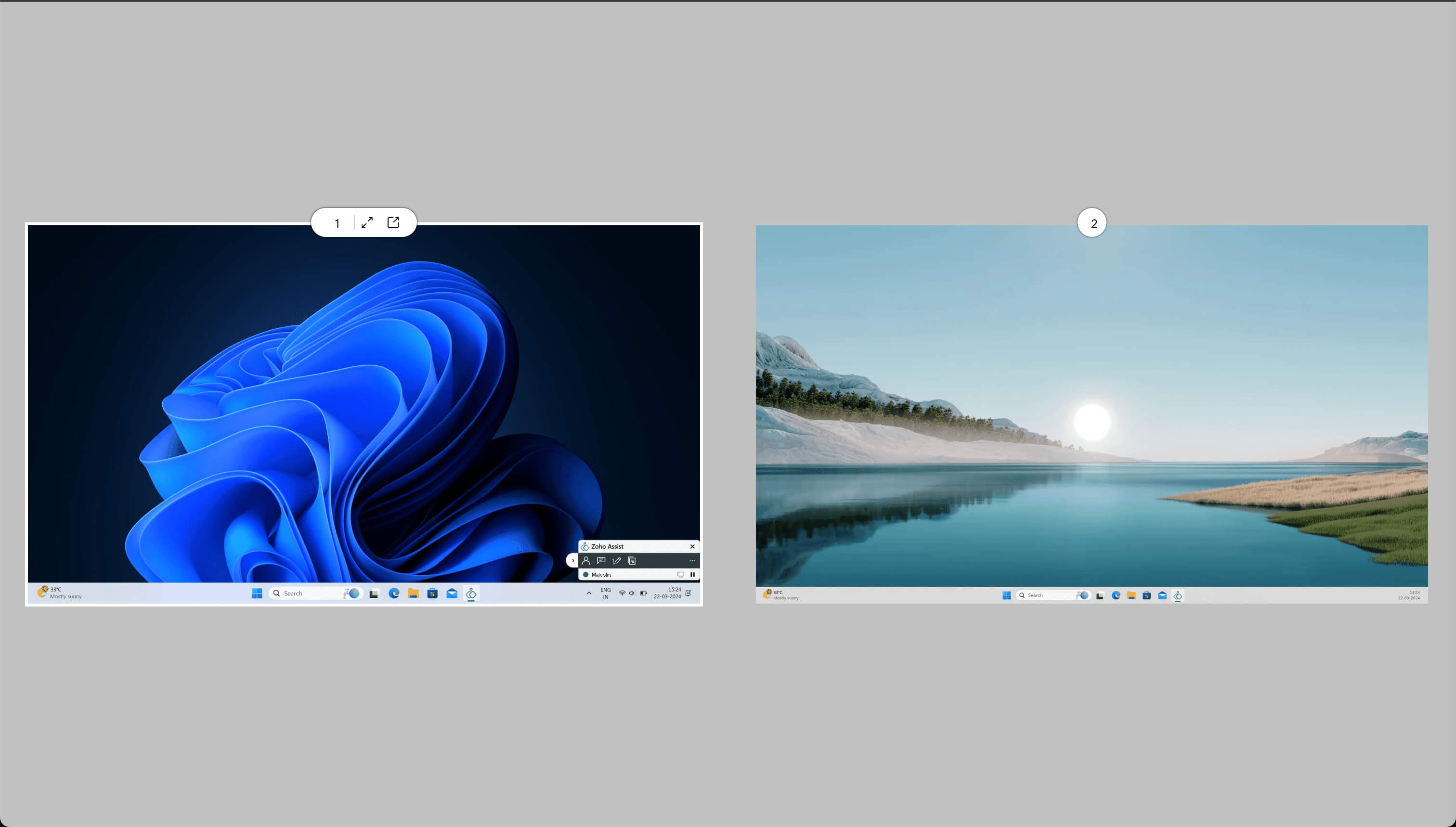
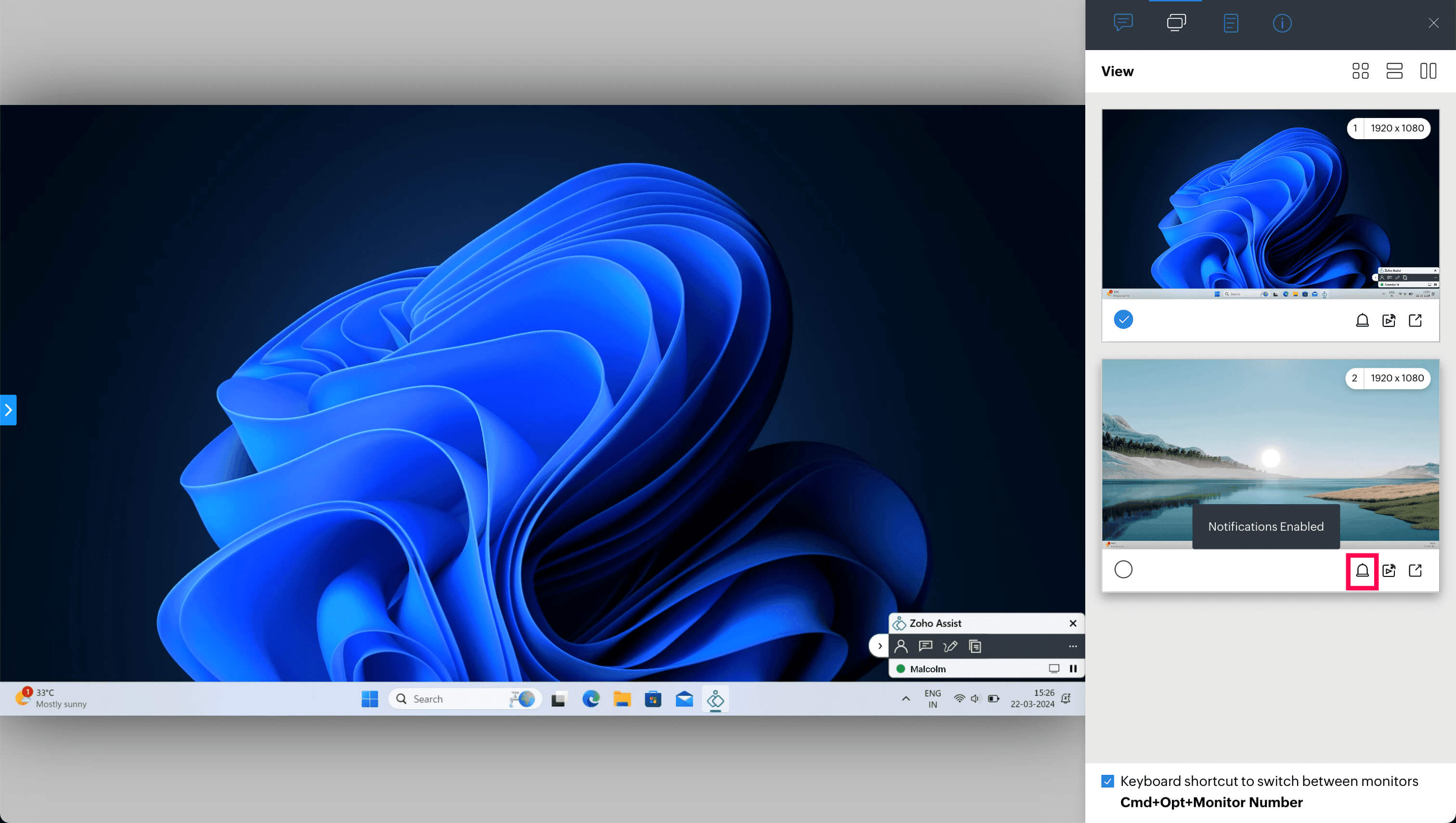
Notifications: Enable Notifications to receive alerts on your main screen for operations happening across the remote monitors. It keeps you aware of activity on every screen, not just the one you're viewing.
Live Preview: Turn on the Live Preview slider to see a real-time view of what's happening on a particular monitor, right on your main screen. It's the quickest way to keep an eye on one screen while you work on another.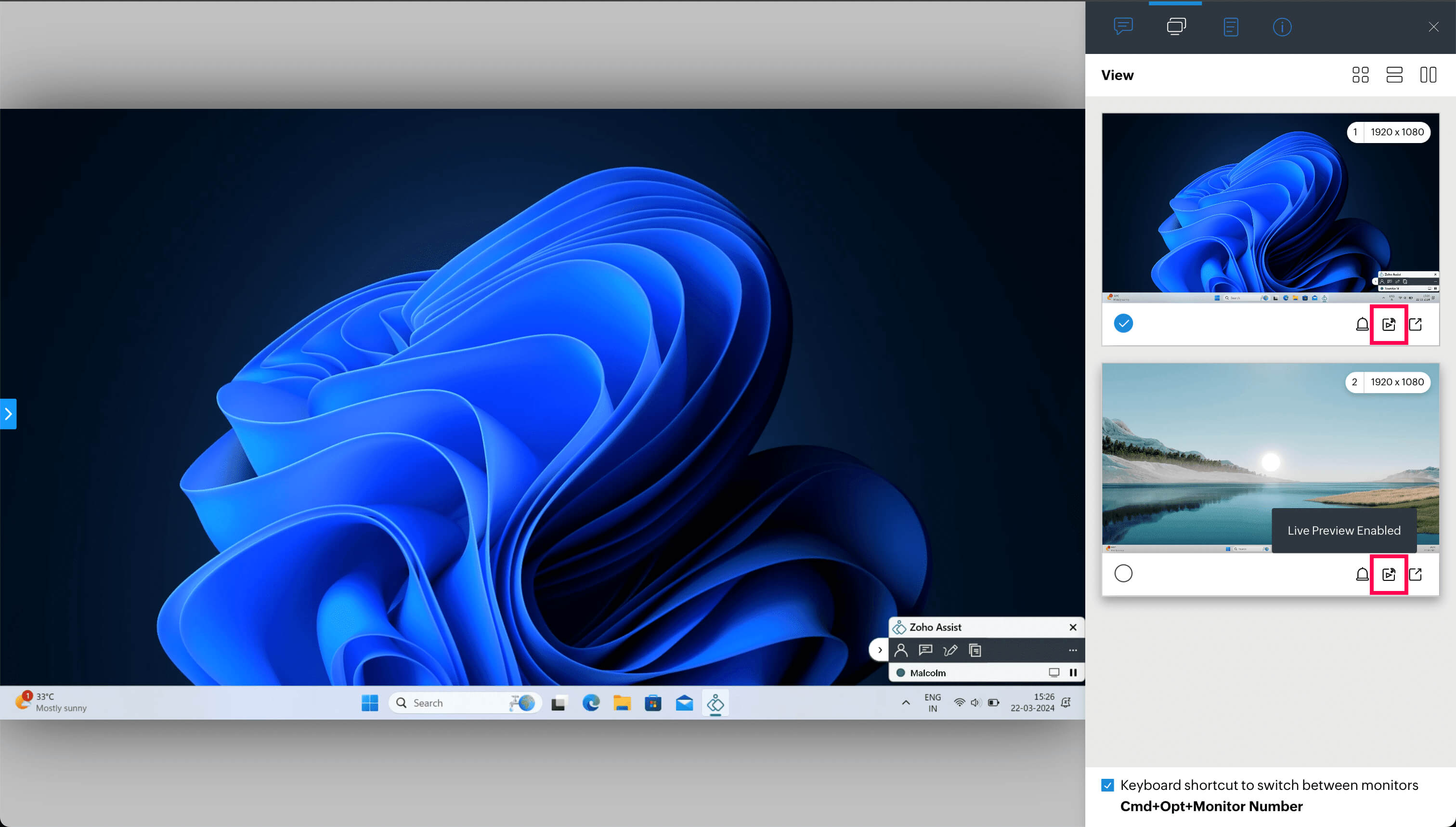
View: Change the layout to suit how you like to work, with three options to choose from. You can pick from the following available views:
Horizontal View (monitors side by side)
Grid View (arranged to match the remote computer's grid display settings) 
Vertical View (stacked top to bottom)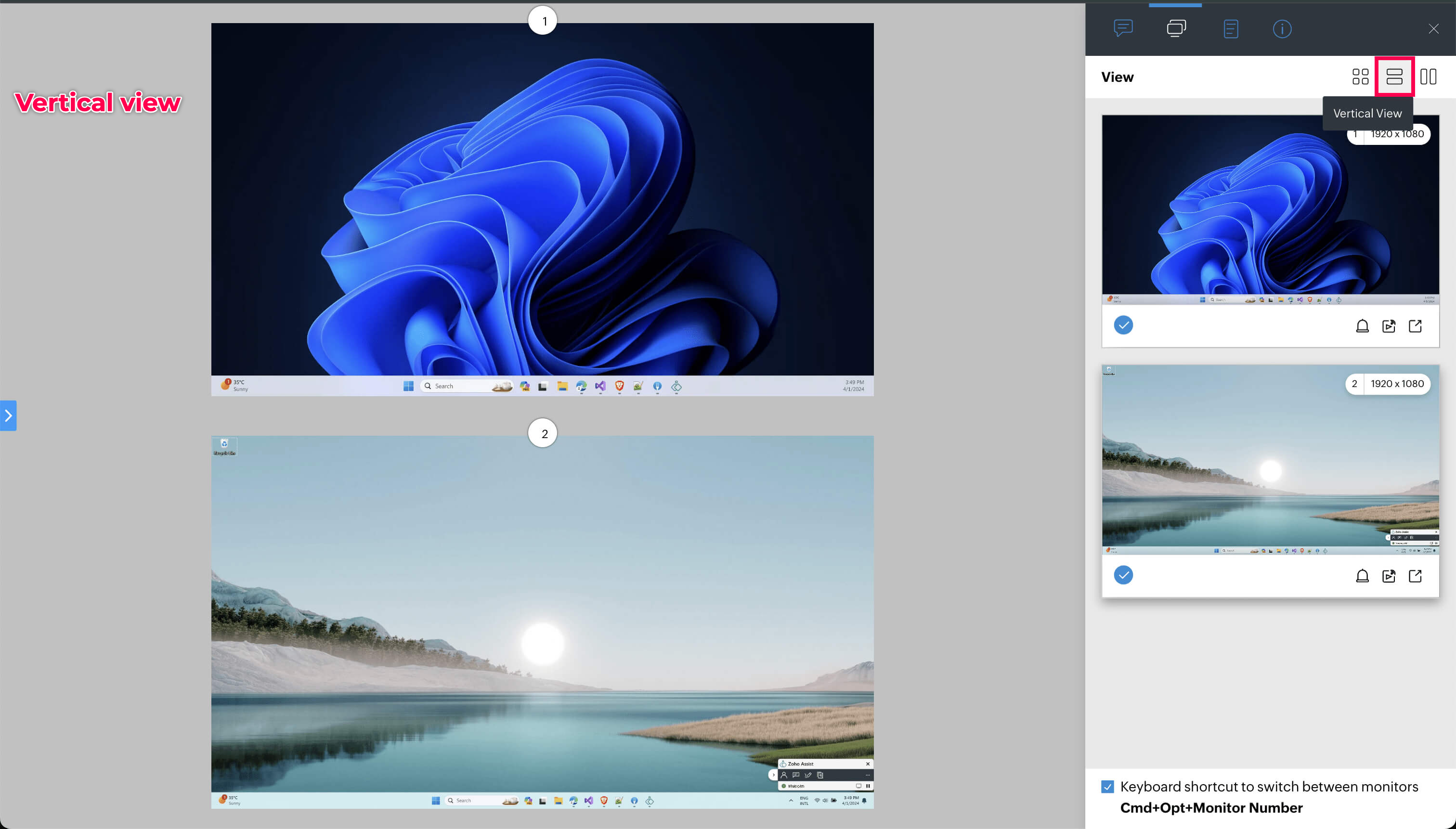
Make the most of a second screen with Pop Out
Working on your own multi-monitor setup? Use Pop Out to open each remote monitor in its own separate window and move it onto your external display. Instead of cramming every screen into one view, you can spread them across your desk and view the remote machine almost as if you were sitting right in front of it.

Why it helps
Full visibility: every remote screen is in reach, so nothing slips past you.
Faster troubleshooting: jump straight to the screen with the issue instead of hunting for it.
A natural workflow: with Pop Out, a multi-screen remote machine feels just like your own.
The next time you connect to a multi-monitor setup, you won't have to work blind on the screens you can't see. Bring them all into view, lay them out your way, and pop the ones you need onto your own display.
How many monitors does your most complex remote setup have, and which view do you prefer working in? Share it in the comments below!
For questions or support, reach out to us at support@zohoassist.com. We're always happy to help!