What's New in Zoho Billing | April 2026
Connect Zoho Billing to AI Using Zoho MCP
Zoho Billing now supports the Model Context Protocol (MCP), which means you can connect your billing data and workflows directly to AI models like Claude and ChatGPT. Once set up, you can create invoices, track payments, manage customers, and pull reports using plain-language prompts without opening Zoho Billing at all.
 To get started, set up the Zoho MCP server and connect it to your preferred AI model. Learn More
Payment Links previously used a layout similar to the Invoice Secure Payment Page. Now, Payment Links use the same modern layout as Hosted Payment Pages; with smoother transitions, multi-language support, and access to all the customization options available in Hosted Payment Page Settings.
 This is enabled by default for new organizations. If you're on an existing organization and want to switch, reach out to our support team at support@zohobilling.com to get it enabled.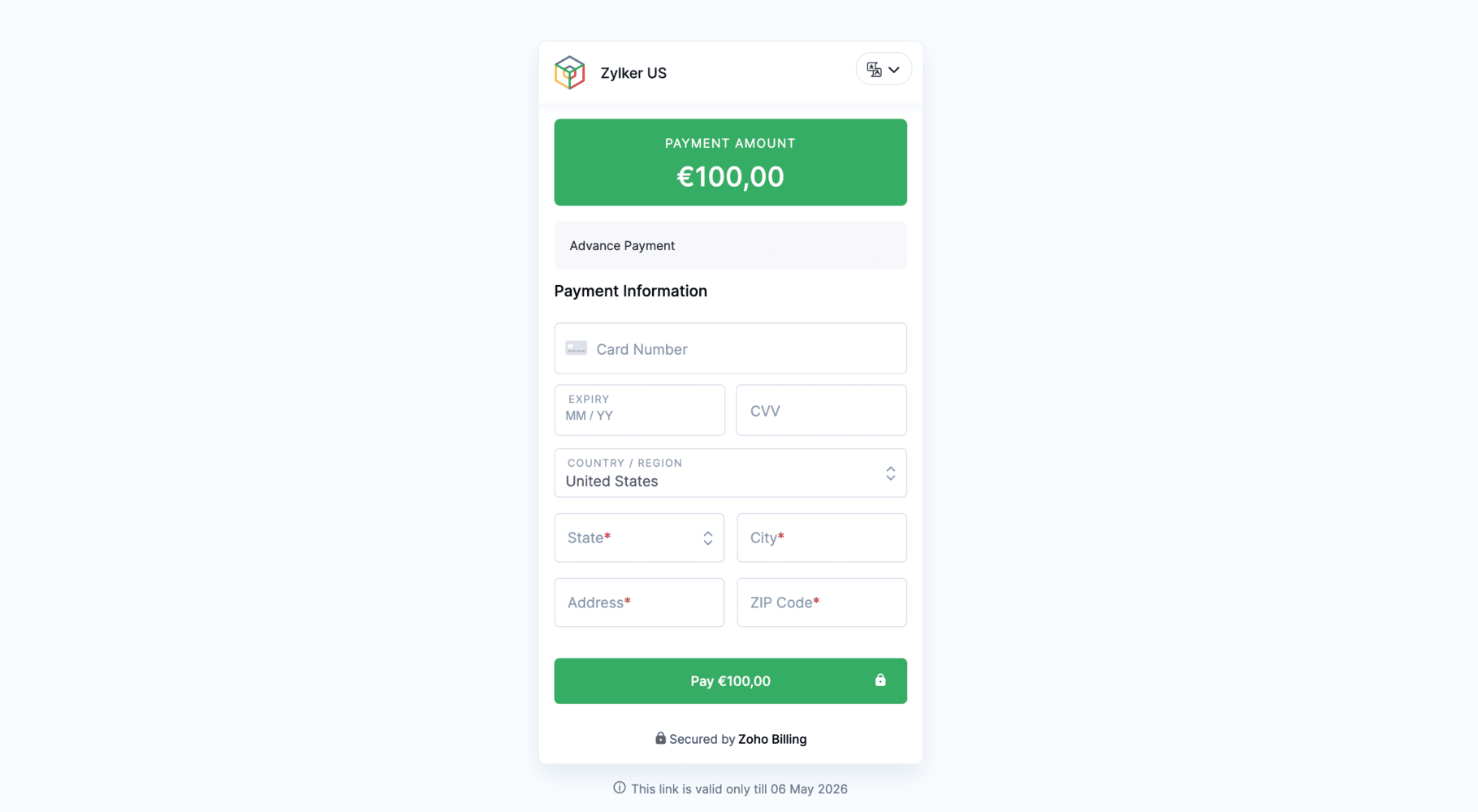
Create End-of-Term Quotes for Active Subscriptions
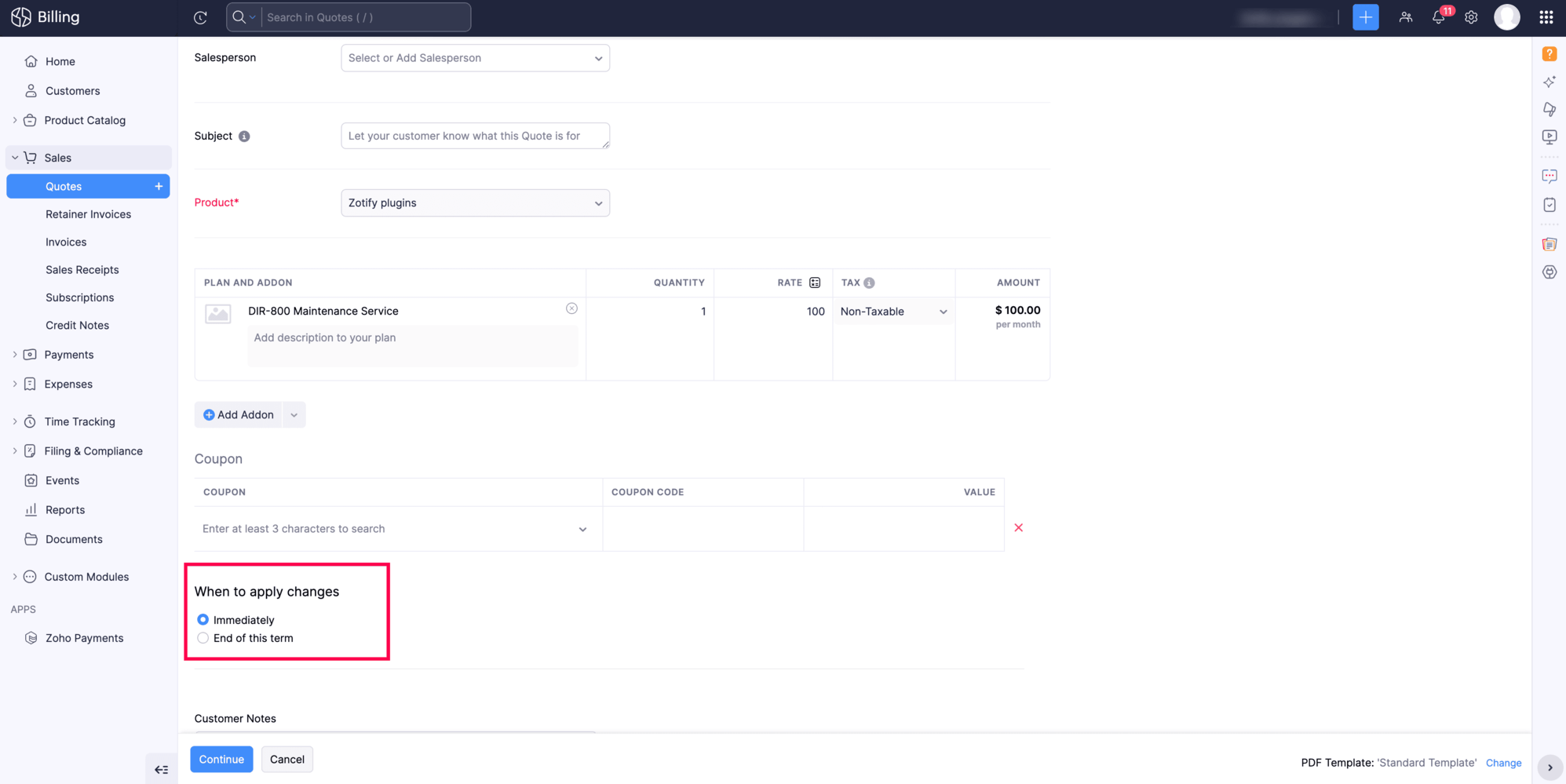
You can now create an end-of-term quote directly from an active subscription. This shows your customers the exact charges they'll see at the end of their current billing cycle, including any mid-cycle changes, before the renewal goes through.
To create one, go to the active subscription, click More > Create Quote, make your changes, and select End Of Term for When to apply changes.
Create Subscription Quotes for Items
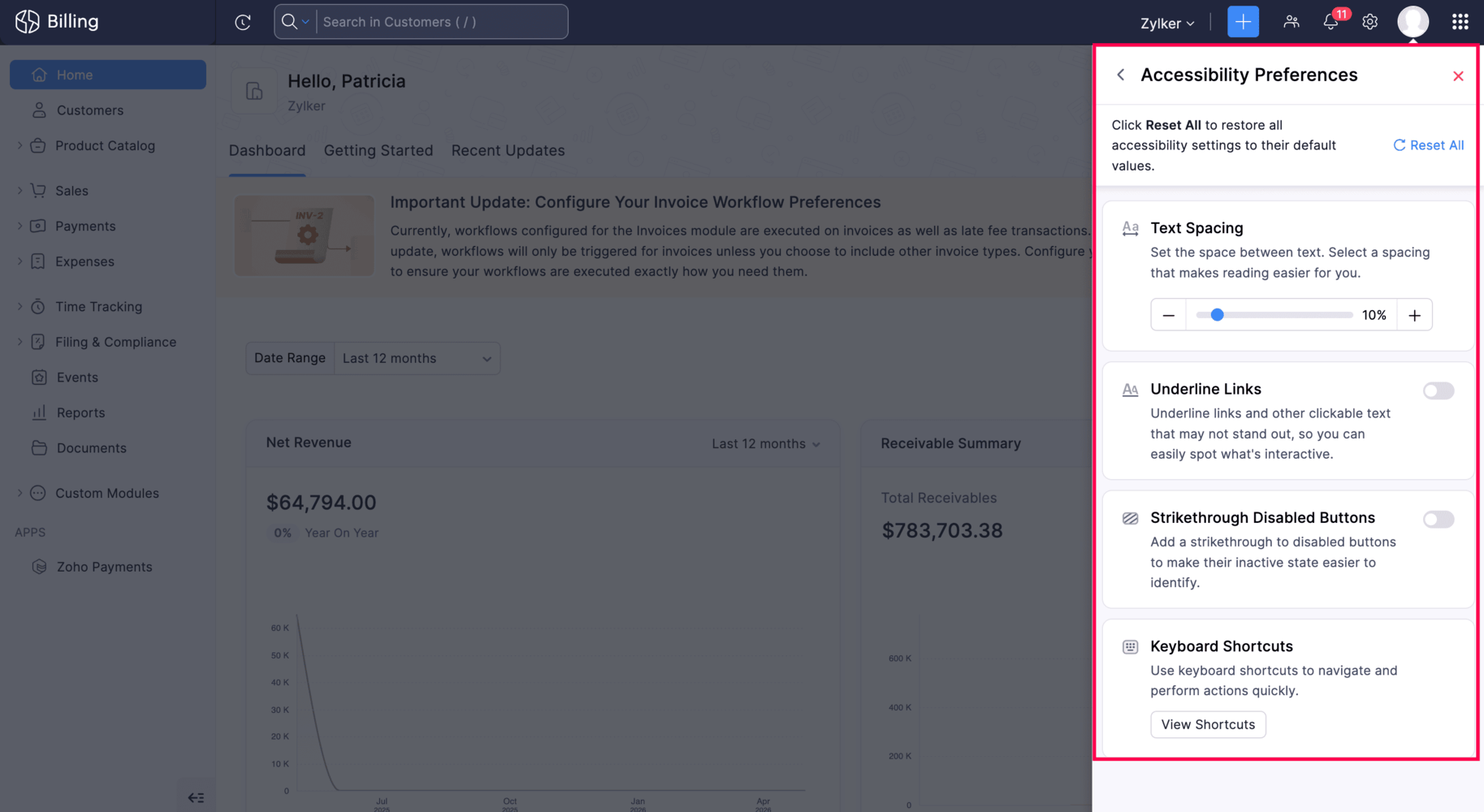
Configure Accessibility Preferences
Zoho Billing now includes accessibility improvements to support a wider range of users. You can increase text spacing for more comfortable reading, underline links so interactive elements are easier to spot, and apply strikethrough formatting on disabled buttons so the interface communicates more clearly.
To set this up, go to your profile in the top right corner of your organization and select Accessibility Preferences.
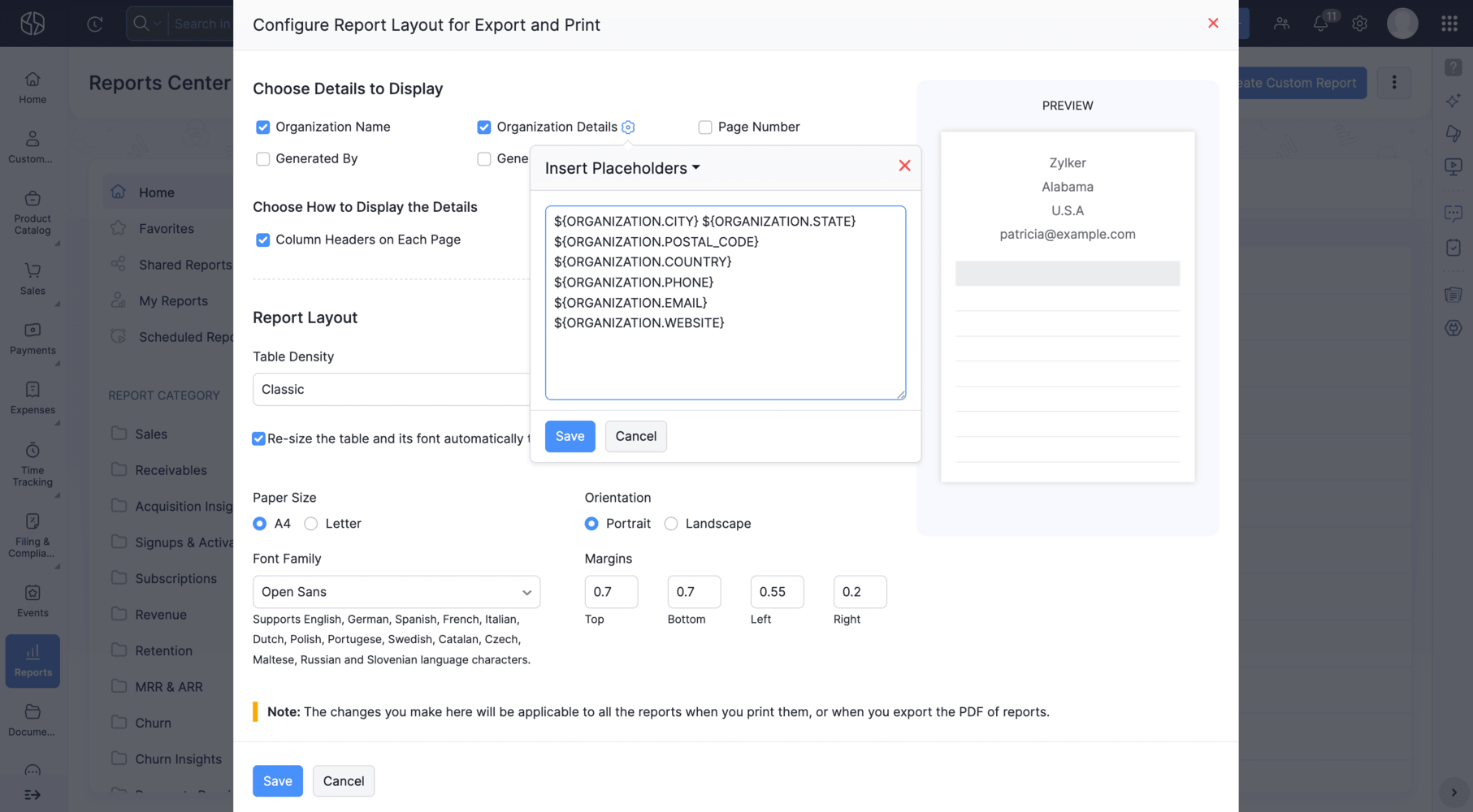
Display Organization Details in Report Exports
With Zoho Billing, you can now include your organization's information directly in your reports' export file.
To enable this option, go to Reports, click the More icon > Configure Report Layout, check Organization Details, and click the Settings icon.
Record Statutory Dates on Credit Notes [Germany Edition]
To enable these fields, go to Settings > Credit Notes under Sales > Field Customization and select the relevant custom field.
Scan Barcodes to Fill Line-Items in Custom Modules
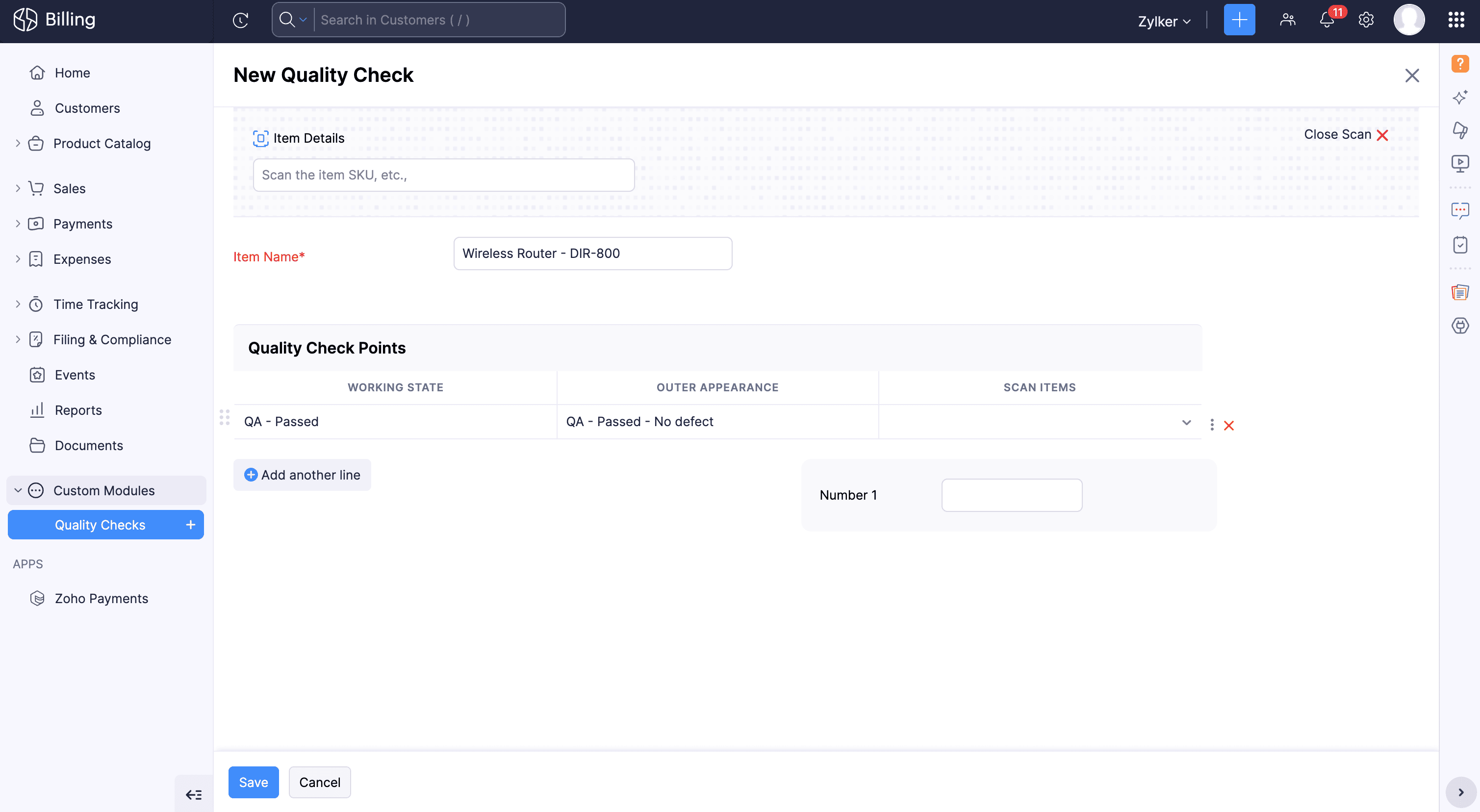
Zoho Billing now supports Scan Item feature for custom tables. Now you can scan a barcode directly within a custom table in a custom module, and Zoho Billing will automatically populate the corresponding item via the lookup field. While creating a record, click Scan Itemabove the custom table to get started.
Here's how you can add this feature to your custom table, go to Settings > Custom Module > Add Lookup as a column to your table. You can also customize the header name and click Save.