Accounting on the Go Series-36: Effortless Client Collaboration-Enabling Customer Portals in Zoho Books Mobile App
Hi everyone,
How are you all doing? We've been running this series for quite some time now, and I hope it has helped you use your Zoho Books mobile app more efficiently. This Thursday, we're highlighting another great feature: enabling customer portals directly from the mobile app.
How are you all doing? We've been running this series for quite some time now, and I hope it has helped you use your Zoho Books mobile app more efficiently. This Thursday, we're highlighting another great feature: enabling customer portals directly from the mobile app.
A customer portal is an exclusive feature designed for your business to maintain a close relationship with your customers. Managing steady communication through emails and calls can be challenging and time-consuming, especially as your business grows. This is where the customer portal comes to the rescue. It provides a dedicated self-service space where your customers can view and manage all their transactions. With everything in one place, customers have more control over their choices, such as accepting estimates, paying invoices, and maintaining a transparent business relationship. You can read more about the customer portal here.
While you can enable the customer portal through the web, imagine you're meeting a client and want to showcase this feature, or they want to see all their transactions, estimates, and details suddenly. Worry not, you can quickly open the mobile app and send them a portal invitation. Let's see how it works.
How it works in Zoho Books iOS App:
How it works in Zoho Books iOS App:
➤ Open the Zoho Books mobile app.
➤ Navigate to the "Customers" module.
➤ Select the customer you want to invite to the portal.
➤ Tap on the "More" options and select "Configure Customer Portal".
➤ Swipe the toggle against the email ID(s) that should have access to the portal and tap "Save".
➤ The customer portal has been successfully enabled for the selected contact persons of the customer.
➤ An invitation will be sent to the selected email ID(s), which they can accept to join the portal.
 |  |
How it works in Zoho Books Android app:
➤ Open the Zoho Books Android app.
➤ Select the customer for whom you wish to enable the Customer Portal
➤ Click on “More” options and select “Configure Customer Portal”.
➤ Select the email ID(s) email ID(s) that should have access to the portal and tap "Save"
➤ The customer portal has been successfully enabled for the selected contact persons of the customer.
➤ An invitation will be sent to the selected email ID(s), which they can accept to join the portal.
 |  |
By enabling the customer portal directly from the mobile app, you can showcase this feature anytime, anywhere, making it easier for your clients to stay engaged and informed. This seamless process helps maintain strong communication and enhances customer satisfaction.
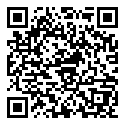
Download the app now from this link or simply scan the QR code below. Do not miss these cool features available right at your finger tips.
Have any questions or need assistance? We're here to help. Just drop us an email at support+mobile@zohobooks.com . Stay tuned for more features and tips in our upcoming series.
Regards,
Tanisha Choudhury
Zoho Books
Zoho Books