Automation Series: Auto-update Task Closure Field Based on Due Date
In a project, tasks are owned and worked on by different users and each progresses at a different rate. With Zoho Projects, the task delay duration can be calculated automatically when a task runs past its due date. This gives project managers better visibility into delivery estimates without checking each task individually.
Consider an onboarding team working on tasks such as Contractor Enrolment, Implementation Timeline Discussion, and Lead Assignment, each aligned to a go-live schedule. As work moves forward, tasks are picked up and worked on by different members along the way. It gets tedious to calculate task delays individually as the project expands, making delivery reviews repetitive and time consuming.
Whenever a task is marked as Completed, the workflow rule is triggered and the associated custom function compares the task Completion date against its Due date. Tasks that closed on or before the Due date are updated as On Time in the Closure field. Tasks that closed after the Due date are updated as Delayed and the number of overdue days is calculated and updated automatically. This helps project managers determine tasks that consistently take longer than planned, so future timelines can be adjusted before delays happen.
To configure this flow in your Zoho Projects portal,
1. Navigate to the upper-right corner of the page and click  → Customization → Layouts and Fields → Tasks.
2. Click the required layout and drag and drop to create the following Custom status and fields:
- Closure - Custom Picklist field with two values: On Time and Delayed.
- Days - Number field to capture the number of days delayed. This field will only populate when the closure status is Delayed.
- Stop - Checkbox field to prevent the Workflow Rule from repeatedly triggering after the task is updated.
- Re Open and Completed - Ensure the following statuses are available in your Task Layout.

3. Click Save.
5. Click Create Connection, choose Zoho Projects as the service, and add the following scopes:
- ZohoProjects.tasks.UPDATE
- ZohoProjects.portals.READ
- ZohoProjects.projects.READ

6. Navigate to Custom Functions under Developer Space.
7. Click the Tasks tab in the upper navigation panel.
8. Create a new custom function and add the following Deluge script.

Ensure that the portal URL aligns with your data centre. If not, the function may not execute as expected.
- // scopes: ZohoProjects.tasks.UPDATE, ZohoProjects.portals.READ, ZohoProjects.projects.READ
- projectsV3Endpoint = "https://projectsapi.zoho.in/api/v3/portal/";
- endPoint = "https://projects.zoho.in/restapi/portal/";
- format = "dd-MM-yyyy";
- statusName = "Completed";
- // Get task layout details
- taskLayoutDetailsResponse = invokeurl
- [
- url :endPoint + portalId + "/projects/" + projectId + "/tasklayouts"
- type :GET
- connection:"fieldupdateoncompletion"
- ];
- statusDetails = taskLayoutDetailsResponse.get("status_details");
- for each status in statusDetails
- {
- if(status.get("name").equalsIgnoreCase(statusName))
- {
- completedStatusId = status.get("id");
- }
- }
- params = Map();
- if(endDate != null)
- {
- days = daysBetween(toDate(zoho.currentdate.toString(format),format),toDate(toString(endDate,format)));
- if(days >= 0)
- {
- params.put("closure","On time");
- params.put("stop",true);
- updateTask = invokeurl
- [
- url :projectsV3Endpoint + portalId + "/projects/" + projectId + "/tasks/" + taskId
- type :PATCH
- parameters:params.toString()
- connection:"fieldupdateoncompletion"
- ];
- }
- if(days < 0)
- {
- delayedDays = days * -1;
- params.put("closure","Delayed");
- params.put("days",delayedDays);
- params.put("stop",true);
- updateTask = invokeurl
- [
- url :projectsV3Endpoint + portalId + "/projects/" + projectId + "/tasks/" + taskId
- type :PATCH
- parameters:params.toString()
- connection:"fieldupdateoncompletion"
- ];
- }
- }
- params.clear();
- params.put("status",{"id":completedStatusId});
- updateTask = invokeurl
- [
- url :projectsV3Endpoint + portalId + "/projects/" + projectId + "/tasks/" + taskId
- type :PATCH
- parameters:params.toString()
- connection:"fieldupdateoncompletion"
- ];
- return "success";

- Lines 2 and 3: Replace the domain in the endpoint URLs to match your data centre.
- Line 5: Replace "Completed" with the custom task closure status configured in your portal.
- Lines 11, 34, 48 and 59: Replace "fieldupdateoncompletion" with your Zoho Projects connection name.
- Line 27: Replace "On time" with the Closure field value configured in your portal.
- Line 40: Replace "Delayed" with the Closure field value configured in your portal.
- Lines 24, 25, 37, 39, and 41: Replace "days" with the API name of your number field if it has been renamed.
9. Add the following arguments during configuration.
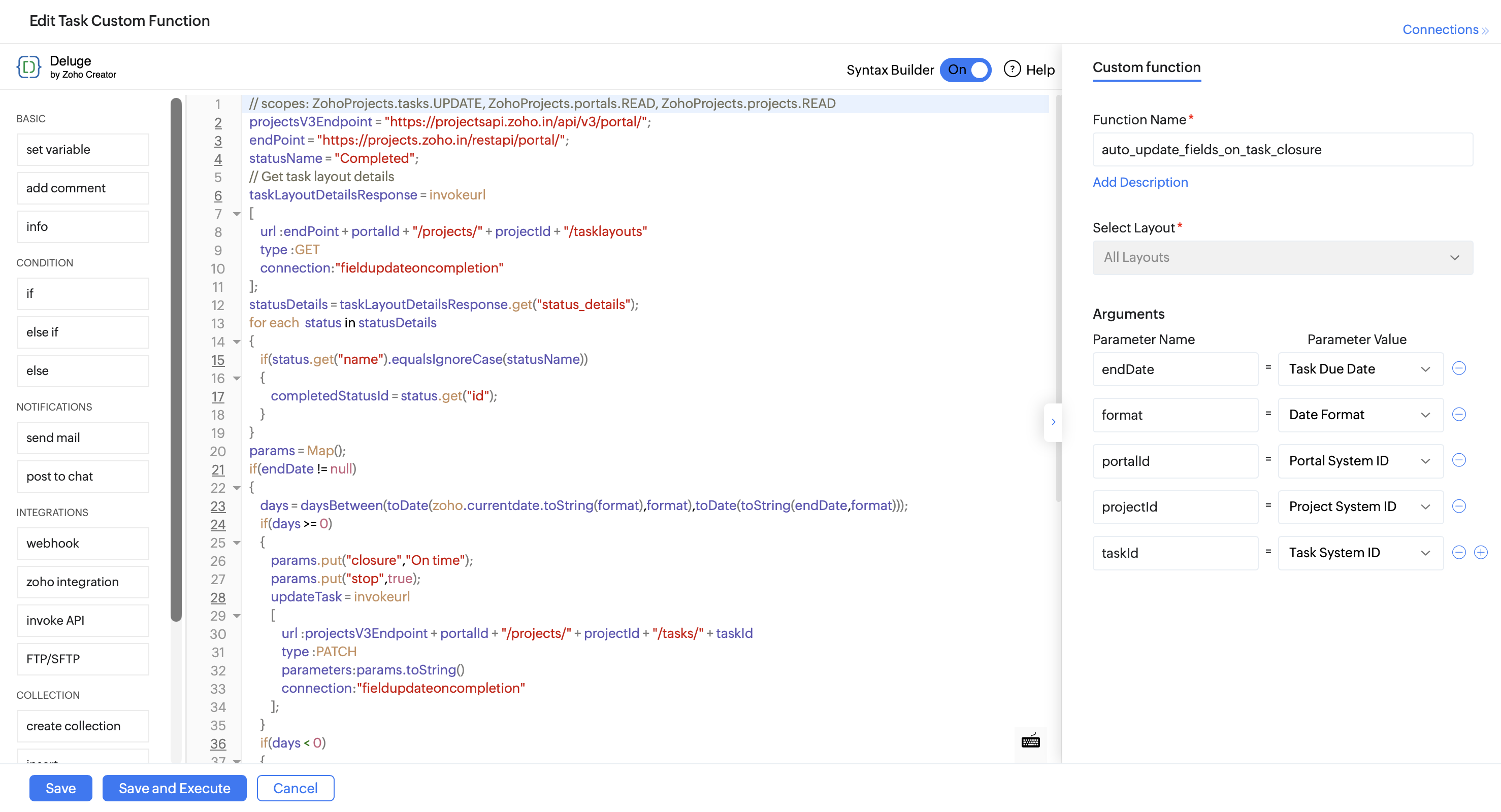
10. Click Save.
12. Click the Tasks tab in the upper navigation panel and click New Workflow Rule.
13. Select Based on User Action as the execution condition and execute the rule when a task is Updated.
14. Click Add Criteria+ and set the following criteria:
- Task Status Is Completed
- AND Stop Is Disabled
If you have configured a Custom Status or using the default Closed status, ensure the Task Status in the Workflow Rule criteria is set to match your portal configuration.
15. Click +Add Action and select Update Field. Set Status to custom status Re Open.
16. Click +Add Action again and select Associate Custom Function. Select the custom function created previously.
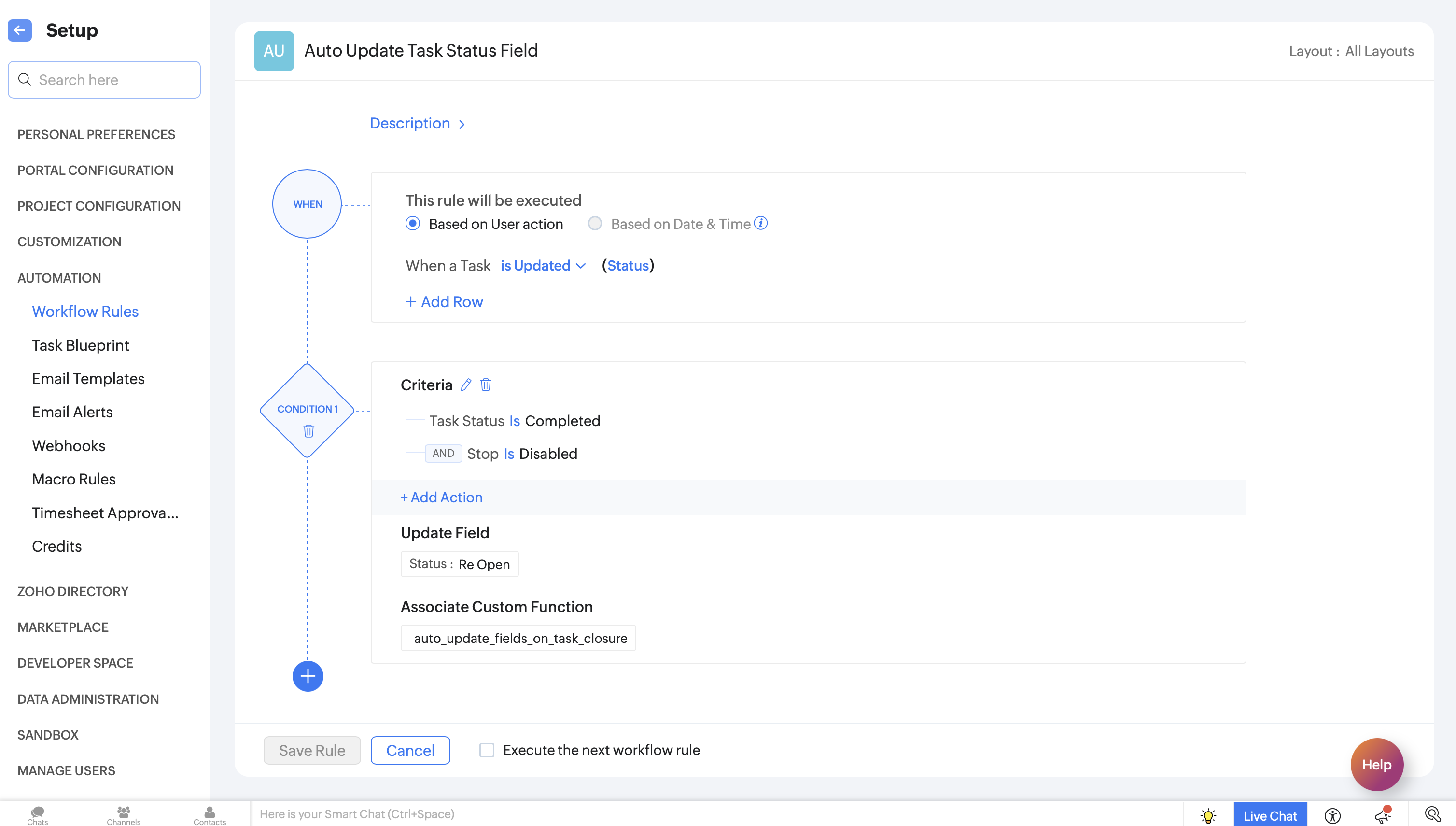
17. Click Save Rule.
18. Toggle the Workflow Rule Status on to enable it.

With this automation in place, teams can automatically track on-time and delayed tasks along with overdue days. This gives project managers better visibility into delivery timelines.
If you have any questions, feel free to drop a comment below or reach out to us at support@zohoprojects.com.