How to Track and Manage Schedule Changes in Zoho Projects
Keeping projects on track requires meticulous planning. However, unforeseen circumstances can cause changes to schedules, leading to delays. It becomes important to capture the reason for such changes to avoid them in the future.
Zoho Projects acknowledges this requirement by not only allowing users to track these changes, but also by mandating a valid reason when making such changes.
This can be achieved by using custom fields and layout rules in the task module.
First, we will create a multiline text field called Reason for Schedule change in the task layout.

Next, we will create a conditional layout rule where the condition is a change in the start date of a task. 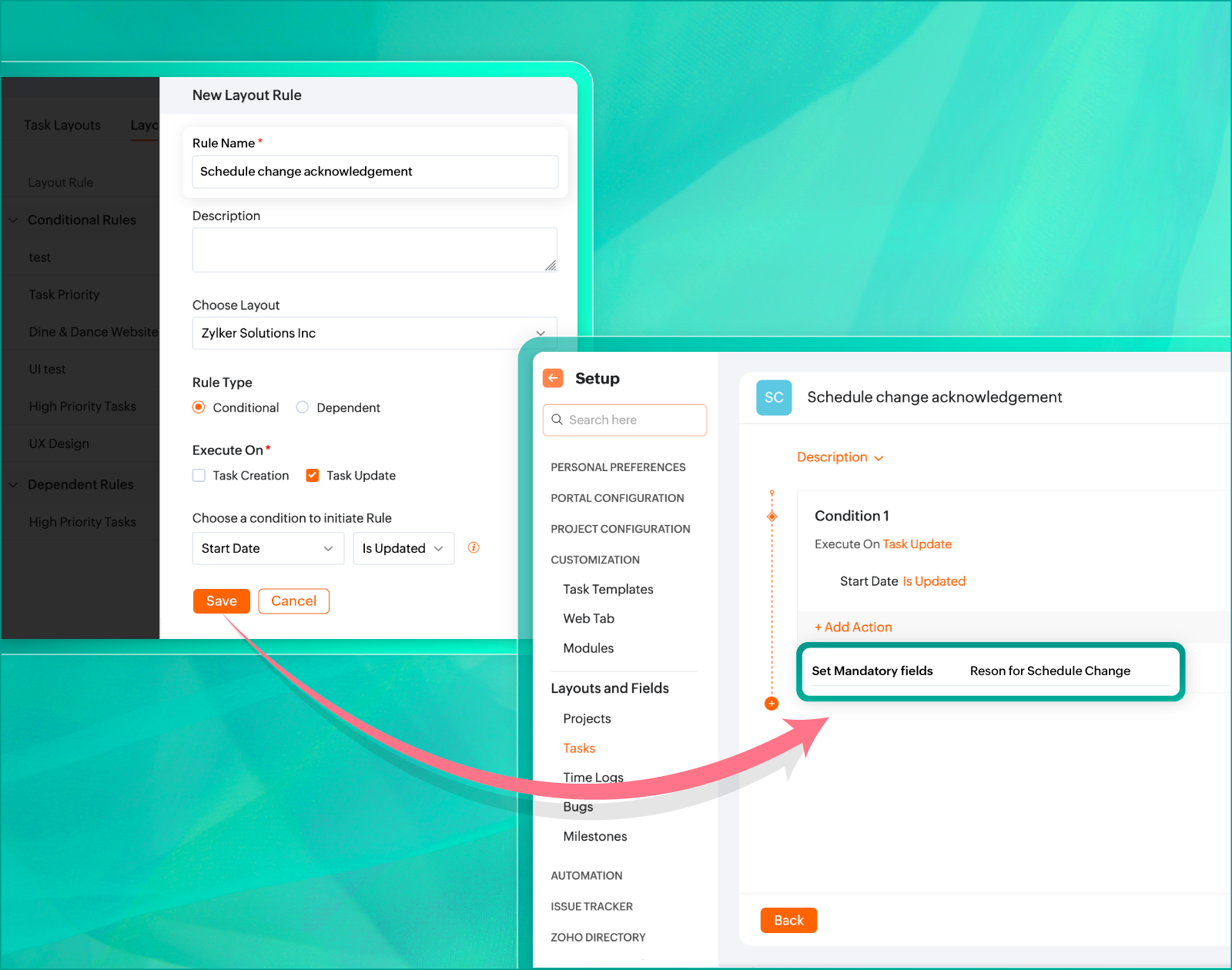
Now, we can set an action where the Reason for Schedule change becomes mandatory when the start date is updated or modified.

This will ensure that whenever the start date of a task is changed, the Reason for Schedule change is required to be filled.
Do give this a try and let us know your thoughts in the comments below.