Integrating Custom Zia Agents with Bigin

Integrating Custom Zia Agents with Bigin

Hello Biginners!

With the introduction of Zoho's Zia Agents, automation in Bigin has moved beyond predefined rules into something much more dynamic and intelligent. Instead of building rigid workflows, you can now create custom Zia Agents that understand context, process instructions, and perform actions across your applications.

Using Agent Studio, you can construct these custom Zia agents to handle specific business needs such as responding to leads, updating CRM records, or executing communication workflows on behalf of Bigin users.

What You'll Learn in This Post 

In this post, we'll cover:
  1. Real-world scenario
  2. Deploying a custom Zia Agent
  3. Understanding the Agent API
  4. Triggering the agent using Zoho Flow
  5. Setting up required connections in Flow
  6. Implementing a custom function for Agent API
  7. Understanding the function workflow
  8. Integrating Bigin with the agent via Flow
  9. Testing the integration flow

How the Custom Zia Agent Integration Works

Before we begin, here’s a simple flow diagram showing how a custom Zia Agent connects with Bigin through Zoho Flow to automatically handle new contacts and send personalized welcome emails.

Real-world Scenario

To understand how this works in implementation, let's consider a common use case in Bigin:

Let's say you use Agent Studio to build a custom Zia Agent called Auto-Reply Agent for Leads. This agent is set up to generate and send a personalized email automatically whenever a new lead (contact) is created.

Info
For detailed instructions on how to create and configure agents, refer to the Creating Agents guide.


In most sales workflows, when a new contact is created, the next step is to acknowledge the lead with a quick response—something that's often done manually or through predefined workflows using generic email messages.

With Auto-Reply Agent for Leads, we can now take this a step further by integrating it with Bigin so that the entire process happens automatically with personalized email messages.

Now that the Auto-Reply Agent is ready, the next step is to deploy the agent and make it available for integration.

Watch the Integration in Action 

Before we begin the implementation, here's a quick demo of the complete configuration in action. It covers from deploying a custom Zia agent to generating and sending a personalized welcome email.

Deploying a Custom Zia Agent 

Zia's Agent Studio provides two ways to deploy a Zia Agent, depending on how you want to use it. One way is to deploy it as a digital employee, which allows the agent to act as in-app assistant within Zoho apps. The other way is to deploy it as a connection, where the agent is exposed via an API endpoint.

In this scenario, we deploy the agent as a connection because we want it to be triggered automatically whenever a new contact is created in Bigin. By deploying it as a connection, we can use the agent's API and integrate it with Zoho Flow to handle the automation seamlessly.

To deploy the agent, navigate to the Deploy dropdown button in Zia's Agent Studio configuration page and select Deploy using connection.

In the Tools Param Mapping sliding panel, review the configured parameters. Modify these settings if required, and then click Next to proceed.

Next, choose an existing connection from the dropdown or click New to create a new connection for the required service.


Follow the prompts to authorize the connection. Once completed, the agent will be successfully deployed and ready to be triggered via its API.

Understanding the Agent API

Let's now review the Agent API details by navigating to Integrate > Agent API. These details are essential for integrating the agent with your automation.


The deployed agent exposes an Agent API endpoint that allows you to send instructions along with contextual data.

Endpoint:
  • https://agents.zoho.com/ziaagents/api/v1/agents/3989000000030001/trigger
Method: POST

Authentication: OAuth

Headers:
  • {
          "X-ZIAAGENTS-ORG": "903723720",
          "X-ZIAAGENTS-AGENT-SESSION-ID": "",
          "Authorization": "Zoho-oauthtoken <token>"
    }
Request body:
  • {
          "query": "",
          "reasoning": false,
          "attachments": [
                ""
          ],
          "systemArgs": {}
    }
At a higher level, this API works like this:
  1. We send a prompt as a query, which tells the agent what to do.
  2. We pass the contact ID through systemArgs, so the agent can fetch full details from Bigin.
  3. The agent processes the request and performs the action.
In our use case, the action is generating and sending a personalized welcome email.

To ensure the request is routed correctly and securely, the Agent API provides the following headers:
  1. X-ZIAAGENTS-ORG - Identifies the Zia Agent Organization.
  2. X-ZIAAGENTS-AGENT-SESSION-ID - Helps track execution sessions.
  3. Authorization - Provides OAuth token for secure access.
Optionally, we can also use X-ZIAAGENTS-AGENT-ID to specify which agent to trigger.

Triggering the agent using Zoho Flow 

Now that the agent is deployed, the next step is to trigger it automatically whenever a new contact is created in Bigin.

To achieve this, we use Zoho Flow to build the automation.

Setting up the connections

Before building the flow, we need to configure the required connections to ensure that data can be fetched from Bigin and the Zia Agent can be triggered securely.

The Bigin connection is used to fetch details of the newly created contact. Since Bigin is available as a default server in Zoho Flow, this connection can be created directly while configuring the trigger.

To set up a Bigin connection, go to Settings > Connections in Zoho Flow. Click on Create Connection, then select Bigin from the list. Provide a name of your choice for the connection and click Authorize to complete the setup.

Ensure the connection has the Contact Created trigger access while authorizing the connection:


This allows the flow to access contact data and pass it to the custom function.

The Zia Agent is not available as a default service in Zoho Flow, so we must create a custom connection using an Auth Profile.

This connection is used to authenticate and trigger the agent via its API.

To configure this, we create an OAuth2-based Auth Profile using client credentials obtained from the Zoho API console.

First, navigate to the Zoho API Console and register a server-side application. While registering, use the redirect URI:

https://flow.zoho.com/oAuth/callback

Once the client is created, you'll receive the Client ID and Client Secret, which are required to set up the Auth Profile in Zoho Flow.


In Zoho Flow, go to Settings > Auth Profiles and click Create to add a new authentication profile. Choose OAuth v2 as the authentication method, then enter a name of your choice for the auth profile.

Once done, do the following:
  1. Provide the Client ID and Client Secret from the Zoho API Console.
  2. Provide the Authorization URL, Access Token URL, and Refresh Token URL. For details, refer to the Zoho Accounts API documentation.
  3. Set the scope as: ZiaAgents.agents.TRIGGER.
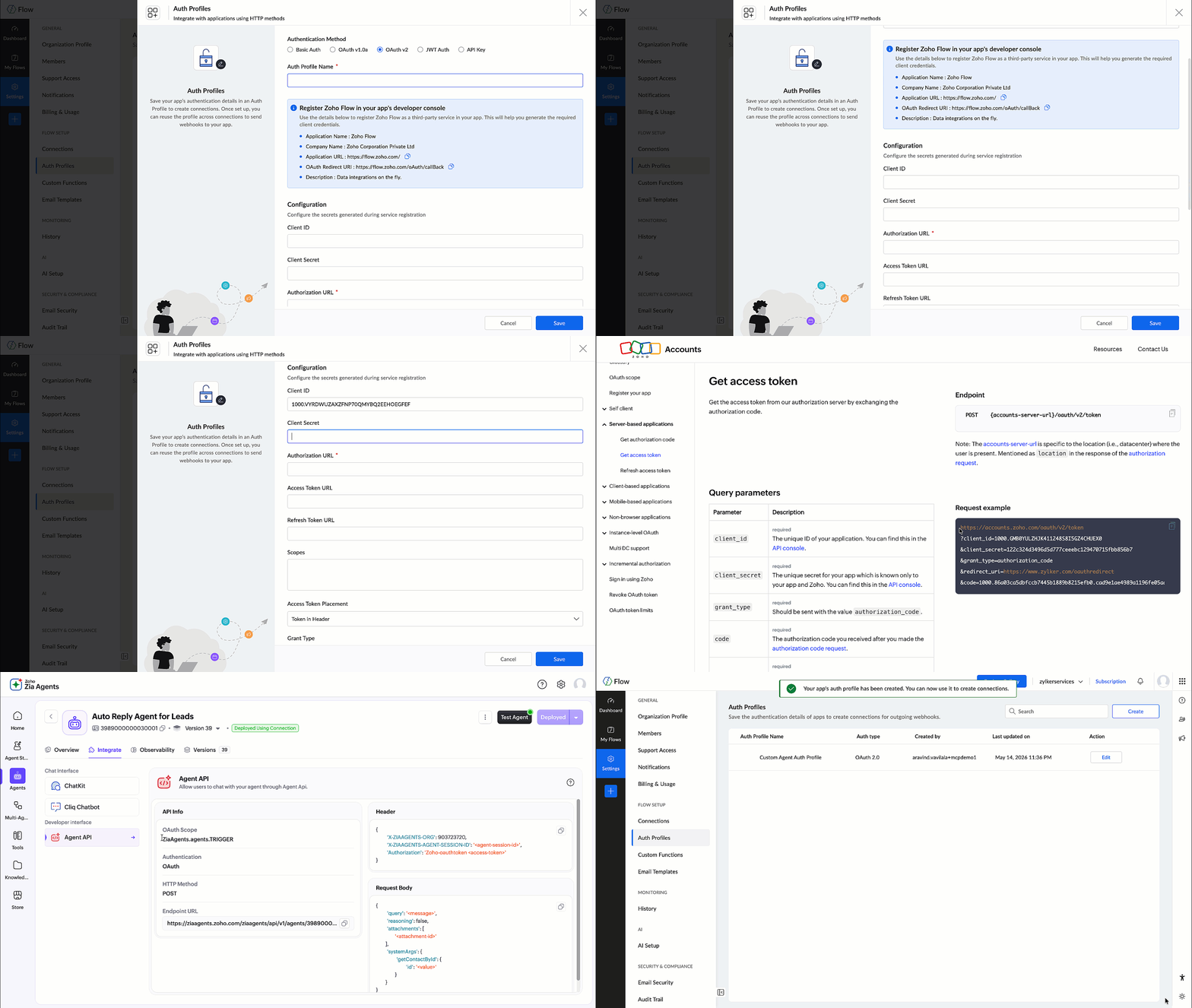

Using OAuth ensures that the connection remains active and secure, without relying on access tokens that expire frequently.

This Auth Profile is then used to create the Zia Agent connection.


Once the connection is created, it's used in the custom function during the API call:
  • connection:"ziaagentconnection"
This allows the function to invoke the Zia Agent API securely.

Implementing the custom function

In Zoho Flow, navigate to Settings > Custom Functions and click Create Custom Function.

Provide a function name and set the return type as void, since this function is only used to trigger the agent. Add an input parameter named id with the type string, which represents the contact ID from Bigin.


Once created, the Deluge editor will open where you can define the function logic as shown below:

  • void trigger_lead_auto_reply(string id)
    {

          // Instruct the agent to fetch contact and send welcome email
          query = "New lead added. Send a short, friendly welcome email to the newly created contact based on auto-reply-agent-skill instructions.";

          // Build request body
          body = Map();
          body.put("query",query);
          body.put("reasoning",false);
          body.put("attachments",List());

          // Pass the contact ID nested under the tool name — required for agent to extract it
          recordInfo = Map();
          recordInfo.put("id",id);
          sysArgs = Map();
          sysArgs.put("ContactId",recordInfo);
          body.put("systemArgs",sysArgs);

          // Headers
          headers = Map();
          headers.put("X-ZIAAGENTS-ORG","111860686");
          headers.put("X-ZIAAGENTS-AGENT-ID","2307000000029001");
          headers.put("X-ZIAAGENTS-AGENT-SESSION-ID","10000");
          headers.put("Content-Type","application/json");
          
          // Trigger the agent — fire and forget, no return needed
          response = invokeurl
          [
                url :"https://agents.zoho.com/ziaagents/api/v1/agents/2307000000029001/trigger"
                type :POST
                body:body.toString()
                headers:headers
                connection:"ziaagentconnection1"
          ];
          info response;
    }

How this custom function works

This function acts as the bridge between Bigin and the Zia Agent API, constructs the API request, sends it to the agent, and triggers the required action.

Let's understand how it works step by step.

A. Defining the instruction (query)
  • query = "New lead added. Send a short, friendly welcome email ..."
This is the instruction sent to the agent. It tells the agent what action needs to be performed and how the response should be generated.

B. Building the request body
  • body = Map();
    body.put("query",query);
    body.put("reasoning",false);
    body.put("attachments",List())
Here we construct the request body based on the Agent API format:
  1. query: defines the task
  2. reasoning: disabled to keep the response concise
  3. attachments: not used in this scenario 
C. Passing contact context using systemArgs
  • recordInfo = Map();
    recordInfo.put("id",id);
    sysArgs = Map();
    sysArgs.put("ContactId",recordInfo);
    body.put("systemArgs",sysArgs)
Instead of passing all contact details, we pass only the contact ID.

The agent uses this ID to fetch complete contact information from Bigin. This ensures that the agent works with latest data without increasing the request payload.
 
D. Setting headers
  • headers = Map();
    headers.put("X-ZIAAGENTS-ORG","111860686");
    headers.put("X-ZIAAGENTS-AGENT-ID","2307000000029001");
    headers.put("X-ZIAAGENTS-AGENT-SESSION-ID","10000");
    headers.put("Content-Type","application/json");
These headers help identify the organization and the specific agent being triggered.

X-ZIAAGENTS-AGENT-ID is the agent's unique identifier. You can find it on the agent's overview page in Agent Studio.

X-ZIAAGENTS-AGENT-SESSION-ID is the session ID, which you can define per your preference.
 
Authentication is handled through the configured connection in the function.
 
E. Triggering the Agent API
response = invokeurl
  • [
          url :"https://agents.zoho.com/ziaagents/api/v1/agents/2307000000029001/trigger"
          type :POST
          body:body.toString()
          headers:headers
          connection:"ziaagentconnection1"
    ];
This is where the API call is made.

At this stage:
  1. The request is sent to the Zia Agent.
  2. The agent processes the query.
  3. It fetches the contact details using the provided ID.
  4. It generates and sends the personalized welcome email.

Integrating Bigin with Custom Function 

Once the connections and custom function is set up, the next step is to configure the flow.

Create a new flow in Zoho Flow and define the following:
  1. Trigger: Select Bigin and choose the event Contact Created.
  2. Action: Add the Custom Function created earlier.
Map the required input parameter:
  1. Pass the Contact ID from the Bigin trigger to the function input parameter id.
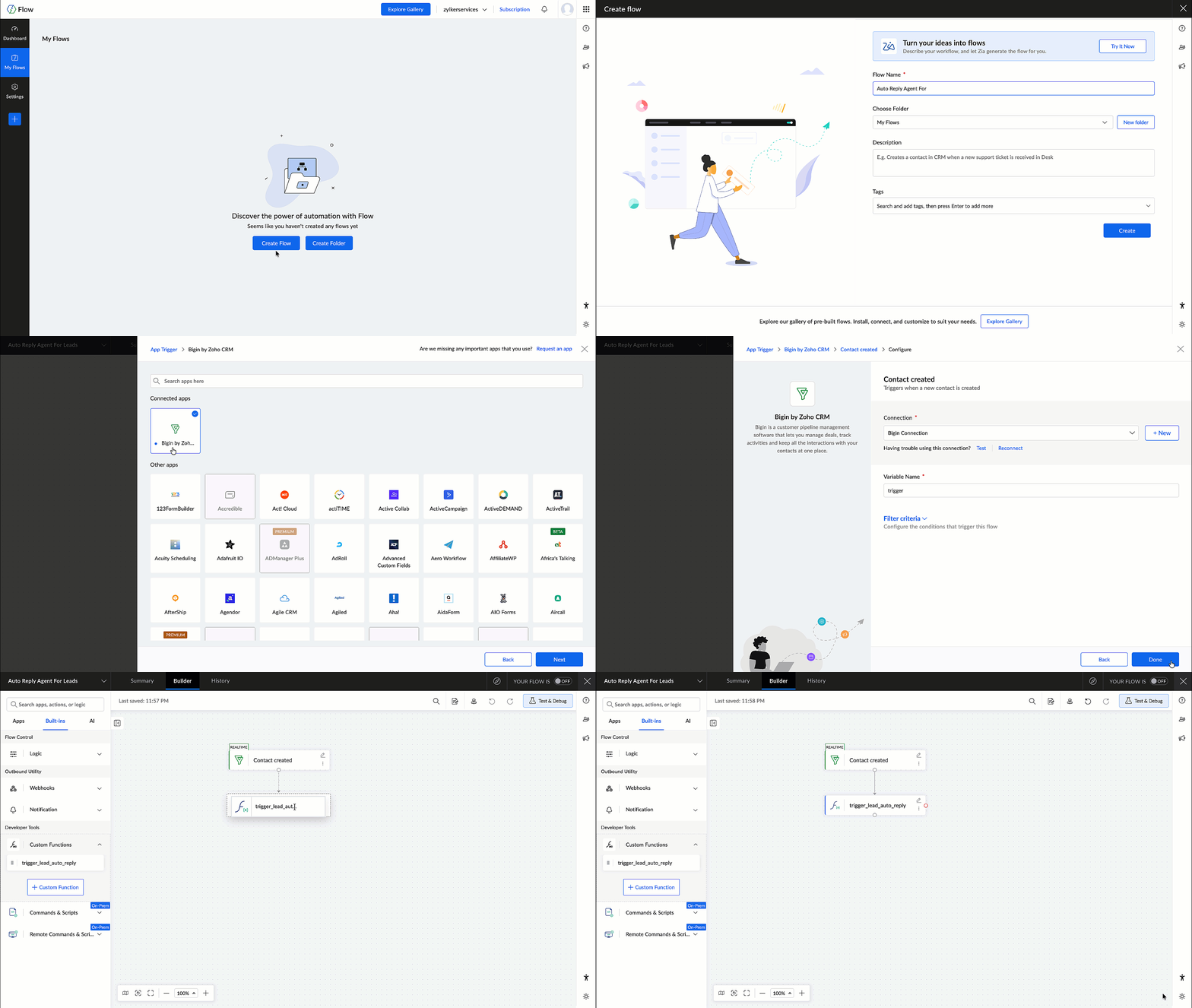

This ensures that wherever a new contact is created in Bigin, the flow is triggered and the contact ID is passed to the custom function, which in turn invokes the Zia Agent.

Testing the Flow

After configuring the flow, it's important to test the setup to ensure everything works as expected.

Create a test contact in Bigin and verify the following:
  1. The flow is triggered successfully.
  2. The custom function is executed.
  3. The Zia Agent is invoked.
  4. A welcome email is generated and sent to the contact.
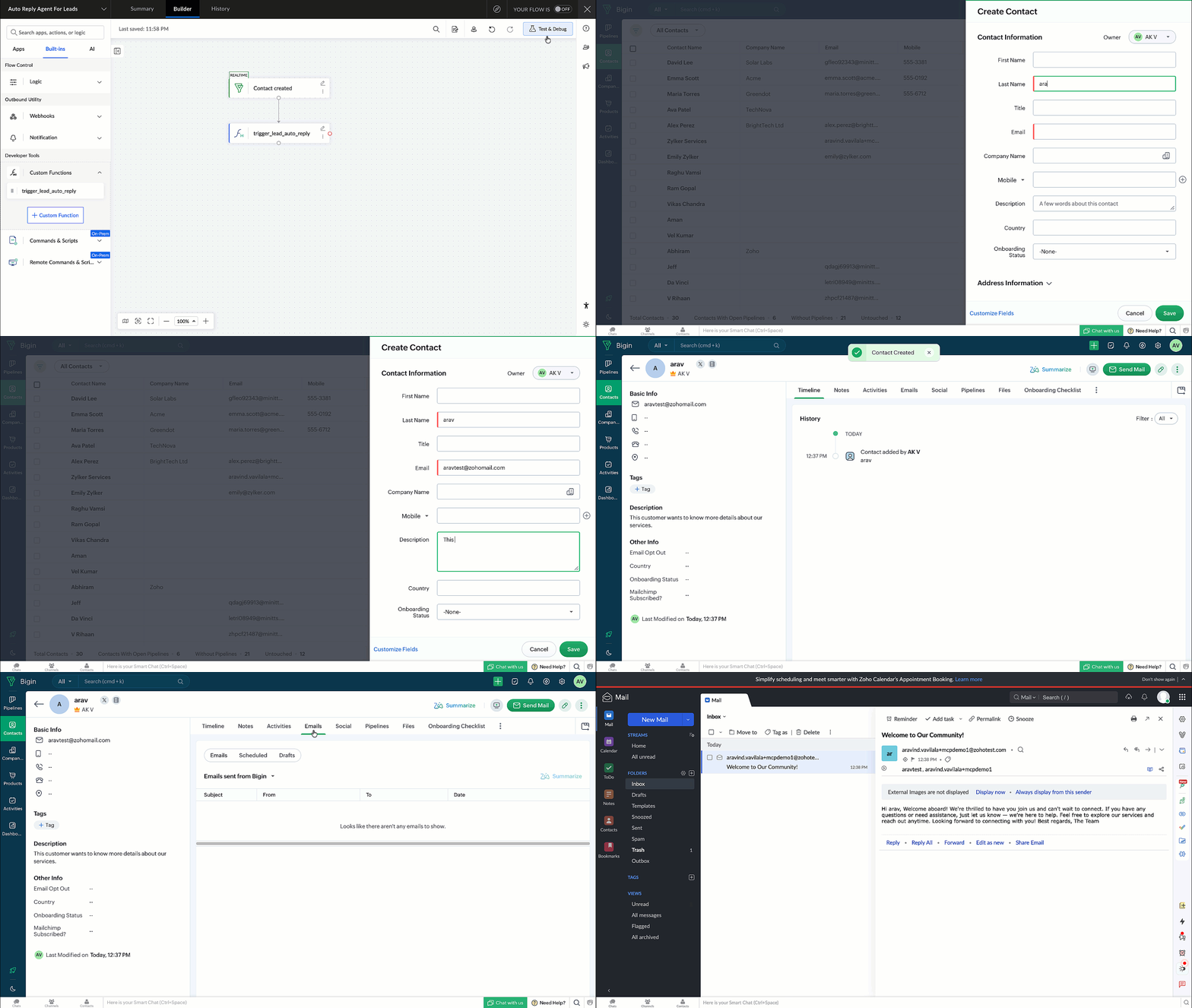

Once verified, the flow can be enabled for real-time execution.

In this post, we explored how to deploy and integrate a custom Zia Agent with Bigin using Zoho Flow.

This approach enables you to move beyond predefined workflows and build intelligent, automated communication systems using Zia Agents.


        • Recent Topics

        • Support for tags on mobile apps?

          Hi, please could you suggest when support for tags on the mobile apps is coming?
        • Zoho Social API for generating draft posts from a third-party app ?

          Hello everyone, I hope you are all well. I have a question regarding Zoho Social. I am developing an application that generates social media posts, and I would like to be able to incorporate a feature that allows saving these posts as drafts in Zoho Social.
        • mail did't send for particular email

          mail did't send for particular email
        • Group settings in Zoho Mail: Manage members, moderation, and spam controls for your organization's groups

          When teams rely on group email addresses like team@org.com, hr@org.com, or sales@org.com, managing them without clear controls leads to unapproved senders, flooded inboxes, and no accountability over what gets delivered. Zoho Mail's Group settings in
        • Update to Free plan attendee limit

          Hi everyone! A quick update about Zoho Webinar's Free plan. We’ve adjusted the Free plan attendee limit from 100 to 20 attendees. Everything else in your Free plan stays the same; you'll continue to have access to all your existing features. If your webinars
        • Possibility to modify a standard wedget to create my own customized wedget

          Below is the std wedget available for dashboard which is great to show the the overdue, current, and all tasks as well as issues for each team member. My problem is this; The list of users cannot be edited (there are admin users which are not relavant
        • Feature Request: Include Creator-applicable Deluge updates in the Creator Release Notes

          I'd like to put forward a suggestion about how Deluge updates are surfaced to Zoho Creator developers, and I'm hoping the Creator team will consider it. Zoho Creator is built on Deluge. Every workflow, custom function, validation and schedule we write
        • Add home page or dashboard in CRM customer portal

          is it possible to add home page or dashboard in CRM customer portal?
        • Close task on Completion Date entry

          This discussion is similar to my issue: "backdated-task-completion-date" discussion Scenario: A bunch of tasks have been completed. But, they have not been closed. Time goes by You finally get around to closing those tasks Projects assigns the date the
        • Introducing Color and Order Preferences for Blueprint Transitions

          Blueprints exist to improve the efficiency of your company's processes and ensure compliance — but only if your users follow them promptly. More often than not, your users may find it challenging to adopt your processes and follow through on them, especially
        • Groups and Moderation

          Hi, I have set up a Group in my organisation but am having trouble with moderation. The members are a mix of addresses within the organisation and external emails addresses. The issue is how to set moderation to be off whenever any of the members sends
        • Introducing Radio Buttons and Numeric Range Sliders in Zoho CRM

          Release update: 1. 2 March 2026: Currently out for CN, JP, AU and CA DCs (Free and standard editions). For other DCs, this will be released by mid-March. 2. 26 March 2026: CA, SA, AU, JP, CN DCs - Free, Standard, Professional, Enterprise, Ultimate, CRM
        • Zoho CRM Sandbox now supports integrations

          Hello everyone, We are now expanding Zoho CRM Sandbox to support integrations with other Zoho products. You can connect, configure, and validate the behavior of your integrated tools within a safe, isolated environment - testing end-to-end without touching
        • Archiving Contacts

          How do I archive a list of contacts, or individual contacts?
        • Introducing the New Zoho Assist Quick Support Plugin

          We are thrilled to announce the new Zoho Assist Quick Support Plugin, the upgraded and enhanced version of the Zoho Assist Customer Plugin. This new plugin allows organizations and IT administrators to deploy it directly onto their customers’ devices,
        • What's New - June 2026 | Zoho Backstage

          Hello everyone! We’ve rolled out a new set of improvements across Zoho Backstage to help you manage events more efficiently and provide a better experience for your attendees. Take a look at what’s new in this month’s update. Assign attendees later and
        • More Zia AI capabilities are included across additional Zoho Desk editions

          Hello everyone, We are expanding the availability of AI-powered features in Desk to the other paid subscriptions from 7th July 2026. Right now, the following AI-based features are available for Enterprise edition users: Intelligence: Sentiment analysis,
        • Summer release '26 should be called Enterprise Summer Release '26

          Summer release '26 should be called Enterprise Summer Release '26 because almost all updates or the more useful ones, are limited for Enterprise subscriptions. us with Basic or Premium susbcriptions are basically left in the cold.
        • Previous conversation title on new messenger widget translation

          The title of previous conversations title on the new messenger widget personalisation appears in english even when spanish is selected as default language
        • Export Tickets from the Help Center

          Hello everyone! We are now allowing end users to export tickets directly from the help center. The ticket export allows users to: Filter tickets by Department, Priority, and Account before exporting. Download files from Export History (Setup > Data administration
        • Account Duplication Control in Zoho CRM

          The Goal Prevent users from creating duplicate Account records in Zoho CRM. Accounts should be sourced from ERP and synced into Zoho—no. Allow to create Accounts if they don't exist in our ERP. What I've Implemented removed Account creation permissions
        • Error 1011 saving website personalisation — blocking all changes (corrupted "home_page.content" field)

          When trying to save changes under Settings → Brands → MY COMPANY → Website → Personalisation → Messenger, I receive the following error: "Either the request parameters are invalid or absent" upon checking on the developer console of the browser I get
        • Canvas View: Add font family selection (incl. Google Fonts / Hebrew & RTL fonts)

          Hi Zoho CRM team, The Canvas design suite (List View, Tile View, Table View and Record Detail) currently allows customizing font weight, size, color, alignment and case - but there is no option to choose the font family. All text is rendered in the built-in
        • This user is not allowed to add in Zoho. Please contact support-as@zohocorp.com for further details

          Hello, Just signed up to ZOHO on a friend's recommendation. Got the TXT part (verified my domain), but whenever I try to add ANY user, I get the error: This user is not allowed to add in Zoho. Please contact support-as@zohocorp.com for further details I have emailed as well and writing here as well because when I searched, I saw many people faced the same issue and instead of email, they got a faster response here. My domain is: raisingreaderspk . com Hope this can be resolved.  Thank you
        • Issue embedding image Zoho Books email signature

          I am trying to embed my company logo to my email signature using the image url tool on the settings but I keep getting the following error: Enter a valid public image URL I am using a public link from either WorkDrive or OneDrive and I still get the same
        • E-Mail Distribution List

          How do I create an e-mail distribution list in Zoho Mail?
        • Tip #80- Secure Connect: Add an Extra Layer Before You Connect – 'Insider Insights'

          Tip 80 – Secure Connect: Add an Extra Layer Before You Connect – 'Insider Insights' Hello Zoho Assist Community! Picture this: your support team relies on unattended access to keep the business running. Servers need overnight patches. Remote workstations
        • Business Whatsapp is not Showing

          I’ve attached a screenshot from the Zoho CRM Android app when clicked the call button. It is showing Personal WhatsApp, which is not installed on the phone. Also, the installed WhatsApp Business account is not showing.
        • How to access a unified inbox for more than one zoho accounts (using paid workplace services)

          Hello, we are using zoho for a few months and also suggest your services, setting them up for our clients. Several from our clients, our company as well, use more than 1 email addresses. Using the web version, we are only able to add them as accounts
        • Modify a standard wedget to create my own customized wedget ?

          Below is the std wedget available for dashboard which is great to show the the overdue, current, and all tasks as well as issues for each team member. My problem is this; The list of users cannot be edited (there are admin users which are not relavant
        • Advanced Formatted Resume Templates for Applications

          Advanced Formatted Resume Templates can now be created and used directly from the Applications module, with support for application module fields. Until now, Advanced templates were limited to the Candidates module. That meant resumes generated from Applications
        • Zoho Books | Product updates | July 2026

          Hello users, We’re excited to bring you the latest updates in Zoho Books for July 2026! This month's release introduces Terminal Payments, CMP-08 filing for composition taxpayers, SEPA Credit Transfer support, the new Receipts and Payments Report for
        • Boost your CRM communication with new font types, sizes, and default reply-to options while composing emails

          Hello Everyone, We’re excited to introduce a series of impactful enhancements to the email composer settings in Zoho CRM. These updates enable you to personalize and optimize your customer interactions with greater efficiency. So what's new? Add custom
        • Zoho CRM Community Digest - June 2026| Part 2

          Hello Everyone! Welcome to the second half of our June Zoho CRM Community Digest! We are keeping the momentum going with powerful updates to filter out unnecessary email syncs, a revamped CRM Import tool, smarter follow-up updates in cadences, and Zia
        • Migrate from Zoho Mail to G Suite

          I am unable to find any documentation on how one can migrate from Zoho Mail to another platform, like G Suite or Office 365. Please point me to the right documentation. Thank you.
        • Zoho Desk Android app - Option to set an email template as default

          Hello everyone! We have enhanced the Email Template section in our app by introducing the ability to set a template as default directly from the Zoho Desk Android app, making it easier to access your preferred template without repeated manual selection.
        • Zoho Desk Android and iOS app update: Odia Language

          Hello everyone! We have now brought in support to access the Zoho Desk app in Odia language. Please update the app to the latest version directly from the Play Store/ App Store or using the links below: Zoho Desk - Play Store Zoho Desk - App Store Once
        • How to check Leads with no Task (open activity)

          Hi everyone, I was wondering if there’s a way to view leads that don’t have any tasks assigned or open activities linked to them.
        • How do I migrate from Office 365 to Zoho Mail?

          Check out Advik Email Migration Wizard, this software is specially developed to move mailboxes from Office 365 to Zoho Webmail. In addition you can migrate from Gmail, Yahoo, Rediffmail and 80+ webmail servers to ZOHO MAIL. Isn't it amazing? This is an all in one email migration solution. Steps to export emails from Office 365 to Zoho Webmail are as follows; Run Advik Email Migration Tool in your system. Select Office 365 as source and enter its login credentials. Select mailbox folders and choose
        • Bridging the gap between incident management and project delivery

          As an organization, you can have structured backup plans to handle issues that arise during project execution. Despite best efforts, even efficient processes can fall into an escalation trap where a red flag travels up the tiers but no real action follows.
        • Next Page