Never miss a sprint meeting | Get instant Zoho Sprints meeting notifications in Zoho Cliq
Tired of forgetting your sprint meetings? Let's set up automatic notifications from Zoho Sprints to Zoho Cliq.
What is Zoho Sprints?
Zoho Sprints is an Agile project management software that helps dynamic teams plan, track, iterate, and deliver their fast-paced projects with ease.
What You'll Achieve
By the end of this guide, you'll have a system that sends a message to your Zoho Cliq channel whenever a new meeting is scheduled in Zoho Sprints so everyone's updated right in any discussion channel or a bot.
Instructions:
Set Up in Zoho Sprints
Go to https://sprints.zoho.com -
Navigate to Settings → Automation → Custom Functions → Create
Fill in these details:
Display name: Choose something memorable
Function name: A technical name for your function
Category: Automation
Module: Meeting
Event: Meeting Create

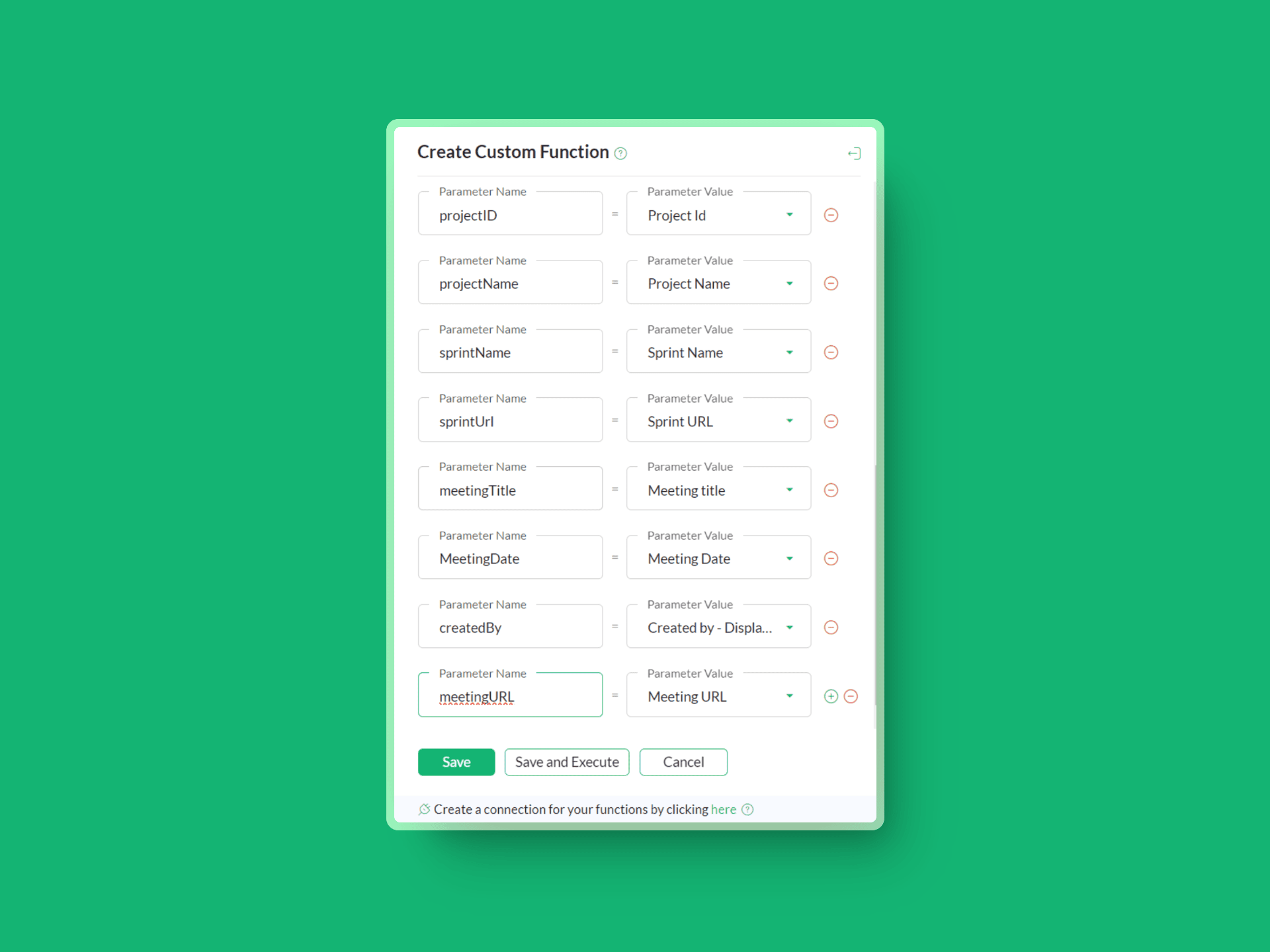
Add Meeting Details
Now, add the required parameters like project ID, Meeting ID, Project Name, Meeting Title, Sprint Name, Sprint URL, and so on.
Create Your Notification message card
Navigate to the custom function editor and construct the message card.(ⓘMessage builder) Use this sample code in the custom function editor:
- dataList = list();
- dataList.add({"Project name": projectName});
- dataList.add({"Sprint name":"["+sprintName+"]("+sprintUrl+")"});
- dataList.add({"Meeting title": meetingTitle});
- dataList.add({"Meeting link": "[Link]("+meetingURL+")"});
- postMessage = {"text":"### New meeting has been scheduled by " + createdBy,"slides":[{"type":"label","data":dataList}]};
- channelUniqueName = "CHANNEL_UNIQUE_NAME";
- info zoho.cliq.postToChannel(channelUniqueName, postMessage, "CONNECTION_LINK_NAME") ;
Connect Zoho Services
Create a connection with Zoho OAuth service and select the scope ZohoCliq.Webhooks.CREATE and disable the use credentials of the login user check box and authorize the connection.
Personalize Your Setup

Output:
