Tip #74- Exploring Technician Console: Execute Script- 'Insider Insights'
Hello Zoho Assist Community!
You are in the middle of a support session. The user's machine needs a quick cleanup, a service restart, and a config tweak to fix the issue. You know exactly what needs to run. You have the script saved somewhere on your drive.
So begins the workaround. Transfer the file. Walk the user through where it landed. Hope they do not double-click it before you are ready. Open a terminal, navigate, set permissions, run it. Watch one machine. Repeat tomorrow on the next. It works. But it is slow, it is manual, and it puts your script in the user's hands when it should stay in yours.
That is the gap Execute Script closes, and the key is that it runs straight from the session, no file transfer required.
With one click from the Tools menu in the Technician Console, you can run any script from your organization's Script Repository directly on the remote device. No copying files over, no asking the user to click anything, no permissions dance. The script lives in your repository, organized by category and ready to go, and it executes on the remote machine the moment you click Execute.
By the time you are explaining the next step to the user, the script has already done its job.
How to Use It
During an active remote support session:
Click Tools in the left panel and select Execute Script
Browse the scripts available to you from your Script Repository, each one labelled with its name, category, and file type
Click Execute next to the script you need
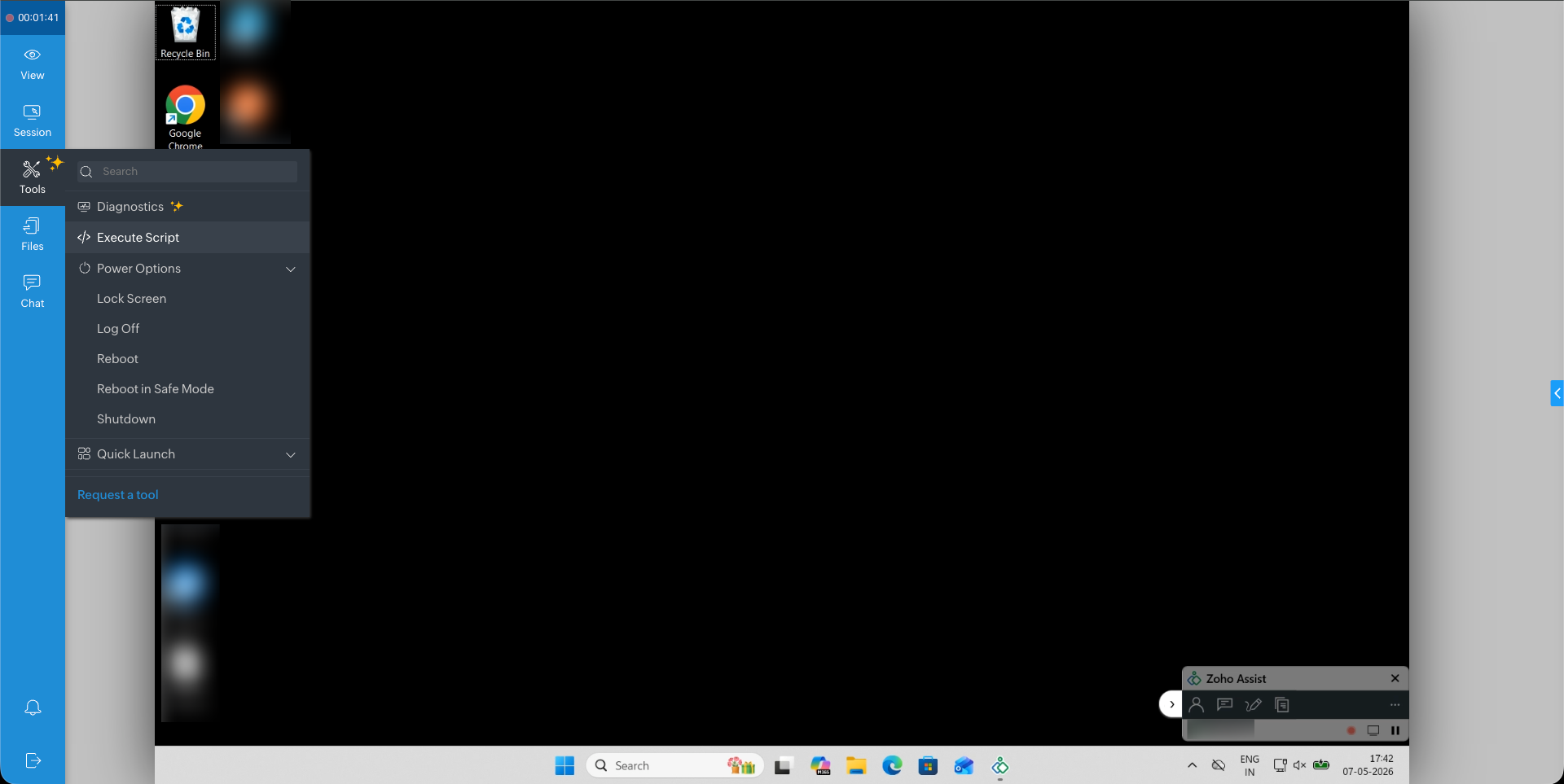
If you need something ad-hoc? Click the Upload icon in the dialog and select a custom script file. It's there and ready to run immediately.
A success notification confirms the script executed without errors.
Why running it from the session matters:
One click, no transfer: The script runs straight from your repository onto the remote device. No copying, no uploading to the user's machine, no cleanup afterward.
Consistent every time: The same script, run the same way, on every device. No version drift, no "which one did I send last time," no user error in between.
Ad-hoc when you need it: A one-off script for this one machine? Upload it in the dialog and run it immediately. It does not have to live in the repository to be useful right now.
Built for the work technicians actually do: Install or uninstall software, patch a config, run diagnostics, clear caches, kick off a security check. The repetitive parts of remote support, automated.
Right tool, right technician: Because scripts are organized by category and assigned to departments, the dialog only shows what is relevant to your workflow. No scrolling through everyone else's.
Next time you find yourself about to drag a script file into a session, stop. Open the Tools menu and run it from the repository instead.
Have you built out your Script Repository yet, or do you have a go-to script you run in almost every session? Share what is in your toolkit in the comments below!
For questions or support, reach out to us at support@zohoassist.com. We are always happy to help!