Weekly Tips : Make your email content error free with Spell check in Zoho Mail
As someone who writes multiple emails a day, we are bound to make both grammatical and spelling errors. Most of them we may not even notice, and even if we do, we may not have the time to correct each one individually when we are in a hurry. So how do you make sure your content is error-free without breaking your writing flow?
With Zoho Mail’s Spell checker, your work becomes much easier. It detects all your errors as you write and provides quick suggestions to correct them.
Spell check
Zoho Mail has an inbuilt enhanced Spell checker to correct your spelling and grammar errors on the go. After composing your email, click the Spell check icon. The misspelt words or grammar errors in your email content will be highlighted. Simply click the highlighted words to see a list of possible words with the nearest correct spelling or alternative words. You can also add a word to your custom Dictionary by clicking the Add to dictionary icon so that it doesn't get flagged the next time you spell-check an email.

Enable Spell check
- Log into your Zoho Mail account.
- Navigate to Settings > Compose > Spellcheck option.
- Click on the Checkbox Spell check as you type.
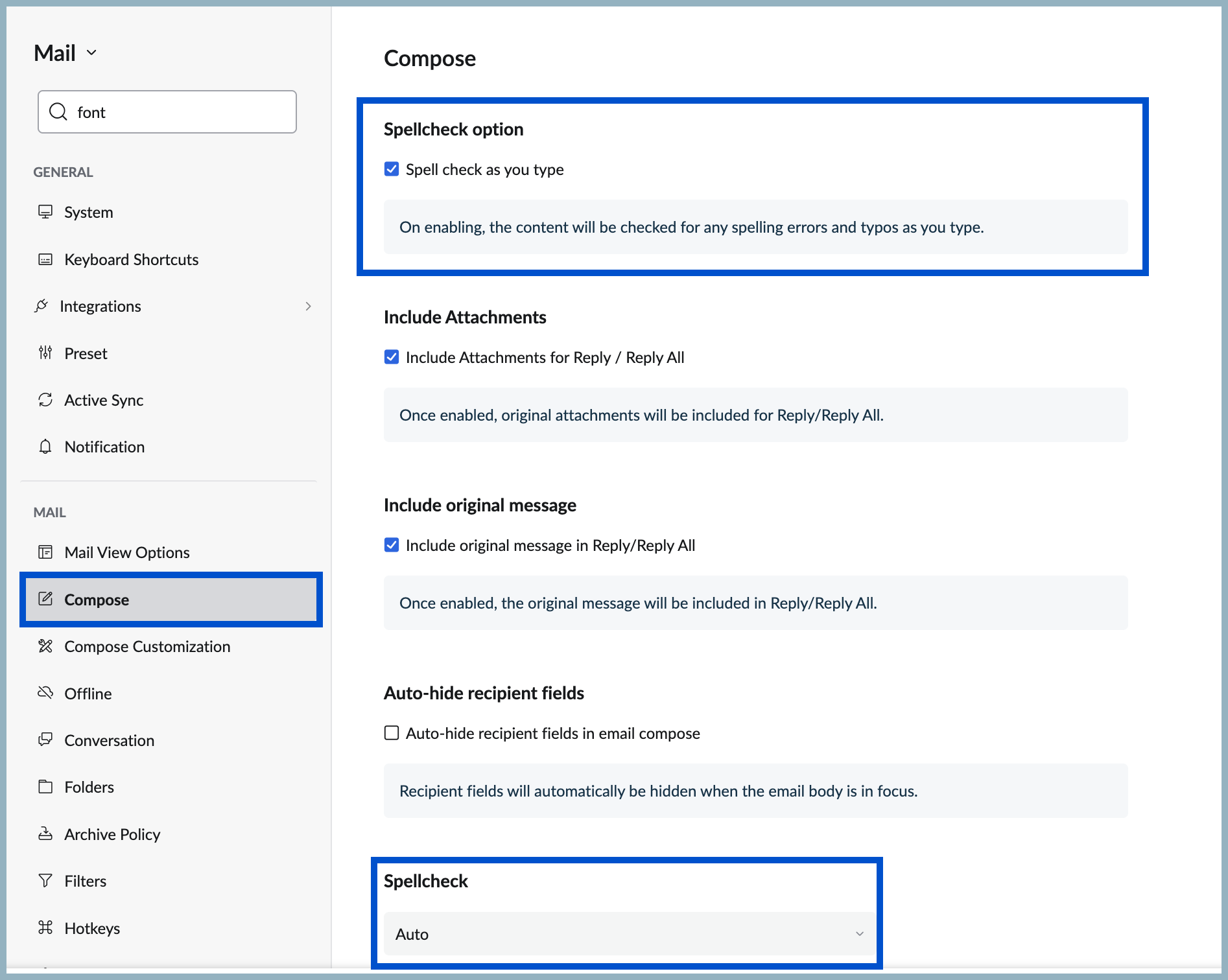
- Scroll down to Spellcheck to apply spell check for other languages in Compose.
- Then select your preferred language from the options in the Spellcheck drop-down.
No more typos or overlooked mistakes, ensure your content is error free without breaking the writing flow with Spellcheck in Zoho Mail.