Data Import: New interface, improved field mapping, and more
Hello everyone!
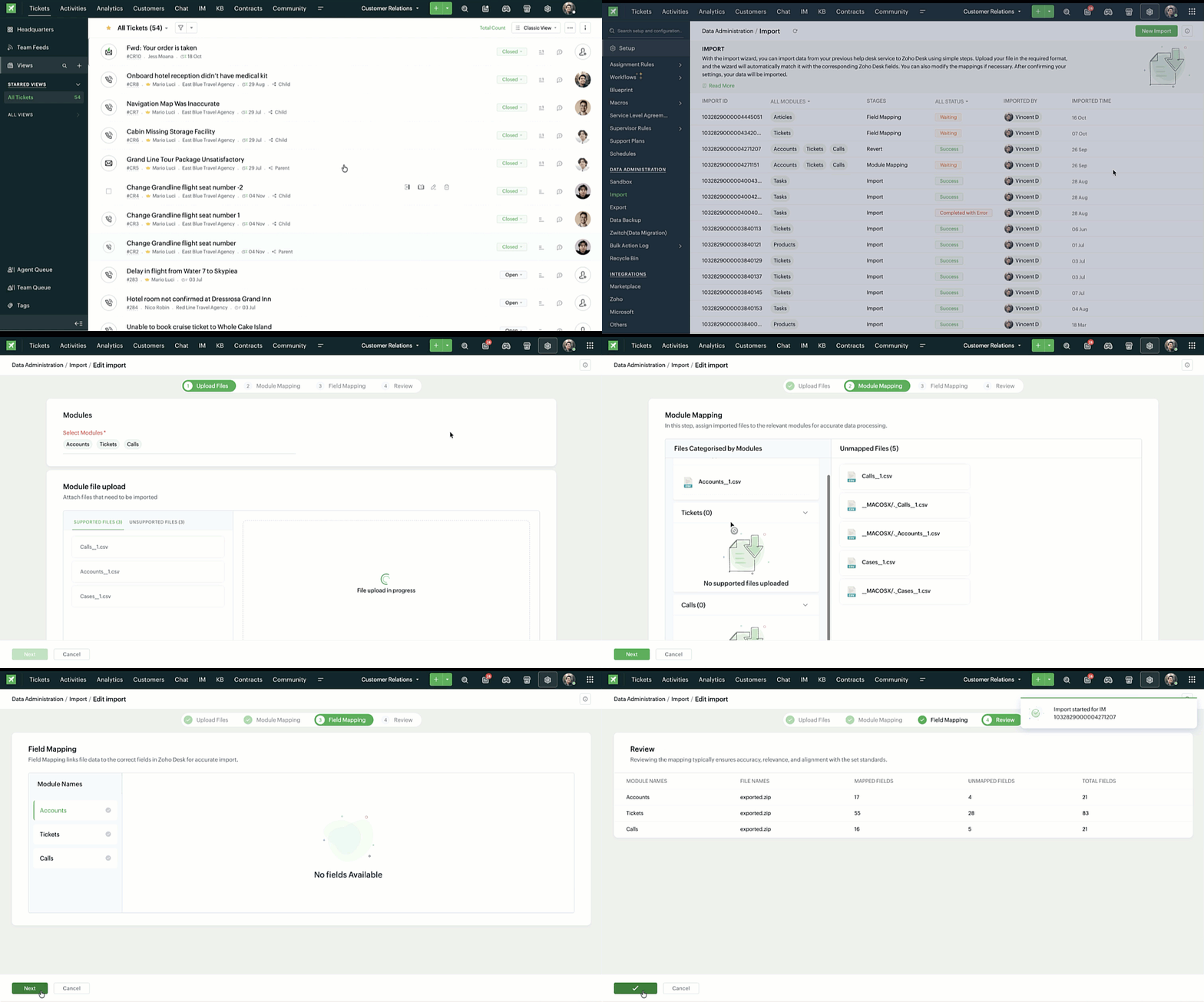
We’ve redesigned the data import process to ensure accurate field alignment and verify that every column in the uploaded file maps correctly with Desk fields before import. Here's how:
Streamlined Import Steps
Importing data is now more guided and detailed—from selecting multiple modules to mapping fields with clearer steps and improved instructions at every stage—it is now simpler to validate and manage imports.

User can now review and validate every mapping detail before proceeding:
- Field in File: Displays the column names contained in the first row of data in the uploaded file, which helps identify the data source for each field.
- Desk Fields: Shows the corresponding field names in Zoho Desk, ensuring that each imported data point lands in the right place.
- Field Format: Allows users to set formatting for data in a field, especially dates and times, for consistency after import.
- Sample Data from File: Displays real examples from the second and third rows of import file, letting a user verify that each mapping and data format looks correct before importing.


Import History
The Import History page shows every a record of the imported files in one place along with the following details:
- Import ID, module name, and import stage
- Import status (In Progress, Success, Failed, Waiting)
- Imported by and imported time

Additional capabilities
- Add data to existing imports: New records can be added to a completed import using the same module and field mappings. No need to start over; Desk automatically applies the previous mapping setup for continuity.
- Revert imports: Undo imported data in just one click. If users have added data multiple times (e.g., Add Data 1, Add Data 2), reverting will remove only the latest addition.
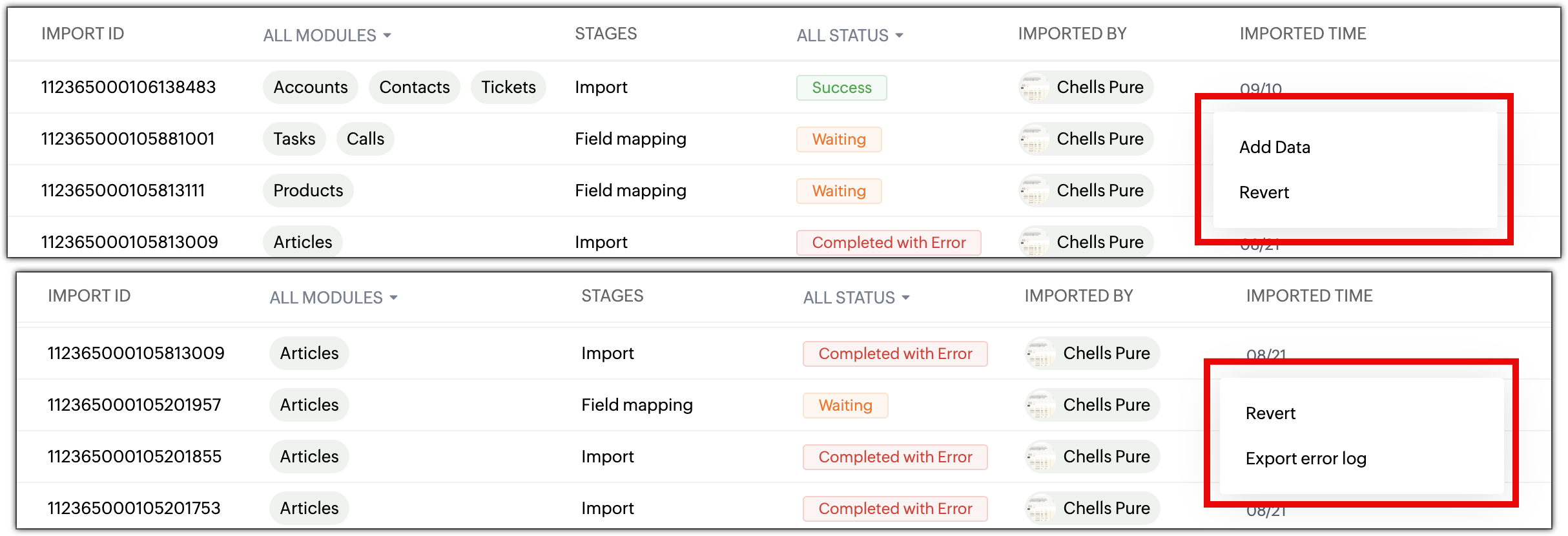
- Detailed error logs: Identify why an import failed in the new Error Logs section lists so the users can correct and re-import without repeating previous errors.

Points to remember
- Add Data is available only if the original import was successful.
- A user cannot modify mappings while adding data as it follows the original import setup.
- Unsupported file types (.xls, .pdf, etc.) will be automatically separated under Unsupported Files.
The new interface for import is now available in all data centers. For more details, please refer to the help document.
PM: @Nivedhan Senthilkumar
Regards,
Velantina V
User Ed | Zoho Desk
Topic Participants
Velantina V
Sticky Posts
2024 Email Authentication Standards: Elevating Security with Google and Yahoo
In contemporary email communication, email authentication plays a pivotal role in mitigating email fraud, spam, and phishing attacks. Brace yourself for a new level of security. Starting February 2024, Gmail and Yahoo will be implementing robust emailUsing Agent Email Address as From Address
Currently, while replying to a ticket, it is possible for agents to choose their own email addresses as 'from' addresses. Although we built this just for that little extra flexibility, in hindsight, it hasn't figured much in conventional usage. Almost all businesses prefer that responses to their customers' tickets be sent from the common support/service email address and NOT from those of individual agents. During personal interactions at events, some of you have even made passing mentions aboutEdit and Delete options in Comments
A lot of teams have been using ticket comments extensively to collaborate everyday. Notification Center further improved this experience by bringing real-time updates. As we continue to build more improvements to this experience, we've shipped a small-yet-importantWebinar 2: Supercharged customer support for growing business
Join us for this webinar and learn how to step up your support game using a real-time communication platform to generate happier, more successful customers. In this live webinar, we will will discuss the importance of SalesIQ for your support team and how it can help you: Understand your customers better and their journeys to proactively support and engage them even before they ask for help. Integrating real time conversations into Zoho Desk’s Support, providing a conversational customer serviceCustomize Colors of your Customer Self Service Portal
You asked for it. We heard you. We're happy to roll out the most sought after feature request, Customizing the Colors of your Customer Self-service Portal. Now you can set the color of your customer portal to mimic your company's web site, so that your customers visiting the portal will not feel alienated by the default theme. Go ahead and configure the color of the header, tabs, fonts and background according to your needs. You can either choose between default color themes like Blue, Grey, Green
Recent Topics
Free Training - Explore What’s New in Zoho One 2025
Greetings! We hope you have all had a chance by now to get hands-on with the new features and updates released as part of ZO25. Yes, we understand that you may have questions and feedback. To ensure you gain a comprehensive understanding of these updates,Quick way to add a field in Chat Window
I want to add Company Field in chat window to lessen the irrelevant users in sending chat and set them in mind that we are dealing with companies. I request that it will be as easy as possible like just ticking it then typing the label then connectingHow to create a two way Sync with CRM Contacts Module?
Newbie creator here (but not to Zoho CRM). I want to create an app that operates on a sub-set of CRM Contacts - only those with a specific tag. I want the app records to mirror the tagged contacts in CRM. I would like it to update when the Creator appHow to import data from PDF into Zoho Sheet
I am looking to import Consolidated Account Statement (https://www.camsonline.com/Investors/Statements/Consolidated-Account-Statement) into zoho sheet. Any help is appreciated. The pdf is received as attachment in the email, this document is passwordTrigger Workflow, Approval Process, Blueprint by Deluge in Zoho CRM
#Tips & Trick If you intend to activate your Workflow, Approval Process, or Blueprint through either the deluge script or Zoho CRM API during the creation, updating, or deletion of a record Try this Script mp = Map(); trigger = List(); // Workflow trigger.add("workflow");Zoho Projects Android app: Integration with Microsoft Intune
Hello everyone! We’re excited to announce that Zoho Projects now integrates with Microsoft Intune, enabling enhanced security and enterprise app management. We have now added support for Microsoft Intune Mobile Application Management (MAM) policies throughCant't update custom field when custom field is external lookup in Zoho Books
Hello I use that : po = zoho.books.updateRecord("purchaseorders",XXXX,purchaseorder_id,updateCustomFieldseMap,"el_books_connection"); c_f_Map2 = Map(); c_f_Map2.put("label","EL ORDER ID"); c_f_Map2.put("value",el_order_id); c_f_List.add(c_f_Map2); updateCustomFieldseMapKaizen #223 - File Manager in CRM Widget Using ZRC Methods
Hello, CRM Wizards! Here is what we are improving this week with Kaizen. we will explore the new ZRC (Zoho Request Client) introduced in Widget SDK v1.5, and learn how to use it to build a Related List Widget that integrates with Zoho WorkDrive. It helpsSet connection link name from variable in invokeurl
Hi, guys. How to set in parameter "connection" a variable, instead of a string. connectionLinkName = manager.get('connectionLinkName').toString(); response = invokeurl [ url :"https://www.googleapis.com/calendar/v3/freeBusy" type :POST parameters:requestParams.toString()Possible to connect Zoho CRM's Sandbox with Zoho Creator's Sandbox?
We are making some big changes on our CRM so we are testing it out in CRM's Sandbox. We also have a Zoho Creator app that we need to test. Is it possible to connect Zoho CRM's Sandbox to Zoho Creator's Sandbox so that I can perform those tests?I Need Help Verifying Ownership of My Zoho Help Desk on Google Search Console
I added my Zoho desk portal to Google Search Console, but since i do not have access to the html code of my theme, i could not verify ownership of my portal on Google search console. I want you to help me place the html code given to me from Google searchTimeline Tracker
Hi Team, I am currently using Zoho Creator – Blueprint Workflows, and I would like to know if there is a way to track a timeline of the approval process within a Blueprint. Specifically, I am looking for details such as: Who submitted the record Who clickedPrimary / Other Billing Contacts
If you add an additional contact to a Zoho Billing Customer record, and then mark this new contact as the primary contact, will both the new primary and old primary still receive notifications? Can you stop notifications from going to the additional contactsIs it possible to enforce a single default task for all users in a Zoho Projects ?
In Zoho Projects, the Tasks module provides multiple views, including List, Gantt, and Kanban. Additionally, users can create and switch to their own custom views. During project review meetings, this flexibility creates confusion because different users[Free Webinar] Zoho Creator webinars - Learning Table and Creator Tech Connect Series in 2026
Hello everyone, Wishing you all a wonderful new year! May 2026 and the years ahead bring more opportunities, growth, and learning your way 🙂 We’re excited to kick off the 2026 edition of the Learning Table Series and Creator Tech Connect Series ! LearningReply and react to comments
Hi everyone! We're excited to bring to you a couple of new features that'll make your sprint process simpler. A cloud application brings with it an array of social media features that can be efficiently used in your organizational setup. As an agile scrumModule Customisation - Lookup function not available
Good evening, Within my business, I can have multiple customers, who have multiple mobile assets. When I set these assets up, I enter information such as vehicle registration, Vehicle identification number (VIN), Unit number, YOM, in addition to others.zoho click, and nord VPN
Unfortunately, we've been having problems with Zoho Click, where essentially the line cuts off after about a minute's worth of conversation every time we are on VPN. Is there a way we can change this within the settings so it does not cut the line offZoho Calender
a) does the clanender in zoho project allow you to see the name of the event in the celnder view, it currently says either "Task (1) or "Milestoen (1)" b) Alternatively does the calender in Zoho project integrate with zoho calender?Matching ZOHO Payments in Banking
Our company has recently integrated ZOHO Payments into our system. This seemed really convenient at first because our customers could pay their account balance by clicking on a link imbedded in the emailed invoice. Unfortunately, we can't figure out howNew Enhancements to Zoho CRM and Zoho Creator Integration
Hello Everyone, We’ve rolled out enhancements to the Zoho Creator and Zoho CRM integration to align with recent updates made to the Zoho Creator platform. With enhancements to both the UI and functionality, This update also tightens access control byWork Type - Limitation
Hello, I'm setting up work types and have noticed, a limitation on the parts area to 10 lines. Can this be increased to 20 or greater? In addition to this, when I attempt to add the work type to a work order, the correct labour hours doesn't flow through.Locked out of MFA due to changing phones
I have been locked out of my Zoho Books account since i changed my mobile phone over. I can get the OTP through the ZOHO Books software but i cant confirm using my phone app as nothing appears to authorise. I need to know how to register/set up my newEmails sent through Bigin are not posting in IMAP Sent folder
I have set up my email to work from within Bigin using IMAP. I am using IMAP so I can sync my email across multiple devices - phone / laptop / desktop / iPad / etc. I want all my emails to populate my email client (outlook & iphone email) whether orTurning the page for Zoho SalesIQ: 2025 to 2026
As we wrap up 2025, we would like to take a moment to reflect on what we set out to achieve this year, what we’ve delivered, and where we’re headed next. What we focused on in 2025 This year was all about strengthening the core of engagement and AI, makingTemporary Outage in Zoho Cliq Affecting US Users – July 23, 2025
We experienced a service disruption in Zoho Cliq that impacted core functionality for users in the US region. The issue occurred between Jul 23, 2025, 06:54:00 PM IST and 07:13:13 PM IST, lasting approximately 19 minutes. To restore service stability,Zoho Cliq not working on airplanes
Hi, My team and I have been having this constant issue of cliq not working when connected to an airplane's wifi. Is there a reason for this? We have tried on different Airlines and it doesn't work on any of them. We need assistance here since we are constantlyCreate an Eye-Catching Announcement Widget for Your Help Center
Hello Everyone! In this week’s edition, let’s explore how to keep your customers updated with exciting news in the Help Center. See how ZylkerMobile wowed their customers by bringing updates right to their portal. ZylkerMobile, the renowned brand forCustomer Management: #6 Common Mistakes in Customer Handling
Managing customers doesn't usually fall apart overnight. More often, slight gaps in the process slowly become bigger problems. Incidents like missed follow-ups, billing confusion, and unhappy customers will lead to revenue loss. Many businesses don'tZoho Desk iOS app update: UI enhancement of picklist and multi picklist fields
Hello everyone! We have enhanced the UI of the picklist and multiselect picklist fields on the Zoho Desk iOS app to provide a more refined, efficient, and user-friendly experience. We have now supported an option to Search within the picklist and multiselectZoho Desk iOS app update: Revamped scribbles with Apple pencil kit
Hello everyone! We’re excited to introduce a revamped Scribble experience, rebuilt from the ground up using Apple PencilKit for smooth strokes, proper scaling, and seamless image uploads. Please update the app to the latest version directly from the AppZoho Desk Android app update: Norwegian language support
Hello everyone! In the most recent Android version of the Zoho Desk app update, we have brought in support to access the app in Norwegian language. We have introduced the Norwegian language on the IM module of the Zoho Desk app as well. Please updatePayment Vouchers
Is there any Payment Vouchers in Zoho? How can we create payment for non-trade vendors, i.e. professional fees, rent, and payment to commissioner income tax?When I click on PDF/PRINT it makes the invoice half size
When I click PDF / Print for my invoice in Zoho Books, the generated PDF appears at half size — everything is scaled down, including the logo, text, and layout. The content does not fill the page as it should. Could someone advise what causes Zoho BooksSearch by contain letter in a column
Hello, everyone I need a filter function that searches by letter in a cell, and it should be a macro. To clarify further, if I have a column with several names and I chose a search cell and what I want is search by a single letter, for example, "a" thenEnrich your contact and company details automatically using the Data Enrichment topping
Greetings, I hope you're all doing well. We're happy to announce the latest topping we've added to Bigin: The Data Enrichment topping, powered by WebAmigo. This topping helps you automatically enhance your contact and company records in Bigin. By leveragingCan add a colum to the left of the item in Zoho Books?
I would need to add a column to the left of the item column in Books. When i create custom fields, i can only display them to the right of the item.AI Bot and Advanced Automation for WhatsApp
Most small businesses "live" on WhatsApp, and while Bigin’s current integration is helpful, users need more automation to keep up with volume. We are requesting features based on our customer Feedbacks AI Bot: For auto-replying to FAQs. Keyword Triggers:2025 Ask the Experts sessions wrap-up : Key highlights from the experts
Here is a rewind journey of our Ask the Experts (ATE) Sessions, where we brought you expert insights and practical best practices together in one place. This recap highlights the key takeaways, learnings, and best practices from all these sessions soHow to disable the edit option in subform
How to disable the edit option in subformNext Page