Get Holiday ready with Zoho Mail's Templates
As the holiday season approaches, it’s time to step away from work and unwind. You may not be able to respond to every email or send individual messages to wish everyone holidays greetings—but It is still important to stay connected. How do you send thoughtful holiday and vacation messages without spending time on manually typing out wishes?
Here’s where Zoho Mail’s Email Templates come in handy, allowing you to quickly send consistent messages while saving time and effort.
Zoho Mail Email Templates
You can use Templates in Zoho Mail to send emails in a predefined format without having to repeat the formatting multiple times. This is useful for organizations to standardize their emails across the organization. You can also categorize the templates to your preference to spot them easily.
Creating Templates
You can create email templates form Compose, Insert templates option and from Templates folder as well. To create an email template, follow the below mentioned steps:
- Log in to Zoho Mail.
- Click New Mail to compose a new email template.
- Provide the Subject - The template name will be the same as the Subject you provide here.
- Type in the required email content.
- You can make the necessary formatting to the email content.
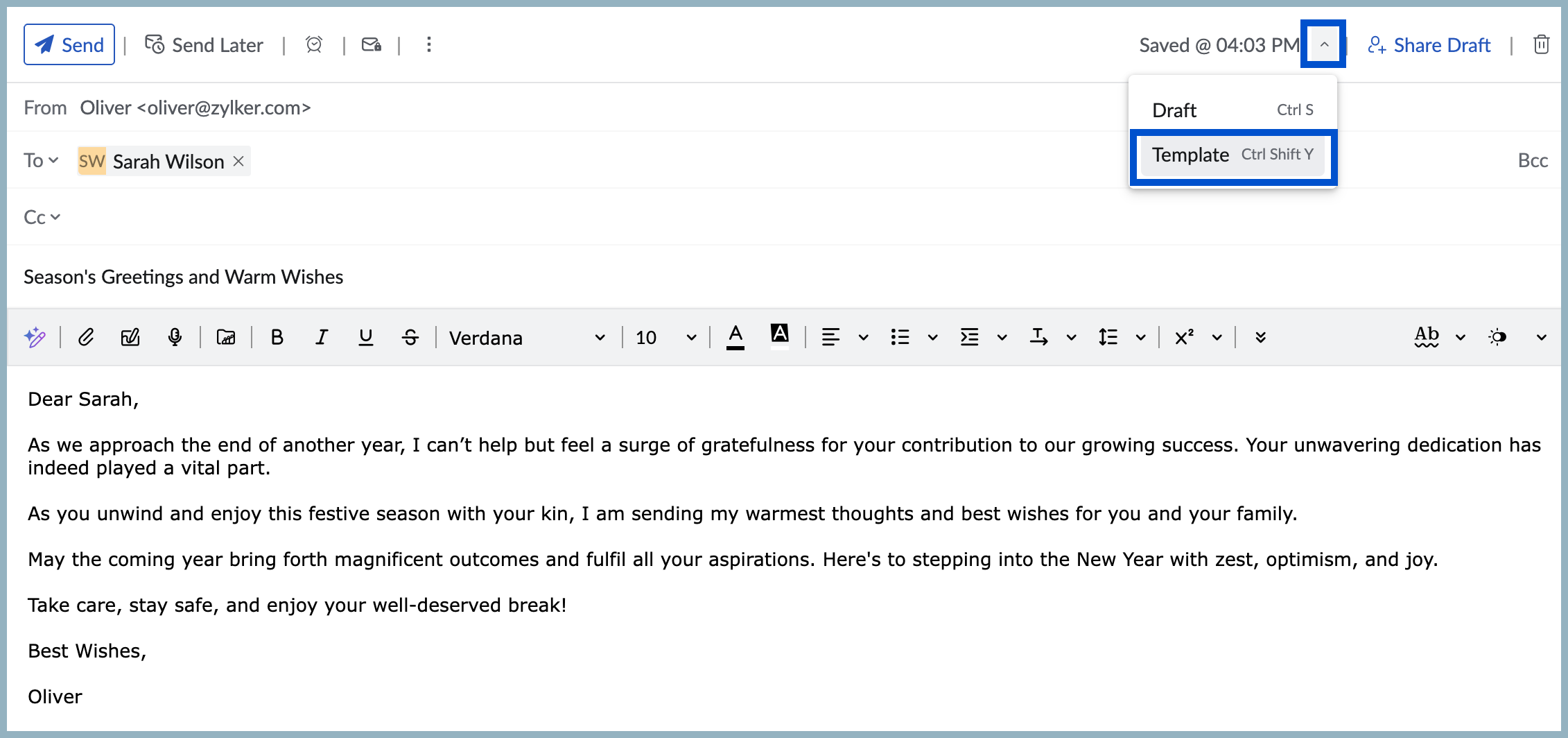
- Select the drop-down near Save to choose the Save Template option.
- The message will be saved in the Templates folder under the ‘All Templates’ category by default.
Use templates to send an email
- Click New Mail to compose a new email.
- Click the Insert template icon in the formatting options.
- You will see the list of templates with the Subject and a Preview of the content. You can also view a detailed preview by clicking the Preview icon. You can use the search bar or browse through the categories to locate the template.
- Click on the relevant template to insert the same to your composer.
Start sending your holiday emails right away!