Organization and security reports in Zoho Mail: Review domain status, login activity, and threats
Administrators need to know whether the organization’s domains are configured correctly and whether its users are being targeted by threats. The organization and security reports in the Zoho Mail Admin Console provide this information, from domain verification status to failed logins and phishing attempts.
What are organization and security reports in Zoho Mail?
The organization reports give consolidated information on the organization’s domain status and email policies. The domains report shows the MX, SPF, and DKIM verification status of each domain, and the email policies report shows the limits set under each policy and the users and groups associated with it. The activity summary report adds an overview of Mail and Cliq activity, and meetings, across the organization.
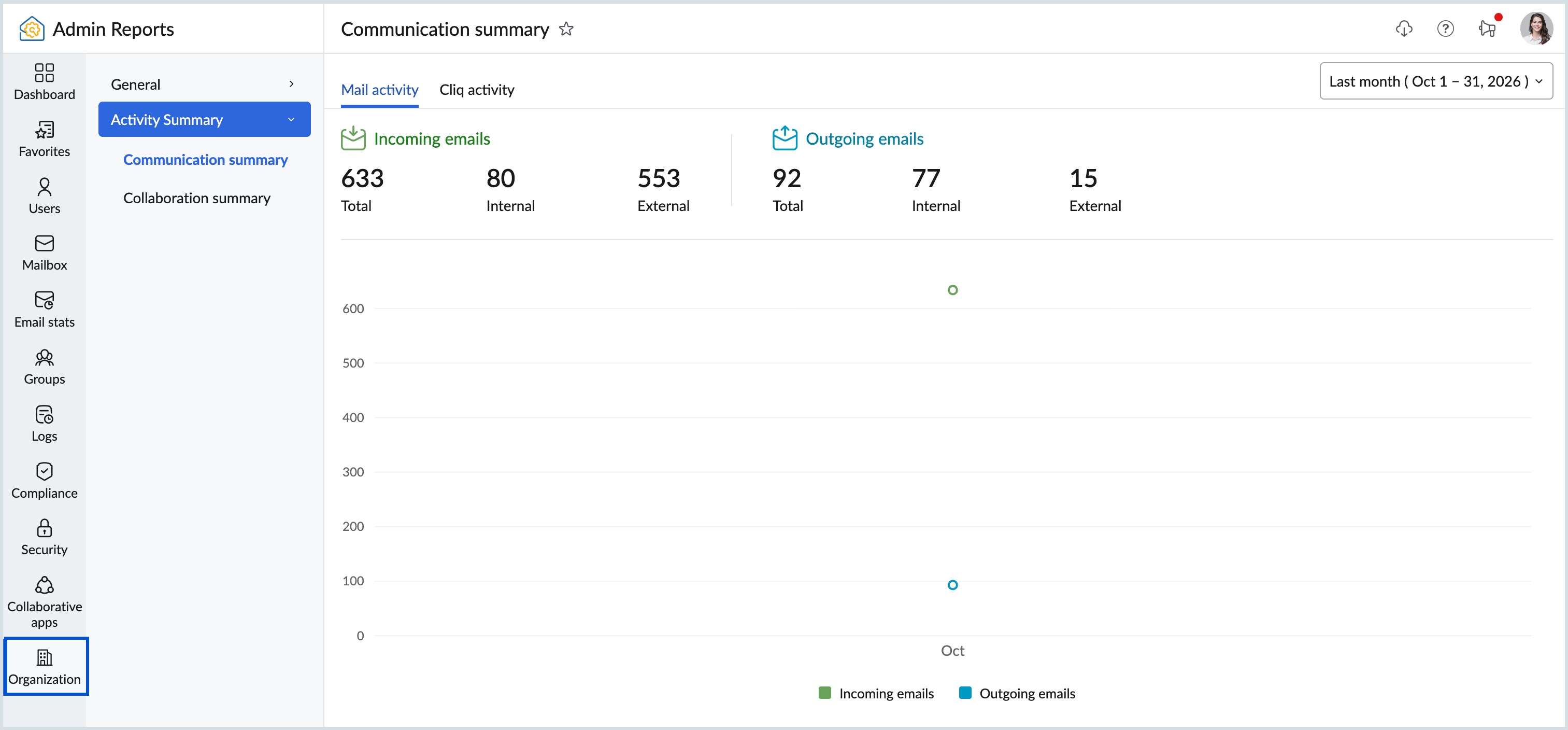
The security reports help administrators monitor user logins and malicious activity. They include login activity, failed login, suspicious login, session history, protocol login activity, protocol failed activity, and threat activity reports.
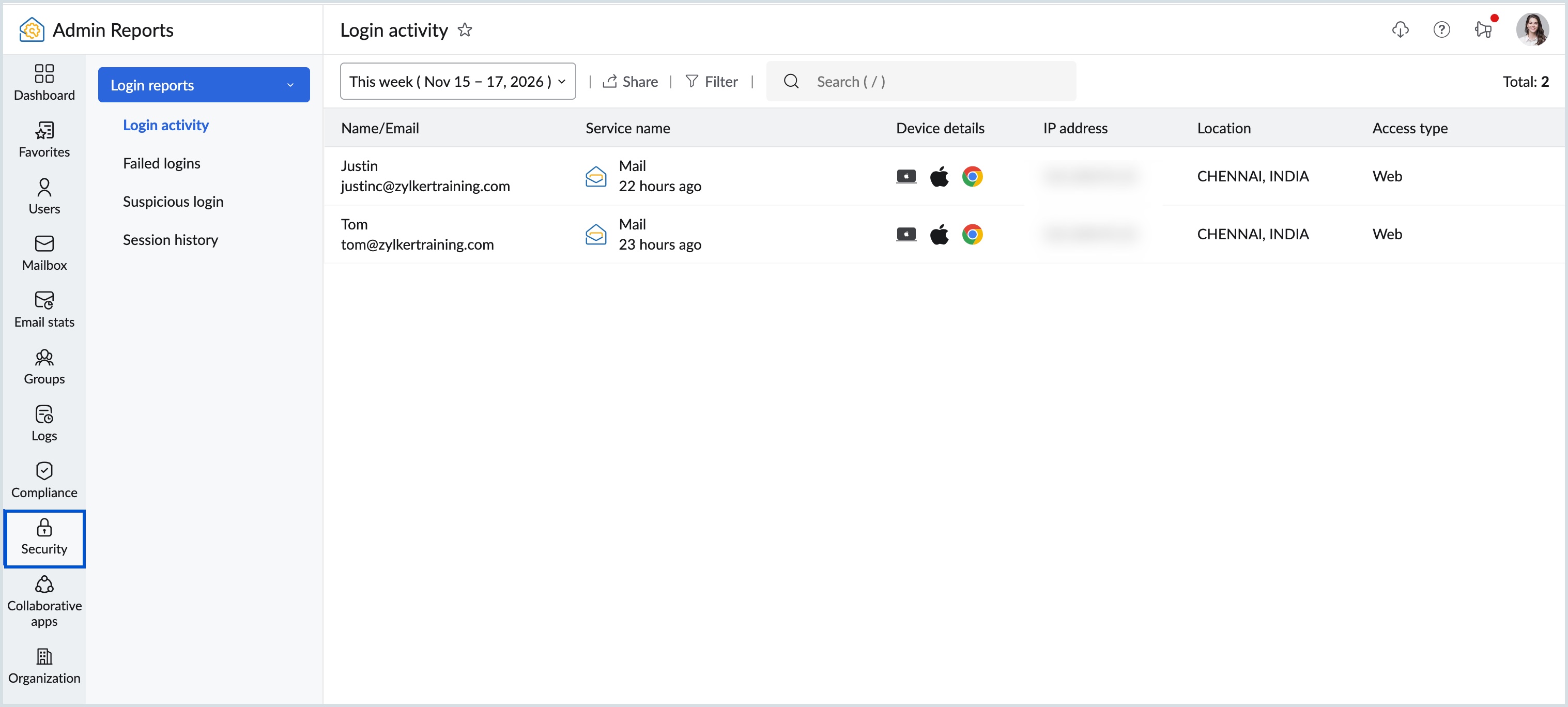
Reports can be filtered, searched, and exported as a CSV file for further analysis.
How can administrators use organization and security reports effectively?
Review email policies: Check the maximum incoming emails per minute and the maximum email size set under each policy, along with the users and groups associated with it.
Track login activity: Review who logged in, from which device, IP address, and location. Failed login and Suspicious login reports help in spotting unauthorized access attempts early.
Monitor POP and IMAP access: The Protocol login activity and Protocol failed activity reports show how users connect through POP or IMAP, and flag repeated failures.
Respond to threats: The Threat activity report lists phishing, bulk spam marking, virus detection, and anomalies in a user’s incoming and outgoing emails. For example, if a user clicks a URL in a spam email, an admin can see it in the report and educate the user.
Steps to access organization and security reports
Log in to the Zoho Mail Admin Console and select Reports from the left pane. The Admin Reports page opens in a new tab.
Select Organization or Security from the left pane.
Select the required report from the available options.
Use the date filter, Filter, and Search options to narrow down the data.
Click Share in the top pane to download the report as a CSV file or share it, and encrypt it with a password if needed.