Tip #96 – See more of the remote screen with Virtual Monitor – 'Insider Insights'
Hello Zoho Assist Community!
Say you're supporting a device that has no monitor attached, like a server in a closet or a kiosk PC. You connect, and the screen is tiny, blurry, or distorted. Text overlaps and windows end up in odd places. Troubleshooting becomes slow and frustrating.
Or maybe the remote machine has just one display, and you're juggling several windows on it.
Virtual Monitor is built for both cases.
What is Virtual Monitor?
Virtual Monitor lets you add an extra virtual display to a remote device during an unattended access session. The display can go up to 2K resolution. Because the device gets a proper display to render to, you get a clear, correctly sized view even when no physical monitor is connected.
It works through a virtual display driver, ZAVirtualDisplayDriver, which is set up automatically during your first unattended session.
Before you begin
The remote device must run Windows 10 or later, 64-bit.
The device must be set up for unattended remote access.
How to add a Virtual Monitor
To add a Virtual Monitor, start an unattended access session with the remote device and go to the Session tab. Click Add Virtual Monitor, and a prompt will appear on the remote device asking to install the driver. Click Install; selecting the checkbox in the prompt is recommended for a smoother experience.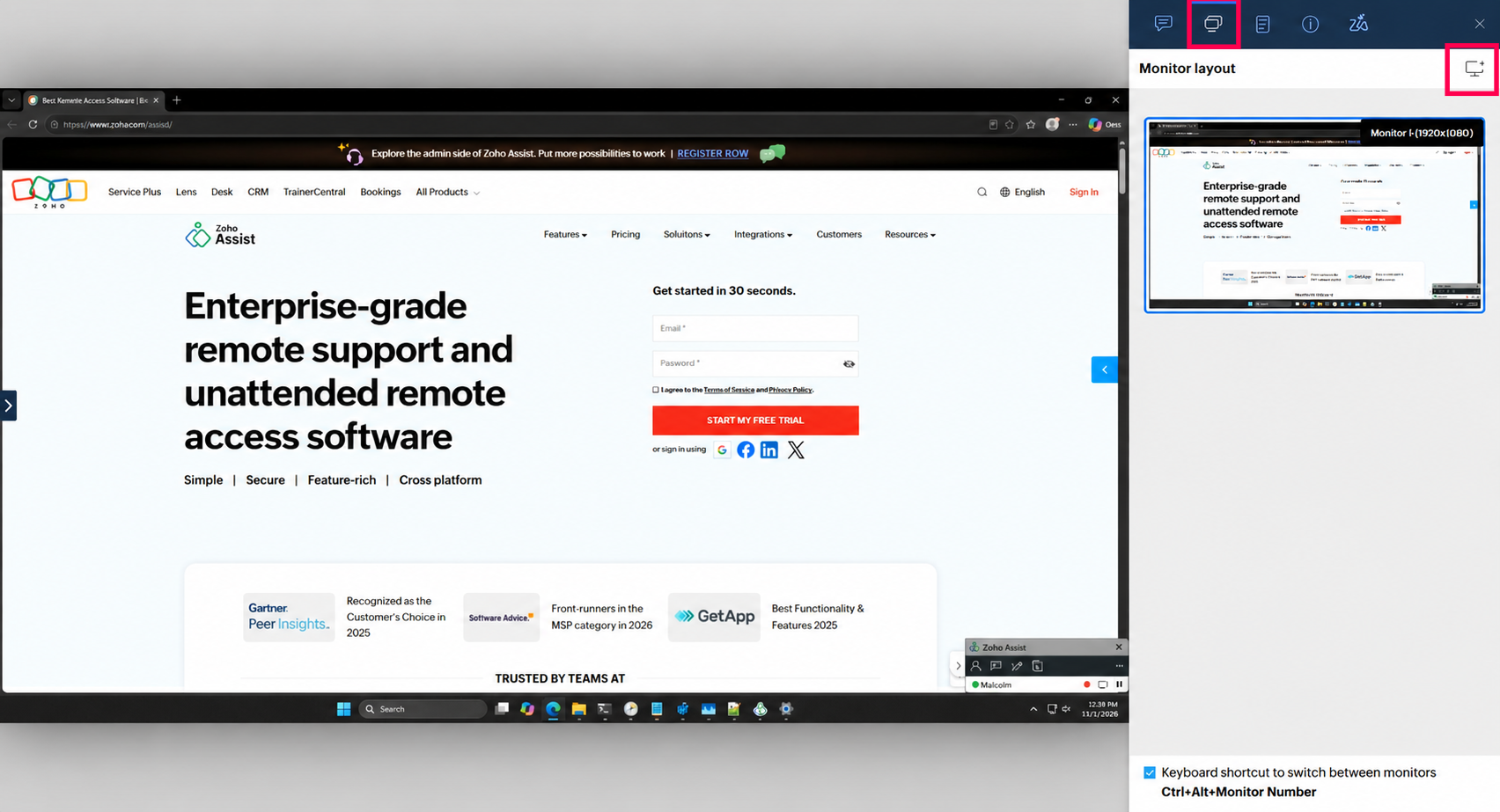
The virtual monitor now appears in your session. When you're done, go to the Session tab and click Remove Virtual Monitor. You can add or remove it from both the web client technician console and the Windows native technician console.
Where does it help?
Headless devices: View and control the system as if a real monitor were connected, and pick a resolution up to 2K for a sharper, clearer view.
Extra workspace: On a single-monitor device, the virtual display gives you more room to spread out windows, navigate, and troubleshoot.
No extra hardware: Get a second display without adding a physical monitor to the remote device.
Next time you connect to a headless or single-screen device, add a Virtual Monitor and see how much easier the session feels. Tell us how it goes in the comments, and share any other topics you'd like covered in the series.