Weekly Tips : Make your email content error free with Spell check in Zoho Mail

Weekly Tips : Make your email content error free with Spell check in Zoho Mail

As someone who writes multiple emails a day, we are bound to make both grammatical and spelling errors. Most of them we may not even notice, and even if we do, we may not have the time to correct each one individually when we are in a hurry. So how do you make sure your content is error-free without breaking your writing flow? 

With Zoho Mail’s Spell checker, your work becomes much easier. It detects all your errors as you write and provides quick suggestions to correct them.

Spell check

Zoho Mail has an inbuilt enhanced Spell checker to correct your spelling and grammar errors on the go. After composing your email, click the Spell check icon. The misspelt words or grammar errors in your email content will be highlighted. Simply click the highlighted words to see a list of possible words with the nearest correct spelling or alternative words. You can also add a word to your custom Dictionary by clicking the Add to dictionary icon so that it doesn't get flagged the next time you spell-check an email.

Enable Spell check

  1. Log into your Zoho Mail account.
  2. Navigate to Settings > Compose > Spellcheck option.
  3. Click on the Checkbox Spell check as you type.
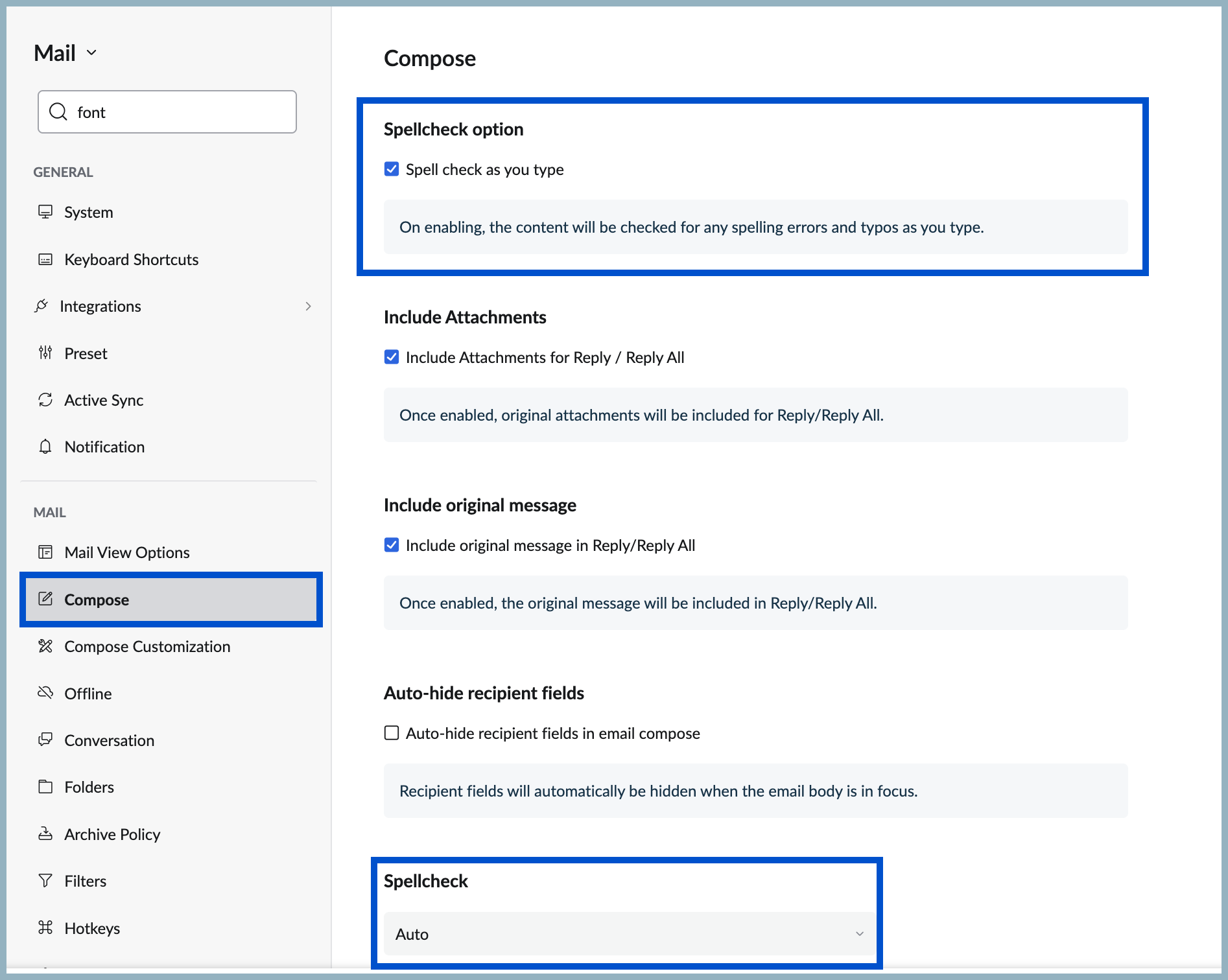
  4. Scroll down to Spellcheck to apply spell check for other languages in Compose.
  5. Then select your preferred language from the options in the Spellcheck drop-down.
No more typos or overlooked mistakes, ensure your content is error free without breaking the writing flow with Spellcheck in Zoho Mail.
    • Sticky Posts

    • Weekly Tips: Insert frequently used phrases in a jiffy using Hotkeys

      You often find yourself using similar phrases in an email —like confirming appointments or providing standard information. Constantly switching between the mouse and keyboard interrupts your flow and slows you down.Instead of typing the same phrases over
    • Weekly Tips : Save Time with Saved Search

      Let's assume your work requires you to regularly check emails from important clients that have attachments and were sent within a specific time period. Instead of entering the same conditions every time—like sender, date range, and attachments included—you
    • Weekly Tips: Protect Confidential Information with PGP in Zoho Mail

      We deal with confidential information almost every day, whether it is being sent out or received. Though emails sent using Zoho Mail are encrypted both during transit and at rest, attempts to access and steal your sensitive data are always a threat that
    • Get Holiday ready with Zoho Mail's Templates

      As the holiday season approaches, it’s time to step away from work and unwind. You may not be able to respond to every email or send individual messages to wish everyone holidays greetings—but It is still important to stay connected. How do you send thoughtful
    • Weekly Tips: Secure your attachment downloads with Zoho Mail

      Safety is one of our main concerns, whether it’s about device security or online protection. We use tools like fingerprint scanners, facial recognition, and two-factor authentication to keep our devices and email accounts secure. We use methods like OTP